Stardock Fences Folder Portals Explained (2026)
One of the most underrated features in Stardock Fences is the Folder Portal — a live window into a real folder that sits directly on your desktop. You point it at a directory, and instead of a single folder icon, you see every file inside that folder laid out as clickable icons on the desktop surface. Change a file in that folder using File Explorer or any other app, and the portal updates automatically.
This guide explains exactly how Folder Portals work, when they genuinely improve your workflow, and where they fall short — plus how Themia's folder widget tackles the same problem with a different approach.
What is a Folder Portal in Stardock Fences?
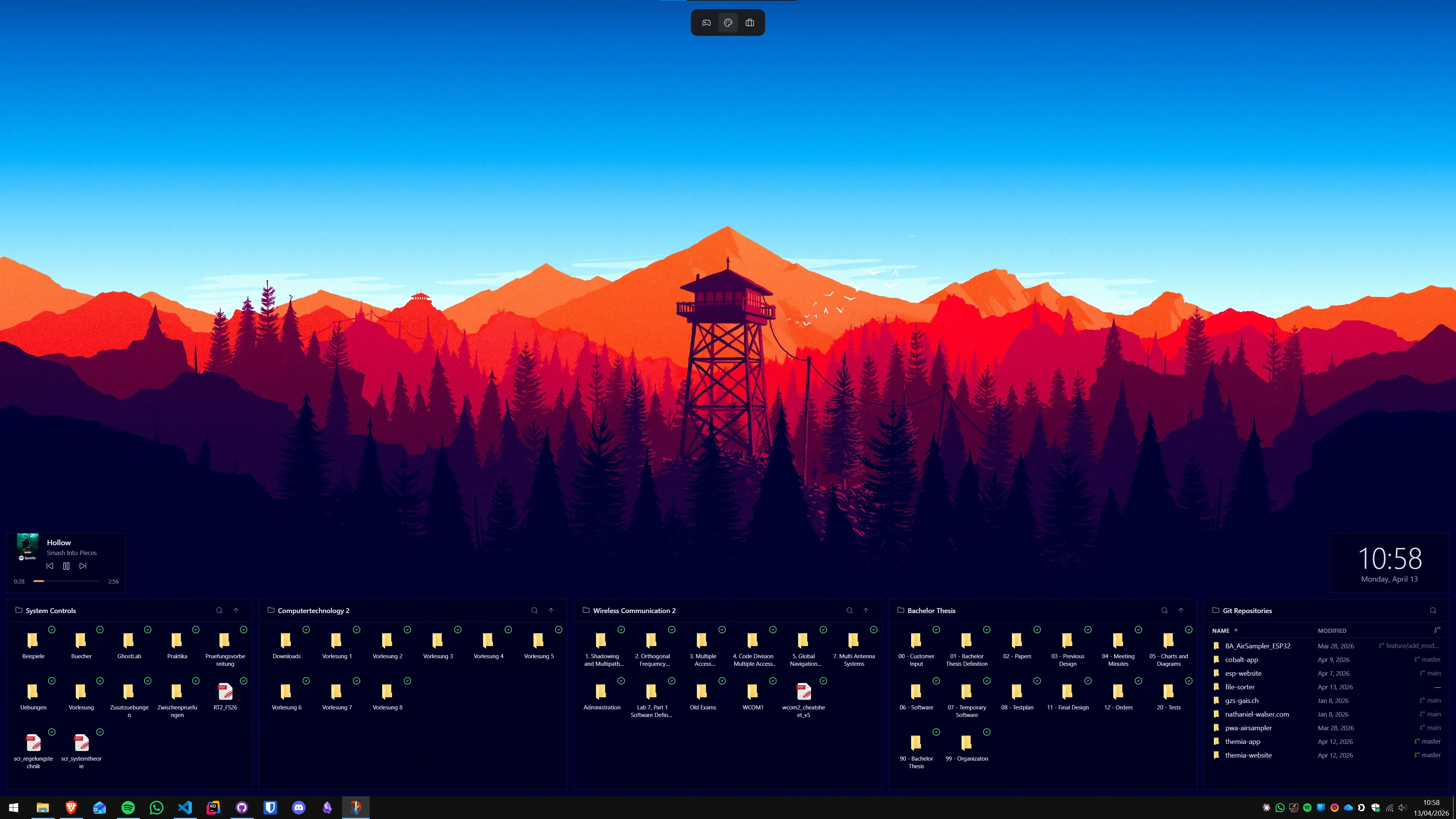
At its core, a Folder Portal is a Fences container that is linked to a real folder on your disk. Instead of manually dragging shortcuts into a Fence, you drag a folder into the Fences surface and Fences asks if you want to create a portal. Say yes, and the container now mirrors that folder's contents.
The mirroring works in both directions: files you see in the portal are the actual files in that folder. Open a file from the portal and you open the real file. Drag something out of the portal and you move the file out of the underlying folder. The portal is not a shortcut to the folder — it is more like a transparent pane into it.
This makes Folder Portals different from everything else on the Windows desktop. A regular desktop shortcut points at a file or folder, but does not show you what is inside. Pinning a folder to the taskbar or Quick Access shows a one-click entry point, but still requires you to open File Explorer to see the contents. A Folder Portal collapses that extra step: the folder's contents are visible on the desktop at all times.
How to create a Folder Portal
The process is deliberate — Fences does not auto-convert every folder you touch into a portal. You have two routes:
- Drag a folder from File Explorer onto the Fences surface. Fences detects that the dragged item is a folder and shows a prompt asking whether you want to add the folder as a shortcut or create a Folder Portal. Choose Portal.
- Right-click inside an existing Fence and choose "Create Folder Portal." A folder-picker dialog opens; navigate to the target directory and confirm.
Once the portal is created, it adopts its own header inside the Fence with a small portal icon that distinguishes it from regular Fences. You can resize the portal's container by dragging its edges, and you can set a title to remind you what folder it points at.
Portals can point at local folders, network-mapped drives, and cloud-synced folders (OneDrive, Dropbox, Google Drive). If you point a portal at a OneDrive folder, it shows the files that are currently synced locally — cloud-only files (the ones with a small cloud badge in File Explorer) appear as icons but will trigger a download when opened.
When Folder Portals genuinely help
The cases where Folder Portals pay for themselves are specific. They are not for everyone, but for the right workflow they remove meaningful friction.
Active project directories
If you work on a project that has a dedicated folder — design assets, code files, documents for a specific client — a Folder Portal means the files are always one click away without opening File Explorer. While you are deep in another app, a glance at the desktop portal tells you immediately what drafts exist, which version is most recent (by filename), and what still needs doing.
This works best when the folder is relatively tightly scoped: ten to thirty files. A portal showing a folder with hundreds of files quickly becomes visually noisy and no easier to navigate than a normal File Explorer window.
Shared team folders on a network drive
Stardock explicitly built Folder Portals with shared-drive use cases in mind. Point a portal at a mapped network path that your whole team writes to, and the portal reflects additions and changes as they happen. In practice this works cleanly when the network path is always mounted and the connection is reliable — if the drive disconnects, the portal shows empty or stale content until reconnected.
Download staging
Some users point a Folder Portal at their Downloads folder so they can see recently downloaded files on the desktop without having to open a file manager. This works, though Downloads folders tend to accumulate items quickly, and a large portal chews up significant desktop space.
Where Folder Portals fall short
Folder Portals are powerful within Fences' paradigm, but there are limits worth knowing before building a workflow around them.
- No live data beyond file names. The portal shows file icons and names. It does not show file contents, metadata beyond what an icon conveys, or any dynamic information about the files (last modified time, size, version). You see a document named
report-v3-final.docx— you do not see what changed since v2. - Icon clutter at scale. Fences lays out portal contents as individual icons in a grid, the same way the classic Windows desktop works. If a folder has fifty files, you get fifty icons in the portal. Sorting helps, but dense portals are not significantly easier to scan than a regular folder window.
- No widget context alongside the files. Fences is an icon organizer. The portal shows you files — not live email about those files, not a calendar reminder about a deadline attached to a project, not the GitHub status of a repo in that folder. Fences and live-information tools are solving adjacent but different problems.
- You still need Fences installed and running. Folder Portals are a Fences feature — they require the Fences process to be running. Fences 6 starts at $9.99 (check stardock.com for current pricing and license options). That is a reasonable price for what it does, but worth factoring in if you want the portal feature specifically.
How Themia's folder widget compares
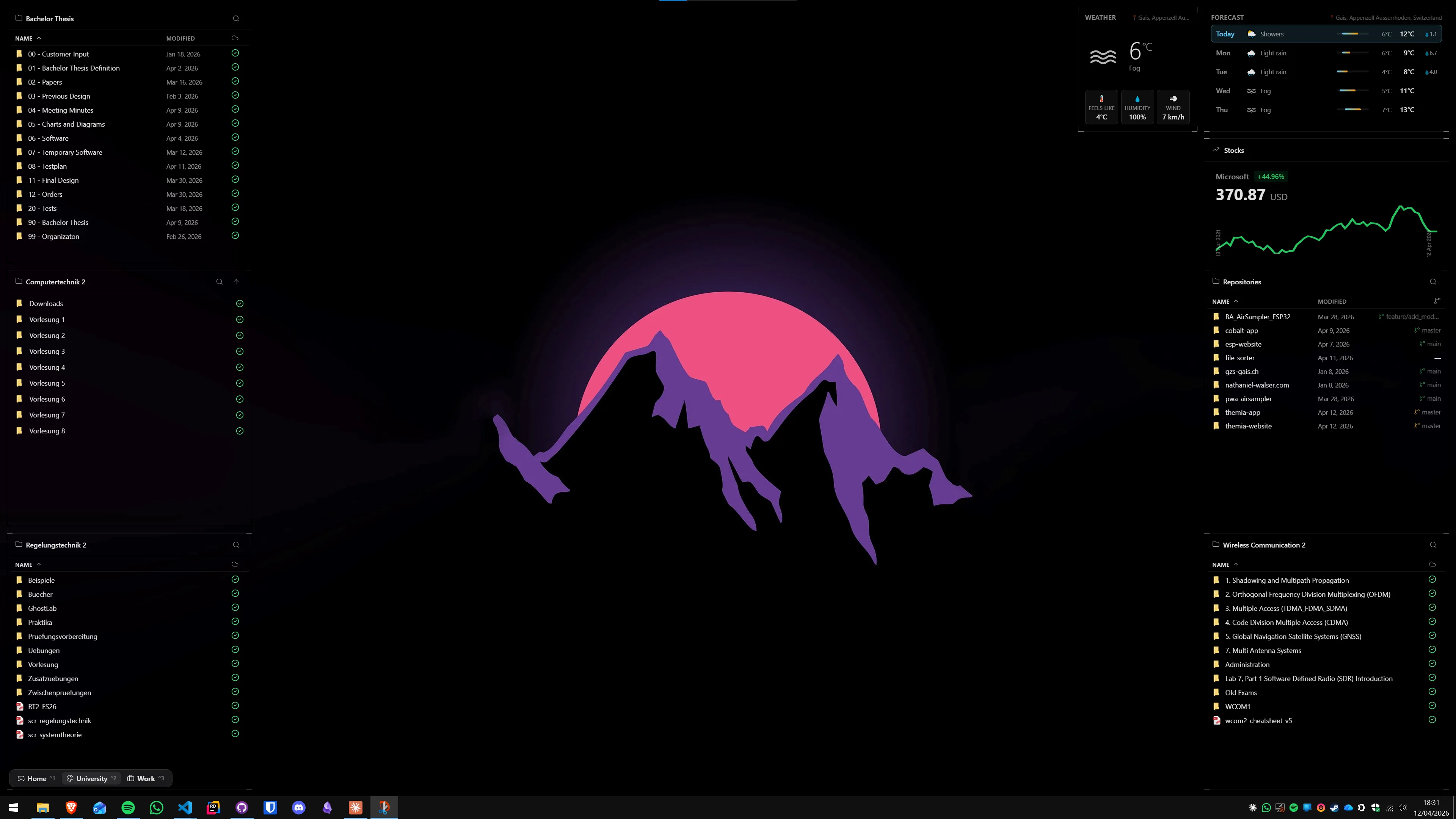
Themia takes a different approach to the same problem. Instead of spreading file icons across the desktop surface, Themia's folder widget is a compact panel widget that shows the contents of a pinned folder in a scrollable list. You can add it to the desktop alongside other widgets — weather, calendar, system stats, GitHub — and pin as many folder widgets as you like, each pointing at a different directory.
The practical differences between a Fences Folder Portal and a Themia folder widget:
- Layout: Fences uses an icon grid that expands across the desktop. Themia uses a compact list widget that takes up a fixed, resizable rectangle. If desktop space is limited, the Themia widget wins on density.
- Context: Themia widgets exist in the same layer as email, weather, calendar, notes, stocks, and system stats. Your folder widget sits next to a calendar reminder and a GitHub widget — the information ecosystem is richer. Fences portals live in the icon layer with no ambient information alongside them.
- Price: Themia has a free tier that covers the folder widget and several others. The one-time $19 Pro upgrade unlocks the full widget set and customization options. Fences starts at $9.99 (see Themia's pricing page for a direct comparison).
- File manipulation: Fences portals let you work with files as icons — drag them, double-click to open, right-click for the full Windows context menu. Themia's widget is more of a navigator panel: you click a file to open it, but you do not get the drag-out-to-move behavior you get from a Fences portal.
Neither is objectively better. If your primary need is a live icon view of a folder that behaves like a proper Windows icon area, Fences Folder Portals are the more faithful recreation of that experience. If you want folder access as one part of a broader live-information dashboard, Themia integrates it more cleanly.
For a deeper look at the two tools side by side, our Themia vs. Stardock Fences comparison covers all the major differences, and our guide on how to pin a folder to the Windows desktop walks through every method — Fences portals included.

Tips for getting the most out of Folder Portals
If you decide Folder Portals fit your workflow, a few habits make them significantly more useful:
Keep portal folders focused
A portal is most useful when the underlying folder has a clear, bounded purpose and a manageable number of files — ideally under thirty. A portal pointed at a deeply nested project folder with one active sub-project is more useful than a portal pointed at the top-level Documents directory. If you find yourself squinting at a portal trying to find a file, the folder is probably too broad.
Use meaningful fence titles
Give each portal a clear title in the Fence header — not just the folder name, but what the folder is for. "Q3 Reports" is more scannable than "Reports_2026_Q3_v2". The Fences header is narrow, so short titles work better.
Pair portals with Fences' auto-organize rules
Fences has a separate auto-organize feature that automatically routes new desktop icons into designated Fences based on rules (file type, name pattern, origin). Folder Portals and auto-organize work independently, but you can set up a workflow where new downloads are routed into a "Downloads" Fence that also has a portal to your Downloads directory — effectively a staging area for new files that is always visible on the desktop. See our Stardock Fences alternatives roundup for context on what the auto-organize feature does and how other tools approach the same problem.
Consider two monitors
If you use multiple monitors, Folder Portals can be placed on a secondary screen and left fully expanded — a permanent file-access panel on a screen you use for reference, while the main display stays clean. Fences handles multi-monitor setups well, and portals are just as useful on secondary screens as primary ones. For more on multi-monitor desktop organization, see our guide on using widgets on dual-monitor Windows setups.
Should you use Folder Portals or a folder widget?
The honest answer depends on what else you want on your desktop.
If your desktop customization goal is purely to organize and access files and folders more efficiently, Stardock Fences Folder Portals are genuinely excellent. They mirror your file system to the desktop surface in a way that feels natural and responds to changes immediately. The icon-grid metaphor is familiar, the drag-and-drop behavior matches Windows conventions, and the integration with the rest of Fences (auto-organize, quick-hide, roll-up) adds cohesion.
If you want your desktop to show both file access and live information — email counts, calendar events, weather, system load, GitHub status — Fences Folder Portals are not the right tool for that broader goal. Fences is excellent at organizing static icons; it does not show live data. Themia is built around live-data widgets, and the folder widget is one piece of a larger information layer rather than the whole product.
The two tools are not mutually exclusive. There is an argument for running both — Fences for icon organization and portals, Themia for live-data widgets — though that also means two apps with two separate configurations. Our article on using Themia and Fences together covers whether that combination is worth the overlap.
FAQ
What is a Stardock Fences Folder Portal?
A Folder Portal is a Fences feature that mirrors a real Windows folder directly onto your desktop inside a Fences container. Instead of placing shortcuts manually, you point a portal at a folder (say, your Downloads or a project directory) and every file that appears in that folder also appears in the portal — automatically. When files are added or removed in the real folder, the portal updates. The files shown are not copies; they are live references to the originals.
Does Stardock Fences Folder Portal work with network or cloud folders?
Yes — Folder Portals can point at any path Windows can address, including network shares (mapped drives or UNC paths) and folders synced by OneDrive, Dropbox, or Google Drive. The portal will show whatever the sync client has available locally at the time you look. Files marked as cloud-only (not yet downloaded) appear as normal icons but will need to sync before you can open them.
How is a Folder Portal different from pinning a folder shortcut to the desktop?
A regular desktop shortcut is a static icon that opens the folder when double-clicked — it does not show what is inside. A Folder Portal displays the live contents of the folder as individual file icons inside a Fences container, so you can see and open files without ever opening File Explorer. The practical difference: you glance at the portal and immediately know what is in that folder, rather than having to open it to find out.
Can Themia show folder contents on the desktop like Fences Folder Portals do?
Themia's files widget shows pinned folders on your desktop and lets you browse into them with a click, opening a view of the folder's contents inside the widget. It is a widget panel rather than an icon grid, and files are opened directly from the widget. It is a different interaction model from Fences — Fences spreads individual file icons across the portal surface, Themia shows them in a compact scrollable list. Which fits better depends on whether you prefer a spreadout icon view or a compact list.
Do I need Stardock Fences Pro for Folder Portals?
Folder Portals are included in the standard Fences 6 purchase. Check stardock.com for the latest pricing; Fences 6 starts at $9.99. The feature is not locked behind an additional tier.
What happens when I drag a file out of a Folder Portal?
Dragging a file out of a Folder Portal moves the file out of the underlying folder on disk. This is the same as moving a file in File Explorer — the original folder loses that file. If you want to create a shortcut to a file without moving it, hold Alt while dragging to create a shortcut instead of moving the original.