How to Add a Pomodoro Timer to Your Windows Desktop
The Pomodoro Technique is simple: work for 25 minutes without interruption, take a 5-minute break, repeat. The hard part on Windows is finding a timer that stays visible without demanding your attention, does not clutter the screen, and does not become its own distraction.
This guide covers every practical method to get a Pomodoro timer working on Windows 10 and 11 in 2026 — from the built-in option that most people do not know exists to dedicated apps and Rainmeter skins — and explains how to pair a timer with a desktop widget setup so your task list stays on screen throughout the session.
Why the timer needs to be on the desktop, not in a tab
Most people start with a browser-based Pomodoro timer — Pomofocus.io, TomatoTimer, or similar. They work, but there is a structural problem: the timer lives in a browser tab. Switching to that tab costs a few seconds and a context shift. Worse, the browser is also where your email, Slack, and every other distraction lives. Switching to check the timer becomes switching to check everything else, which defeats the exercise.
A timer that is already on the desktop — always visible, impossible to accidentally close — removes that friction completely. You glance at it the same way you glance at a clock. The four methods below all solve the problem; they trade off setup effort against visual control.
Method 1: Windows 11 Focus Sessions (built-in, no install needed)
Windows 11 ships with a Focus Sessions feature inside the built-in Clock app. It is not marketed heavily, but it works well and costs nothing. It integrates with Microsoft To Do so your task list appears next to the countdown.
- Press Win, type Clock, and open the Clock app.
- Click Focus Sessions in the left sidebar.
- Set your focus duration with the slider — the default is 30 minutes but 25 is the classic Pomodoro interval. Break length is configurable in the app's settings (gear icon at the top right of the Clock app).
- Connect Microsoft To Do if you want your task list to appear in the same window. This step is optional — the timer works without it.
- Click Start focus session. The Clock app shows the countdown and plays a subtle chime when the interval ends.
Pros: completely free, built in, no download, integrates with Microsoft To Do, optionally syncs with Spotify so music pauses at break time.
Cons: the timer lives inside the Clock app window — you still need the Clock app open on your taskbar or minimised. It does not embed into the wallpaper itself. The Spotify integration requires a Spotify account and does not work with other music players.
Who it is for: most people. If you are already a Microsoft To Do user and you have Windows 11, this is the right starting point with zero extra setup.
Method 2: Pomotroid (dedicated Pomodoro app, free and open-source)
Pomotroid is a purpose-built Pomodoro timer for Windows. It is free, open-source (MIT licence), and available both from its GitHub repository and through the Microsoft Store. Unlike Focus Sessions, it is a standalone app with no dependency on Microsoft To Do or a Microsoft account.
The app is built with Electron, which means it is not as lightweight as a native Windows app, but the footprint is modest. What it does well: a progress ring on the taskbar icon shows exactly how far through the current interval you are, so you can check the timer with a single glance at the taskbar without switching windows at all. Custom sounds, custom interval lengths, dark mode, always-on-top mode, and a session log are all included.
- Search for Pomotroid in the Microsoft Store, or download the installer from the GitHub releases page for the project.
- On first launch, go to Settings (the gear icon) and adjust focus, short break, and long break durations to your preference. Classic Pomodoro: 25 / 5 / 15.
- Enable Always on top if you want the timer window to float over other apps — useful when working in full-screen applications.
- Optionally enable Minimize to tray so the app disappears from the taskbar between glances. The tray icon still shows the progress ring.
- Start a session and let the rhythm do its work.
Pros: clean, purpose-built UI; taskbar progress ring means you almost never need to switch windows; no Microsoft account required; open-source with no ads.
Cons: Electron runtime means higher memory use than a native app (typically 100–200 MB); does not embed on the desktop wallpaper itself.
Who it is for: people who want a dedicated Pomodoro app with good visual feedback and no strings attached.
Method 3: Pair a Pomodoro timer with desktop widgets
None of the timer methods above put your task list on the desktop. You are counting down to complete a task — but the task is buried in To Do, or written on a sticky note, or living in a tab. A desktop widget layer solves that half of the equation.
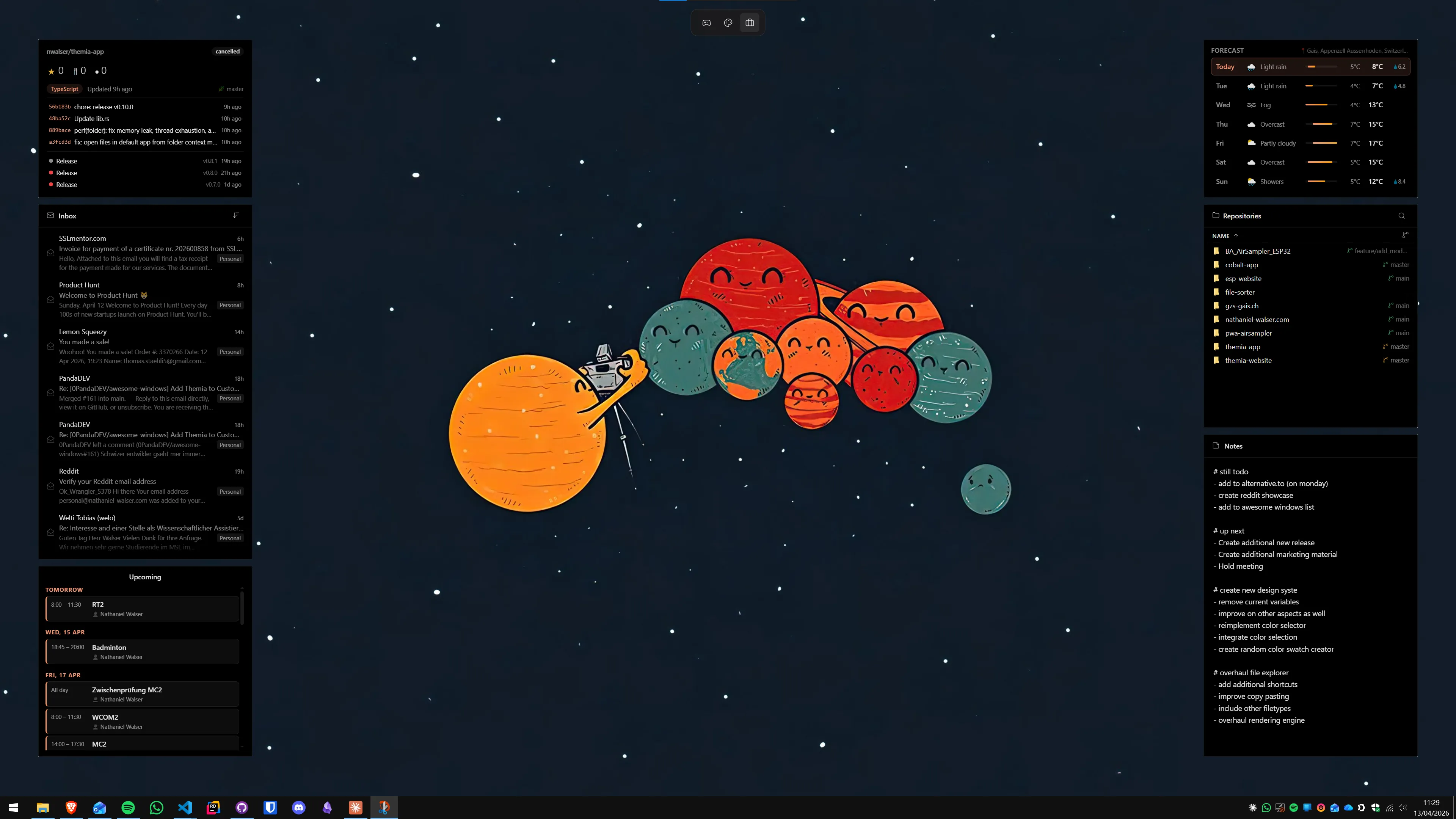
A persistent to-do widget on your desktop wallpaper means your current Pomodoro task is always visible. You look at the screen, you see the task and — if the timer is a separate app in a corner — you see how much time is left, all without switching windows. This is the full Pomodoro setup: a timer for the rhythm, a widget layer for the context.
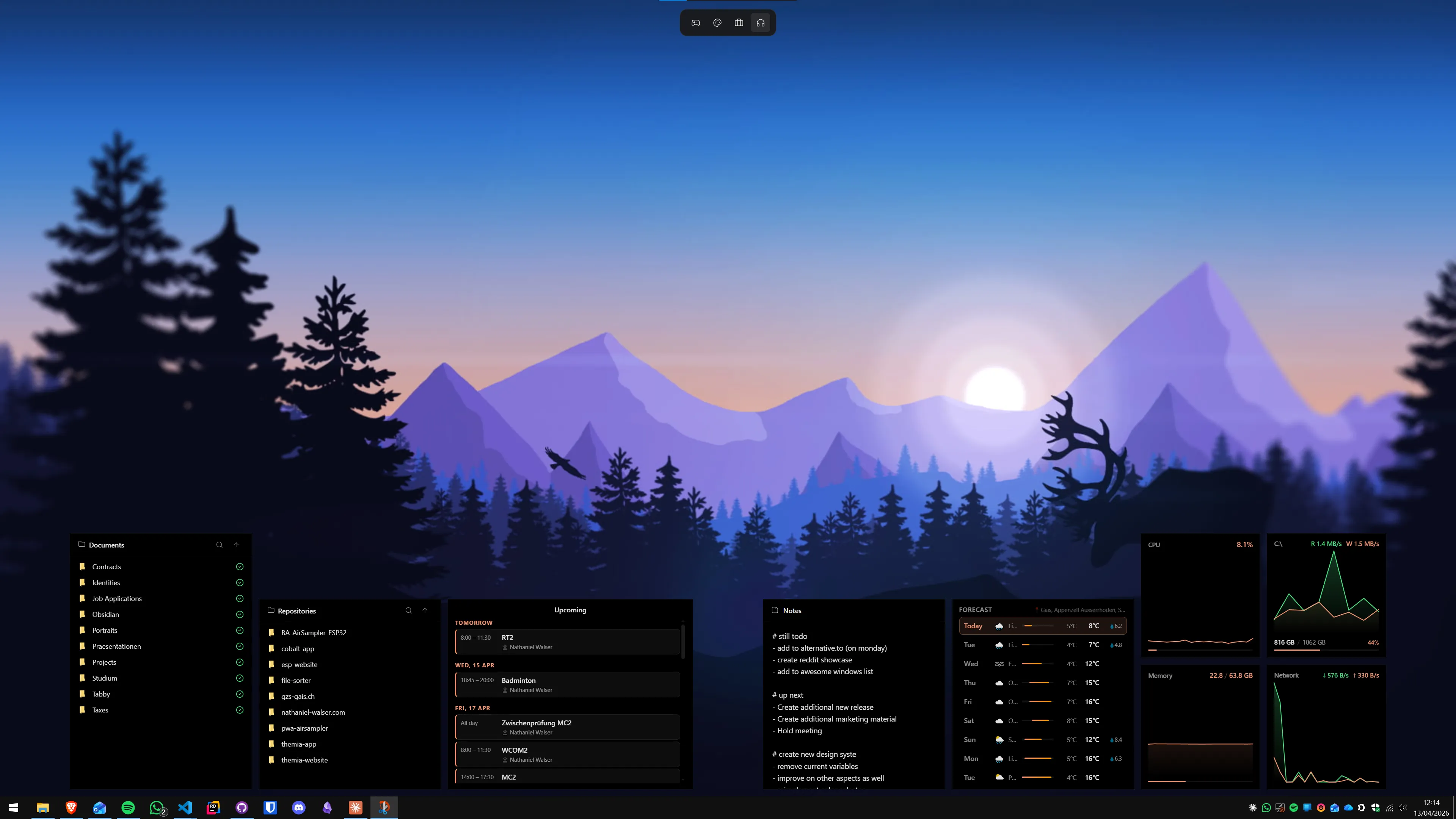
Themia is the easiest way to get a persistent to-do widget on Windows. It is a native desktop widget app (built on Tauri, under 10 MB) that puts widgets directly on the wallpaper layer — not in a panel you open, not in a floating window you drag around. The to-do widget shows your task list at whatever size you place it; notes widget works for quick scratch thoughts during a session; calendar widget keeps today's schedule visible.
- Download Themia from the Themia website and run the installer.
- Right-click the desktop, choose Add widget → To-Do, and position it somewhere you can always see it — typically the top right corner.
- Add your current Pomodoro task as the top item in the list.
- Run your Pomodoro timer (Focus Sessions or Pomotroid) in parallel. The timer drives the 25/5 rhythm; the to-do widget keeps the task in view.
- When a session ends, update the to-do and start the next interval.
This combination works better than a single "all-in-one Pomodoro app" because the task list is always visible even when the timer is minimised, and the desktop is useful for non-Pomodoro work too. You can extend the widget layer to show a calendar widget, a notes widget for the current session, or a system stats widget — none of them interrupt the focus session, they just sit there.
The free tier of Themia covers the to-do and notes widgets. The Pro upgrade ($19 one-time) unlocks additional widget styling and the full widget set including email, calendar sync, stocks, and GitHub, but for a Pomodoro workflow the free tier is sufficient.

Method 4: Focus To-Do (Pomodoro plus task management in one app)
Focus To-Do is a Windows app that combines a Pomodoro timer with a full task management system. It is available on the Microsoft Store and has a free tier with a reasonable feature set; a subscription unlocks cloud sync, calendar integration, and statistics tracking across devices.
The app is more opinionated than Pomotroid — it wants to be your task manager as well as your timer. If you are already using Things, Todoist, Notion, or Microsoft To Do for task management and you only want the timer, Focus To-Do adds friction. If you are looking for a single app to handle both the task list and the Pomodoro rhythm, it is worth a look.
Pros: task management and Pomodoro timer in one place; statistics on focus time per project; available on Windows, Android, and iOS for cross-device sync.
Cons: subscription required for cross-device sync and calendar integration; adds another app to your workflow if you already have a task manager you like; heavier than Pomotroid for timer-only use.
Who it is for: people who do not have a task manager yet and want Pomodoro timing built in from the start.
Method 5: Rainmeter timer skin (maximum visual control)
Rainmeter, the open-source Windows desktop scripting engine, can display a countdown timer directly on the desktop wallpaper layer — no app window, no taskbar icon, just numbers and a progress arc painted onto the background. Several skins implement Pomodoro timers with start/pause controls, interval counting, and sound alerts, all configurable via the skin's INI file.
The setup cost is real. You need to install Rainmeter, find and install a timer skin, read the skin's configuration file to adjust intervals, and troubleshoot anything that does not work out of the box. Expect 30–90 minutes on first setup. The result is visually striking and integrates with a broader Rainmeter layout if you are already using one — but if you are not already a Rainmeter user, this path requires substantial investment for what is ultimately just a countdown timer.
A better path for most people: combine a lightweight dedicated timer (Focus Sessions or Pomotroid) with a proper desktop widget dashboard using Themia. You get the always-visible task context without the configuration overhead of Rainmeter.
Suppressing notifications during focus sessions
A Pomodoro timer on the desktop does not help if banner notifications for email, Teams, or browser alerts fire every three minutes. Windows 11 has a Do Not Disturb mode (renamed from Focus Assist in earlier builds) that suppresses banners for a defined period.
- Go to Settings → System → Notifications.
- Toggle Do not disturb on at the start of each focus interval, or configure it to activate automatically during Clock Focus Sessions (the integration is built in — enable "During a focus session" under the Do Not Disturb automatic rules).
- Alarms and the timer itself are allowed through by default. You will hear the end-of-session chime.
- For Pomotroid, the task is similar — check the Do Not Disturb rules so it does not get suppressed itself.
With notifications silenced, the timer handled, and your task list visible on the desktop, the only thing left to do is the actual work.
Which method to use
- You are on Windows 11 and already use Microsoft To Do: Focus Sessions in the Clock app. Zero extra install, Spotify integration, task list in the same window.
- You want a dedicated timer with no Microsoft account: Pomotroid. Lightweight, open-source, taskbar progress ring, no strings.
- You want your task list permanently on the desktop: Pomotroid or Focus Sessions for the timer, Themia for the to-do widget layer. The two halves complement each other cleanly.
- You want everything in one app and do not mind a subscription: Focus To-Do.
- You are already deep into Rainmeter and want the timer on the wallpaper: a Rainmeter Pomodoro skin. Otherwise the setup cost is not worth it for a timer alone.
FAQ
Does Windows 11 have a built-in Pomodoro timer?
Not a classic Pomodoro timer, but the Windows 11 Clock app (built-in, free) has a Focus Sessions feature that works on the same principle: you set a focus duration (25 minutes is the default), it counts down, then prompts you to take a break. It integrates with Microsoft To Do so your task list appears alongside the timer. You can change the focus and break durations in Clock settings.
What is the Pomodoro Technique and why do people use it on Windows?
The Pomodoro Technique, created by Francesco Cirillo in the late 1980s, structures work into focused intervals — classically 25 minutes — separated by short breaks of 5 minutes, with a longer 15–30 minute break after every four intervals. The goal is to reduce mental fatigue, limit distractions, and make large tasks feel manageable. People want a timer on their Windows desktop because switching to a browser tab or phone to check the timer is itself a distraction.
Does Pomotroid work on Windows 11?
Yes. Pomotroid is a free, open-source Electron-based Pomodoro timer available from its GitHub repository (g07cha/pomotroid) and also via the Microsoft Store. It runs fine on Windows 10 and Windows 11. The app sits in the taskbar with a progress ring on its icon so you can see the countdown without switching windows. Custom timer durations, sounds, and light/dark themes are all available.
Can I use a desktop widget app like Themia as a Pomodoro timer?
Themia does not have a built-in countdown timer widget. What it does have is a persistent to-do widget and a notes widget that work well alongside a dedicated Pomodoro timer: the to-do widget keeps your current task visible on the wallpaper, and you run the Pomodoro countdown with Focus Sessions or Pomotroid. The two tools complement each other — the timer drives the rhythm, the widget keeps the task in view.
How do I stop Windows notifications from interrupting my Pomodoro sessions?
Use Focus Assist (called Do Not Disturb in newer Windows 11 builds). Go to Settings → System → Notifications → Do Not Disturb. You can set it to turn on automatically during Focus Sessions so that banner notifications are suppressed for the duration of your work interval. Alarm and clock apps are allowed through by default. This pairs well with any Pomodoro app — the system handles the silence so the timer only has to handle the countdown.
Is there a Rainmeter Pomodoro skin?
Yes, several have been published on DeviantArt and the Rainmeter community forums over the years. Quality and maintenance vary — search for "Rainmeter Pomodoro" or "Rainmeter timer" to find current ones. Rainmeter skins can embed a countdown directly on the desktop wallpaper layer, which looks impressive, but setting one up takes significantly more time than installing a dedicated app like Pomotroid or using Focus Sessions.