How to Make Windows 11 Look Like macOS (2026)
The macOS desktop has a specific quality that a lot of Windows users find appealing: a minimal dock at the bottom, clean translucent elements, no icons cluttering the wallpaper, and a sense that each interface element has been thought about. You do not need to buy a Mac to get close to that aesthetic. With the right combination of small, focused tools, Windows 11 can be transformed convincingly.
This guide goes layer by layer — dock, taskbar, window chrome, wallpaper, icons, and finally a desktop widget layer for the information that macOS users often miss when they switch platforms. Everything here is reversible and none of it requires editing system files.

Step 1 — Remove the visual clutter first
Before adding anything, reduce the default Windows 11 desktop to its minimal form. This takes five minutes and makes the transformation dramatically more effective.
- Hide desktop icons. Right-click the desktop → View → uncheck "Show desktop icons". Your wallpaper should be the only thing you see.
- Auto-hide the taskbar. Right-click the taskbar → Taskbar settings → toggle "Automatically hide the taskbar". It disappears until you hover at the bottom edge.
- Disable the Widgets button. Taskbar settings → Taskbar items → toggle Widgets off. The wind-gap icon and its MSN news panel will stop appearing.
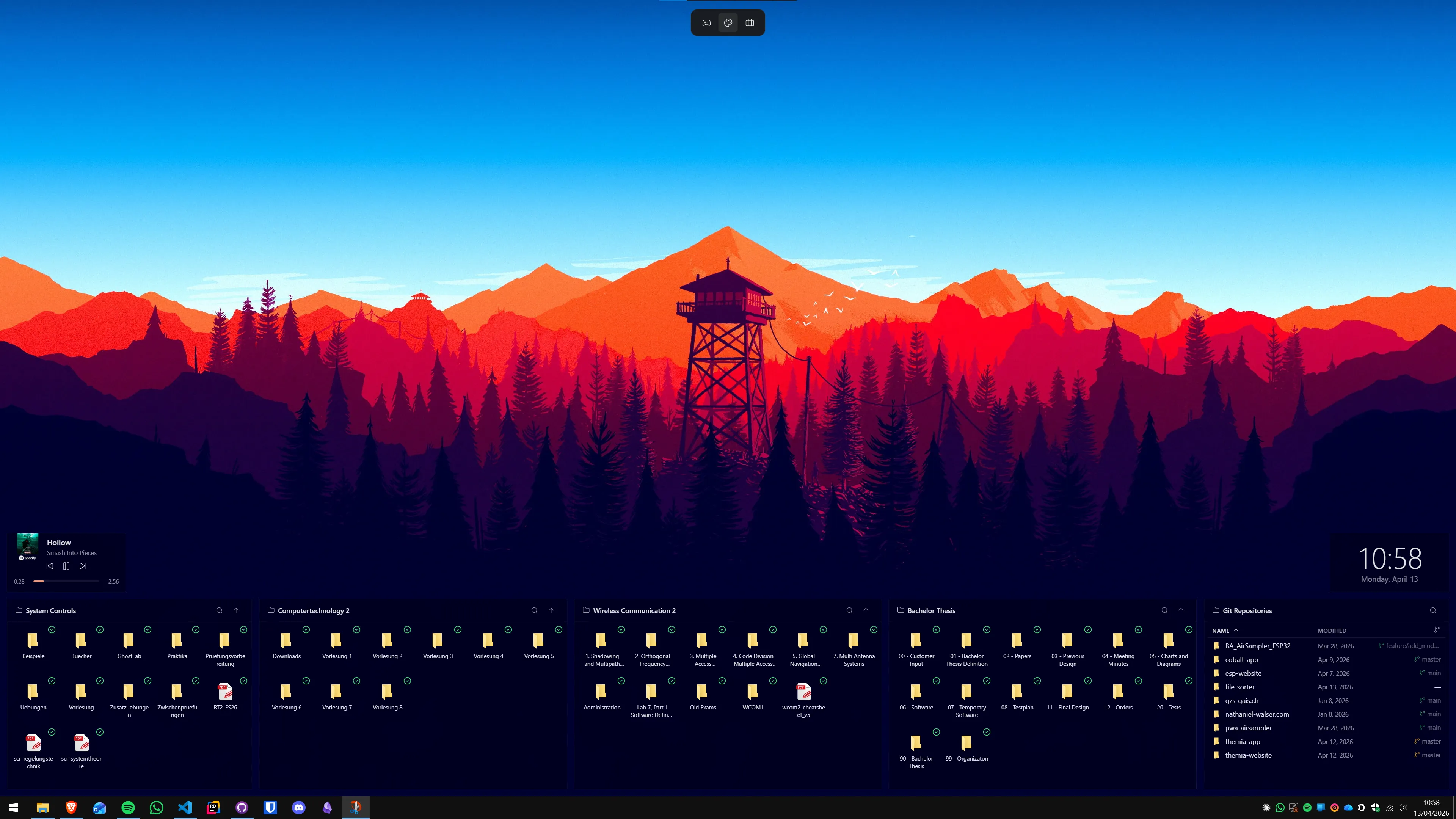
- Set a macOS-style wallpaper. Apple's macOS Ventura and Sonoma wallpapers are widely available in 6K resolution. Search for "macOS Sonoma wallpaper 6K" to find them. The gradients and landscape photography are distinctive without being loud.
The result is a blank, calm desktop. Now you have a canvas.
Step 2 — Add a macOS-style dock
The single most recognisable element of a Mac desktop is the dock. Windows 11 has no equivalent built in. There are three tools that do this credibly.
MyDockFinder (paid, ~$4.99)
MyDockFinder is the most polished macOS dock simulator available for Windows. It reproduces the icon magnification effect on hover, the Finder-style bar, and the correct spacing and proportions from macOS Big Sur and Ventura. Icons bounce on launch. It picks up running app state with a dot indicator. You can pin apps, add folders, and resize the dock. Available on Steam and its own website. The $4.99 price is a one-time purchase.
The main limitation is that MyDockFinder is its own shell overlay — it sits on top of the desktop, not integrated into Windows. For most use cases this works fine.
Nexus Dock (free)
Nexus Dock from WinStep is free and has been around for years. It does not have the magnification physics of MyDockFinder, but it is functional and unobtrusive. If you want to try the dock workflow before spending anything, start here. The configuration interface is dated but the dock itself works cleanly.
RocketDock (free, older)
RocketDock is the veteran option. It still works on Windows 11 but is no longer actively developed. Mention it here only because it still has a large collection of community skins. If visual customisation matters more than polish, RocketDock's skin ecosystem is worth browsing.
Step 3 — Polish the taskbar
Even with an auto-hidden taskbar, its appearance when visible matters. Two free tools handle this well.
TranslucentTB
TranslucentTB makes the Windows taskbar transparent, blurred (Acrylic mode), or a custom colour. It is free, open source, and available in the Microsoft Store — no admin rights needed, no system file edits. Set it to "Clear" when a window is not maximised and you get a taskbar that recedes into the wallpaper. This is the closest approximation to the macOS menu bar transparency effect applied to the Windows taskbar.
TranslucentTB can also be configured to switch to an opaque or tinted state when a window is maximised, which prevents text from being unreadable against the wallpaper. This is a useful quality-of-life feature worth enabling.
RoundedTB
RoundedTB adds rounded corners to the taskbar, optionally splitting it into a floating pill shape that sits above the bottom edge of the screen. This matches the macOS aesthetic better than the default full-width taskbar. RoundedTB is also free and in the Microsoft Store. It combines naturally with TranslucentTB — run both simultaneously.
Step 4 — Replace the Start menu (optional)
The Windows 11 Start menu is a significant departure from macOS's Spotlight-based launcher. If you want a more macOS-like app launching experience, two tools are worth considering.
StartAllBack (~$4.99) restores a Windows 10-style Start menu while adding options for a more refined visual style. It integrates cleanly with RoundedTB and TranslucentTB.
Start11 by Stardock ($6) offers more layout options including a centred launcher style. Both are commercial and actively maintained.
Alternatively, you can skip Start menu replacement entirely and rely on the dock for launching apps. Many people who do the macOS transformation end up not using the Start menu much at all — the dock plus Windows Search (Win+S) covers the same ground.
For a broader look at the Windows desktop customisation landscape, the 2026 Windows Desktop Customization Guide covers these tools in more depth.
Step 5 — Apply macOS-style icons
macOS uses rounded-square icons with a consistent design language across system apps. Windows uses a mix of styles that vary significantly by application age and developer taste. Bringing icon consistency to Windows takes a bit of effort but has a high visual impact.
Where to find macOS-style icon packs
DeviantArt hosts extensive icon packs that reproduce the macOS Ventura and Big Sur icon style for common Windows apps. Search for "macOS Sonoma icons Windows". The packs typically come as a folder of .ico or .png files with a ReadMe explaining how to apply them.
How to apply custom icons
For individual shortcuts and folders: right-click → Properties → Change Icon → Browse to the .ico file. This works for any shortcut on the desktop or in the Start menu. For app pinned to the dock in MyDockFinder, drag and drop replacement icons directly in the dock settings.
Winaero Tweaker is a free utility that makes bulk icon replacement easier, particularly for system folder icons. It does not modify system DLL files — it writes icon path overrides to the registry, which is cleanly reversible.
Step 6 — Window chrome and font rendering
macOS renders fonts with subpixel smoothing that produces a slightly different visual weight than Windows ClearType. The gap is smaller than it was ten years ago, but if typography matters to you, two adjustments help.
First, open ClearType Text Tuner (search "ClearType" in Start) and run through the calibration. The default settings are optimised for the average monitor, not necessarily yours.
Second, MacType is a free tool that applies macOS-style font hinting to Windows. It requires installation and a system restart, and it works best on high-DPI screens. On a 1080p display the results are subtle. On a 4K or 1440p monitor the difference is more noticeable. MacType is open source and has been maintained for over a decade, so it is a safe choice if typography is important to your setup.
For window corner radius: Windows 11 already applies rounded corners to all windows by default. If you are still on Windows 10 or have disabled this via a registry tweak, MicaForEveryone (free, GitHub) can add the Mica material and rounded corners to older applications that do not support it natively.
Step 7 — Add a desktop widget layer
One thing macOS users often miss when looking at Windows transformations is that macOS has Notification Centre widgets (from macOS Sonoma, also interactive widgets in the background). Windows 11 does not have first-party always-visible desktop widgets that sit on the wallpaper. That gap is where a dedicated widget app fits.
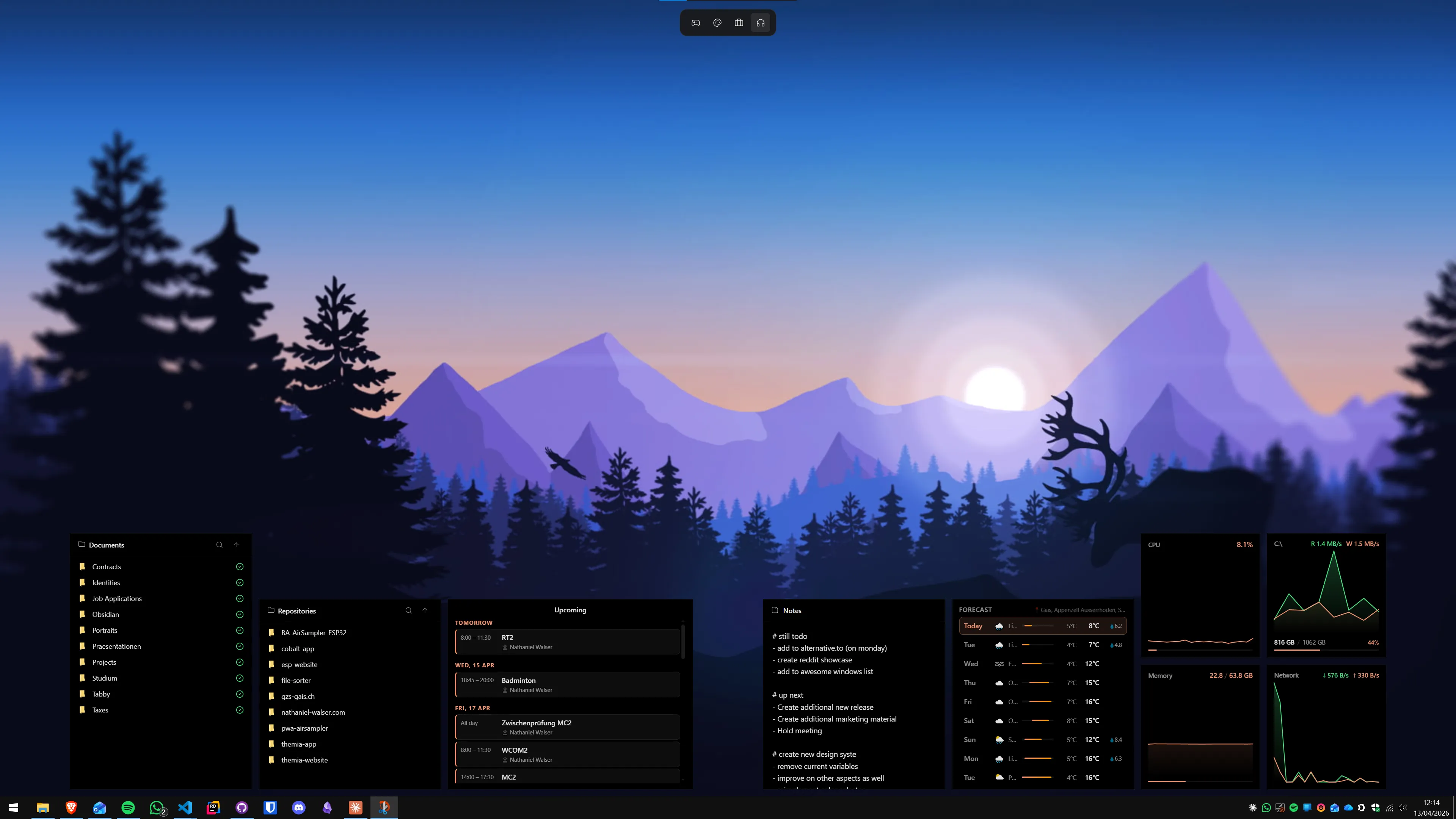
Themia is a native Windows desktop widget app (built on Tauri, under 10 MB) that places live widgets directly on the wallpaper — calendar, weather, system stats, notes, to-do, music, email, RSS, and more. The widgets sit below all app windows and above the wallpaper, so they are always visible when you glance at the desktop between tasks. This is the exact behaviour macOS interactive desktop widgets have in Sonoma.
The free tier includes core widgets. The Pro tier ($19 one-time) adds the full widget set and per-screen layout switching — which matters if you are running a dock on one monitor and want a different widget layout on a second screen. See the Themia pricing page for details.
For a full tutorial on building a productivity widget layout, the productivity dashboard guide walks through placement and widget selection in detail.
Step 8 — The animated wallpaper layer (optional)
Apple's macOS has shipped animated wallpapers since macOS Sonoma — slow-moving nature scenes that change with the time of day. You can approximate this on Windows with either Lively Wallpaper (free, open source, Microsoft Store) or Wallpaper Engine ($3.99 on Steam, enormous community library).
Lively Wallpaper includes a built-in library of looping nature videos and supports custom videos. For a macOS feel, search its library for slow-moving landscapes — aerial shots of mountains and coastlines work well. Wallpaper Engine has a dedicated section of macOS-style wallpapers in its Steam Workshop that community members have uploaded.
The performance cost of an animated wallpaper is higher than everything else in this guide combined. On a modern discrete GPU it is barely measurable. On an integrated graphics laptop it can add noticeable battery drain. Test it for a day and check Task Manager's GPU graph before committing.
The complete tool stack
Here is the full set of tools this guide recommends, with cost and source:
- MyDockFinder — macOS dock ($4.99, Steam / own website)
- TranslucentTB — transparent taskbar (free, Microsoft Store)
- RoundedTB — floating pill taskbar (free, Microsoft Store)
- StartAllBack or Start11 — Start menu (optional, ~$4.99–$6)
- Winaero Tweaker — icon management (free, winaero.com)
- MacType — font rendering (free, GitHub)
- Themia — desktop widgets (free tier / $19 Pro)
- Lively Wallpaper — animated wallpaper (free, Microsoft Store)
You do not need all of these. Most people get 80% of the macOS feel from just the dock, TranslucentTB, and a good wallpaper. Add widgets if you want information on your desktop; add MacType only if font rendering bothers you.
What this transformation does not do
Honest limitations are worth stating clearly. This guide does not give you:
- A macOS menu bar. The macOS global menu bar (app menus in the top-left corner of the screen) has no Windows equivalent. The closest is a docked menu app, but nothing recreates it convincingly.
- Mission Control / Exposé. Windows has virtual desktops and Task View (Win+Tab), which cover the same use case but with a different interaction model. They are not the same.
- Spotlight search feel. Windows Search is functional but has a different personality. PowerToys Run (free, from Microsoft) comes closer to Spotlight's keyboard-first design.
- macOS app ecosystem. This is a visual transformation, not a compatibility layer. If specific macOS apps are the reason you want a Mac, the visual transformation is the wrong solution.
For a broader look at Windows desktop customisation tools beyond the macOS direction, the Windows ricing guide covers the full scope of visual customisation including synthwave, minimalist, and cyberpunk aesthetics.
If you are coming from the other direction — looking at what Windows-native widget and desktop tools exist without the macOS framing — the best Windows desktop widget apps roundup is a good starting point.
Frequently asked questions
Can you make Windows 11 look exactly like macOS?
Close, but not identical. You can match the dock, the centered taskbar, translucent menus, macOS-style wallpapers, and even macOS cursor themes. What you cannot replicate natively is the macOS menu bar (top-of-screen global menus) or the exact window chrome — Windows and macOS have fundamentally different window manager designs. Most people who do this transformation end up with something that feels macOS-inspired rather than a pixel-perfect clone, which is probably a healthier goal anyway.
Is it safe to use ExplorerPatcher or StartAllBack on Windows 11?
Both are widely used and generally safe for personal machines. ExplorerPatcher is open source (MIT license) and modifies Windows Shell in memory rather than patching system files, so it can be uninstalled cleanly. StartAllBack is a commercial app (~$4.99) with a clean uninstaller. The main risk with either is that a Windows Update can occasionally break them temporarily until the developer pushes a compatibility fix. Neither modifies system files in ways that cannot be reversed. Avoid lesser-known shell replacement tools that are not actively maintained.
Which dock app is best for a macOS look on Windows?
MyDockFinder is the most visually accurate macOS dock simulator for Windows — it reproduces the magnification effect, the Finder bar feel, and the Big Sur / Ventura icon style. It costs around $4.99. Nexus Dock (WinStep) is a free alternative with less polish. RocketDock is older but free and still functional. For most users trying the macOS look for the first time, starting with the free Nexus Dock to see whether they like the workflow before paying for MyDockFinder is a reasonable approach.
Does hiding the taskbar break anything in Windows 11?
No. Auto-hiding the taskbar is a built-in Windows setting (right-click the taskbar → Taskbar settings → Automatically hide the taskbar). Windows 11 still shows the taskbar when you hover at the bottom of the screen. All notification popups, the clock, and system tray icons remain accessible. The only practical downside is that taskbar badges (unread email counts on pinned app icons) are less visible. Everything works normally — you are just changing the display behaviour, not disabling the shell component.
What wallpaper should I use for a macOS-style Windows desktop?
Apple releases official macOS wallpapers with each macOS version. The Big Sur hills gradient, Ventura's macOS Ventura stock image, and the Sonoma landscape series are all easily found with a web search for "macOS Sonoma wallpaper 6K" — Apple has not prevented redistribution. Sites like WallHaven and Unsplash also have high-quality nature and gradient wallpapers that match the macOS aesthetic. For the animated Big Sur wallpaper effect, Lively Wallpaper (free) can run a looped video version.
Will these macOS-style tools slow down Windows?
Minimally. TranslucentTB adds essentially nothing to CPU or RAM — it hooks into the taskbar rendering pipeline and does one thing efficiently. RoundedTB is similarly lightweight. MyDockFinder and Nexus Dock draw a dock layer that uses a modest amount of GPU for the magnification effect. The heaviest element is typically a live animated wallpaper through Lively Wallpaper or Wallpaper Engine, which can use 100–400 MB of RAM and some GPU. If you skip the animated wallpaper and use a static image, the entire macOS transformation stack uses well under 100 MB of RAM combined.
Can I run both a macOS-style dock and desktop widgets at the same time?
Yes, and this combination works well. A dock at the bottom, an auto-hidden taskbar, and a set of always-visible widgets (calendar, weather, notes, system stats) in the upper right of the wallpaper gives you the macOS aesthetic with the information density that macOS users sometimes miss. Themia handles the widget layer and plays well with dock apps — it does not touch the taskbar or dock at all.