How to Show Email Notifications on Your Windows Desktop
Most people manage email by keeping a browser tab open or an app minimised in the taskbar, then alt-tabbing whenever they want to check it. It works — but it means email controls everything. Every time you wonder whether something important came in, you have to break whatever you were doing to look.
A persistent email widget on the desktop flips that dynamic. The unread count and the most recent sender or subject line sit on the wallpaper, visible every time you see the desktop. You glance, you know, you decide — without opening anything or breaking focus. This guide covers every practical method for putting email information on your Windows 10 or 11 desktop in 2026, from the built-in options through dedicated widget apps and Rainmeter.
What Windows gives you without any extra software
Before reaching for a third-party tool, it is worth understanding what Windows 11 offers natively for email visibility.
- Toast notifications. Windows 11 shows a brief popup in the lower-right corner when a new email arrives in any account connected to the built-in Mail app or Outlook. The notification includes sender name and subject. It disappears after a few seconds and does not remain visible on the desktop.
- Action Center badge. The notification bell in the taskbar shows a count of unread notifications (including emails) when new items arrive. Open the Action Center (Win + N) to see a list. Again, this is behind a click — not persistently visible.
- Mail app taskbar badge. If you pin the Windows Mail app (or the new Outlook for Windows) to the taskbar and enable badge notifications, the app icon shows a small unread count. This is the closest thing to always-visible email information without a widget: it is always in the taskbar, shows a count, and updates automatically.
- Windows Widgets Board (Win+W). The built-in Widgets Board does not include a native email widget in Windows 11 as of 2026. You can see weather, calendar snippets, and news, but there is no first-party email panel.
None of these put a persistent, styled email panel directly on the desktop wallpaper layer. For that, you need one of the methods below.
Method 1: Pin Mail or Outlook to the taskbar with badge notifications (zero install)
This is the fastest option and requires nothing beyond what Windows already includes. If you use the built-in Mail app or the new Outlook for Windows:
- Open Mail or Outlook, right-click its taskbar icon, and select Pin to taskbar.
- Open Settings → System → Notifications, find Mail or Outlook in the app list, and ensure both Notifications and Show notification badges on taskbar buttons are enabled.
- The app icon now shows a small numbered badge when unread messages are waiting.
Pros: zero install, instant setup, updates in real time, works with any account type Mail or Outlook supports (Exchange, Gmail, Outlook.com, IMAP).
Cons: a small badge on a taskbar icon is easy to miss; no subject line or sender preview; not on the desktop surface itself.
Who it is for: anyone who checks email occasionally and just needs a visible count that does not interrupt their workflow.
Method 2: Use a desktop widget app (recommended for most people)
The cleanest option for always-visible email information on the desktop wallpaper layer is a widget app that renders directly onto it. The two most practical choices in 2026:
Themia
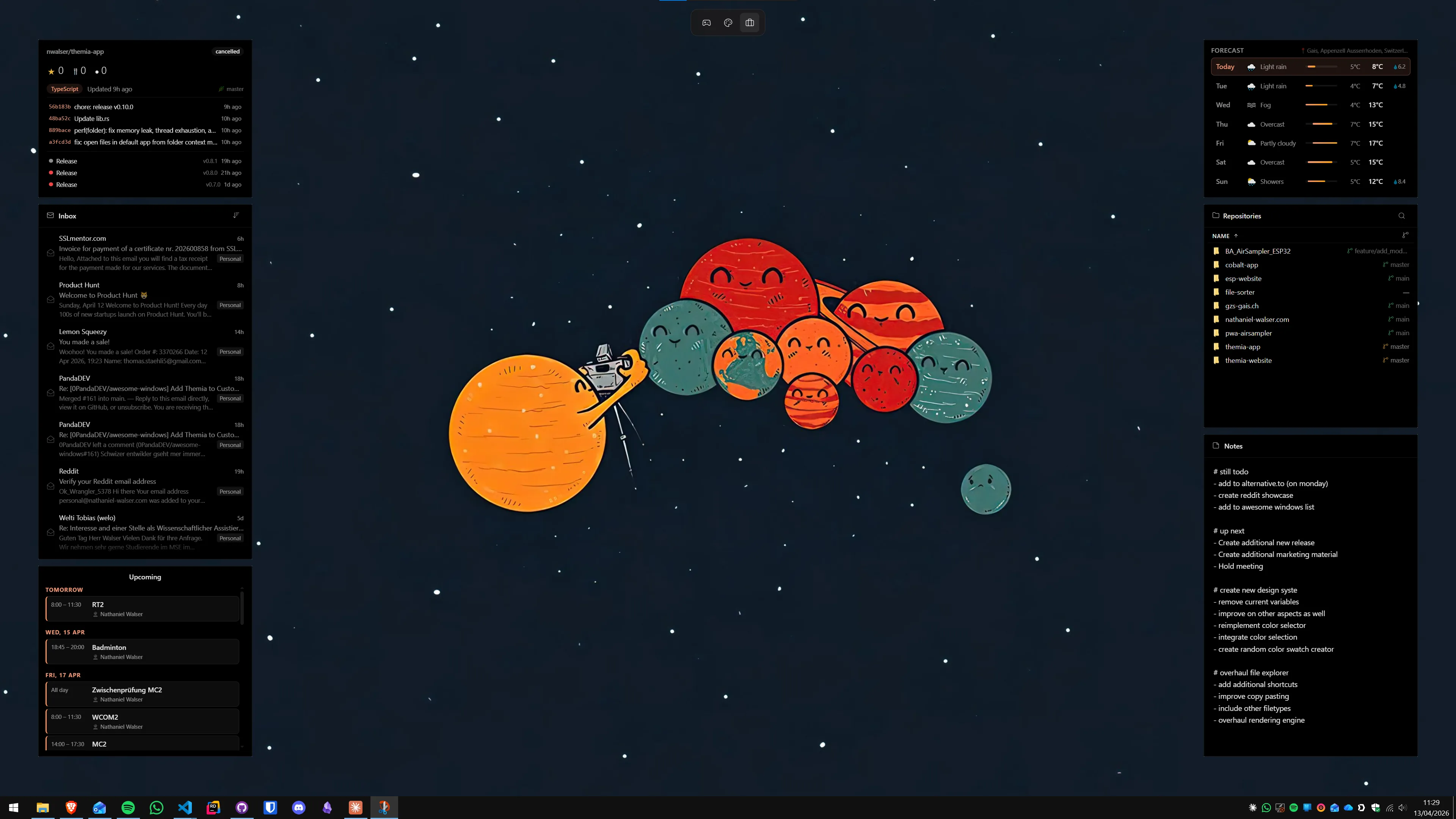
Themia is a native Windows widget app built on Tauri — the installer is under 10 MB, it runs on Windows 10 and 11, and it does not require a browser engine or .NET runtime in the background. Its email widget connects to any IMAP mailbox and displays the unread count, the most recent sender names, and subject line previews directly on the desktop wallpaper.
- Download and install Themia from the Themia website.
- Right-click the desktop and choose Add widget → Email.
- In the widget settings, enter your IMAP server address, port, and credentials. For Gmail, use
imap.gmail.comport 993 with an app-specific password. For Outlook.com, useoutlook.office365.comport 993. - The widget appears on the desktop. Drag to position it, resize by dragging a corner, and set the polling interval in settings.
Pros: native app with a tiny footprint, IMAP support covers virtually every email provider, styled preview on the wallpaper, freely positioned, no browser tab consuming memory.
Cons: requires IMAP access — some corporate environments block IMAP by policy; some advanced theming requires the $19 Pro unlock.
Who it is for: most people in this guide — you want an always-visible email count on the desktop with minimal setup friction.
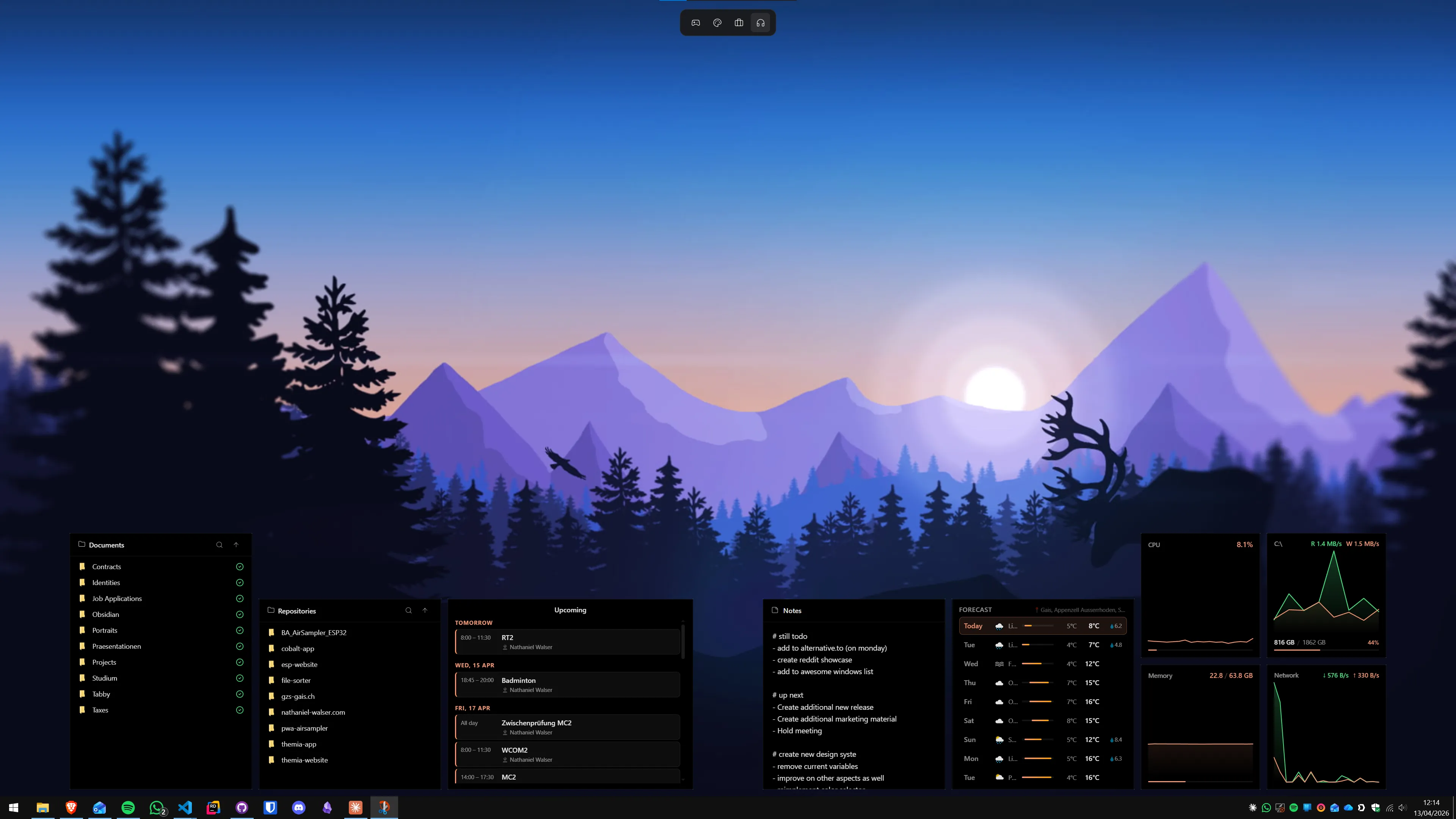
The email widget fits naturally alongside other panels in the kind of layout described in the productivity dashboard guide — calendar, weather, to-do, and email all visible at a glance without opening any application.
Method 3: Use a dedicated email client with a compact window
Some users prefer their email client to handle the display rather than a widget layer. A few approaches that keep email information visible without a full browser tab:
Outlook Mini Mode
The new Outlook for Windows (the 2023+ version, based on the web client) can be resized to a narrow vertical panel and snapped to the edge of a monitor using Windows Snap. Set the window to its minimum width, snap it to the right side of a secondary monitor, and it acts as a persistent email pane. It is not a wallpaper widget — it is a window — but for users with a secondary screen dedicated to dashboard content, this approach keeps email information permanently visible without any additional software. The dual monitor widget guide covers this pattern in detail.
Mailspring
Mailspring is a free, open-source email client that supports multiple accounts (Gmail, Outlook, Exchange, Yahoo, iCloud) and shows a persistent unread badge in the system tray. It is not a desktop widget, but it is a lighter alternative to Outlook if the full Microsoft client feels too heavy. Its tray icon always shows an unread count.
Method 4: Rainmeter with a WebParser email skin
Rainmeter is the most customisable option — and the most time-intensive. Email monitoring in Rainmeter is handled by the WebParser measure, which can fetch an Atom or RSS feed from an email provider. Gmail historically exposed an Atom feed at mail.google.com/mail/feed/atom that returns unread messages in XML format; as of 2026, accessing it requires Basic Auth with an app password.
- Download Rainmeter from rainmeter.net and install it.
- Find a Gmail WebParser skin on the Rainmeter community forums (DeviantArt or the official forum). Popular options include skins in the Enigma suite and standalone Gmail counter skins.
- Install the skin (
.rmskinfile), load it in the Rainmeter skin manager, and open the.inifile to add your Gmail address and app password in the WebParser URL. - The skin polls the Atom feed and displays the unread count and recent subject lines on the desktop.
Pros: completely free, fully customisable visual design, can display sender/subject from the feed.
Cons: brittle — if Google changes the Atom endpoint, the skin breaks; Basic Auth requirement means storing a plain-text app password in the .ini file unless you encode it; setup takes significant time.
Who it is for: Rainmeter users who already have a complete skin setup and want email to match their existing aesthetic. For a full comparison of the two approaches, the Themia vs Rainmeter comparison lays out the tradeoffs honestly.
What to show alongside your email widget
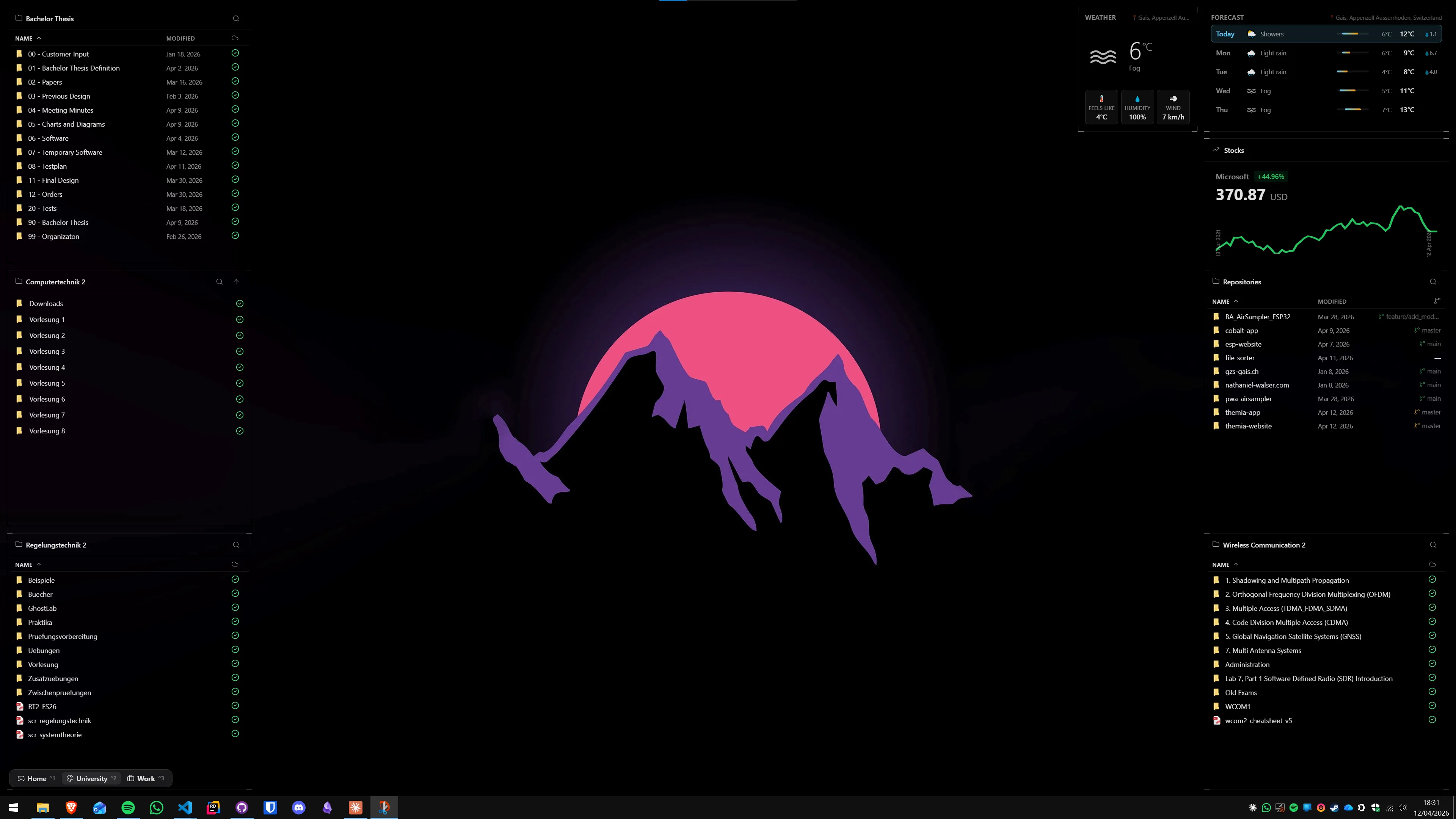
An email widget is most useful when it is part of a broader at-a-glance layout rather than a lone panel. A few natural companions:
- Calendar widget. Combining unread emails with today's schedule answers the most frequent morning question: what do I need to respond to, and what is blocking me before I can? See the calendar widget guide for setup options.
- To-do widget. Some emails generate tasks. Having both visible together closes the loop — you see the email, you add the task, and the task widget reminds you later. The to-do widget guide covers the options.
- System stats. Less directly related, but on the same wallpaper layer, system stats (CPU, RAM, network speed) can confirm whether a slow email client is fighting with a background process for resources.
- Weather. A small convenience for anyone whose day involves travel or outdoor work — an at-a-glance layout that covers email, calendar, tasks, and weather turns the desktop into a genuine morning briefing.
Which method is right for you
- Just want a visible count, zero install: Pin Mail or Outlook to the taskbar and enable badge notifications. Done in two minutes.
- Want an always-visible panel on the wallpaper with sender preview: Themia's email widget — lowest setup friction for a proper on-desktop display.
- Have a second monitor and prefer a real client window: Resize Outlook to a narrow panel and snap it to the secondary screen edge.
- Want full visual control over the design: Rainmeter with a WebParser skin — maximum flexibility, real setup commitment, and some ongoing maintenance risk.
For most people, a widget app is the right answer. The unread count and preview sit on the wallpaper, visible whenever the desktop appears, and they do not require a browser tab or app window. If you are already using Themia for other panels — calendar, notes, weather — adding email takes about two minutes in the widget settings. The best Windows widget apps roundup surveys all the major options if you want to compare the full landscape before committing.
FAQ
Can Windows 11 show email notifications on the desktop without extra software?
Windows 11 delivers email notifications through the Action Center (Win+N) and brief toast popups in the lower-right corner, but neither option places a persistent widget on the desktop wallpaper layer. Toast notifications disappear after a few seconds, and the Action Center requires a click to open. For an always-visible unread count or message preview sitting on the wallpaper itself, you need a third-party widget app or Rainmeter.
Which email providers does Themia's email widget support?
Themia's email widget connects via IMAP, which covers virtually every major email provider: Gmail, Outlook/Hotmail, Yahoo Mail, iCloud Mail, Fastmail, ProtonMail (via the ProtonMail Bridge desktop app), and any corporate Exchange or IMAP server. You supply the IMAP host, port, and credentials in the widget settings. OAuth-based authentication (without storing a password) is supported for Gmail and Microsoft accounts.
Is it safe to enter my email password into a desktop widget app?
The risk depends on the app. Themia stores credentials in the Windows Credential Manager — the same secure vault that browsers and Windows itself use for passwords. It does not transmit credentials to any external server. The safest practice is to create an app-specific password (supported by Gmail, Outlook, Yahoo, and iCloud) rather than using your primary account password. App passwords can be revoked independently if needed without changing your main password.
Can I show emails from multiple accounts in one widget?
As of 2026, Themia's email widget shows one IMAP account per widget instance. If you need multiple inboxes visible simultaneously, you can add a second email widget and connect it to a different account — each widget panel can be independently sized and positioned on the desktop. For a combined unread count across all accounts, the cleanest option is still to keep the Mail app pinned to the taskbar with badge notifications enabled.
Does showing email on the desktop affect performance?
A lightweight IMAP polling widget has a negligible performance impact. Themia polls the IMAP server on a configurable interval (default: every few minutes) — this creates a brief TCP connection to check for new messages, then closes. The idle CPU usage is measured in fractions of a percent. Network overhead is minimal: IMAP IDLE or a lightweight SELECT command uses far less bandwidth than a browser tab running Gmail in the background.
Can Rainmeter show email notifications on the desktop?
Rainmeter has a WebParser measure that can scrape Atom or RSS feeds from email providers that expose them. Gmail historically offered an Atom feed at mail.google.com/mail/feed/atom — as of 2026 this requires a Google account with less-secure app access or an app password and basic auth. Some Rainmeter skins on DeviantArt implement Gmail unread counts via WebParser. The setup is non-trivial and brittle if the feed URL changes. For most users, a dedicated widget app is a more reliable path.