How to Use Snap Layouts on Windows 11 (2026 Guide)
Windows 11 ships with one of the better built-in window management systems Microsoft has ever made, and most people use about ten percent of it. They drag a window to a screen edge, it snaps to half the display, and that is the end of the story. Snap Layouts, Snap Groups, and PowerToys FancyZones together form a complete tiling system — one that rivals dedicated window managers — and none of it requires a third-party subscription or a complex setup.
This guide covers everything: the built-in Snap Layouts menu, keyboard shortcuts, Snap Groups, the settings you should change, and FancyZones for anyone who wants custom zone grids. It is aimed at people who already know what snapping is but want to do it faster and more intentionally.
The basics: what Snap Layouts actually gives you
Windows 11 introduced Snap Layouts in 2021 as a visual menu that replaces the old drag-to-edge behavior with something more intentional. Hovering over the maximize button on any window — or pressing Win+Z — opens a floating grid of up to six layout options. Click a zone and the window jumps into that position. Windows then offers to fill the remaining zones with other open windows.
The six layout options depend on your screen resolution and aspect ratio. On a standard 16:9 monitor you typically see:
- Two equal halves (left/right)
- Three equal columns
- One wide left column plus two right stacks (or the mirror)
- Four equal quadrants
- One large left zone plus three right stacks
- Three rows
On ultrawide monitors (21:9 or wider), Windows adds additional columns to the options. On smaller displays (less than 1200px wide) some layouts disappear. The system adapts — you do not configure this manually.
Keyboard shortcuts worth memorizing
The mouse hover method is convenient, but keyboard shortcuts are faster once they become muscle memory. Here are the essential ones:
- Win+Z — Open the Snap Layouts menu for the focused window.
- Win+Left Arrow — Snap the active window to the left half.
- Win+Right Arrow — Snap the active window to the right half.
- Win+Up Arrow — Maximize the active window (or snap to top half if already snapped to a side).
- Win+Down Arrow — Restore down (or minimize if already restored).
- Win+Left then Win+Up — Snap to top-left quadrant.
- Win+Left then Win+Down — Snap to bottom-left quadrant.
- Win+Right then Win+Up — Snap to top-right quadrant.
- Win+Right then Win+Down — Snap to bottom-right quadrant.
The quadrant shortcuts require two keystrokes: first snap to a half, then press Up or Down to quarter-divide that half. It sounds awkward but takes less than a second once you have practiced it ten times.
Snap Groups: the underused feature
When you snap two or more windows into a layout, Windows 11 quietly remembers that group. It appears in the taskbar as a compound thumbnail — you can see the snapped arrangement in miniature when you hover over any of the grouped window icons. Clicking the thumbnail restores all windows to their snapped positions simultaneously, even if you minimized them or opened other apps in between.
This is genuinely useful for context switching. A common pattern: one Snap Group for research (browser + notes), another for communication (email + calendar), another for the project itself (editor + terminal). Switch between them by clicking the appropriate taskbar thumbnail group, and everything is back where you left it.
Snap Groups have one limitation worth knowing: they do not survive a system restart or if one of the apps in the group is closed. They are session-level memory, not persistent workspaces. For persistent named workspaces across reboots, you would need a third-party tool or virtual desktops (which Windows 11 also supports, and which pair well with Snap Layouts — our guide on the Windows 11 WFH setup covers how to combine them).
Settings worth changing
Open Settings → System → Multitasking to find all Snap-related toggles. The defaults are mostly sensible, but two are worth adjusting:
Snap window suggestion panel
After you snap a window to one side, Windows shows a panel listing open windows to fill the other zone. This is helpful when you first discover snapping. After a few weeks, it is slower than just dragging the second window yourself or using the keyboard. Toggle off "When I snap a window, suggest what I can snap next to it" once you know the workflow.
Show snap layouts on hover
The hover-over-maximize-button trigger can be accidentally activated when you are trying to resize a window. If this happens to you, toggle off "Show Snap layouts when I hover over a window's maximize button." The Win+Z shortcut still works — you just lose the hover trigger.
FancyZones: custom zone grids
FancyZones is the window management module in Microsoft PowerToys, a free, open-source utility suite from Microsoft. It extends Snap Layouts with custom zone editors: you can draw any grid, column, or free-form zone arrangement on your display, then snap windows into those zones by holding Shift while dragging.
To install: download PowerToys from the Microsoft PowerToys GitHub releases page (the .exe installer) or from the Microsoft Store. Open PowerToys settings and select FancyZones in the left sidebar.
The Zone Editor (accessible from the FancyZones section) shows your display(s) and offers several starting templates: grid, columns, rows, priority grid, and a blank canvas for free-draw. The most popular pattern among productivity users is something like: 60% wide primary zone on the left, a 25% medium zone in the center-right, and a 15% narrow stack on the far right — handy for browser in the main zone, editor in the middle, and a terminal or widget panel on the right.
FancyZones works well with dual-monitor setups because each display can have its own independent zone layout. Our guide on using desktop widgets on a dual monitor setup has complementary advice for using the second screen alongside FancyZones on the primary.
For power users who use PowerToys daily, the comparison between Themia and PowerToys is worth reading — they are complementary tools, not competing ones, and understanding the boundary between them helps clarify where to put each setting.
Combining Snap Layouts with desktop widgets
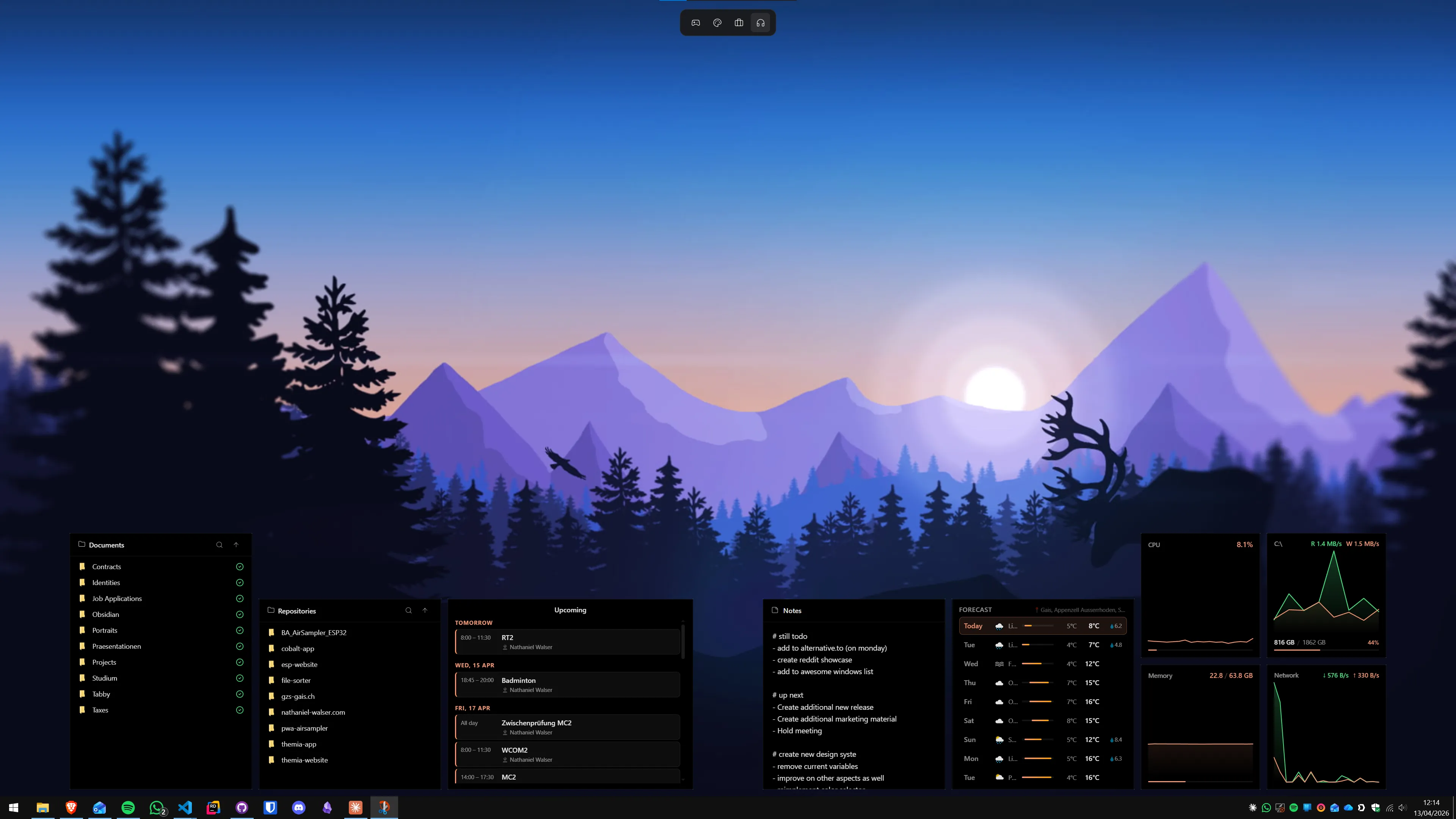
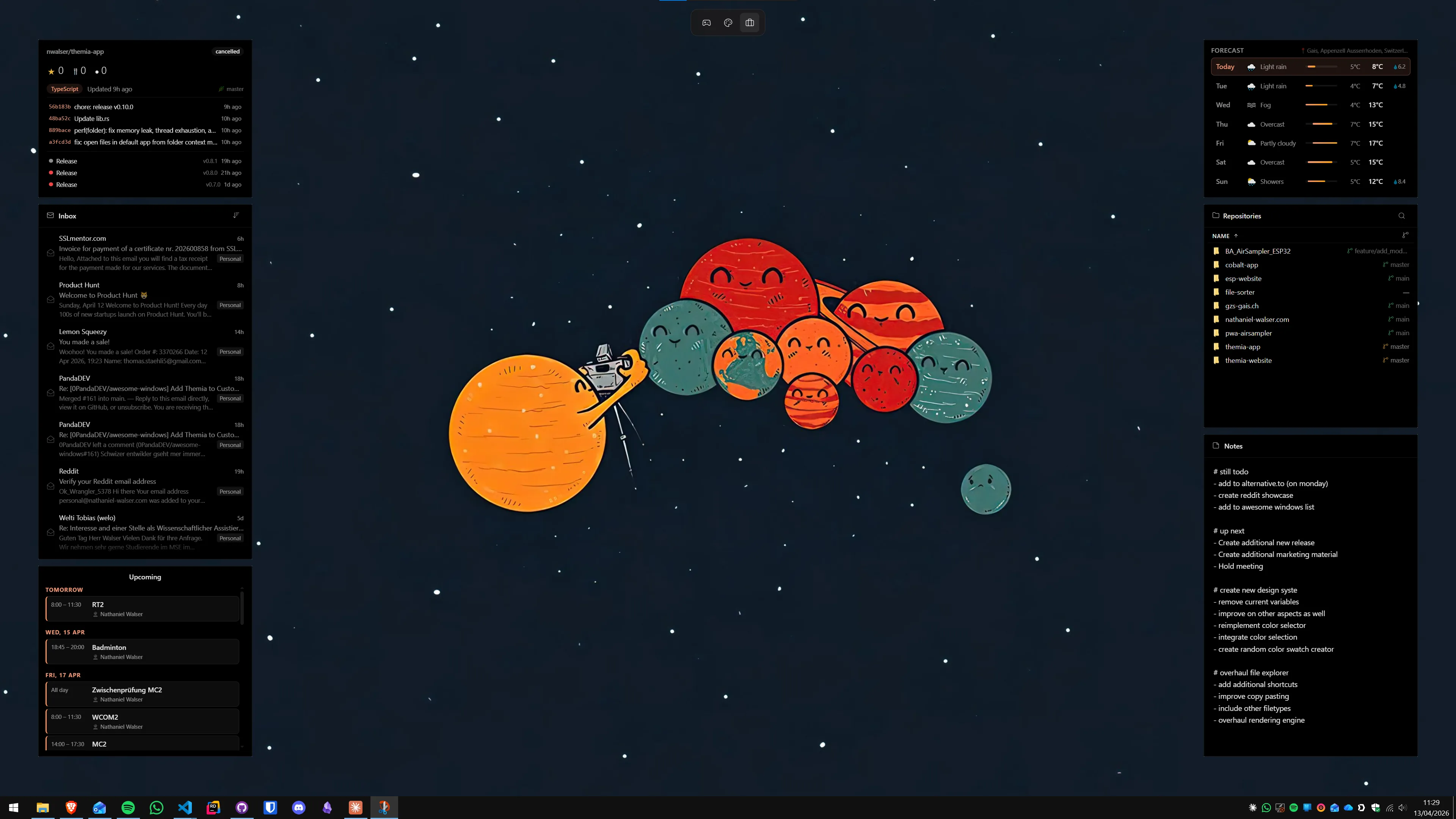
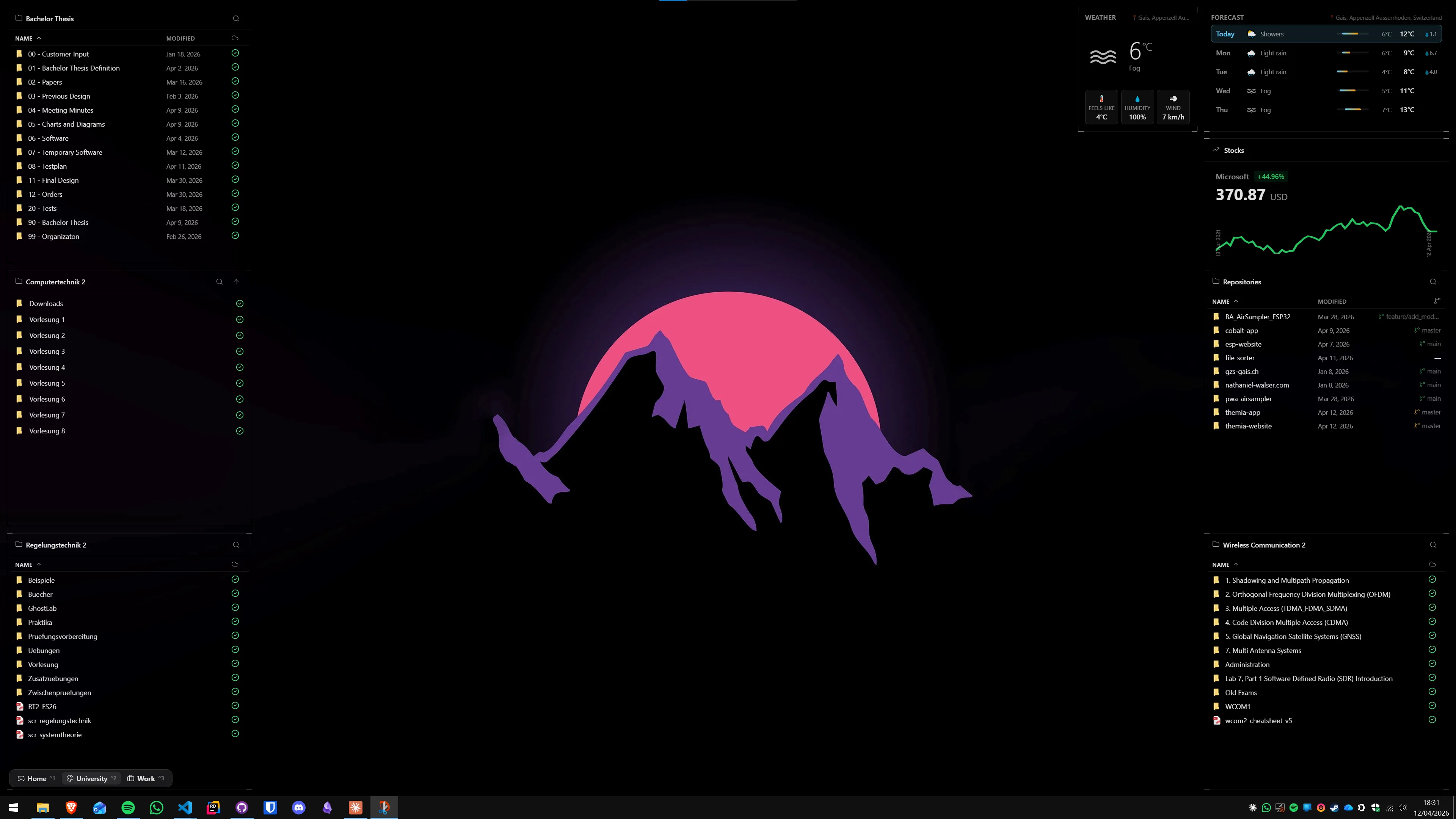
One frequently overlooked combination: Snap Layouts and always-visible desktop widgets. If you snap your main applications to the left two-thirds of the display and leave the right third deliberately empty, a desktop widget app like Themia can populate that space with a persistent calendar, system stats, or note widget that stays visible while you work in the snapped apps. The widget layer sits below windows but above the wallpaper, so it is always there when you minimize everything.
This works particularly well on ultrawide monitors where the Snap Layouts system gives you three or four columns. Dedicated productivity setups along these lines are covered in the minimalist Windows desktop setup guide and the developer desktop setup guide.
Common problems and fixes
Snap Layouts menu does not appear
Check Settings → System → Multitasking and confirm the "Snap windows" toggle is on. If it is on and Win+Z still does nothing, check that the app window is not in full-screen mode — Snap Layouts does not work inside a full-screen app. Also verify the window is not set to a fixed size (some legacy apps resist snapping).
Windows snap but do not remember the group
Snap Groups require the "Show my snapped windows when I hover over taskbar apps" toggle under Settings → System → Multitasking → Snap windows to be on. If it is off, the group still snaps correctly but does not form a compound taskbar thumbnail.
FancyZones zones do not activate while dragging
By default, FancyZones activates zones when you hold Shift while dragging a window. Some users prefer to activate zones without the Shift key — this is configurable in the FancyZones settings under "Hold Shift key to activate zones while dragging." If you turn this off, FancyZones intercepts all window drags, which can conflict with standard edge-snapping behavior.
Which approach should you use?
A quick decision tree:
- Two windows side by side, occasionally: Win+Left/Right arrows. Done in two keystrokes.
- Three or four windows in a layout, frequently: Win+Z and the Snap Layouts menu. Learn to click by zone position without reading the options.
- Complex custom grids, multiple layouts, per-monitor configurations: FancyZones in PowerToys.
- Persistent named workspaces across sessions: Virtual desktops plus Snap Groups within each desktop.
Most users land on Win+Z for everyday snapping and add FancyZones later when they have a specific layout they want to enforce consistently. There is no wrong starting point — both are free, both are maintained by Microsoft, and they coexist without conflict.
If you want to go deeper on the workspace side of Windows productivity, the productivity dashboard guide covers how desktop widgets, virtual desktops, and window layouts work together as a system.
FAQ
What is the keyboard shortcut to open Snap Layouts in Windows 11?
Press Win+Z to open the Snap Layouts menu for the active window. Alternatively, hover your mouse over the maximize button (the square icon in the top-right corner of any window) and hold it there for about half a second. The same floating menu appears. On older keyboards without a Windows key, the Win+Z shortcut does not work, but the hover method always does.
How do I snap windows without using the mouse in Windows 11?
Use Win+Left Arrow or Win+Right Arrow to snap the active window to the left or right half of the screen. Win+Up Arrow maximizes the window, and Win+Down Arrow restores or minimizes it. You can combine these: Win+Left then Win+Up snaps to the top-left quadrant. For more complex layouts, PowerToys FancyZones lets you assign keyboard shortcuts to any custom zone you define.
What is a Snap Group and how does it work?
When you snap multiple windows into a layout, Windows 11 remembers them as a Snap Group. The group appears as a combined thumbnail in the taskbar — hovering over any of the grouped app icons shows all the windows in the snap layout together. Clicking the group thumbnail restores all windows to their snapped positions at once. Snap Groups survive minimization, so switching back is instant.
Is FancyZones free and how is it different from Snap Layouts?
FancyZones is part of Microsoft PowerToys, which is free and open-source. The key difference from built-in Snap Layouts is flexibility: Snap Layouts offers six fixed patterns (halves, thirds, quadrants, and two combinations), while FancyZones lets you draw any grid you want — a wide primary zone plus three narrow stacks on the right, for example. FancyZones also lets you hold Shift while dragging a window to activate zone highlighting, and supports different zone configurations per monitor.
Can I use Snap Layouts on Windows 10?
Snap Layouts as a feature — the Win+Z menu and Snap Groups — are exclusive to Windows 11. Windows 10 has the older Snap Assist (which suggests filling the other half of the screen after you snap one window), but it does not have the six-layout menu or Snap Groups. PowerToys FancyZones works on both Windows 10 and 11, so it is the best path if you want multi-zone snapping on Windows 10.
Snap Layouts keeps suggesting apps I do not want. Can I turn off the suggestion panel?
Yes. Go to Settings → System → Multitasking → Snap windows. You will see a toggle for "When I snap a window, suggest what I can snap next to it." Turn this off. The initial snap still works perfectly — you just do not get the app-picker panel that appears on the other side after you snap the first window.