Stardock Fences 6 Review (2026): Is It Worth Buying?
Stardock Fences has been the default answer to desktop icon chaos on Windows for over a decade. With Fences 6, Stardock made its most significant structural change to the product in years — adding Tabs, a feature that lets you place multiple switchable groups inside a single fence container. That one addition changes how power users think about the layout of their desktop. This review covers what Fences 6 actually does, what it does not do, and whether the $29.99 price tag is justified in 2026 given the free alternatives available.
What Stardock Fences 6 does
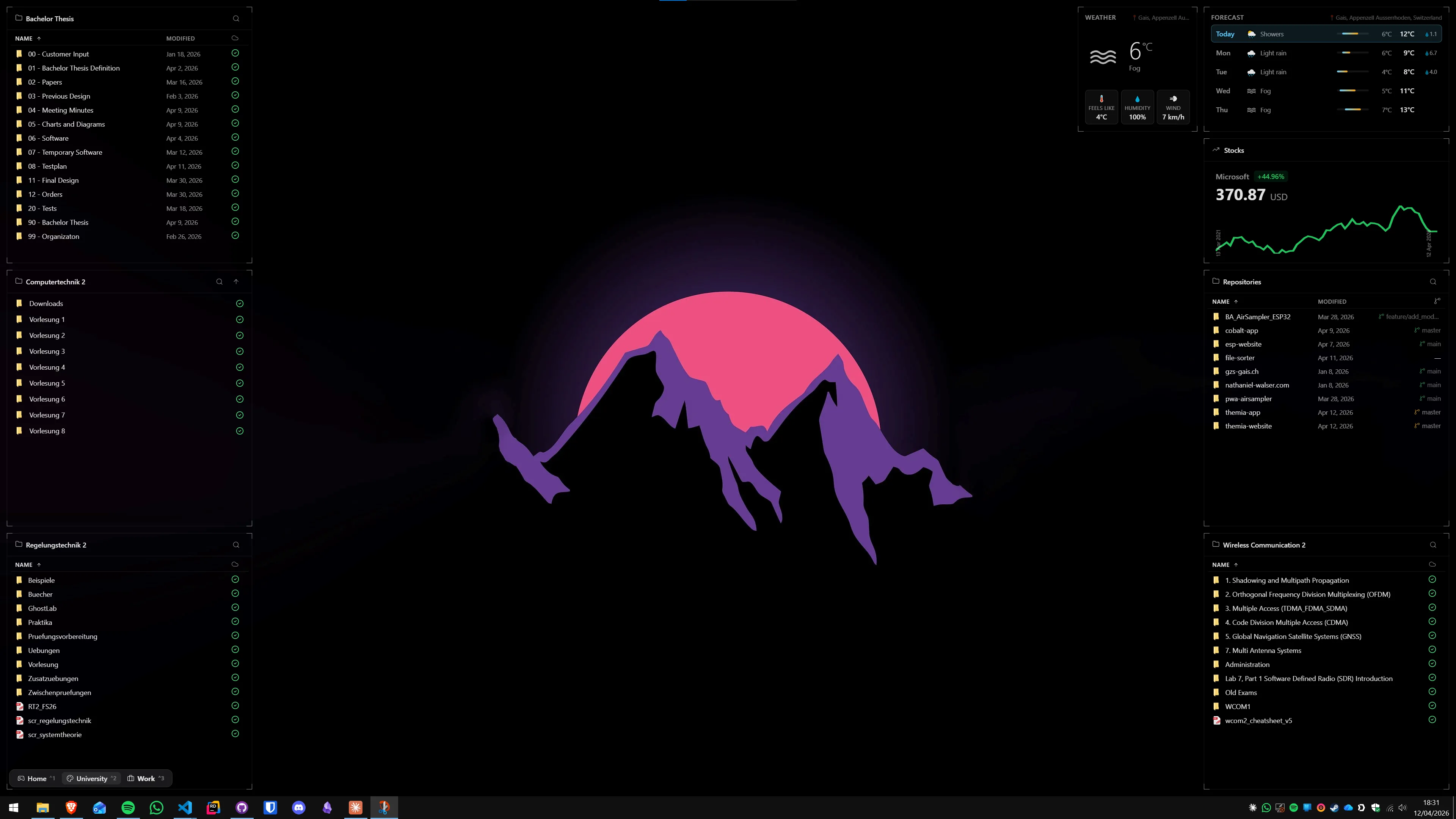
The core of Fences has not changed: you draw named containers on the desktop background, then populate them with application shortcuts and folder links. A fence called "Work" might hold your most-used productivity apps. A fence called "Downloads" might catch whatever lands from your browser. A fence called "Project X" might group the folders for an active piece of work.
What makes Fences 6 worth reviewing separately from its predecessors is the feature set built around that core:
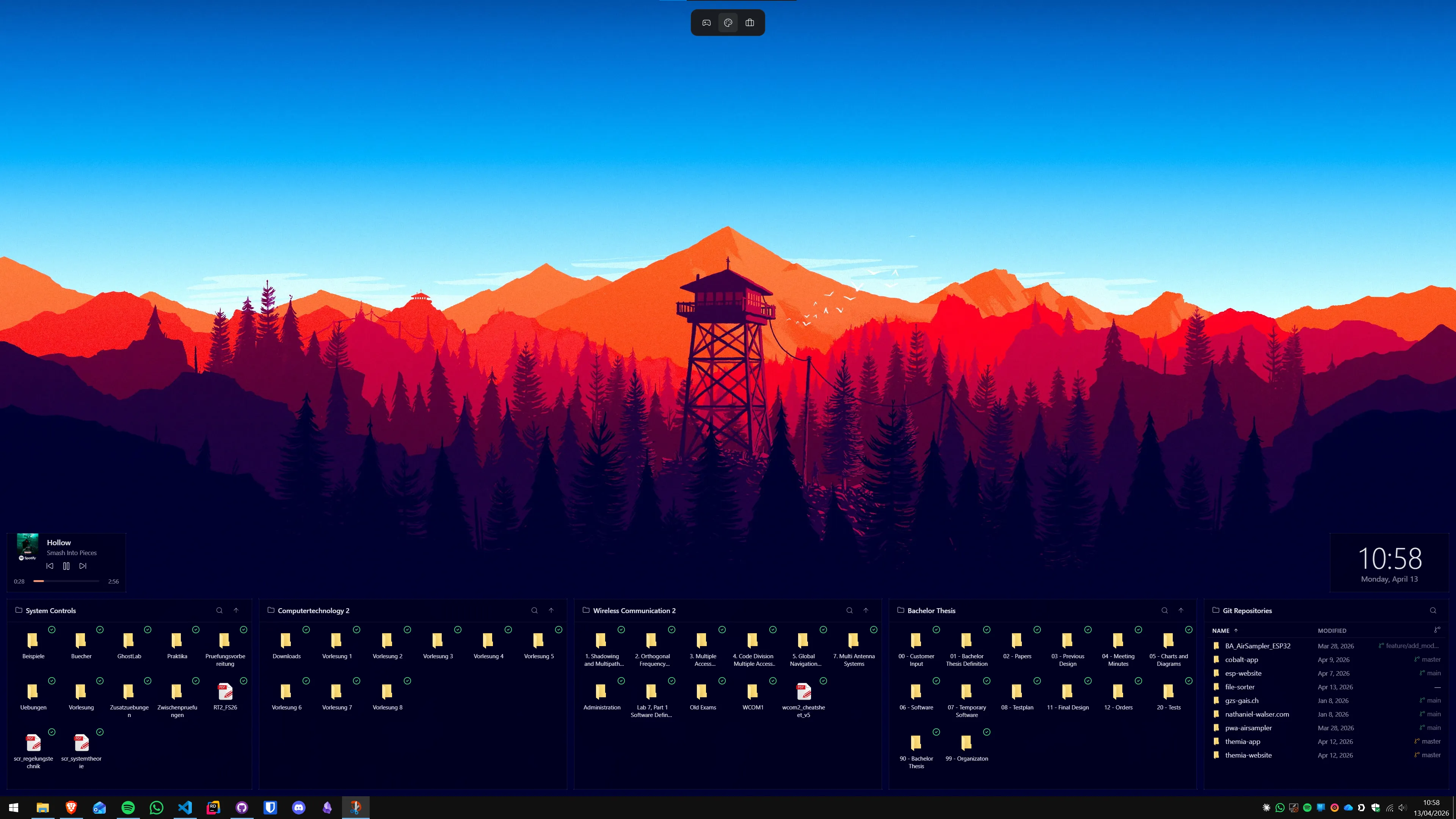
- Tabs — Added in Fences 6, Tabs let you place multiple labelled groups inside a single fence container. Instead of five separate fences for Work, Personal, Media, Games, and Downloads, you can have one fence with five tabs. This significantly reduces visual clutter without losing access to any shortcuts.
- Folder Portals — A fence that mirrors the live contents of a real folder. Anything you add to that folder automatically appears in the fence. This works well for Downloads, a project directory, or a screenshots folder — the fence becomes a live view without manual curation.
- Auto-Organize rules — Incoming desktop icons can be automatically routed to specific fences based on file type, name pattern, or source location. If you want downloaded PDFs to go into a "Documents" fence automatically, a rule handles that without you dragging anything.
- Desktop Pages — The desktop becomes a multi-page space. Each page holds its own set of fences. Navigate between pages to separate work, personal, and other contexts without switching virtual desktops or losing your current application windows.
- Quick Hide — Double-click the desktop to hide all fences instantly, leaving just the wallpaper. Useful for screen sharing, presentations, or screenshots where you do not want your organisation system visible.
- Roll-Up — Double-click a fence header to collapse it to just the title bar, freeing visual space without removing the fence from the layout.
- Blur backgrounds — Fence containers can display a blurred version of the wallpaper behind them, giving a frosted-glass appearance that integrates with Windows 11's Fluent Design aesthetic.
The Tabs feature in depth
Tabs is the headline feature of Fences 6 and warrants more than a bullet point. Prior to Fences 6, the only way to organise related but distinct icon groups was to create multiple separate fence containers. A developer might have separate fences for Frontend tools, Backend tools, Database tools, and DevOps shortcuts — four containers occupying real estate on the desktop simultaneously.
With Fences 6 Tabs, those four groups become four tabs inside a single container. The container shows one tab at a time; clicking a tab header switches the view. This does not reduce the number of shortcuts you can access — it removes three of the four containers from permanent display, keeping them one click away rather than always visible.
The practical result is that a desktop can hold more categories of shortcuts without becoming visually overwhelming. Users who previously avoided adding more fences because the desktop was already crowded now have a mechanism for adding depth without adding width.
Auto-Organize rules in practice
Auto-Organize is the feature that separates Fences from manual icon arrangement. Without rules, Fences is a drag-and-drop organiser — you put things where you want them and they stay there. With rules, Fences becomes a routing system that maintains itself.
You define rules in the Fences configuration panel. Each rule has a condition (file type, name pattern, or source folder) and a destination (a specific fence). When a new icon appears on the desktop matching a rule's condition, it automatically moves to the target fence without any user action.
Common rule configurations that save time:
- Route all .exe installers to an "Installers" fence
- Route all .pdf files to a "Documents" fence
- Route all image files to a "Screenshots" fence
- Route anything arriving from the Downloads folder to a "Downloads" fence
- Route shortcuts to applications based on category (games to "Games", design tools to "Creative")
Auto-Organize also includes a one-time clean-up function: trigger an organisation pass on all existing desktop icons against your current rules, sorting everything that has accumulated into the appropriate fences. This is the fastest way to clean up a chaotic desktop when you first configure Fences.
Folder Portals in depth
Folder Portals solve a specific friction point in Windows workflows: you navigate to the same few directories dozens of times per day, but File Explorer takes several clicks to reach them, and pinning a folder to the taskbar only gives you one-click access to the folder itself rather than its live contents.
A Folder Portal fence shows the live contents of a directory directly on the desktop background. When a new file appears in that folder, it appears in the fence automatically. When a file is deleted from the folder, it disappears from the fence. The fence is not a shortcut to the folder — it is a live window into it.
Practical uses: a Folder Portal pointing at your Downloads directory shows everything you have downloaded recently without opening File Explorer. A portal pointing at an active project directory keeps current project files one click away from the desktop. A portal pointing at a screenshots folder gives instant access to recent captures.
The limitation is that Folder Portals show file and folder icons, not file content. You see file names and icons, not previews. For image-heavy workflows, this means you still need to open a file to see its content — the portal navigates faster than File Explorer, but it does not replace a visual file manager.
Performance and system impact
Stardock Fences 6 is a shell extension that integrates with the Windows Explorer shell. In practical use on modern hardware — any machine that runs Windows 11 comfortably — the impact is minimal: typically under 30 MB of RAM and under one percent CPU at idle. The application starts with Windows and maintains its state silently.
The most common performance concern users raise is login time. Fences can add a small delay to the desktop appearing after login while it initialises and renders container positions. On SSDs this is typically unnoticeable. On older mechanical drives or very limited hardware, it may be a second or two. For a full analysis, see the Fences performance guide.
What Fences 6 does not do
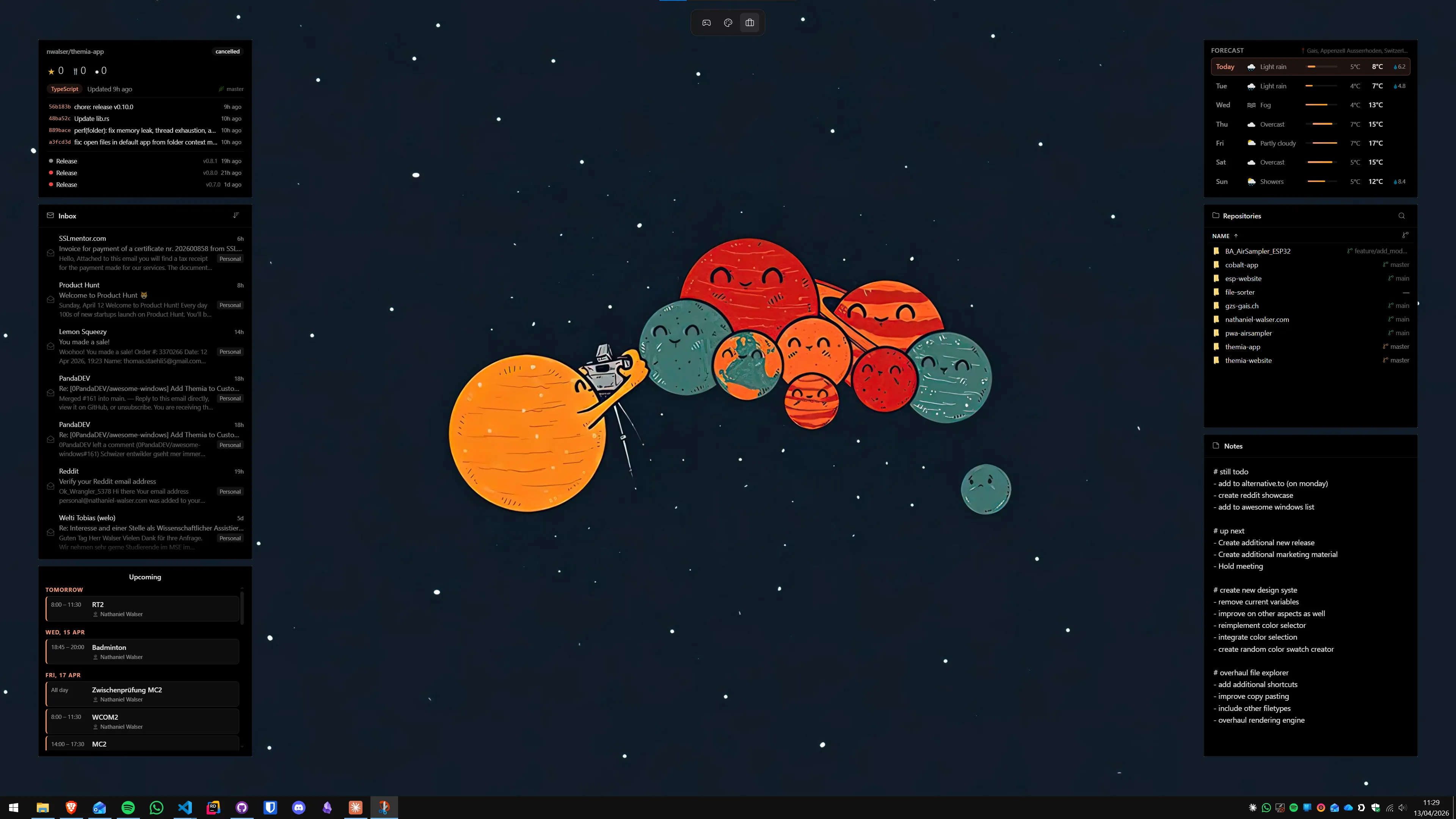
The single most important limitation to understand before buying Fences 6 is that it has no live data capability. Fences containers display icons and shortcuts — they do not connect to any external data source. There is no weather widget, no calendar integration, no email notification counter, no stock ticker, no system performance display, and no RSS feed reader.
This is by design. Fences is an icon organiser and has never attempted to be a data display tool. But the limitation matters in practice because many users who search for Fences are looking for a richer desktop experience — something that organises their icons AND shows them useful live information while they work. Fences delivers the first half; it cannot deliver the second.
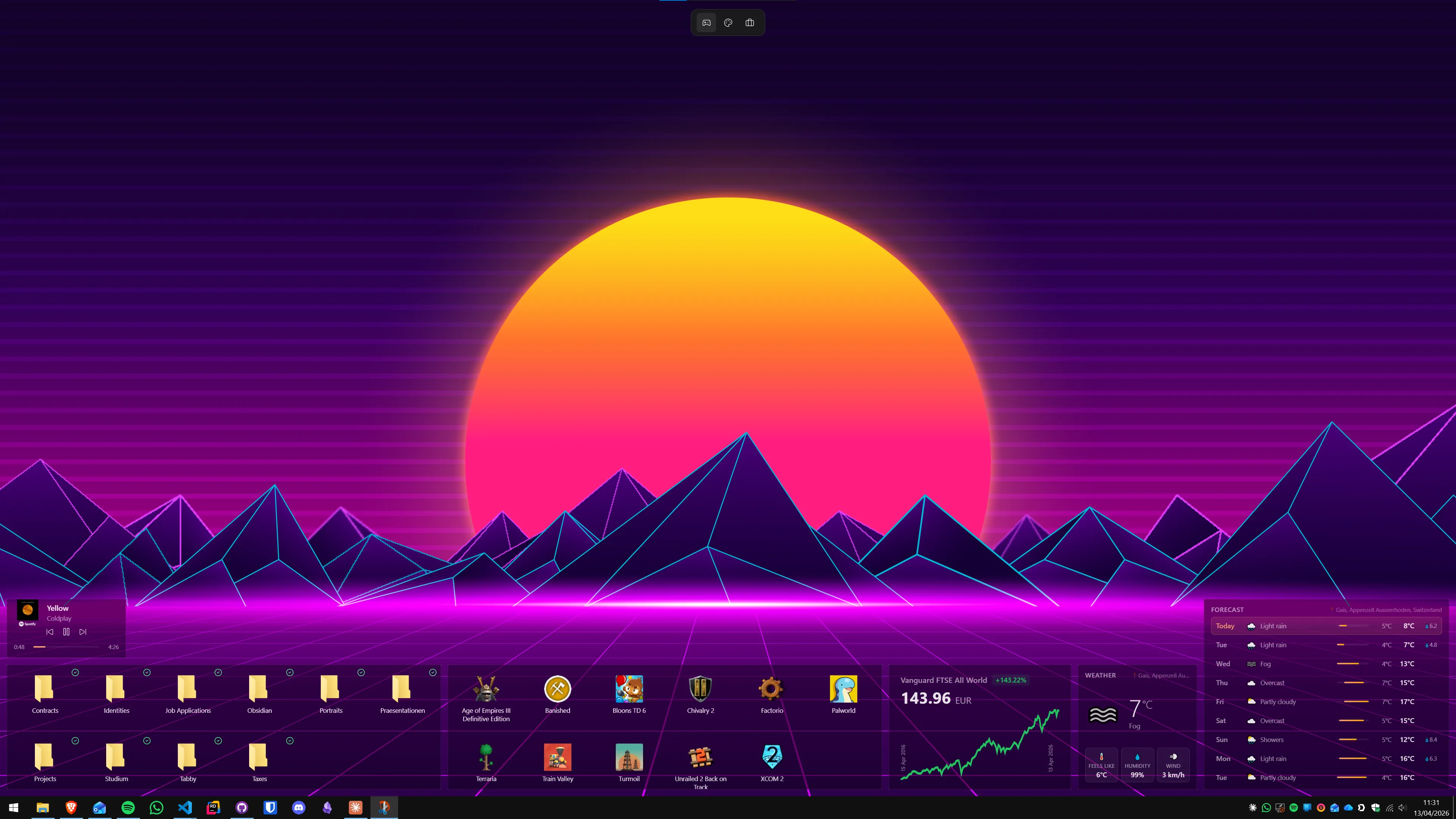
For the live data layer, most Fences users pair it with a widget engine. Themia is the most common pairing: it places persistent live widgets directly on the desktop wallpaper alongside Fences containers without any conflict. The two tools do not compete — they fill different gaps in what Windows provides natively. For a full guide on using them together, see using Themia and Fences together.
Pricing and licensing
Stardock Fences 6 costs $29.99 for a perpetual license — a one-time payment with no ongoing subscription required. This license includes feature updates within Fences 6 and compatibility updates for Windows. Major version upgrades to a future Fences 7 would require a new purchase.
The alternative is the Object Desktop suite subscription at $9.99 per year, which includes Fences along with other Stardock desktop tools: Start11, Groupy, Curtains, and others. If you plan to use multiple Stardock tools, the suite subscription can represent better value than buying each tool separately.
A 30-day free trial with full feature access is available on Stardock's website. There are no artificial limitations during the trial — you get the complete Fences 6 experience. After 30 days, the application stops working unless a license is purchased. There is no degraded free mode.
For comparison, Themia has a free tier with a meaningful widget set and a one-time Pro upgrade at $19. Nimi Places (a free desktop icon organiser with a similar core concept to Fences) is completely free but lacks Auto-Organize rules, Folder Portals, Tabs, and Desktop Pages. For a full cost-and-capability breakdown, see the complete Fences alternatives guide.
Who should buy Stardock Fences 6
Fences 6 makes the most sense for users with a specific, clearly defined problem: their desktop accumulates icons through daily work — downloaded files, application installers, shortcut links dropped from email — and they want a robust, maintained, commercially supported solution to keep it organised automatically.
The Auto-Organize rules are the feature most worth paying for. Developers who download packages, designers who receive client files, or any knowledge worker whose workflow regularly deposits things onto the desktop benefit most from a system that routes those incoming icons to the right place without manual intervention.
The Tabs feature makes Fences worth a serious look for power users who previously hit the ceiling of how many separate fences were visually manageable. Being able to add depth through tabs rather than width through additional containers changes the scalability of the system significantly.
Folder Portals work best for users who navigate to the same few directories many times per day and want faster access than File Explorer provides.
Who should look at alternatives
If your goal is primarily to have live information visible on the desktop — weather, calendar appointments, upcoming tasks, stock prices, system stats — Fences 6 does not address that need at all. You would be spending $29.99 on a tool that solves a different problem from the one you have. Consider Themia instead, which is purpose-built for persistent live data on the desktop.
If cost is a constraint, Nimi Places provides the core icon-organisation function at no cost. It lacks Auto-Organize rules, Folder Portals, Tabs, and Desktop Pages, but the fundamental grouping mechanism works and is maintained as free software. Try Nimi Places first — if its limitations become painful, Fences 6 is the natural upgrade. For a detailed cost-vs-feature comparison, see the is Stardock Fences worth it guide.
Verdict
Stardock Fences 6 is the best commercially supported desktop icon organiser available for Windows in 2026. The Tabs feature meaningfully increases the system's capacity without expanding its desktop footprint. Auto-Organize rules and Folder Portals add genuine automation that free alternatives do not match. At $29.99 for a one-time license, it is priced reasonably for users whose workflows make regular use of those features.
The honest caveat: Fences 6 is an icon tool and nothing more. If you also want live information on your desktop — and most users do — you will need to budget separately for a widget engine. Themia's free tier adds weather, calendar, and system stats to the desktop; the $19 Pro upgrade unlocks the full widget set. Together, Fences and Themia cover both gaps that Windows 11 leaves in the desktop experience.
If the question is whether Fences 6 is worth buying over Nimi Places (free), the answer comes down to automation. If you want an icon system that maintains itself through rules — routing incoming files, organising by type, handling the chaos so you do not have to — Fences justifies the cost. If you only need to manually group your existing shortcuts once and leave them there, Nimi Places is a viable free starting point.
What is new in Stardock Fences 6 compared to Fences 5?
Stardock Fences 6 introduces Tabs — multiple switchable groups inside a single fence container. Previously, each category required its own separate fence. Fences 6 also brings interface refinements and improved compatibility with Windows 11 24H2.
Does Stardock Fences 6 work on Windows 11?
Yes. Stardock Fences 6 fully supports Windows 11, including Windows 11 24H2, and also works on Windows 10.
How much does Stardock Fences 6 cost in 2026?
Stardock Fences 6 costs $29.99 as a perpetual one-time license, or $9.99 per year as part of the Object Desktop suite. A 30-day full-feature free trial is available on Stardock's website.
Can Fences 6 show live data like weather or calendar events?
No. Stardock Fences 6 organises icons and shortcuts only. It cannot connect to any live data source. For persistent live information on the desktop, users pair Fences with a widget engine such as Themia.
What is the difference between Fences and Themia?
Stardock Fences organises desktop icons into labelled containers. Themia places live-data widgets — weather, calendar, email, system stats, RSS — directly on the desktop wallpaper as persistent panels. They solve different problems and run side by side without conflicts.
Does Fences 6 slow down Windows 11?
Fences 6 typically uses under 30 MB of RAM and under one percent CPU at idle. On any hardware capable of running Windows 11 comfortably, the performance impact is negligible.
Is there a free alternative to Stardock Fences 6?
Yes. Nimi Places provides desktop icon containers similar to Fences at no cost, though without Auto-Organize rules, Folder Portals, Tabs, or Desktop Pages. Themia's free tier adds live desktop widgets rather than icon organisation.