Stardock Fences for Creative Professionals (2026)
Creative professionals accumulate desktop clutter faster than almost anyone else. A typical day for a freelance designer ends with a dozen client files, half-exported renders, reference screenshots, and brief documents all piled loose on the desktop. The same pattern plays out for photographers clearing SD cards, video editors bouncing between project folders, and architects saving site photos mid-call.
Stardock Fences is one of the few tools that addresses this at the desktop level, rather than demanding you reorganise your whole file system. This guide covers the specific Fences features that matter most for creative workflows, how to configure them, and where Fences ends and a live-data widget tool like Themia begins.
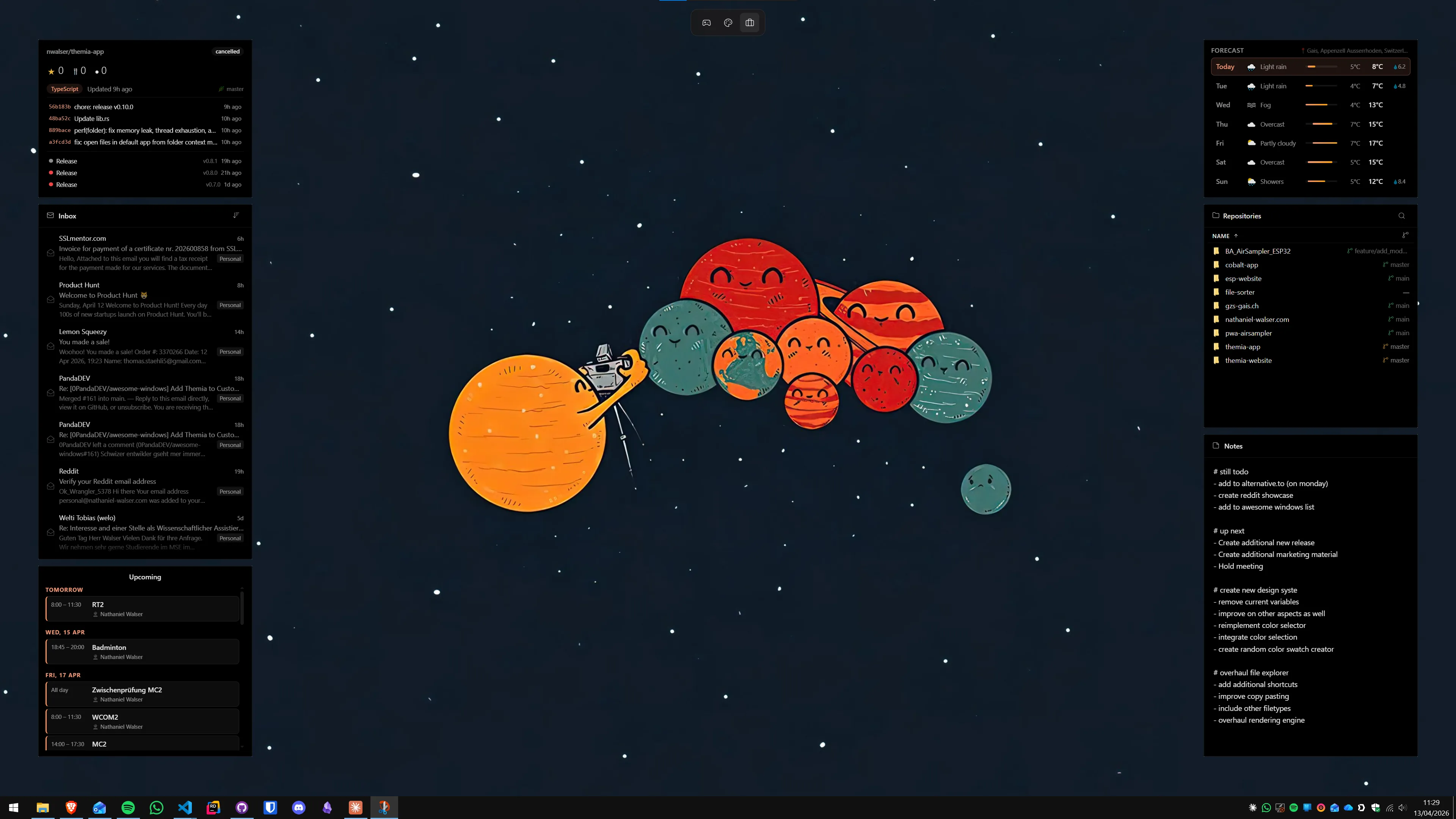
The desktop problem creatives share
Windows gives you one flat surface for the desktop. When you work across several active projects simultaneously, icons pile up in an undifferentiated mass, file names grow cryptic, and finding the right file before a client call becomes a small emergency.
Folder systems inside File Explorer help, but the desktop is where files land during active work — reference images dragged from a browser, exports saved directly to the desktop, screenshots taken mid-review. The gap between "where files go automatically" and "where your organised folder structure lives" fills with chaos.
Fences does not try to fix your folder structure. It puts labelled containers on the desktop itself, so the chaos has somewhere to land without requiring you to leave your workflow.
Folder Portals: the most useful creative feature
The Fences feature that surprises creative users most is Folder Portals. A Folder Portal is a fence that mirrors the live contents of a real folder — it shows exactly what is inside that folder as icons on the desktop, updating in real time as the folder changes.
For a photographer, drop a Folder Portal on the current shoot folder: as you import and cull in Lightroom, the portal updates. For a designer, mirror the active client folder: files placed via a shared Dropbox sync appear on the desktop immediately. For a video editor, point a portal at the renders output directory so you can see which exports finished without leaving the project timeline.
- Right-click the desktop and choose Fences → Create a new Folder Portal.
- Navigate to and select the folder you want to mirror — your current project folder, your renders output directory, or a cloud-synced client delivery folder.
- Fences creates a fence showing folder contents live. Drag the portal to wherever on the desktop suits your layout.
- Resize by dragging a corner until you can see the files you care about without the fence dominating the screen.
The portal behaves like any other fence — you can label it, pin it to a specific Desktop Page, and set it to roll up when you enter presentation mode. The folder it mirrors does not move; only the view lives on the desktop.
Auto-Organize rules for creative file types
Creative work generates predictable file types: .psd, .ai, .indd, .mp4, .mov, .raw, .cr2, .dng, .pdf. Fences Auto-Organize rules let you tell Fences exactly where each type should go when it lands on the desktop, so sorting happens automatically instead of manually at the end of the day.
A practical creative rule set:
- Source files (.psd, .ai, .indd, .xd) → a fence called "Design Source"
- Exports and renders (.jpg, .png, .pdf, .mp4, .mov) → a fence called "Output"
- Raw files (.raw, .cr2, .dng, .nef) → a fence called "Raw"
- Documents (.docx, .xlsx, .pdf briefs) → a fence called "Briefs and Docs"
To set up a rule: right-click a fence header, choose Configure Auto-Organize, and add conditions using file extension, file name pattern, or file type category. You can add multiple conditions per rule and set whether all or any must match.
If a file matches multiple rules, Fences applies the first matching rule in priority order. Drag rules up and down in the list to set priority — more specific rules should sit above broader ones.
Container tabs for active versus archived projects
Fences 6 introduced tabbed containers: a single fence holding multiple named tabs, each with its own icons. For creative professionals, this is directly useful for managing active versus archived projects.
A container called "Projects" can hold a tab for each current client — clicking the tab shows only that client's files. When a project wraps up, drag its icons to an "Archived" tab inside the same container. The fence footprint on the desktop stays constant even as the client count grows.
You can also combine tabs with Auto-Organize rules: set a rule that sends certain file types to a specific tab within a specific fence, creating a container that organises itself as new files arrive.
Desktop Pages for context switching
Desktop Pages are Fences' virtual desktop surface feature — each page holds its own set of fences, and you switch between pages with a keyboard shortcut or configured gesture. Applications and windows are unaffected; only the desktop icons change.
A practical three-page setup for a creative professional:
- Page 1 (Active Work): Folder Portals for current projects, Output fence, References fence.
- Page 2 (Admin): Invoices, contracts, briefs, email attachments, tax documents.
- Page 3 (Resources): Font folders, asset libraries, plugin installers, template files.
Switching pages keeps each context uncluttered. You are never moving icons — you are switching between surfaces already organised for different types of work.
Quick Hide for client presentations
Press the Quick Hide keyboard shortcut (configurable in Fences settings) and all Fences containers become invisible. The desktop shows only the wallpaper and any icons left outside a fence. Press again and everything returns exactly where it was.
For a screen share or client call where the desktop is briefly visible, this prevents every work-in-progress file from appearing on camera. It takes one keypress and one more to reverse — there is nothing to save or confirm.
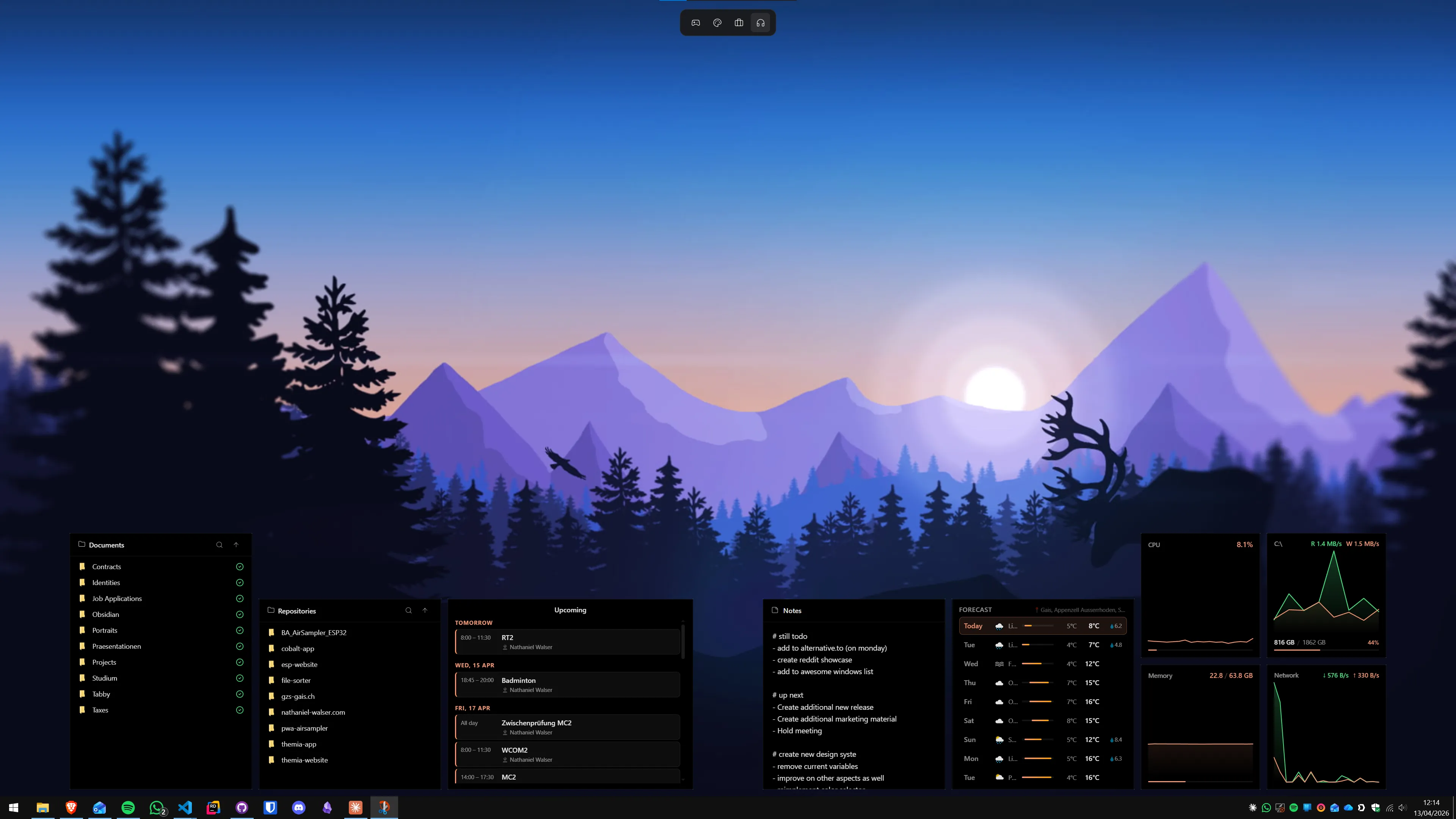
What Fences does not do — and where Themia fits
Fences is an icon organiser. It is very good at that — Folder Portals, auto-sorting, tabs, Desktop Pages — but it does not put live data on the desktop. There is no weather widget for planning outdoor shoots, no calendar showing the next client call, no GPU temperature readout for monitoring a long render, no time zone clock for working with international clients.
Themia fills that layer. It runs alongside Fences without conflict — Themia widgets sit on the same desktop as Fences containers. A practical combined setup might include:
- Fences handling file containers (projects, output, references, raw files)
- A Themia calendar widget in the upper-right corner showing the next three days
- A Themia system stats widget showing GPU and RAM load during active renders
- A Themia weather widget if your work involves outdoor shoots or weather-dependent scheduling
The two tools address different problems, which is why they coexist rather than one replacing the other. Themia's free tier covers the weather and calendar widgets — enough to try the combination before deciding on the Pro unlock.
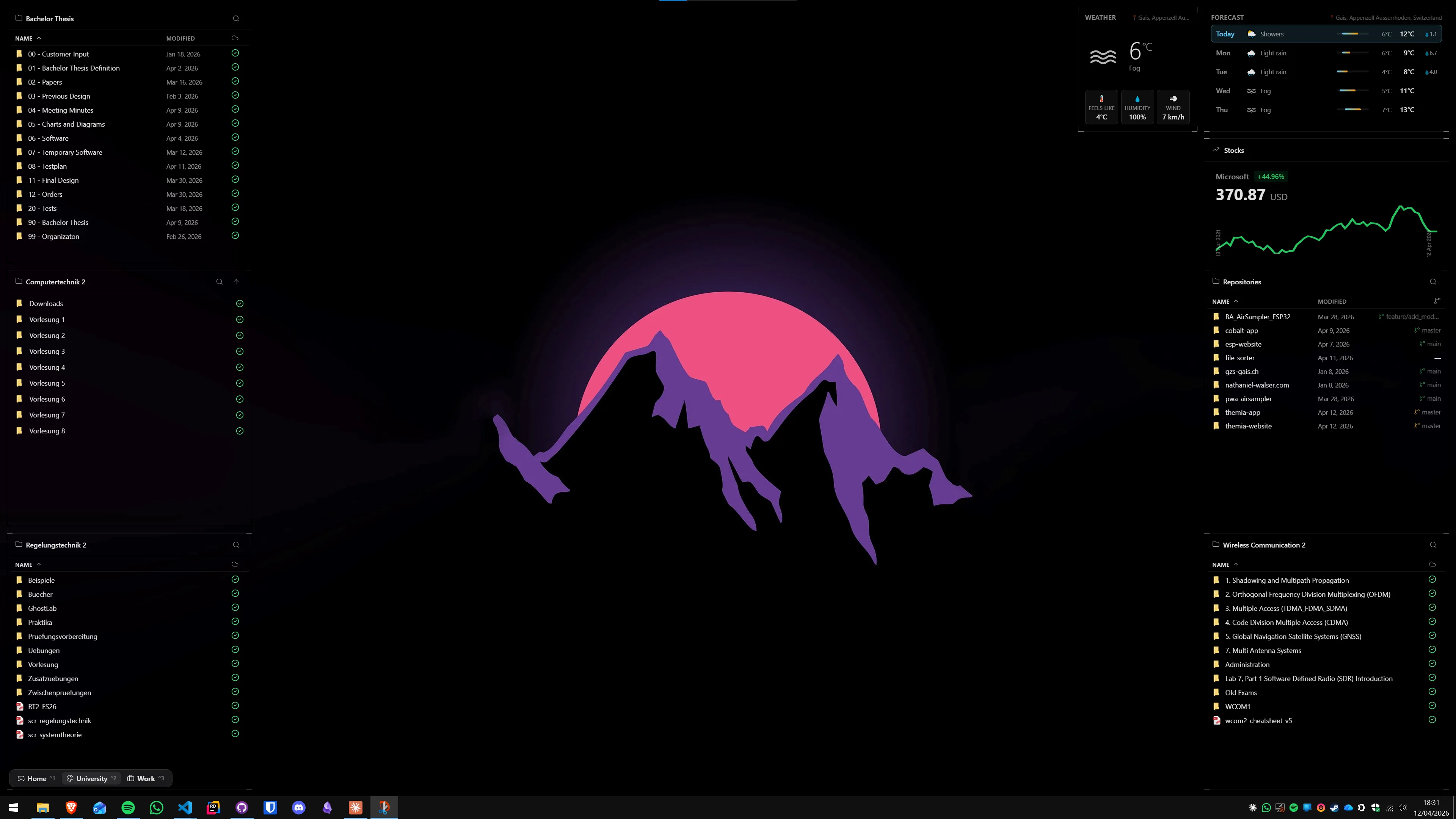
Recommended setup for creative professionals
A practical starting configuration if you are setting up Fences from scratch for creative work:
- Create a Folder Portal for your current active project folder — place it where you can see it immediately on launch.
- Create a tabbed Projects container with one tab per active client. Move it alongside the Folder Portal.
- Create an Output fence with Auto-Organize rules for .jpg, .png, .pdf, .mp4 so exported files land there automatically.
- Create a References fence for screenshots, downloaded images, and inspiration files.
- Set up Desktop Pages — keep this active-work layout as Page 1 and create a Page 2 for admin files (contracts, invoices, briefs).
- Configure Quick Hide in Fences Settings so you can clear the desktop before a screen share in one keypress.
This gives you a functional creative desktop in under 20 minutes. The Auto-Organize rules handle ongoing maintenance so you are not manually sorting files at the end of every working day.
FAQ
Does Stardock Fences work with creative software like Adobe Photoshop and Premiere?
Yes. Fences operates at the Windows shell level and is independent of which applications you run. It organises icons and files on the desktop, not inside applications. You can create a Folder Portal mirroring your active project folder and it updates in real time regardless of whether Photoshop, Premiere, or Lightroom created the files inside it.
Can Fences automatically sort PSD, AI, or video files into the correct container?
Yes, through Auto-Organize rules. You set a rule that sends .psd files to a Design Source fence, .mp4 and .mov to a Renders fence, and .pdf to a Briefs fence. Rules apply when a new file appears on the desktop — Fences checks conditions and moves the icon into the right container automatically, with no manual sorting needed.
Will Fences slow down a creative workstation running Premiere or DaVinci Resolve?
In practice, no. Fences is a lightweight shell extension. Memory usage is typically under 150 MB and CPU load sits near zero when you are not interacting with the desktop. On a modern workstation running a render in the background, the overhead is not measurable in benchmark tests.
Does Fences 6 use a subscription or one-time purchase model?
Both options are available. The subscription is $9.99 per year. The perpetual licence is $29.99 and covers Fences 6 as a permanently usable version — major future versions would require a new purchase or upgrade. For most creative professionals who want to buy once, the perpetual licence is the practical choice.
Can I use Folder Portals with a cloud-synced or network project folder?
Yes, as long as the folder is accessible via a local drive letter on Windows. OneDrive, Dropbox, and Google Drive synced folders appear as local paths and Fences can mirror them just like any local folder. Network drives mapped to a drive letter also work. Fences reads folder contents at the Windows shell level — anything File Explorer can see, a Folder Portal can reflect.
What does Themia add on top of Fences for a creative setup?
Fences organises icons and files. Themia adds live widgets: a calendar showing your next client call, a weather widget for shoot-day planning, a clock across time zones for international clients, and system stats to monitor GPU load during renders. The two tools target different needs and coexist on the same desktop without conflict.