Stardock Fences on a Gaming Desktop: Shortcuts vs Widgets in 2026
A gaming PC desktop has a specific problem: it accumulates shortcuts at an alarming rate. Every new game install drops a shortcut on the desktop. Every launcher — Steam, Epic, GOG, Battle.net — adds its own icon. Six months into a gaming setup and the desktop looks like a flyer wall. Stardock Fences was built for exactly this problem, and it handles it well. But there is a second dimension to a gaming desktop that Fences does not touch: ambient information.
This post covers how Fences and Themia split the problem between them — one handling icon organization, the other handling live data on the wallpaper layer — and which one you actually need depending on your setup.
The Gaming Desktop Clutter Problem
Game libraries grow faster than most software collections. A dedicated gamer might install dozens of titles over a year, each one adding a shortcut to the desktop unless they specifically opt out during installation. Most installers default to "create desktop shortcut," and most people click through without unchecking it.
The result is a desktop with 60 icons spread across a 4K monitor, games mixed in with productivity tools, launchers mixed in with game shortcuts, and no clear organizational logic. Finding the game you want to play requires scanning the whole screen instead of going directly to it.
Stardock Fences solves this by letting you draw containers on the desktop. You create a fence labeled "RPGs," drop your RPG shortcuts into it, create another fence for "Strategy," another for "Shooters," and suddenly the desktop has geographic regions that make sense to your brain. You can also collapse a fence with a double-click so the icons disappear entirely until you need them.
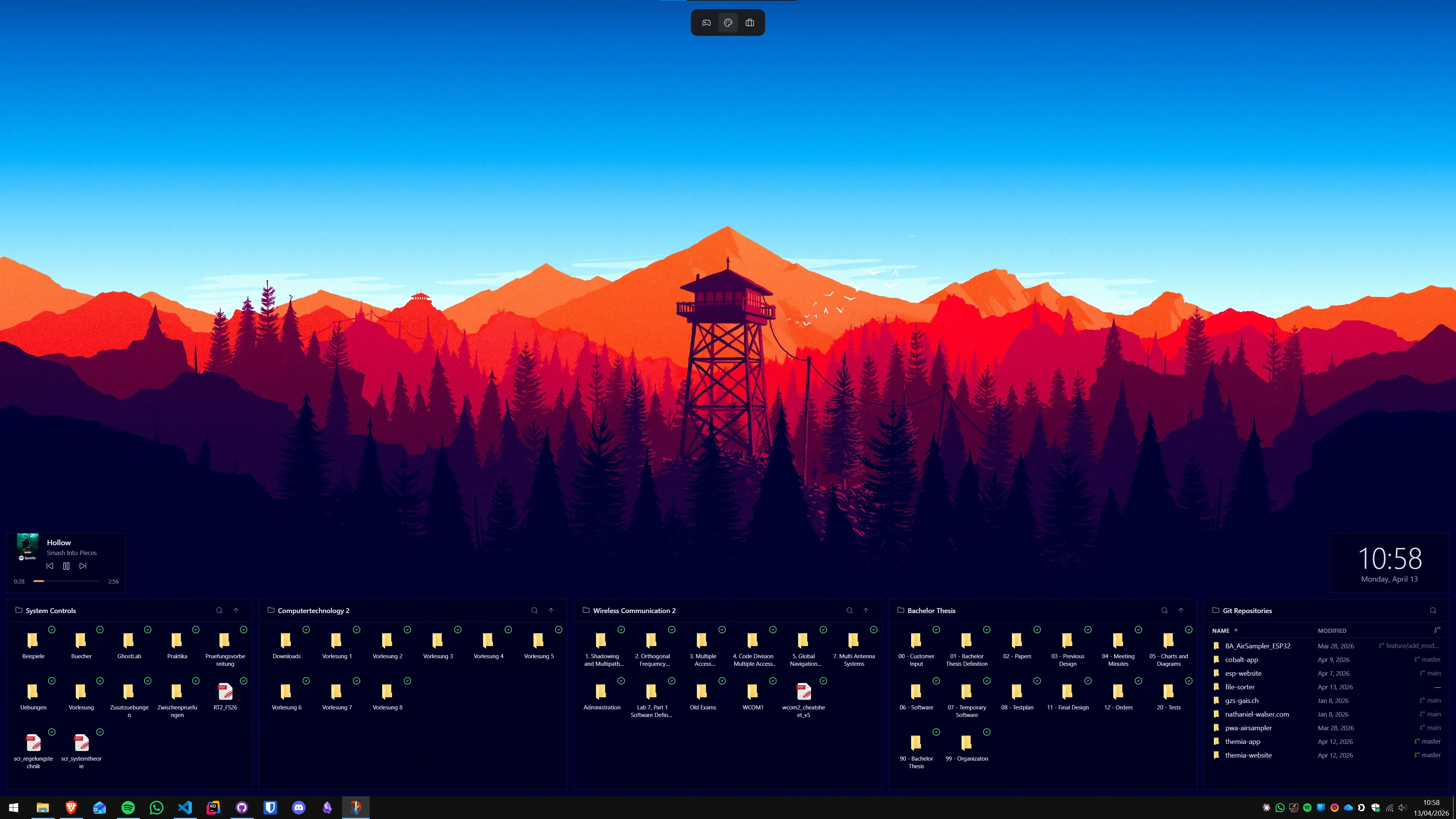
Auto-Organize: The Feature Most Gamers Miss
The feature that changes everything for gaming setups is Fences' auto-organize system. Instead of manually dragging each new shortcut into the right container, you create rules that do it automatically.
A practical configuration for a gamer looks like this: create a rule that moves any shortcut pointing to a file inside your Steam library folder into a fence called "Steam Games." Create another rule for your Epic Games install location. A third rule for GOG. When you install a new game and a shortcut lands on the desktop, Fences picks it up and files it into the right container before you even see it sitting there.
You can refine rules further: move shortcuts to executables with certain file extensions into a "Launchers" fence, keeping Battle.net, Origin, and Ubisoft Connect separate from the games they manage. The rule engine is not complex to configure — a few minutes setting it up saves hours of manual sorting over time.
Fences also supports folder portals: a container that mirrors the contents of a folder on your filesystem. If you keep all your game shortcuts in a dedicated folder, a portal fence will display them live, updating automatically as you add or remove entries.
What Fences Does Not Do
Fences is entirely an icon organizer. It does not display live information, pull weather data, show system temperatures, or render clocks on the wallpaper. If you want ambient data visible on your desktop — CPU load, RAM usage, the time until your next gaming session, a weather widget — Fences offers nothing there.
For gamers specifically, the most common secondary wish is some form of system monitoring visible at a glance: GPU temperature before launching a demanding title, RAM headroom before opening another browser tab, network ping status. None of that comes from Fences.
Where Themia Fits Into a Gaming Setup
Themia fills the ambient-information gap that Fences leaves open. It renders widgets directly on the wallpaper layer — beneath your windows and above the desktop background — so they are always visible when the desktop is showing but disappear naturally the moment you open a full-screen application.
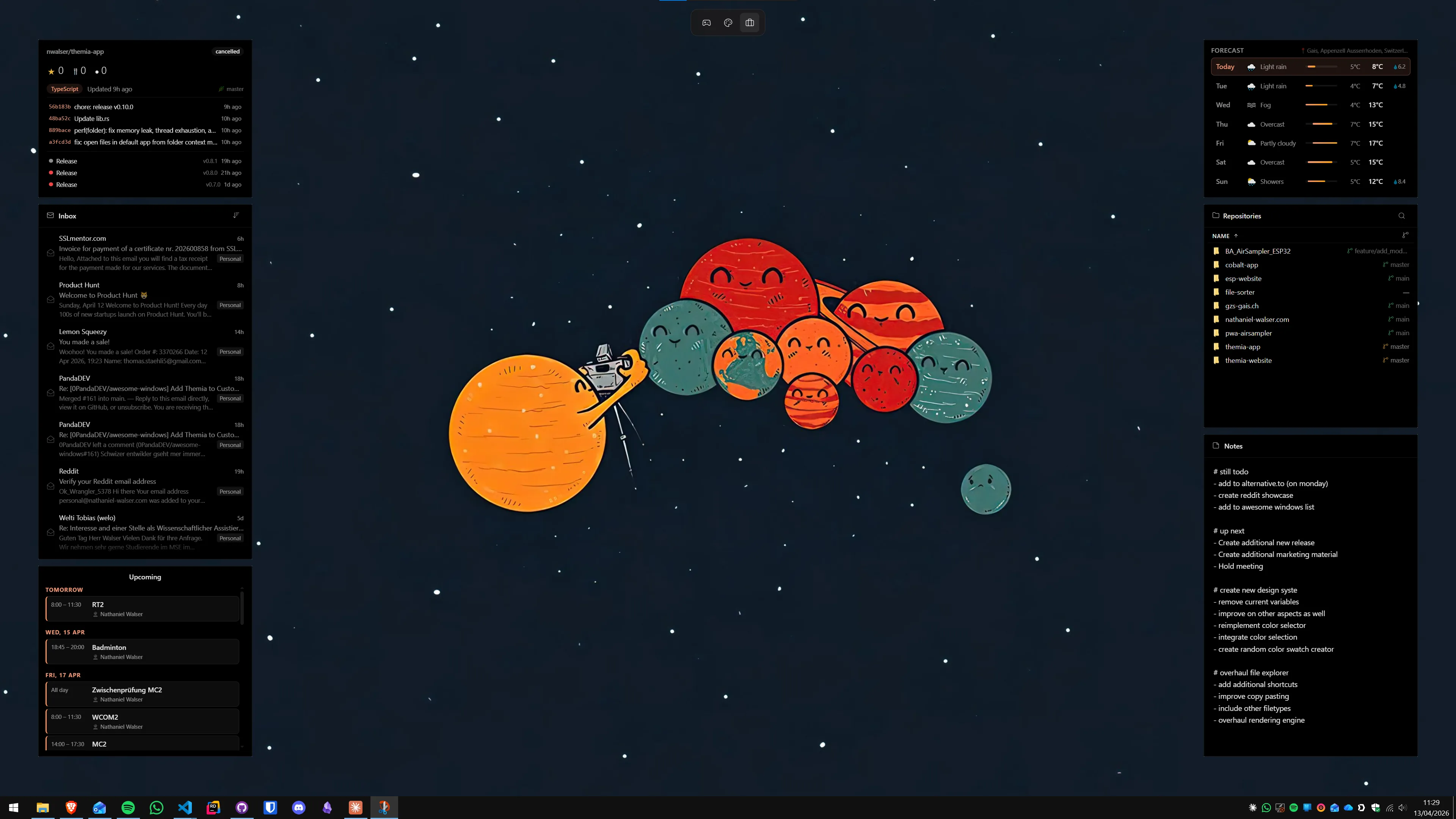
A practical gaming-oriented Themia layout might include a clock in a corner, a simple CPU and RAM usage display, and optionally a small weather widget. None of these interfere with Fences — they occupy different screen layers. The Fences containers with your game shortcuts coexist with the Themia widgets below them on the wallpaper.
Themia is free to use with a limited widget set, and the one-time Pro unlock adds additional widget types and layout options. For a gaming desktop, the free tier is often sufficient — the common use case of a clock and basic system stats is covered without paying anything.
One practical note: Themia renders widgets only when the desktop is visible. In a full-screen game, the widgets are not drawing to the screen at all — they are behind the game window. This is the correct behavior for gaming: no overlay clutter during play, ambient information visible in the moments between launching games and when you tab back to the desktop.
Running Both Together
The most complete gaming desktop setup uses Fences for icon structure and Themia for ambient data. There is no conflict between them because they solve completely different problems and operate in different layers of the Windows display stack.
Setup flow: install Fences first, spend 10–15 minutes creating your genre containers and configuring auto-organize rules. Then install Themia, position your clock and stats widgets in empty desktop space that does not overlap your fences. The two tools do not interact, do not require any configuration to acknowledge each other, and do not compete for resources in any meaningful way.

Performance Considerations
Both tools are designed to be low-overhead. Fences runs as a shell extension — it is part of Explorer's process and has minimal CPU usage at idle. Once your containers are positioned, there is essentially nothing happening until you interact with them.
Themia has a slightly different profile: it renders widget content on a scheduled interval. The rendering only happens on the desktop layer, which means it is not competing with a running game for GPU resources. On modern hardware — even mid-range gaming PCs — the combined background load of both applications is difficult to measure against a baseline.
If you are on a very budget-constrained machine or are chasing every last frame, closing Themia from the system tray before launching demanding titles is a reasonable precaution. Fences has no such concern — its resource footprint does not change between desktop use and gaming.
Alternatives Worth Knowing
If Fences feels like more than you need — a single page of organized shortcuts rather than a full container system — Nimi Places is a free, lighter-weight alternative that handles basic desktop container organization. It lacks the auto-organize rules and desktop pages that Fences offers, but it covers the core use case for free.
For live monitoring specifically, some gamers prefer MSI Afterburner's desktop widget mode or specialized system-monitoring tools. Themia takes a different approach by integrating general-purpose widgets (clocks, weather, calendars) alongside system stats, which suits desktops that serve multiple purposes beyond pure gaming. See the full comparison in our Fences vs Themia vs Nimi Places overview for more context.
For more on how Fences handles performance on busy systems, the does Fences slow down Windows 11 post covers the question in detail. And if you are evaluating whether to buy Fences at all, the is Stardock Fences worth it in 2026 analysis goes through the pricing and feature set honestly.
If you are currently using Fences and want to add Themia widgets to the mix without disrupting your existing setup, the running Themia and Fences together guide covers the configuration in practical detail.
FAQ
Does Stardock Fences work well on a gaming PC?
Yes. Fences runs as a shell extension in the background and has minimal impact on gaming performance. Once your fences are set up, there is nothing actively running during gameplay other than the Explorer integration. Most gaming PCs will not notice any difference in frame rates or load times.
Will Themia widgets hurt gaming performance?
Themia is designed to be lightweight, but any software rendering content on-screen has some overhead. When you launch a full-screen game, Themia widgets are hidden behind it automatically — they only render on the desktop. For most modern hardware the idle overhead is negligible, but if you want zero background processes during gaming you can close Themia from the system tray.
Can I put game shortcuts in Stardock Fences containers?
Absolutely. Fences containers work with any file or shortcut, including .lnk files that launch games or open Epic Games, Steam, or Battle.net library entries. You can organize them by genre, platform, or play frequency, and use auto-organize rules to keep new installs sorted automatically.
Is there a way to show FPS or CPU load on the desktop?
Stardock Fences does not display live system metrics — it is an icon organizer, not a monitoring tool. Themia widgets can show CPU usage, RAM usage, and other system stats directly on your desktop wallpaper layer. For dedicated in-game overlays showing FPS, most gamers use MSI Afterburner or the Steam overlay, which run independently.
What is better for a gaming desktop: Fences or Themia?
They answer different questions. Fences is the right tool if your problem is desktop clutter — dozens of game shortcuts scattered everywhere. Themia is the right tool if you want a live information dashboard showing weather, time, system load, or upcoming calendar events on your wallpaper. Many gamers run both: Fences handles icon order, Themia provides ambient information.
Does Fences conflict with third-party desktop themes?
Fences works within the standard Windows shell and is generally compatible with custom themes, though highly modified Explorer replacements can sometimes cause display issues. Themia runs above the wallpaper layer and is theme-agnostic — it renders its own UI independently of the Windows shell styling.
Can I auto-sort newly installed games into a Fences container?
Yes, through Fences auto-organize rules. You can create a rule that detects shortcuts to certain folders (like your Steam library path) or file types and automatically places them in a designated fence. New game installations that create desktop shortcuts will drop into the right container without manual intervention.