Stardock Fences on Multiple Monitors (2026)
Running two or three monitors on Windows changes how the desktop works — and it changes what you actually need from a desktop organizer. A single-monitor workflow has one desktop surface to tame. A multi-monitor setup multiplies the canvas, the icon scatter, and the opportunity to use each screen intentionally. Stardock Fences 6 handles multiple monitors well, but the setup has some quirks worth knowing before you start dragging fences around.
This guide covers the full Fences 6 multi-monitor setup: how fences behave across screens, where the new icon-locking improvements in 6.46 matter, and when a widget app like Themia is a better tool for a second or third display than Fences is.
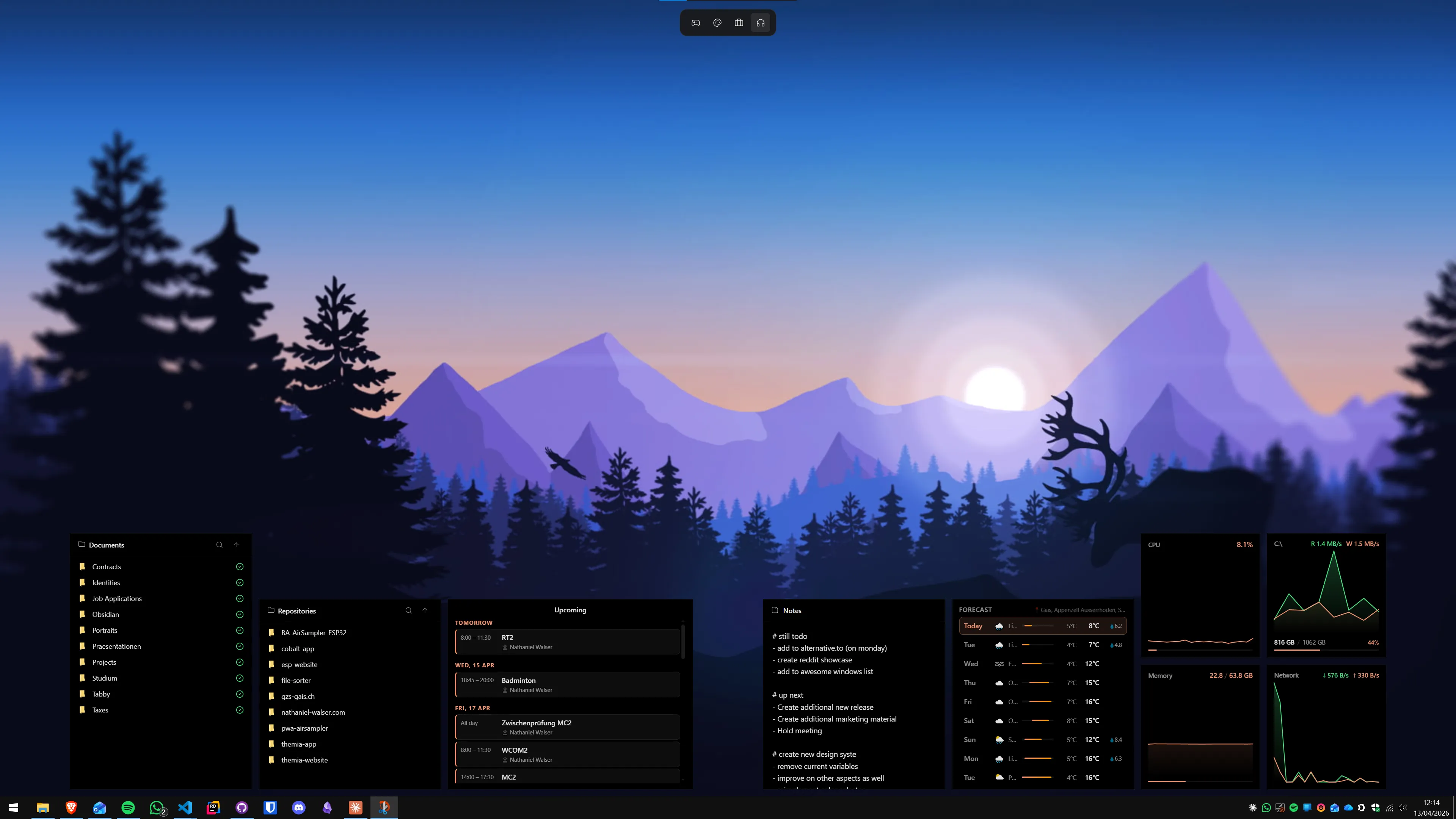
How Fences 6 handles multiple monitors by default
Fences does not see "monitors" — it sees the Windows desktop canvas. That canvas is a single, large surface that spans all your connected displays. A fence you drag to the far right of your second monitor is sitting at a specific position on that canvas, and Fences keeps it there.
In practice this means multi-monitor setup is almost entirely manual: you drag each fence to the screen where you want it. There is no built-in panel or dialog that says "assign this fence to Monitor 2." Placement is visual, by dragging. Once placed, Fences 6 is generally good at keeping things where you left them.
Fences 6.46 (April 2026) specifically improved multi-monitor handling. The update addressed a long-standing issue where icons and fence groups would drift or re-home to the primary monitor after unplugging a second display, changing resolution, or switching from one DPI setting to another. After 6.46, the icon positions are more reliably locked to their intended screen, and reconnecting a monitor brings icons back to where they were. It is not perfect — Windows itself occasionally moves icons when you change display configurations — but Fences 6.46 is noticeably more stable than earlier releases.
Setting up Fences on a dual-monitor Windows 11 PC
Here is a practical workflow for getting Fences set up the way most people with two monitors actually want it.
Step 1: Install Fences and decide which monitor holds what
Download Fences 6 from Stardock's website (stardock.com). The installer is straightforward. After first launch, Fences will ask if you want it to automatically organize your existing desktop icons into fences — say yes if your desktop is a mess, or no if you want full manual control.
Before creating fences, decide the role of each monitor:
- Primary monitor (main display): Application shortcuts, project folders, recently used files. Fences works well here for keeping shortcuts grouped by category or project.
- Secondary monitor: This is where you have a choice — see below for when Fences is right and when a widget app wins.
Step 2: Create fences and drag them to the right screen
Right-click an empty area of the desktop and select Fences → Create New Blank Fence. A new titled container appears. Drag it to any screen by its title bar. Add icons by dragging them into the fence. Resize by dragging the fence border.
A few tips for multi-monitor layouts:
- Keep fences away from screen edges near monitor joins. Icons placed at the very edge of one monitor can end up partially on the other display depending on your DPI settings.
- Use Folder Portals on the secondary monitor. A Folder Portal is a special fence that mirrors the contents of a real folder. Right-click the desktop → Fences → Create New Folder Portal, then point it at a project folder. The second monitor becomes a live file explorer panel without you needing File Explorer open.
- Name fences clearly. On two screens you will have more fences than on one. Names like "Design project," "Downloads," "Tools," and "Reference" are easier to scan than "Fence 1."
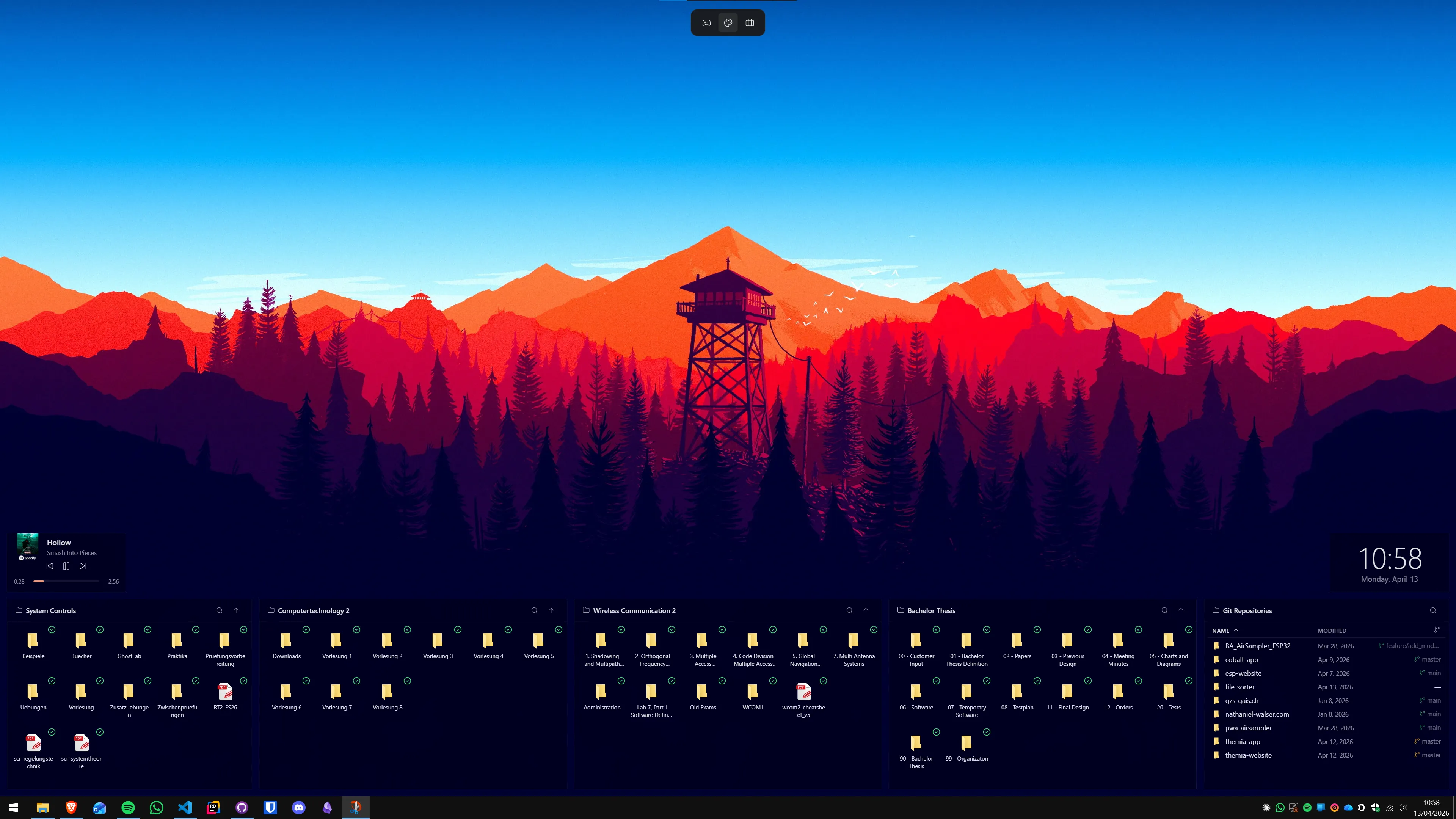
Step 3: Configure auto-sort rules (optional but useful)
Fences 6 can automatically file icons into the correct fence based on rules. Right-click any fence → Configure Fence → Rules. You can tell Fences to put every .pdf into your "Documents" fence, every .exe installer into a "Setup" fence, every screenshot into a "Screenshots" fence, and so on. On a multi-monitor setup, auto-sort keeps the second monitor tidy without manual maintenance.
Step 4: Use Desktop Pages for context switching
Fences 6 supports Desktop Pages — essentially multiple pages of fences that you switch between by dragging the mouse to the screen edge and swiping. This works on each monitor independently. If you have a work context and a personal context, you can keep separate pages and switch quickly. It is not the same as Windows 11 virtual desktops (which are separate app workspaces), but it is a clean way to have different icon layouts without clutter.
Step 5: Enable Roll-up for less-used fences
Double-clicking a fence title bar rolls it up — collapsing it to just the title bar. On a crowded second monitor this is useful: keep reference fences rolled up until you need them, and active project fences open. Fences 6.20 added an option to require a deliberate click to re-expand a rolled-up fence, preventing accidental expansion when you move the mouse near it.
When Fences is not the right tool for your second monitor
Fences organizes icons. If your second monitor holds icons, shortcuts, and files that need organizing, Fences is a natural fit. But many people with a second monitor do not primarily want more icon storage — they want information at a glance: system load, calendar, email, weather, or active projects.
That is a different problem, and Fences is not designed to solve it. Fences does not show live data. There is no weather widget, no email preview, no stock ticker, no CPU graph. It organizes what you put there; it does not surface live information.
This is where Themia — or a similar desktop widget app — fills a gap Fences deliberately leaves open.

Themia on multiple monitors: per-screen layouts
Themia is a native Windows widget app (built on Tauri, under 10 MB) with a specific multi-monitor feature that makes it worth knowing for this comparison: per-screen switchable layouts. Each monitor in your setup can have a completely independent widget layout that stays on that screen. Switch away and back — the layout is still there.
A common setup with Themia:
- Primary monitor: A small calendar widget in the corner plus a to-do list. The main desktop stays mostly clear for app windows.
- Secondary monitor: A dense information dashboard — weather, email widget showing unread count and recent senders, system stats (CPU/GPU/RAM), maybe a stocks widget or GitHub activity if you are a developer.
Themia's free tier includes the weather widget, notes, to-do, and system stats, among others. The one-time $19 Pro unlock adds the full widget set. That is roughly the same price as Fences's perpetual license, but solving a different problem.
The workflow that works for many people with two monitors is not choosing between Fences and Themia — it is using both. Fences organizes shortcuts and file access on the primary display; Themia turns the secondary display into a live information panel. They do not conflict.
Fences 6 vs Themia: quick reference for multi-monitor use
| Feature | Stardock Fences 6 | Themia |
|---|---|---|
| Multiple monitor support | Yes — drag fences to any screen | Yes — per-screen switchable layouts |
| Icon organization | Yes — containers, auto-sort, tabs | Folder widget (browse files, not icon sorting) |
| Live weather / email / calendar | No | Yes — built-in widgets |
| System stats (CPU/GPU/RAM) | No | Yes — built-in widget |
| Auto-organize rules | Yes — rule-based icon filing | No |
| Folder Portals | Yes — mirror real folders on desktop | Folder widget (similar end result) |
| Price | $9.99/yr subscription or $29.99 one-time | Free tier · $19 one-time Pro |
| App size | Full Stardock installer | Under 10 MB |
Practical multi-monitor configurations
Configuration 1: Two-screen productivity workstation
Primary (main app screen): Fences with three or four groups — active project files, tools and utilities, recently opened documents, and application shortcuts by category. Auto-sort rules keep the desktop self-organizing.
Secondary (information screen): Themia widgets — calendar showing today's agenda, email widget, weather, and system stats. The secondary monitor becomes a live dashboard rather than more icon storage.
Configuration 2: Primary + vertical side monitor
A vertical monitor (portrait orientation, 1080×1920) on the side is popular for reading, chat, and reference. Fences on a vertical monitor can use narrow, tall fences that work well in portrait layout. Alternatively, Themia with a tall widget column for calendar + to-do + email uses the portrait space cleanly.
Configuration 3: Gaming + info screen
Primary (gaming screen): Keep it clean — minimal or no fences so nothing overlaps game windows. If you do use Fences, a single game launcher group is plenty.
Secondary: Themia system stats widget (CPU, GPU temp, RAM, network) gives you hardware monitoring without alt-tabbing. Add a Discord or music widget if you want.
Troubleshooting multi-monitor Fences issues
A few issues come up often in multi-monitor Fences setups, even with 6.46's improvements:
- Icons reset to primary monitor after sleep/wake: This can happen if Windows itself resets the desktop before Fences restores positions. Right-click the desktop → Fences → Reload Fences after waking to force a position restore. This is a Windows desktop shell limitation more than a Fences bug.
- Fences appear on the wrong screen after changing the "main display" setting: Windows renumbers monitors when you change which one is "primary." Fences positions are absolute canvas coordinates, so fences stay in place — but they might now be on Monitor 1 instead of Monitor 2 from Windows's perspective. Drag them back.
- DPI scaling causes fences to look different on each screen: If your monitors run at different DPI scales (e.g., 150% on a 4K main display and 100% on a 1080p second), fences may look slightly different in size. Fences 6.46 improved DPI rendering up to 400% scale with better visuals at 250–400%.
- Fold Portals on a network drive load slowly: Fences 6.46 improved startup responsiveness for Folder Portals on slow or network drives. If your Folder Portal on the secondary screen is slow to populate, make sure you are running 6.46 or later.
Should you use Fences, Themia, or both?
The honest answer depends on what problem you are actually solving:
- If both monitors are full of desktop icons and shortcuts that you want to find faster, Fences handles both screens well. Set up fences per-project or per-category on each monitor and let auto-sort keep things tidy.
- If your second monitor is mostly for information and awareness — what meetings are next, what the weather is, whether the server is overloaded — Themia is more useful than Fences there, because Fences cannot show that information at all.
- If you want both — organized shortcuts on the primary, live data on the secondary — use Fences on the primary and Themia on the secondary. They coexist without conflict.
Check our full Fences vs widgets comparison for a deeper breakdown of both approaches, and our guide on using desktop widgets on a dual-monitor setup if you want to go deeper on the widget side.
If you have already decided to try Fences, the 30-day free trial from stardock.com lets you test the multi-monitor layout before committing to either the $9.99/year subscription or the $29.99 one-time license.
FAQ
Does Stardock Fences work on multiple monitors?
Yes. Fences 6 supports multiple monitors natively. Fences can live on any monitor and stay on their assigned screen even when you change resolution, reconnect displays, or switch DPI settings. Fences 6.46 (April 2026) specifically improved multi-monitor icon locking so fences and icons no longer drift between screens when monitor configurations change.
Can I have different fences on each monitor?
Yes. Fences are positioned on the Windows desktop canvas, which spans all your monitors. You drag each fence to whichever screen you want it on and it stays there. There is no built-in "assign fence to monitor" setting — placement is by dragging — but once placed, Fences 6 keeps icons locked to their positions.
Can Stardock Fences show live information like weather or email?
No. Fences is an icon organizer, not a widget platform. It groups, sorts, and displays desktop icons — applications, files, folders, and shortcuts — but it does not show live data like weather, email previews, calendar events, stock prices, or system stats. For live information on a second screen, a widget app like Themia is the right tool.
Should I use Fences or a widget app on my second monitor?
They serve different purposes. If your second monitor holds overflow icons and files you want organized, Fences makes sense there. If you want your second monitor to act as a live dashboard — showing calendar, system load, weather, email, or RSS feeds — a widget app like Themia with per-screen layouts is the better fit. Many users combine both: Fences on the main display for icons, Themia widgets on the second.
Does Stardock Fences 6 support Windows 10 and Windows 11?
Yes. Fences 6 supports both Windows 10 and Windows 11. The blur/transparency feature behind fence containers is specifically noted as available on Windows 10. On Windows 11, Fences integrates with the existing desktop layer alongside any native widgets or wallpapers you have set.
How much does Stardock Fences 6 cost?
Fences 6 is available as an annual subscription ($9.99/year for one PC) or a one-time perpetual license ($29.99 for one PC). The perpetual license covers Fences 6 and all 6.x point updates; major future versions (7.0 and beyond) would require a separate upgrade purchase. Fences is also included in Stardock's Object Desktop suite.