Stardock Fences vs PowerToys 2026: Full Comparison
Both Stardock Fences and Microsoft PowerToys appear in "Windows desktop organization" searches, and both are genuinely useful — but for almost completely different problems. If you are trying to decide between them or wondering whether you need both, the confusion usually comes from the fact that "desktop organization" can mean two different things: organizing the icons and files on your desktop surface, or organizing the application windows above that surface.
Fences handles the first. PowerToys handles the second. Once that distinction is clear, the decision becomes straightforward. This guide covers what each tool actually does, where they genuinely overlap, and where Themia fits in as a third layer that neither touches.
What Stardock Fences actually does
Fences is a desktop icon organiser. It adds labelled containers — called fences — to the Windows desktop. Icons and file shortcuts sit inside these containers instead of loose on the wallpaper. You can create as many fences as you need, label them by project, file type, workflow stage, or anything else that makes sense to you, and resize them to hold exactly what fits your layout.
The specific capabilities Fences 6 adds beyond simple containers:
- Auto-Organize rules: set conditions (file extension, name pattern, file type) and Fences automatically routes new desktop files into the correct container.
- Folder Portals: a fence that mirrors the live contents of a real folder. Files appear in the portal as they arrive in the folder, without moving the source files.
- Tabbed containers: a single fence holding multiple named tabs — one fence footprint, multiple categories of content accessible by tab click.
- Desktop Pages: virtual desktop surfaces for icons only. Applications and windows are unaffected; only the icon layout switches between pages.
- Quick Hide: a keyboard shortcut that makes all fences invisible instantly — useful for screen sharing or presentations where the desktop is briefly visible.
- Roll-up: double-click a fence header to collapse it to a title bar, freeing desktop space when you do not need those icons visible.
Fences 6 is $29.99 for a perpetual licence or $9.99 per year. It runs on Windows 10 and 11. A 30-day trial is available before purchase. For more context on whether the price is justified, see our guide on whether Fences is worth buying in 2026.
What Microsoft PowerToys actually does
PowerToys is a free, open-source collection of Windows utilities maintained by Microsoft. It contains about 20 separate tools. The one most relevant to desktop organisation is FancyZones — a window snap tool that lets you define custom snap zone layouts for each monitor.
FancyZones works like this: you define a layout of snap zones on your screen — columns, grids, sidebar arrangements, or completely custom shapes — then snap application windows into those zones by holding Shift while dragging or by using keyboard shortcuts. Each zone holds one window and sizes it precisely to fit. When you press the snap trigger, the window fills the zone boundary exactly.
Other PowerToys tools that relate to organisation or productivity:
- PowerToys Run: an app launcher (Alt + Space) similar to Spotlight on macOS — type to open applications, files, or web searches quickly.
- File Locksmith: right-click any file to see which processes have it open.
- Image Resizer: bulk-resize images from the right-click menu in File Explorer.
- Peek: press Space on a file in File Explorer for a quick preview without opening the associated app.
- Color Picker, Text Extractor, Mouse Utilities: productivity tools for power users and developers.
PowerToys has no feature that touches desktop icons. It does not group them, sort them, hide them, or move them. The desktop surface — the icons and files on the wallpaper — is entirely outside PowerToys' scope.

Where they genuinely overlap
The honest answer is: almost nowhere. Fences and PowerToys operate on different layers of the Windows desktop experience.
The one area where they address adjacent problems is multi-monitor layout. FancyZones lets you define independent window snap zones per monitor. Fences lets you assign icon containers to specific monitors and, in Fences 6, lock which icons appear on which screen. Both help you structure what you see on a multi-monitor setup — but FancyZones structures running application windows while Fences structures resting icons and shortcuts. A multi-monitor user would realistically use both: FancyZones to snap their browser, editor, and terminal into defined positions, and Fences to keep project files and shortcuts organized on the desktop surface below.
PowerToys Run and Fences both aim to reduce the time you spend hunting for something. PowerToys Run searches applications and files across your whole system in an app launcher overlay. Fences puts the files you use most in labeled containers on the desktop so they are visible without searching. These are different strategies for the same underlying goal — quick access — rather than competing implementations of the same feature.
Choosing between them
The choice between Fences and PowerToys should not be a choice at all in most cases — they address different enough problems that using both is often the right answer. But if you need a decision framework:
Choose Fences if:
- Your desktop accumulates icons and file shortcuts that you want sorted into named groups
- You need Auto-Organize rules to route file types automatically into containers
- You want Folder Portals that mirror a live project or downloads folder on the desktop
- You switch between different desktop layouts (Desktop Pages) for different work contexts
- You need to hide all desktop icons instantly before screen sharing
Choose PowerToys if:
- Your primary need is snapping application windows into precise custom grid layouts
- You want a fast keyboard-driven app launcher
- You are a developer or power user who needs the utilities like Color Picker or Text Extractor
- Budget is a constraint — PowerToys is completely free
If your desktop is already clean and your main frustration is that windows overlap messily, PowerToys is enough and costs nothing. If icon chaos is the problem, PowerToys will not help. Fences addresses that directly. For most users with busy desktops and multiple applications open, running both together is the complete solution — Fences for the icon layer, FancyZones for the window layer.
For a broader view of Fences alternatives including free options, see our Stardock Fences alternatives roundup.
Performance comparison
PowerToys runs as a background service and tray application. Total memory use is typically 60–120 MB when idle, with individual tools activating only when their trigger condition fires. FancyZones adds negligible overhead — it hooks into the Windows drag system and responds only during window movement. For most users PowerToys is effectively invisible in Task Manager.
Fences runs as a shell extension integrated into Windows Explorer. Typical memory use is 80–150 MB. Like PowerToys, it adds negligible CPU load when you are not interacting with the desktop. On modern hardware, both tools are essentially free in terms of performance cost. On older systems with 4–8 GB RAM, running both simultaneously is still practical but you may want to monitor Task Manager to confirm.
What Themia adds to this picture
Neither Fences nor PowerToys puts live data on the desktop. Fences holds icons. PowerToys handles windows. Neither shows you today's weather, your next calendar appointment, your GPU temperature, the current stock price of a company you follow, or unread email count.
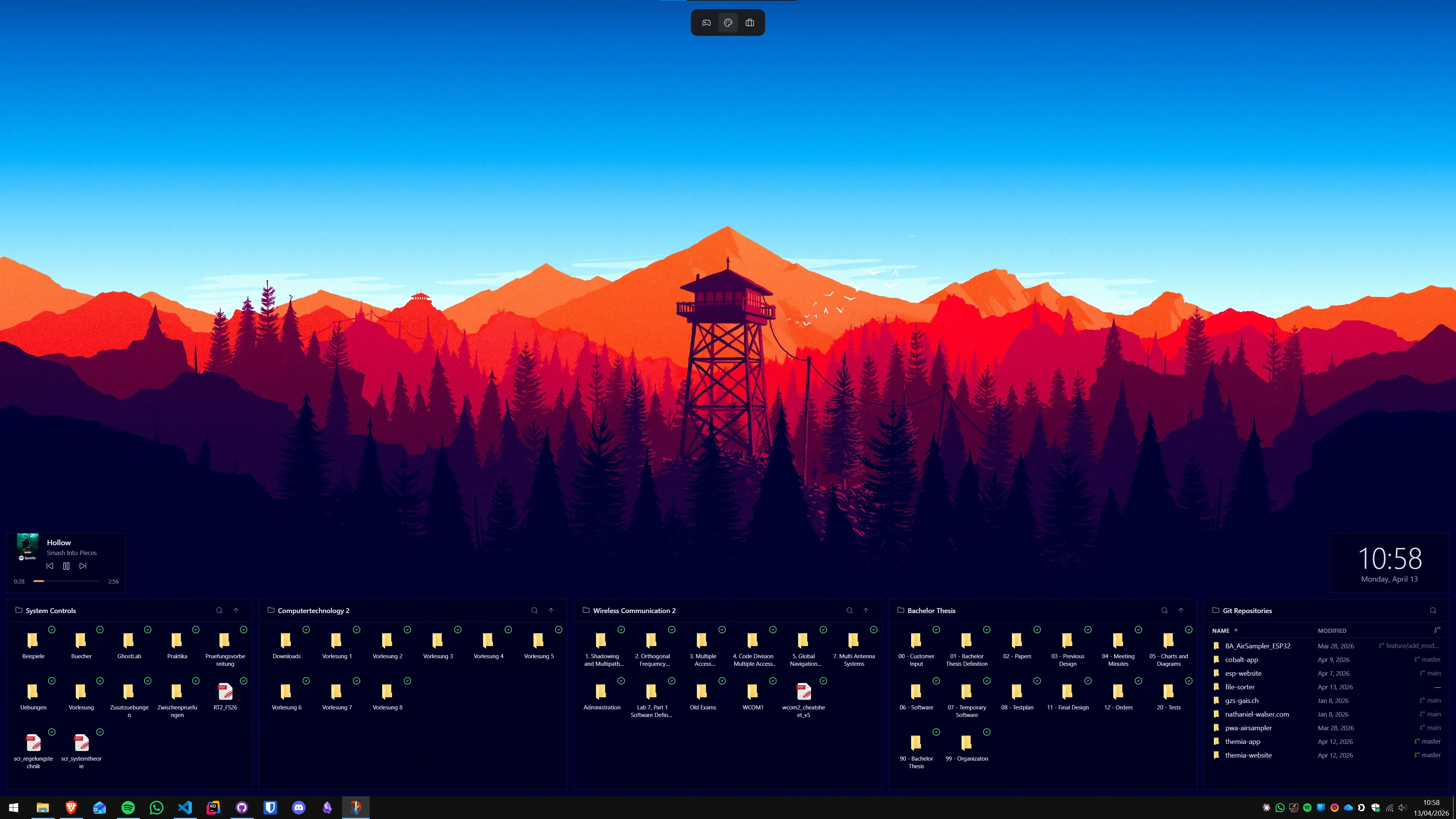
Themia fills that layer. It places live widgets directly on the desktop — the same surface where Fences containers sit. A practical combined setup: Fences containers holding project shortcuts in one corner, PowerToys FancyZones snapping your applications into a three-column layout across monitors, and Themia widgets showing system stats, calendar, and weather in the remaining desktop space.
All three run simultaneously without conflict. Each operates on a different aspect of the Windows desktop experience. If you have not tried Themia, it is worth testing the free tier — it covers weather and calendar widgets without requiring a purchase.
For more on how Themia compares directly to PowerToys across all features, see the Themia vs PowerToys comparison. For a direct Themia and Fences comparison, see Themia vs Stardock Fences.

Summary
Stardock Fences and Microsoft PowerToys are not direct competitors. Fences organises the icons and file shortcuts on your desktop surface. PowerToys FancyZones organises application windows above that surface. The overlap between them is minimal. Most users who benefit from one will benefit from the other, since they solve adjacent rather than identical problems.
If you are comparing them purely on budget: PowerToys is free and always will be. Fences costs $29.99 for a permanent licence. If your desktop clutter problem is icon-based, that price is reasonable for what Fences delivers. If window snap layouts are your need, PowerToys delivers that for nothing.
For desktop organisation that involves remote work and productivity context, see our guide on Windows desktop organisation for remote work in 2026.
FAQ
Does PowerToys replace Stardock Fences for desktop icon organisation?
No. PowerToys FancyZones organises application windows into snap zones — it has no effect on desktop icons. Stardock Fences puts labelled containers on the desktop and sorts icons into them. The two tools operate on entirely different elements: FancyZones controls window placement, Fences controls icon placement. You can run both at the same time without conflict.
Is Microsoft PowerToys free while Stardock Fences costs money?
Yes. PowerToys is completely free and open-source, maintained by Microsoft. Stardock Fences 6 is $29.99 for a perpetual licence or $9.99 per year as a subscription. If budget is the deciding factor and you only need window snap zones, PowerToys wins by default. If you need desktop icon organisation into named containers, only Fences provides that.
Which tool is better for a multi-monitor setup?
Both support multi-monitor but in different ways. PowerToys FancyZones lets you define independent snap zone layouts per monitor — you can have a three-column grid on one screen and a sidebar layout on another. Fences lets you place icon containers independently on each screen and, in Fences 6, lock which icons appear on which monitor. If your need is window organisation on multiple screens, PowerToys is the stronger tool. For icon organisation across screens, Fences handles that well.
Can PowerToys organise my desktop automatically like Fences Auto-Organize rules?
No. PowerToys has no feature that automatically sorts desktop icons by file type or name into groups. Fences Auto-Organize rules watch for new files landing on the desktop and route them into the appropriate container based on extension, file name pattern, or category. If automatic icon sorting matters to your workflow, only Fences provides this.
What does Themia add that neither Fences nor PowerToys provide?
Both Fences and PowerToys focus on organising what is already on your desktop or screen. Neither puts live data on the desktop. Themia adds live widgets — weather, calendar, system stats, stock prices, email, time zones, notes, to-do, GitHub activity — directly onto the desktop surface. Themia runs alongside both Fences and PowerToys without conflict and fills the live-information layer that neither tool touches.
Is Stardock Fences worth buying if I already use PowerToys?
That depends entirely on whether desktop icon clutter is a problem for you. PowerToys does not address icons at all — if your desktop is full of loose files and shortcuts, PowerToys will not help with that. Fences solves that specific problem with named containers, Auto-Organize rules, Folder Portals, and Desktop Pages. If your desktop stays clean naturally or you rarely use it, the $29.99 Fences licence is hard to justify when PowerToys already handles your window snapping for free.