Stardock Fences vs Rainmeter 2026: Full Comparison
Two tools come up repeatedly in searches about Windows desktop customisation: Stardock Fences and Rainmeter. Both live on the desktop background. Both claim to improve the desktop experience. But they are solving completely different problems, and confusing them leads to buying or installing the wrong tool — or dismissing one because you expected it to do something it was never designed to do.
This comparison explains precisely what each tool does, where they genuinely overlap, and where they diverge so completely that running both is the right answer. It also covers where Themia enters the picture as a modern alternative to Rainmeter's live-data use case.
What Stardock Fences actually does
Stardock Fences is a desktop icon organiser. Its purpose is to take the icons, file shortcuts, and folder links sitting loose on your desktop background and place them into labelled, resizable containers. Each container — called a "fence" — sits directly on the wallpaper. You name it, position it, and size it however makes sense for your workflow. The icons inside it stay put, grouped by the category or project you assigned.
Fences 6 (the current version, build 6.4.6.1) runs on Windows 10 and Windows 11, including the 24H2 update. It costs $29.99 for a perpetual one-time licence or $9.99 per year as a subscription. A 30-day free trial is available. For a full assessment of whether the price is justified, see our guide on whether Stardock Fences is worth buying in 2026.
Beyond basic icon grouping, Fences 6 adds several capabilities that address common desktop problems:
- Auto-Organize rules: set conditions based on file type, name pattern, or category, and Fences automatically routes new desktop files into the correct container. A downloaded PDF routes itself to a Documents fence; a screenshot lands in an Images fence.
- Folder Portals: a fence that mirrors the live contents of a folder on your drive. Files appear in the portal automatically as they are added to the source folder, keeping frequently-used directories visible on the desktop without moving originals.
- Tabs: a single fence can hold multiple named tabs — different categories of icons accessible from one container footprint.
- Desktop Pages: virtual icon-only layout pages. Switch between a work arrangement, a personal arrangement, and a gaming arrangement without affecting open application windows.
- Quick Hide: a keyboard shortcut that makes all fences instantly invisible — useful before screen sharing or presentations. More in our Fences feature overview.
What Fences does not do: it has no capability to display live data of any kind. It will not show you the current CPU usage, today's weather, the time, your calendar, or anything that updates itself. Fences deals exclusively with static icons and file shortcuts on the desktop background.
What Rainmeter actually does
Rainmeter is a free, open-source desktop skin engine. It displays transparent overlays — called skins — directly on the desktop background. These skins render live information: current CPU and RAM usage, disk activity, network upload and download speeds, current weather conditions and forecasts, music player information from Spotify or media players, custom clocks and calendars, RSS feed headlines, and anything else that can be retrieved via local system calls, web requests, or data files.
Rainmeter itself is just the engine. The skins are separate — created by the community and distributed through sites like DeviantArt and GitHub. Installing Rainmeter gives you the Illustro default suite, which provides basic system stats displays. For anything more specific — a weather skin that pulls from a particular API, a Spotify visualiser, a themed system monitor that matches your desktop aesthetic — you need to find and install additional community-made skins.
This community model is both Rainmeter's greatest strength and its most significant practical challenge. The variety of available skins is enormous. Searching DeviantArt for Rainmeter skins returns tens of thousands of results covering every imaginable visual style, from minimal monochrome system monitors to elaborate themed setups that transform the desktop into something resembling a science-fiction interface. If a specific aesthetic or data display exists in your imagination, a Rainmeter skin for it probably exists somewhere.
The challenge is that many of these skins were created years ago and have not been maintained. Windows 11 changed several APIs and behaviours that older Rainmeter skins depend on. A skin that worked perfectly on Windows 10 may fail silently, render incorrectly, or crash on Windows 11 24H2. Before building a Rainmeter setup, expect to spend time verifying which skins currently work on your specific Windows version — community forums are the best source of current compatibility information.
What Rainmeter does not do: it has no ability to organise the icons on your desktop. Skins float above the wallpaper and can overlap with icons, but they do not group, sort, or manage icons in any way. If your desktop is buried under a pile of unsorted shortcuts, Rainmeter skins will add data overlays on top of that pile without addressing the underlying organisation problem.
Where Fences and Rainmeter genuinely overlap — and where they do not
Both tools operate on the same desktop layer — the wallpaper background beneath all open application windows. This creates the surface-level appearance of overlap: both sit "on the desktop." But their purposes on that surface are completely different.
Fences manages the objects that live on the desktop: icons, shortcuts, and file references. It gives you control over where those objects are and how they are grouped.
Rainmeter adds new visual elements to the desktop: data displays, clocks, weather readouts, and system monitors. These elements did not exist on the desktop before you installed the skin, and removing Rainmeter removes them. They are not organising existing content — they are adding new content.
The genuine overlap is only spatial: both tools draw things on the same canvas. Because of this, placement matters. A large Rainmeter system monitor skin placed in the same desktop area as a Fences container will visually overlap. Users who run both need to plan their desktop layout so the skins and containers occupy different zones. This is a layout consideration, not a functional conflict — both tools continue working regardless of whether their visual elements overlap.
For a comparison of Fences with a tool that genuinely overlaps in function rather than just location, see the Fences vs PowerToys comparison, which looks at two tools that both address window and desktop management but from different angles.
Practical comparison: which one should you install first?
The question of which to install first depends entirely on what problem is bothering you most right now.
Install Fences first if: your desktop wallpaper is invisible under a layer of icons and file shortcuts. If minimising all your open windows reveals a chaotic background covered in unsorted content, Rainmeter skins sitting on top of that chaos will make the situation worse, not better. Fences solves the underlying organisation problem first. Once icons are in labelled containers and the wallpaper is visible, you have clean space for Rainmeter skins if you want them.
Install Rainmeter first if: your desktop is already tidy but you want live system data, a persistent weather display, or a specific aesthetic transformation. If you know exactly which community skins you want and have verified they work on your Windows 11 version, Rainmeter can go directly onto a clean desktop without Fences.
Install both if: you want organised icon groups AND live data displays on the desktop at the same time. They co-exist without conflict and each continues working independently. Plan the layout so skins and containers occupy different desktop zones to avoid visual overlap.
Themia as a modern alternative to Rainmeter's data use case
If the primary thing you want from Rainmeter is live data on the desktop — weather, system stats, a clock, calendar appointments — Themia addresses that use case with a significantly simpler setup and a maintained commercial product experience.
Themia is a native Windows application built with Tauri. Its installed footprint is under 10 MB. It starts with Windows and draws minimal system resources at idle. It places live widgets directly on the desktop background — the same layer where Fences containers and Rainmeter skins sit.
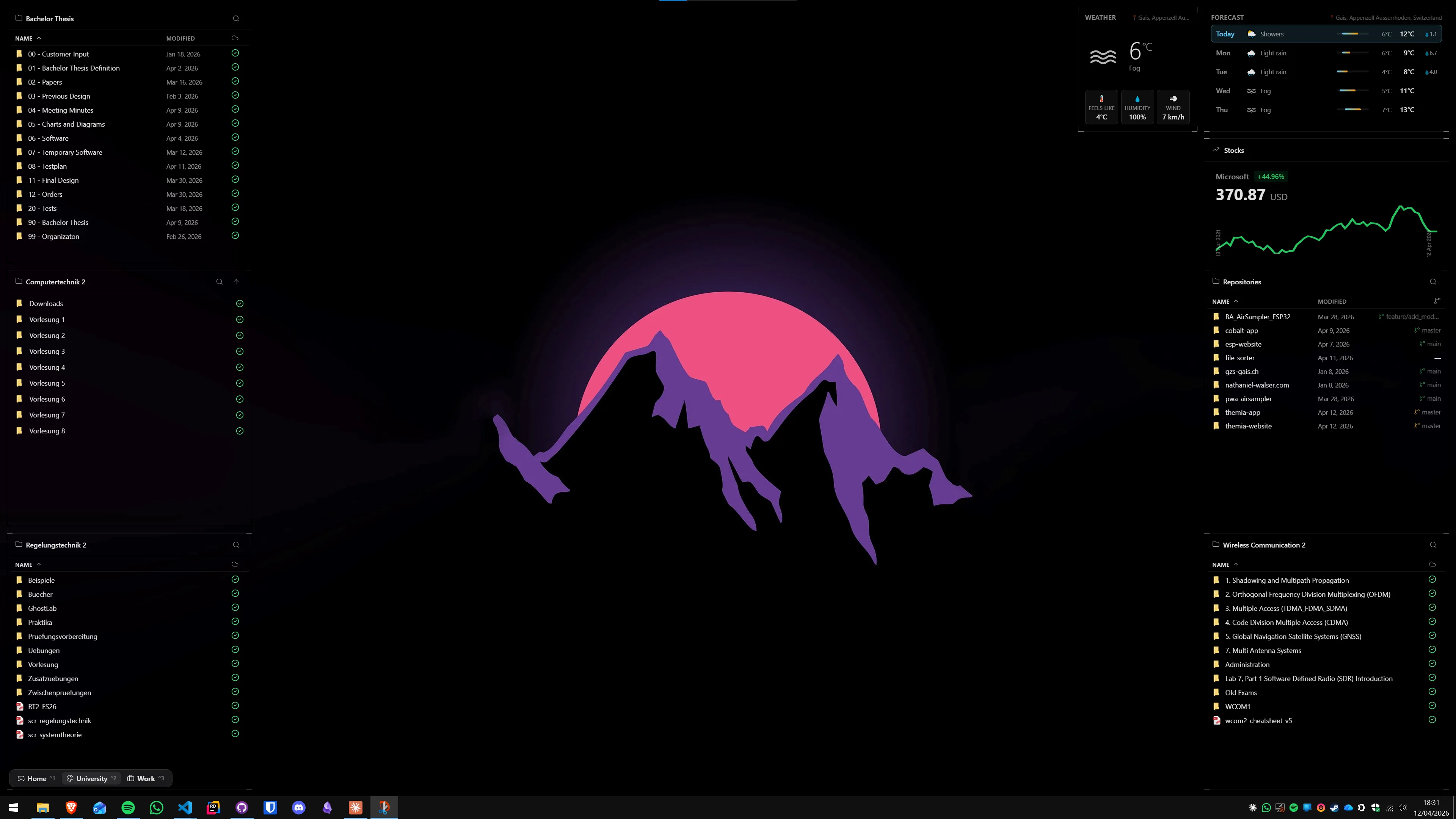
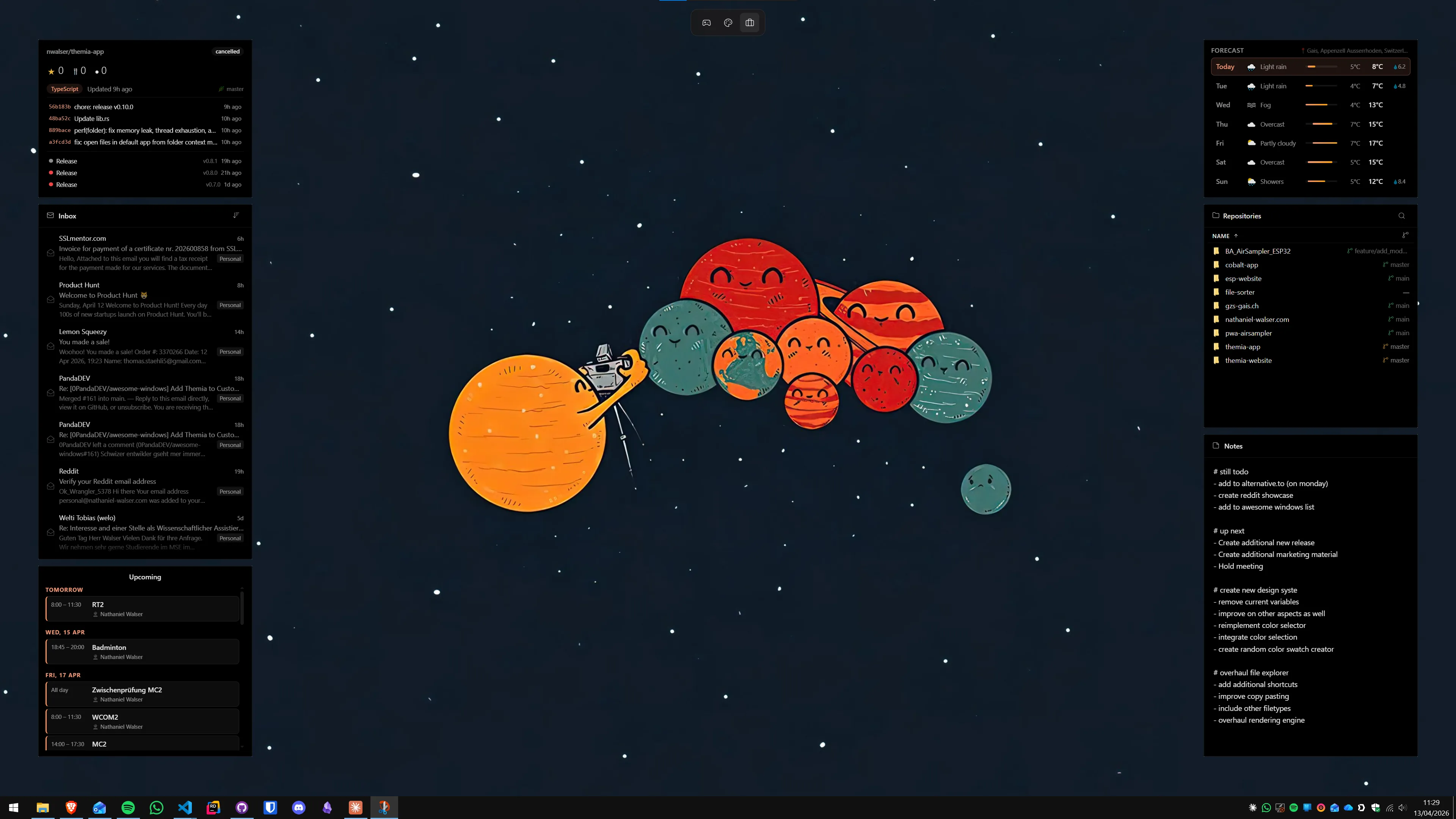
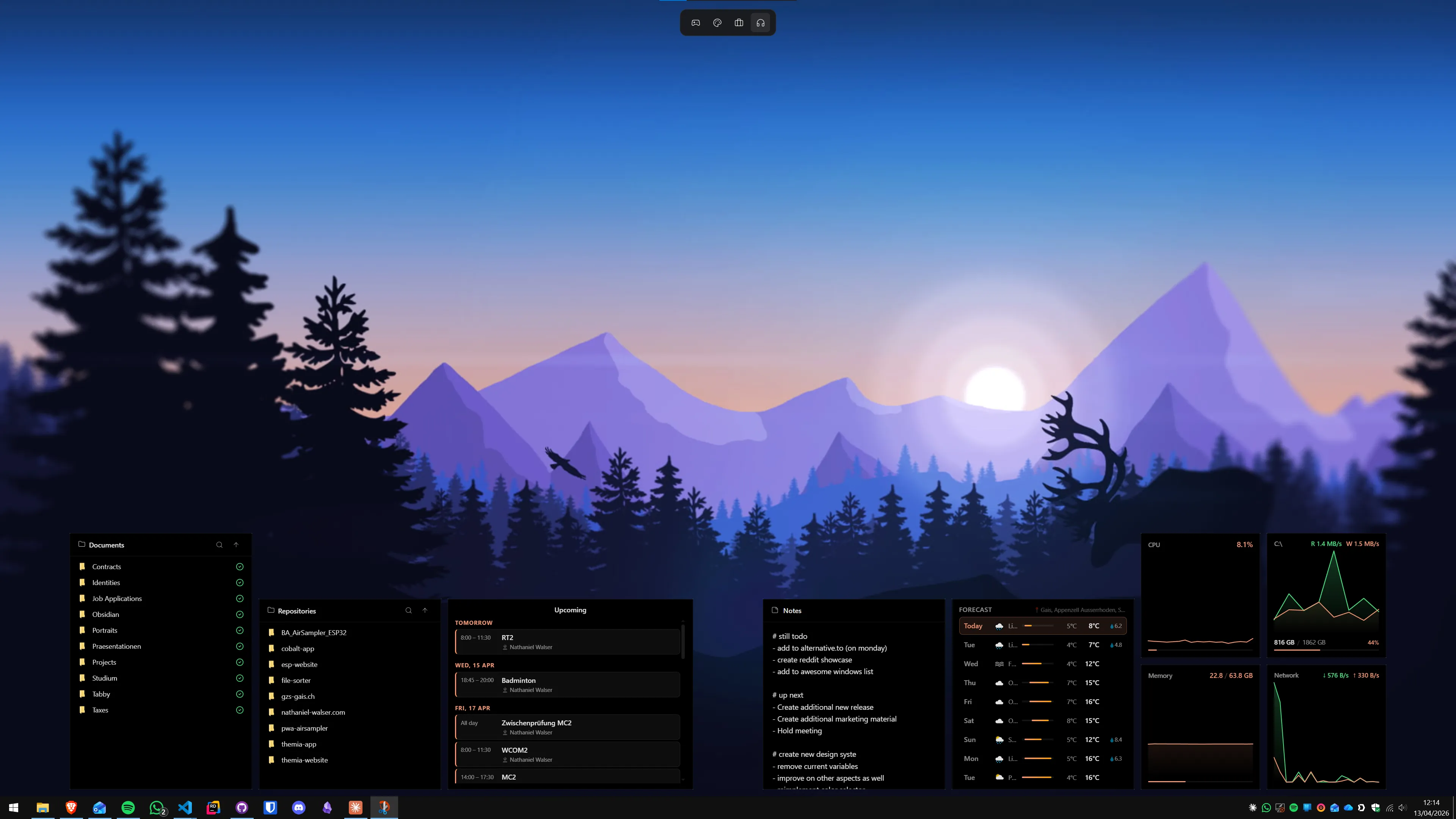
Available Themia widgets include: current weather and multi-day forecast, calendar showing upcoming appointments from connected accounts, system stats covering CPU, RAM, storage, and network usage, real-time stock prices for user-defined tickers, email unread counts, GitHub activity summaries, sticky notes, and to-do lists. Widgets are placed freely on the desktop, resized to fit available space, and can be assigned to specific monitors in multi-monitor configurations.
The difference from Rainmeter is the setup model. Rainmeter requires locating skin files from community sources, verifying compatibility, installing them manually, and editing .ini configuration files to connect to data sources or adjust appearance. Themia provides a catalogue of first-party widgets that install through a simple interface and connect to live data through guided account authorisation. For a direct comparison of how Themia and Rainmeter approach the same live-data use case, see our full Themia vs Rainmeter comparison.
Themia offers a free tier that includes core widgets — weather, calendar, and basic system stats — without a purchase. A one-time Pro upgrade at $19 unlocks the full widget catalogue and additional layout options. It runs alongside Fences on the same desktop layer, and for the complete picture of how Themia and Fences complement each other, see the Themia vs Stardock Fences comparison.
Resource usage and performance
Stardock Fences is a lightweight shell extension. Under normal conditions it uses under 30 MB of RAM and negligible CPU at idle, regardless of how many containers or icons are configured. The resource footprint is predictable and consistent.
Rainmeter's resource usage varies significantly based on which skins you run and how they retrieve data. A simple text-based system monitor skin might use 5–15 MB of RAM and near-zero CPU. A complex animated skin that fetches weather data from a remote API, renders a music visualiser, and updates multiple stats panels simultaneously can use 80–150 MB of RAM and a measurable continuous CPU load. If you install Rainmeter and notice performance degradation, the first step is to disable individual skins one by one to identify which one is consuming the most resources.
Themia, as a native Tauri application, uses less than 30 MB of RAM at typical runtime and negligible CPU at idle between widget updates. Widget data fetches are brief, periodic, and scheduled — not continuous polling. Its resource profile is predictable in a way that Rainmeter's is not, because Themia's widgets are first-party and optimised rather than arbitrary community code.
Windows 11 compatibility in 2026
Stardock Fences 6 has full official support for Windows 10 and Windows 11, including the 24H2 update. Stardock tests each build against current Windows releases, and updates address compatibility issues as they arise. If a Windows update breaks Fences, a patch follows.
Rainmeter's compatibility depends on the combination of the Rainmeter engine and the specific skins you use. The engine itself has been updated to support Windows 11. However, community-made skins may rely on Windows APIs, file paths, or registry entries that changed in Windows 11 or were further altered in 24H2. A skin that worked in 2021 may not work today without modification. There is no central authority updating community skins — the original creator would need to issue an update, or you would need to modify the .ini files yourself.
For a stable, low-maintenance desktop setup in 2026, Fences and Themia both offer commercially supported Windows 11 compatibility. Rainmeter remains viable but requires more ongoing attention to skin compatibility than it did on Windows 10.
Summary
Stardock Fences and Rainmeter are not competitors. They address different aspects of the same desktop surface. Fences organises the existing objects on your desktop — icons and file shortcuts — into labelled containers with auto-sorting rules, folder mirroring, tab groups, and desktop page layouts. Rainmeter adds new visual elements to the desktop — live data skins showing system stats, weather, clocks, and music info — drawn from a large community of creators and fully configurable through .ini files.
The practical path for most users: if icon organisation is the primary problem, start with Fences ($29.99 one-time or $9.99 per year, 30-day trial). If live data on the desktop is the goal and you want a simple, maintained setup without skin hunting, Themia (free tier available, $19 one-time Pro) is a better starting point than Rainmeter. If you want both icon organisation and live data, Fences and Themia — or Fences and Rainmeter — all run together without conflict on the same desktop surface.
FAQ
Does Stardock Fences replace Rainmeter?
No. Stardock Fences and Rainmeter solve fundamentally different problems. Fences organises the icons and file shortcuts sitting on your desktop background — it places them into labelled, resizable containers so your wallpaper stays visible and your files are easy to find. Rainmeter overlays transparent skins on the desktop that display live data: CPU and RAM usage, weather conditions, music playback, network speeds, and more. Fences does not display live data. Rainmeter does not organise icons. If you need both organised icons and live data on your desktop, you need both tools — they run side by side without conflict.
Is Rainmeter free while Stardock Fences costs money?
Yes. Rainmeter is free and open-source, released under the MIT licence and available at rainmeter.net at no cost. Stardock Fences 6 costs $29.99 for a perpetual one-time licence or $9.99 per year as a subscription, with a 30-day free trial available. The price difference reflects the different nature of the tools: Rainmeter is a community-maintained skin engine where the creation of useful skins requires effort from you or third-party developers; Fences is a polished commercial product with official support, a simple setup wizard, and guaranteed compatibility with Windows 10 and Windows 11.
Does Rainmeter work on Windows 11 in 2026?
Rainmeter itself installs and runs on Windows 11, but compatibility depends heavily on which skins you use. The core Rainmeter engine has been updated to support Windows 11, including the 24H2 update. However, many community-made skins were designed years ago and have not been maintained. Skins that rely on older Windows APIs or assume specific file paths may render incorrectly, crash, or fail to load data on Windows 11 24H2. Before committing to a Rainmeter skin setup, verify that the specific skins you want have recent user reports confirming they work on your Windows 11 version.
Can I use Stardock Fences and Rainmeter at the same time?
Yes, and many users do exactly this. Both tools operate on the desktop background layer — Fences places icon containers there, and Rainmeter places data-display skins there. They do not conflict. A typical combined setup has Fences containers organising project shortcuts and file groups on one side or corner of the desktop, with Rainmeter skins showing system stats, a clock, or weather on another area. Neither tool prevents the other from functioning, and both draw minimal system resources under normal use.
How much RAM and CPU does Rainmeter use compared to Fences?
Stardock Fences is a lightweight shell extension that typically uses under 30 MB of RAM and well under one percent of CPU at idle. Its resource footprint is consistent regardless of how many containers or icons you have configured. Rainmeter resource usage varies dramatically by skin. A simple text-based system stats skin may use only a few MB of RAM and negligible CPU. A graphically complex skin with animated elements, web data fetches, and multiple modules can use 100 MB or more of RAM and measurable CPU continuously. If resource usage is a concern, benchmark your specific Rainmeter skin configuration rather than relying on general estimates.
What is Themia and how does it relate to Fences and Rainmeter?
Themia is a native Windows desktop widget application built with Tauri. Its installed size is under 10 MB, it starts with Windows, and it places live widgets directly on the desktop background — similar in concept to what Rainmeter does, but with a modern approach. Themia provides weather with current conditions and forecast, calendar showing upcoming appointments, system stats covering CPU, RAM, and storage, real-time stock prices, email unread counts, GitHub activity, notes, and to-do lists. Unlike Rainmeter, Themia requires no skin installation, no configuration files, and no community knowledge — widgets are added from a catalogue through a simple interface. It offers a free tier and a one-time Pro upgrade for $19. Themia fills the same live-data niche as Rainmeter but with significantly lower setup friction and a maintained commercial product experience.
Which is better for a beginner: Rainmeter or Themia for live desktop data?
Themia is considerably simpler to set up and maintain for live desktop data. Installing Rainmeter and finding functional, well-maintained skins requires navigating community forums, DeviantArt galleries, and GitHub repositories — and then configuring .ini files if you want to adjust anything. Themia has a catalogue of first-party widgets that install in one click and connect to live data sources through a guided setup. For a beginner who wants weather, calendar, system stats, or stock prices on their desktop today, Themia reaches a working state in minutes rather than hours. Rainmeter remains the better choice for users who want extreme visual customisation and are willing to invest the time to find and configure skins.