Windows Desktop Organisation for Remote Work (2026)
Remote work changes what your desktop needs to do. In an office, most of your project context lives in shared drives, physical folders, and conversations with colleagues in the same room. Working from home concentrates everything onto a single screen — or two or three — and the desktop becomes a genuine working surface rather than a place where icons accumulate.
The two most popular approaches to organising that surface in 2026 are Stardock Fences (icon containers that group your shortcuts and files) and Themia (live widgets that surface information directly on the desktop). This guide looks at both through the lens of a WFH workflow: what each one does well, where each falls short, and how to decide which fits your setup.

What remote work actually demands from a desktop
Before comparing tools, it is worth being specific about what a WFH desktop needs to do that an office desktop does not.
Project context switching is constant. A remote worker on a typical day might jump between three or four different client projects or work streams, each with its own files, documents, and tools. In an office you might have a physical desk drawer for each project; at home, the desktop has to serve that function.
Meeting awareness matters more. Without colleagues walking over to remind you of the 2pm call, your desktop needs to surface your schedule. A calendar visible without switching apps is not a nice-to-have — it is a safeguard against missed meetings.
Time zones become relevant. Distributed teams mean colleagues in different time zones. Knowing at a glance whether it is 9am in London and 4pm in Singapore while you are sitting in Chicago is the kind of ambient information that saves the mental overhead of constant conversion.
Focus protection requires external cues. In an office, social norms help protect deep work blocks. At home, you need to create those cues yourself — a visible focus timer or Pomodoro counter on the desktop serves that purpose.
System health is your IT department. When your work laptop runs hot or fans spin up five minutes before a video call, you want to know before the call starts, not during it. A system stats widget that shows CPU usage and temperature at idle is the kind of ambient monitoring that would be an IT team's job in an office.
How Stardock Fences serves remote workers
Fences is a shell extension that groups desktop icons into labelled containers. For a remote worker, the most natural use is project-based organisation: one container for each active client or project, containing the shortcuts, documents, and folder links relevant to that work stream.
The folder portal feature is particularly valuable in a WFH context. A folder portal turns a Fences container into a live view of any folder — so you can place your active project's Downloads folder or Documents folder directly on the desktop and see its current contents without opening File Explorer. For client work where files constantly arrive via email and need to be placed in the right project directory, this removes a step from every file-handling interaction.
Fences also supports desktop pages — essentially multiple virtual desktops worth of icon layouts that you can flip through. A remote worker might use this to maintain a separate layout for deep work (minimal icons, only the current project), communication (Slack, email, calendar shortcuts prominent), and reference (documentation links, style guides, company wikis). Switching between pages is a keyboard shortcut or a mouse scroll.
The auto-organize feature keeps things tidy without manual effort. You define rules — files matching *.pdf go into a container called Documents; shortcuts ending in .exe go into Programs — and Fences enforces them automatically. For remote workers who regularly save files to the desktop as a temporary staging area, this stops the desktop from degenerating into chaos between clean-up sessions.
The limitations in a WFH context: Fences is fundamentally an icon manager. It does not show you your next meeting, your current CPU temperature, or what time it is in the client's time zone. You get organised access to your files; you do not get live ambient information. And you pay a recurring subscription for the privilege — Stardock's Object Desktop subscription, which includes Fences, runs around $40 per year.
For a comprehensive comparison of the two tools, see Themia vs Stardock Fences: Full Comparison.
How Themia serves remote workers
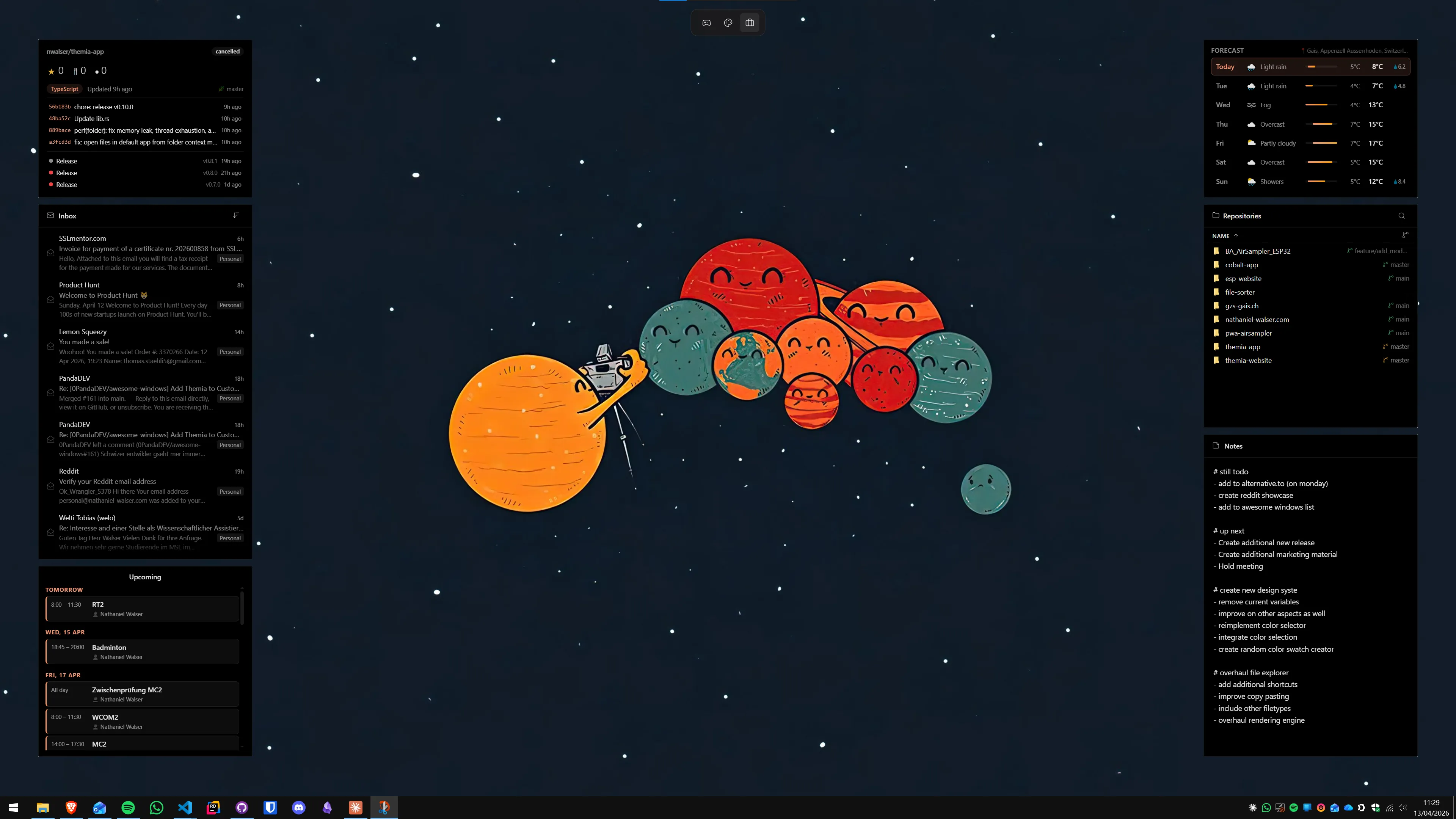
Themia takes a different approach. Rather than organising existing desktop icons, it replaces the icon model entirely with live widgets: interactive panels that surface information and file access directly on the desktop surface.
For remote work, the most relevant Themia widgets are:
- Calendar widget: Shows your upcoming events from your connected calendar (Google Calendar, Outlook) directly on the desktop. No clicking, no app switching — your schedule is ambient.
- File widget: A live view of any folder on your system, showing recent files with one-click access. Functionally similar to a Fences folder portal, but in Themia's widget format.
- Time zone widget: Shows multiple city clocks simultaneously. For distributed teams, this replaces the habit of opening a browser and searching "what time is it in Berlin".
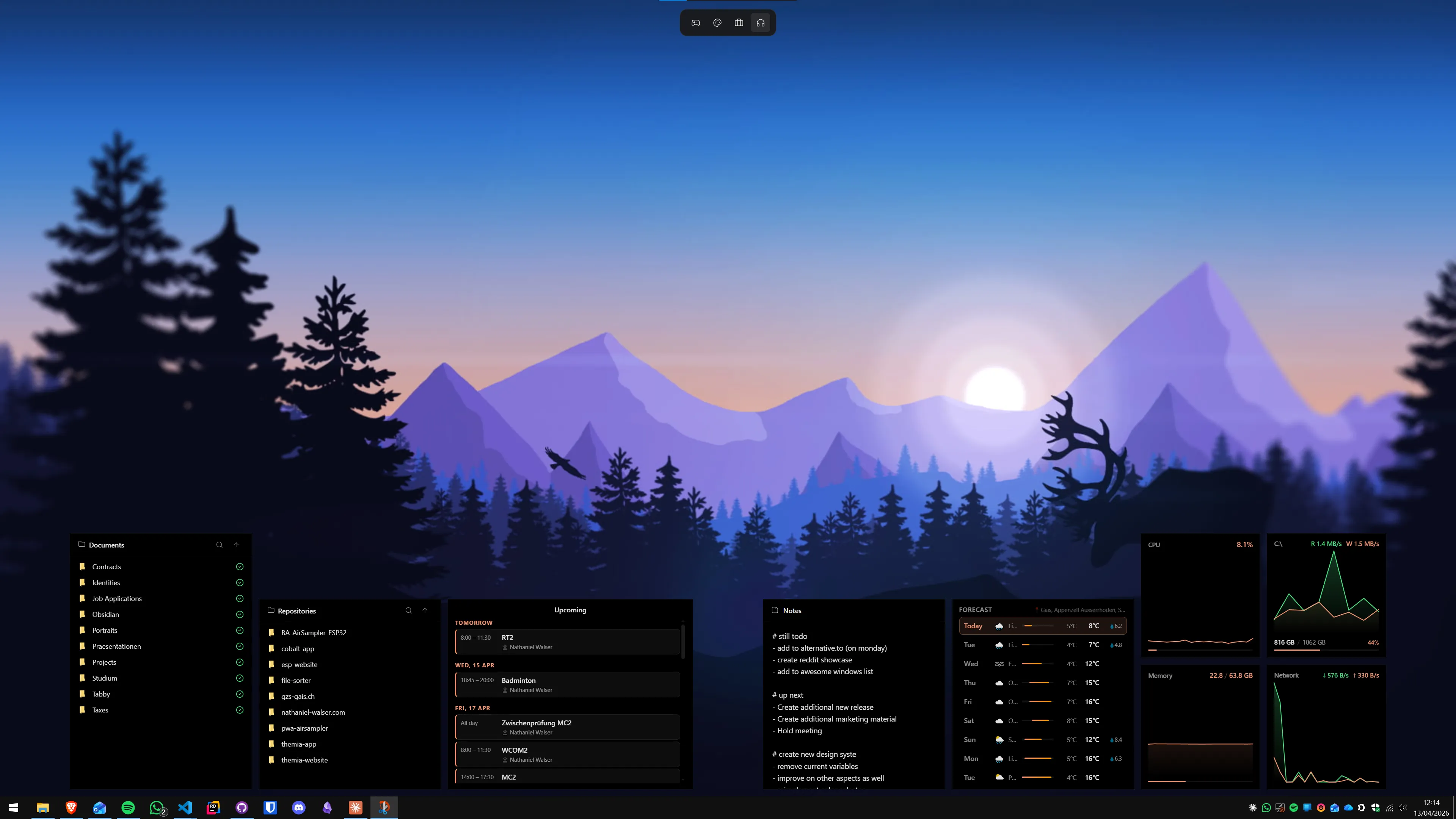
- System stats widget: CPU usage, RAM, disk activity, network throughput — at a glance. Spot the runaway process before it crashes your video call.
- Weather widget: Current conditions and a short forecast. Useful for WFH workers who need to know if their commute-free lifestyle means they can open the window.
- Focus timer widget: A visible Pomodoro or interval timer. Creates the focus-block cues that an office environment provides socially.
Themia runs as an overlay rather than a shell extension, which means it does not add to Windows Explorer's startup overhead. Its memory footprint at idle is substantially lower than Fences, which matters on laptops that double as video-call machines. The free tier includes file widgets, weather, and system stats; the full widget set unlocks with a one-time $19 purchase — no annual fee.
The trade-off: if you have 60 desktop shortcuts that you click regularly, Themia does not organise them. It replaces the need for shortcuts by surfacing information directly. If your workflow is already built around the Start menu, taskbar, and keyboard shortcuts, the switch is natural. If icon-clicking is genuinely how you navigate your tools, Themia does not address that — Fences does.
If you are considering moving from Fences to Themia, see How to Switch From Stardock Fences to Themia for a step-by-step guide.
The performance question for WFH machines
This is where hardware matters most. Many remote workers use mid-range business laptops — machines with 8 to 16 GB of RAM that are expected to run a video call, a browser with multiple tabs, a communication app, and the desktop organisation layer simultaneously.
Fences on an 8 GB laptop running a Zoom call, Chrome, Slack, and a document editor is taking memory from a pool that is already under pressure. The background resource cost is real — typically 80–150 MB of RAM at idle, more with folder portals configured. This is not catastrophic, but on a tight system it can contribute to dropped frames in a video call or sluggishness when switching between tasks.
Themia's lower overhead means more headroom for the applications that matter in a WFH context. On a 16 GB machine the difference is negligible. On an 8 GB machine it can be the difference between a smooth call and a choppy one.
For a detailed performance breakdown, see Does Stardock Fences Slow Down Windows 11?
Multi-monitor WFH setups
Remote workers who use two or three monitors get a more nuanced answer. Both Fences and Themia support multi-monitor configurations, but with different philosophies.
Fences assigns containers to specific monitors and maintains their positions independently. You can have your project file containers on the main monitor and a separate set of reference containers on the secondary monitor. Desktop pages can be configured per-monitor or globally. For a two-monitor setup where one screen is dedicated to project files and another to communication tools, Fences' per-monitor control is a genuine advantage.
Themia places widgets independently across monitors. You might put your calendar and time zone widgets on the secondary monitor (where they are always visible) and keep your file widgets on the primary. Because widgets do not depend on icon positions, a second monitor running Themia is adding live information rather than managing icon real estate.
For most WFH setups, multi-monitor is where the two tools diverge most clearly: if you have many files to access from the desktop, Fences' container approach handles multiple screens elegantly. If you want ambient information on a secondary screen while your primary screen does actual work, Themia's widget-per-monitor model is more natural.
Making the decision: which tool fits your remote work style?
The honest answer is that the right choice depends on how you actually work rather than on which tool has more features.
Choose Fences if: your desktop is genuinely your filing system — if you keep 40 or more shortcuts and folders on the desktop and click them regularly. If your WFH workflow involves switching between client projects by clicking their respective desktop containers. If you use virtual desktops and want icon layouts that correspond to each context. If you are already on Object Desktop for other Stardock tools.
Choose Themia if: you have largely moved off the desktop for navigation — you use the Start menu, taskbar, or keyboard shortcuts to launch applications, and the desktop surface would be better used for ambient information. If your remote work involves time zone management, calendar awareness, or focus timing. If you are on a tight-memory laptop where reducing background overhead matters. If you prefer a one-time payment over a recurring subscription.
Consider combining approaches if: you specifically need icon organisation AND live information widgets. Running both tools adds overhead, but on a capable machine (16 GB RAM, modern processor) the combined footprint is manageable. Some WFH users use Themia on the secondary monitor for ambient information and do not bother organising the primary desktop at all.
For more ideas on building a productive WFH desktop, see Working From Home: Windows 11 Setup Guide and How to Build a Productivity Dashboard on Windows.
Setting up Themia for remote work in five steps
- Install Themia from the Microsoft Store and open the widget picker (right-click the desktop → "Add widget").
- Add a Calendar widget and connect your Google or Outlook account. Place it on the right side of your screen or on a secondary monitor where it is always visible.
- Add a File widget pointed at your active project folder. This gives you the same quick-access benefit as a Fences folder portal.
- Add a System Stats widget showing CPU, RAM, and network — position it where you will see it before a video call.
- If you work with international colleagues, add a Time Zone widget with two or three city clocks. Place it near the calendar.
For the focus timer functionality, the Pomodoro widget is available in the Pro tier. The one-time unlock is $19; the free tier covers the file, weather, and system stats widgets.
FAQ
Is Stardock Fences good for remote workers?
Fences works well for remote workers who keep many project shortcuts, client folders, and reference documents on their desktop and want them grouped by project or context. Its folder portal feature — showing live folder contents in a container on the desktop — is particularly useful when you cycle through several client projects and want quick file access without opening File Explorer. The trade-off is a higher memory footprint and a subscription fee, which matters more when you are already paying for a full WFH software stack.
What desktop widgets are most useful for remote workers?
The most useful widgets for remote work are: a calendar widget (so your next meeting is always visible without switching apps), a time-zone widget (for distributed teams), a focus timer or Pomodoro widget (for managing deep work blocks), a system stats widget (to spot when a resource-hungry process is tanking your video call), and a file or folder widget pointing to your active project directory. Themia covers all of these in its Pro widget set.
Can I use both Fences and Themia at the same time?
Technically yes — both can run simultaneously. In practice it doubles your desktop overhead: Fences adds its shell extension footprint and Themia adds its widget overlay footprint. Most users who try both end up choosing one approach. If you have many icons to organise, Fences is the better primary tool. If you have moved most of your workflow off the desktop, Themia fits better as the sole desktop layer.
Does Fences work well on multi-monitor WFH setups?
Fences has native multi-monitor support: you can assign different containers to different monitors and use desktop pages to switch icon layouts per screen. This is genuinely useful for a two or three-monitor WFH setup where one screen is for communication tools and another for project files. Themia also supports multi-monitor arrangements, placing different widget sets on each screen, though the workflow is different — it is about information rather than icon placement.
How do I stop desktop clutter from piling up during remote work?
The two most effective habits are: (1) treat the desktop as a temporary staging area — files land there but get moved within 24 hours — and (2) use either Fences auto-organize rules or Themia folder widgets to make the desktop itself do useful work rather than just collecting icons. The most cluttered remote-worker desktops are ones where the desktop is used as permanent storage rather than a transient work surface.
Which is cheaper for remote workers — Fences or Themia?
Themia's Pro unlock is a one-time purchase (currently $19) with no recurring fee. Stardock Fences is available via the Object Desktop subscription (around $40/year) or as a standalone perpetual licence at a higher upfront cost. For a long-term WFH setup, Themia's one-time cost is lower over two or more years. For users already subscribed to Object Desktop for other Stardock tools, the marginal cost of Fences is zero.