How to Set Up Windows 11 for Working From Home
Working from home on Windows 11 is a different problem from just setting up a nice-looking desktop. The issues that bite people are practical ones: work bleeding into personal life, notifications interrupting focus, no easy way to see today's meetings without opening Outlook, video calls where the background is a pile of laundry, and a machine that runs hot for hours with Teams open. This guide addresses all of it — not comprehensively, but usefully.
The structure is roughly in priority order. If you only have 20 minutes, do the first two sections. If you have an afternoon, do the whole thing. Nothing here requires Windows 11 Pro, everything works on a local account except where noted.
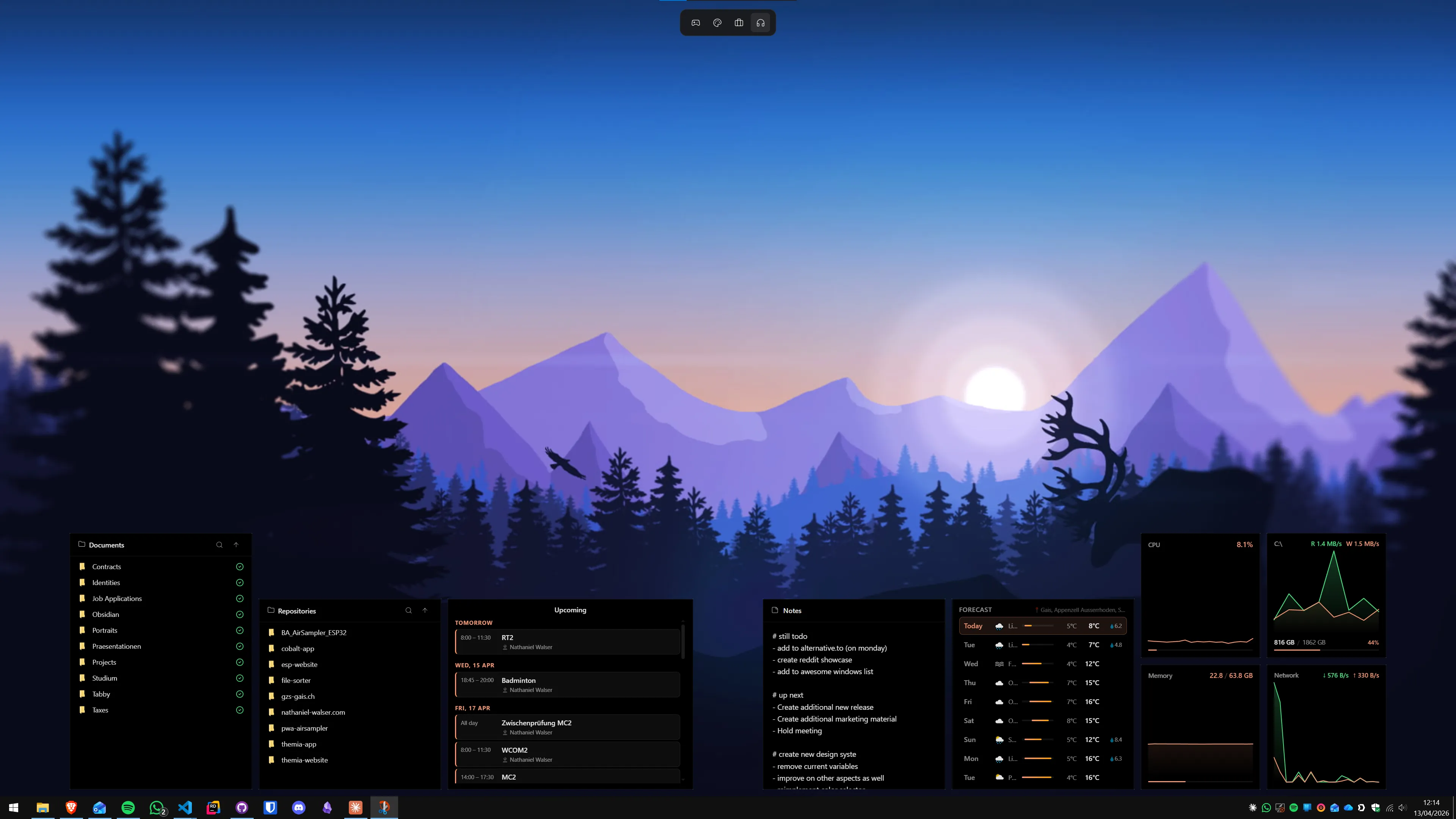
Step 1: Separate work from personal with virtual desktops
The single most useful thing in Windows 11 for working from home costs nothing and takes two minutes to set up. Virtual desktops let you run a separate workspace — different open apps, different wallpaper — without a second machine or a complicated profile system.
The keyboard shortcuts to know:
- Win+Ctrl+D — create a new virtual desktop
- Win+Ctrl+→ / ← — move between desktops
- Win+Tab — open Task View (see all desktops and all windows at once)
- Win+Ctrl+F4 — close the current desktop (apps stay open, just move to the previous desktop)
A practical layout: Desktop 1 is work — Teams, your browser with work tabs, email, any work apps. Desktop 2 is personal — personal browser, music, anything unrelated to work. You switch with Win+Ctrl+→ when you are done for the day rather than minimising a pile of windows.
To assign a different wallpaper to each desktop, press Win+Tab, right-click one of the desktop thumbnails at the bottom, and choose Choose background. A muted dark wallpaper for work and a more personal one for your personal desktop is a simple visual cue that helps your brain context-switch.
Apps can live on one desktop or all desktops. In Task View, right-click any running app window and choose Show this window on all desktops if you want it available everywhere — useful for a password manager or a notes app.
Step 2: Tame notifications during deep work
Notifications are the biggest productivity drain in a home office setup. Most people either let every notification through (constant interruption) or turn everything off (miss something important). The right configuration is a middle path.
Do Not Disturb
Go to Settings → System → Notifications. Toggle Do not disturb on when you need focus. You can configure it to still show notifications from specific apps — add Teams or Zoom calls there if you need those to break through. Everything else is suppressed and waiting in the Notification Center when you are ready.
Focus Sessions
Open the Clock app (search for it in Start). Go to the Focus tab. Set a session length — 25 minutes for a Pomodoro-style approach, 60 or 90 minutes for deep work blocks. Focus Sessions silences notifications automatically for the duration and optionally plays ambient sounds. It integrates with Microsoft To Do if you use that for tasks.
For recurring quiet hours — say, 9 AM to noon is always focus time — go to Settings → System → Notifications → Turn on do not disturb automatically and set a time-based rule.
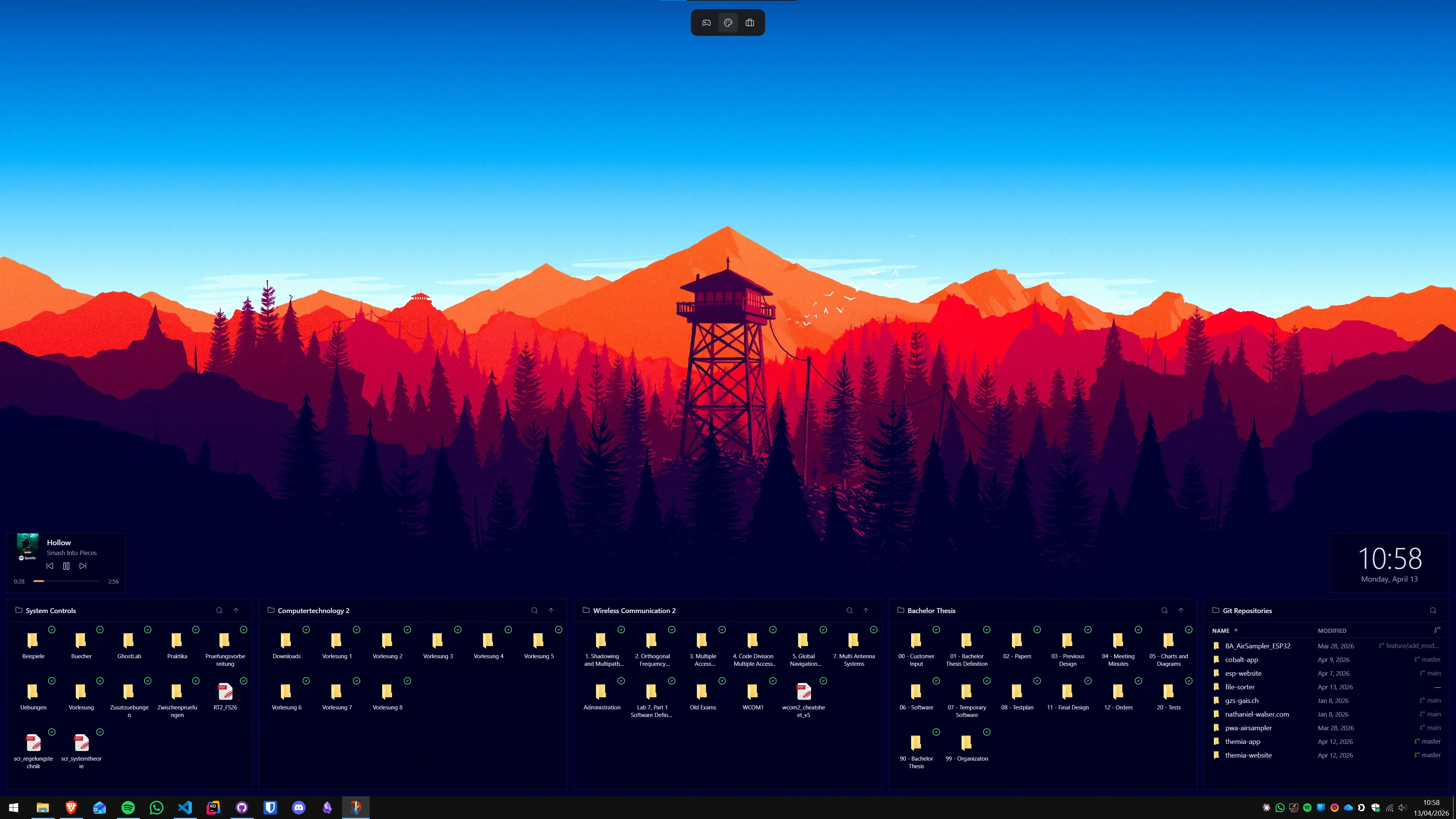
Step 3: Put key information on your desktop
The classic WFH frustration: you are deep in a document and you need to know what time your next meeting is — so you stop, switch to Outlook or Google Calendar, check, switch back. You have now lost your thread. The fix is to put that information on the desktop so you never have to switch windows for it.
Windows 11's built-in Widgets Board (Win+W or the taskbar icon) hides everything behind a panel click, which defeats the point. What you want are widgets that live directly on the wallpaper, always visible regardless of what apps are open. There are a few options.
Desktop widget apps
Themia is a native Windows desktop widget app — built on Tauri, installer under 10 MB, runs on Windows 10 and 11. For a WFH setup, the most useful widgets are:
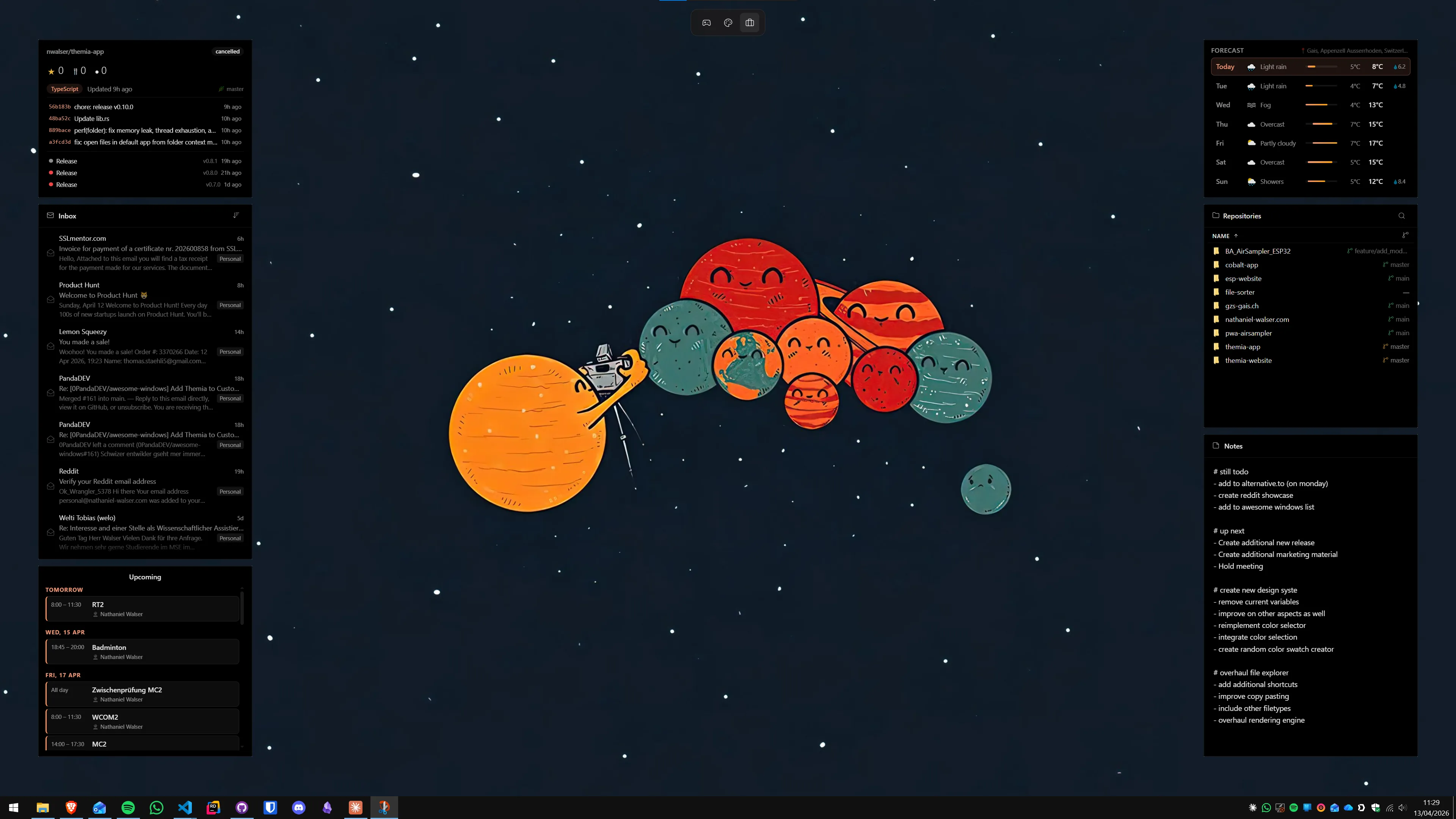
- Calendar — syncs with your Microsoft or Google account and shows today's events directly on the wallpaper. You see your 2 PM call without touching a keyboard.
- Email — shows unread count and the most recent senders. Useful for staying aware of incoming messages without having Outlook open at all times.
- To-Do — a persistent task list on the wallpaper. Add tasks in the morning, check items off during the day. No need to open a separate app for your daily task list.
- System stats — if you run Teams calls for hours, tracking CPU/RAM temperature is genuinely useful. An overheating machine shows up here before it throttles.
The free tier covers all of these. The one-time $19 Pro unlock adds custom themes and layout switching — useful if you want a different widget arrangement for focus time versus meeting time. Learn more on the Themia pricing page.
If you want to see what a full productivity dashboard looks like, read the guide to building a productivity dashboard on Windows — it goes into specific widget layout suggestions for different workflows.
For calendar specifically, the calendar on Windows desktop guide covers all the options including non-widget approaches if you prefer a different setup.
Step 4: Configure video calls properly
Video calls are a defining part of WFH life, and Windows 11 has a few settings worth configuring before your first client call.
Voice clarity
Go to Settings → System → Sound. Under your microphone input, look for Voice clarity or Enhance audio. Enabling this runs Windows-level noise suppression before audio reaches any app, so it works in Teams, Zoom, Meet, and anything else. The results vary by microphone, but on most built-in laptop mics and basic USB headsets it makes a noticeable difference.
Camera privacy
Go to Settings → Privacy & security → Camera. Confirm which apps have camera access and revoke access from anything that does not need it. The physical camera shutter on modern laptops is worth using — slide it closed when not on a call. If your laptop does not have one, a <$5 webcam cover that slides over the lens is worthwhile.
Background blur or replacement
Teams, Zoom, and Google Meet all have built-in background blur or replacement that does not require a green screen. For Teams: click the three dots (More) before or during a call → Apply background effects. For Zoom: Settings → Background & Filters. These run locally with no additional software.
If your GPU is under load during calls and blur causes frame drops, the alternative is a physical backdrop — a plain wall, a bookshelf, or a fabric panel behind your chair costs a few dollars and does not burn CPU cycles.
Step 5: Manage file sync and cloud storage
Working from home means files need to be accessible both at your desk and away from it — on another machine, from a phone, or simply safe from a laptop failure.
OneDrive
OneDrive is built into Windows 11 and handles sync automatically. The setup most people miss: right-click important folders in File Explorer and choose Always keep on this device. This ensures the files are available offline, not just as stubs that need a download. The opposite setting, Free up space, removes local copies and keeps them online-only — useful for large archives you rarely need.
For work, confirm with your employer whether files should live in a company OneDrive (SharePoint) or personal OneDrive. Keeping personal and work files in separate OneDrive accounts prevents accidental sharing.
File organisation for WFH
A folder structure worth considering for a home office: top-level folders for each client or project, with subfolders for active work, archive, and reference. Keep the desktop itself clear of files — use the folder pin or widget approach instead so you get quick access to your most-used folders without scattering files across the wallpaper.
Step 6: Manage window layout with PowerToys FancyZones
Windows 11 has Snap Layouts (hover over a window's maximise button to see them), which handles the most common two- and three-column arrangements without any extra software. For more complex layouts — four zones, L-shaped arrangements, different layouts per monitor — Microsoft PowerToys adds FancyZones.
PowerToys is a free official Microsoft utility available from the Microsoft Store or GitHub. After installing, open PowerToys Settings, go to FancyZones, and click Launch layout editor. Draw your preferred layout — for example, a wide main zone for the active document, a narrow zone on the right for reference material or a chat window. Hold Shift while dragging any window to snap it to a FancyZone rather than a standard snap region.
For a WFH setup with two monitors, FancyZones lets you define different layouts per monitor — a full-width editor layout on the primary, and a three-column reference/chat/stats layout on the secondary.
Step 7: Sort out ergonomics and the physical setup
Software configuration only goes so far. The physical setup matters more than most people admit until something starts hurting.
- Monitor height: the top of the screen should be at eye level or just below. A monitor arm or a stack of books under a stand gets most people to the right height.
- Night mode: Windows 11 has Night Light built in. Settings → System → Display → Night light. Set it to a warm colour temperature at sunset, cooler during the day. This reduces the blue light load on long work days.
- Scaling: On a 4K display or a high-DPI laptop panel, set scaling in Settings → System → Display → Scale. 125% is the common choice for 1440p; 150% for 4K at 24 inches. At the wrong scale, you squint all day and your eyes pay for it by evening.
- Sound: If you are on calls, invest in a headset with a boom mic or an external USB mic — built-in laptop mics pick up keyboard noise and room echo in ways that damage your professional image on calls.
Quick reference: WFH setup checklist
- Create two virtual desktops — work and personal (Win+Ctrl+D)
- Set different wallpapers per desktop (Task View → right-click desktop thumbnail)
- Configure Do Not Disturb for focus hours (Settings → System → Notifications)
- Set up Focus Sessions in the Clock app for timed work blocks
- Install a desktop widget app and add calendar, email, and to-do widgets
- Enable Voice Clarity for microphone (Settings → System → Sound)
- Configure OneDrive sync with "Always keep on this device" for key folders
- Install PowerToys and set up FancyZones if you use two or more windows side by side
- Set Night Light to activate at sunset (Settings → System → Display)
- Check scaling is correct for your display (Settings → System → Display → Scale)
The common thread through all of this is reducing context switching — the gap between "I need to know something" and "I know it." The better your setup, the less mental overhead each small task carries. A meeting visible on your wallpaper, tasks on screen without opening an app, notifications that only reach you when you are ready: these are small changes that compound over an eight-hour day into a noticeably calmer work experience.
If you want to start with just the widget layer, the guide to the best Windows desktop widget apps gives an honest comparison of the options available in 2026, including free ones. The email notifications on Windows desktop guide goes deeper on keeping the inbox visible without leaving Outlook open.
FAQ
How do I keep work and personal stuff separate on Windows 11?
Virtual desktops are the cleanest solution. Create one desktop for work (Win+Ctrl+D), open Teams, your browser, and email there. Create a second desktop for personal use. You can assign different wallpapers per desktop by right-clicking the desktop thumbnail in Task View. Apps you pin to the taskbar appear on all desktops by default, but you can right-click a running app in Task View and choose "Show this window on all desktops" or keep it on just one.
Does Windows 11 have a built-in focus or do-not-disturb mode?
Yes — two of them, in fact. Focus Sessions is in the Clock app (search "Clock" in Start): set a work timer and it suppresses notifications for the session and plays ambient sound if you want. Do Not Disturb is a separate toggle in Settings → System → Notifications → turn on "Do not disturb". You can also schedule quiet hours so notifications are silenced automatically during work blocks. Neither replaces a calendar reminder system, but both reduce context-switching.
What is the best free video call setup on Windows 11?
For Microsoft 365 users, Teams is already installed and integrated with Outlook. For mixed teams, Zoom is free for meetings under 40 minutes, Google Meet is free with no time limit for two-person calls and limited for groups. For audio, Windows 11 has a built-in Spatial Sound feature and voice clarity option under Settings → System → Sound → Microphone that reduces background noise — enable "Voice clarity" before your first call. A headset with a boom mic makes a bigger difference than any software setting.
How do I stop Windows notifications interrupting calls and deep work?
The most reliable method is Focus Assist (now called Do Not Disturb in Windows 11). Go to Settings → System → Notifications, enable "Do not disturb" and configure exceptions for Teams or Zoom if needed. You can also create a Focus Session in the Clock app, which silences notifications automatically. For recurring work blocks, set a schedule in Settings → System → Notifications → "Turn on do not disturb automatically" — choose hours and check "During these times".
What widgets are most useful for working from home?
The most useful are calendar (to see today's meetings without opening Outlook or Google Calendar), email (unread count and latest sender visible at a glance), and to-do (your task list always on screen). A clock widget is useful if you are on calls across time zones. System stats are useful if your machine tends to overheat during video calls. All of these are built into Themia's free tier and sit directly on the desktop wallpaper without any panel to open.
Is it worth getting a second monitor for home office work?
For most knowledge workers, yes — the productivity gain is real. A second monitor removes the constant alt-tab dance between reference material and the document you are writing. A common setup: primary monitor for the active task, secondary monitor always showing calendar, email widget, Slack or Teams, and system stats via a widget app. You do not need a matching monitor — even an older 1080p panel on an arm is transformative for most workflows.
How do I sync files securely between home and office on Windows 11?
OneDrive is built into Windows 11 and handles file sync automatically — right-click any folder, choose "Always keep on this device" to ensure offline access. For non-Microsoft setups, Syncthing is a free open-source peer-to-peer sync that needs no cloud service. Google Drive and Dropbox desktop clients both work fine on Windows 11. Avoid putting sensitive work files on personal cloud accounts unless your employer has cleared it.