The Best Windows Desktop Setup for Developers
Windows used to be the OS you tolerated for the games and the Office license. In 2026 it is a real developer OS. WSL2 ships a full Linux kernel with systemd, Windows Terminal is the default console, OpenSSH is built in, and every editor that matters runs natively. You can do serious web, backend, data, or game work without ever touching a Mac.
But a fresh Windows install is still a blank canvas — fast, boring, and missing a dozen things you will reach for on day one. This is a 2026-current, opinionated guide to the ten tools that actually earn their place on a developer's Windows machine, grouped by what they do: environment, productivity, dev utilities, and polish. No affiliate-blog fluff, no "install these 40 winget packages" lists. Just what I keep installing on every new box.
At a glance
- Environment: WSL2, Windows Terminal, VS Code / Cursor, Git for Windows
- Productivity: PowerToys, Themia, a password manager
- Dev utilities: A container runtime (Docker Desktop or Rancher / Podman Desktop), language tooling (Node, uv, pnpm)
- Polish: ShareX, TranslucentTB
The 10 tools every Windows developer should install in 2026
WSL2 (with Ubuntu or your distro of choice)
FoundationThe single feature that made Windows a credible developer OS.
The Windows Subsystem for Linux lets you run a real Linux kernel next to Windows with almost no friction. In 2026, WSL2 supports systemd out of the box, GPU compute (CUDA, ROCm) for ML work, and clean filesystem integration with VS Code and Cursor via their Remote extensions. Install Ubuntu, Debian, Fedora, Arch, or whatever you prefer from the Microsoft Store — or run a custom distro from a tarball.
The rule I follow: run your actual project tooling (Node, Python, Docker CLI, Go, Rust) inside WSL, and let Windows handle the GUI shell. Keep source code on the Linux filesystem, not the Windows drive — cross-FS I/O is still slower.
Pros
- Real Linux kernel, systemd, full GPU support
- First-class VS Code / Cursor remote editing
- No VM to boot, no dual-boot dance
- Free, built into Windows
Cons
- Cross-filesystem I/O is slow — keep code inside WSL
- Occasional networking quirks with corporate VPNs
Windows Terminal
Default consoleA genuinely good terminal that Microsoft made the default — install it if it is not already.
Windows Terminal is a tabbed, GPU-accelerated, themeable terminal app that multiplexes PowerShell, cmd, WSL distros, and SSH sessions in one window. It has been the default on Windows 11 since late 2022 and is a free install on Windows 10. You get split panes, search, profiles per shell, and a JSON config file if you want it.
Pair it with oh-my-posh or starship for a readable prompt, a Nerd Font (JetBrains Mono Nerd Font is a great default) for glyphs, and a profile per shell so wt from anywhere gives you the right environment.
Pros
- Tabs, split panes, search — finally
- Unified entry point for PowerShell, cmd, WSL, SSH
- Per-profile themes and working directories
- Open source, actively maintained
Cons
- No session manager (use tmux inside WSL)
- Settings JSON is powerful but a little intimidating at first
VS Code (or Cursor)
EditorThe two editors most Windows devs actually use in 2026 — pick one, or run both.
VS Code remains the default recommendation: free, Microsoft-backed, enormous extension marketplace, and the reference implementation of the Remote-WSL and Remote-SSH workflow. Cursor is a VS Code fork with AI baked into the editor loop — tab-to-complete across multiple files, agentic edits, and a chat panel that knows your workspace. They share 90% of the same keybindings and extensions, so switching is cheap.
If you want a non-fork alternative, JetBrains IDEs (WebStorm, IntelliJ, Rider) are still excellent on Windows, and Zed has a usable Windows build as of 2026. But for most people, the VS Code / Cursor axis is where you want to be.
Pros
- Huge extension ecosystem (shared across both)
- First-class WSL and SSH remote editing
- Free tier in both cases
- Cursor adds deep AI integration if you want it
Cons
- Cursor's AI features require a paid plan for heavy use
- Electron footprint is still hefty compared to Zed or a native IDE
Themia
Desk dashboardA native widget workspace that is useful on a dev machine without pretending to be a dev tool.
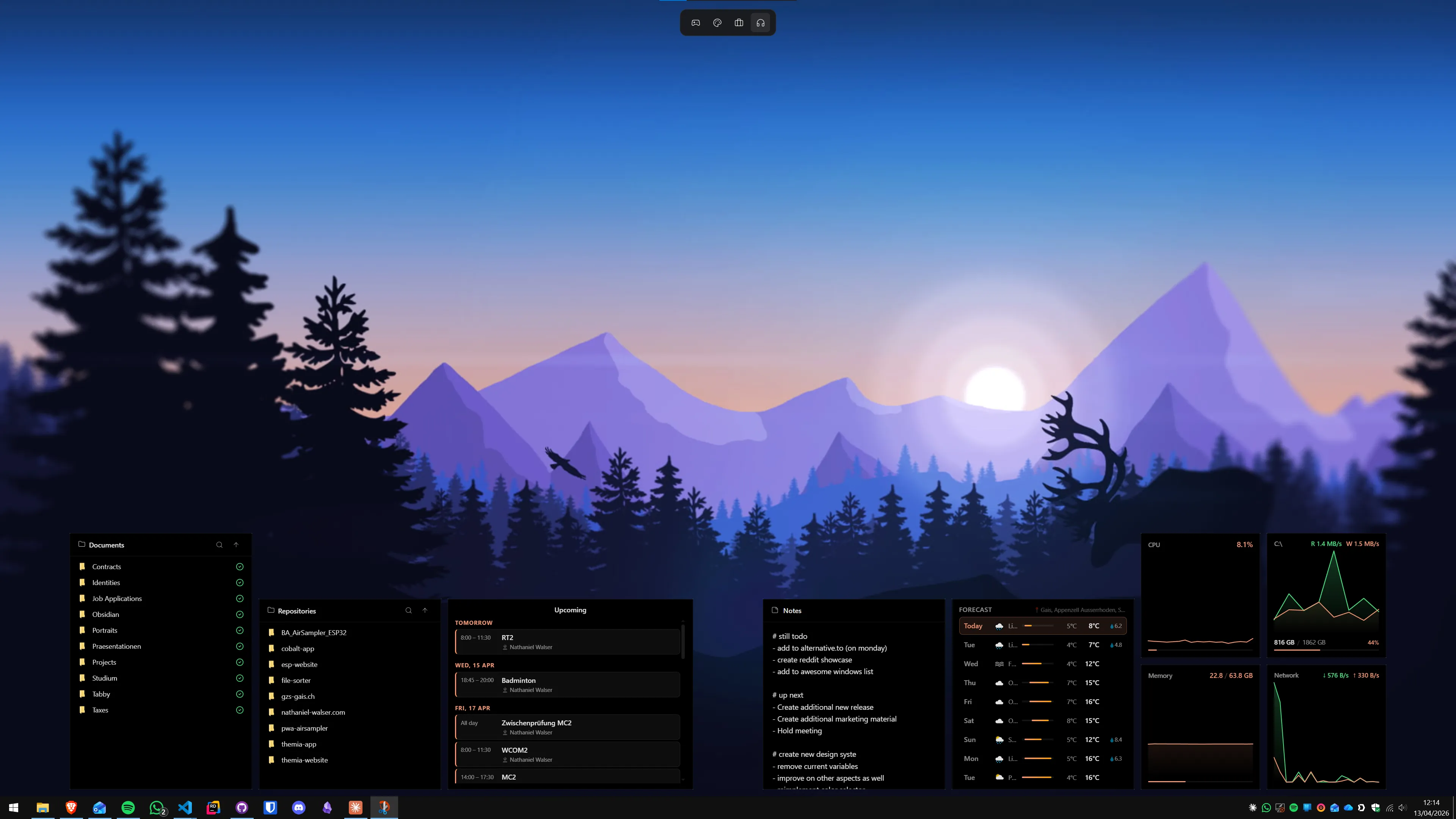
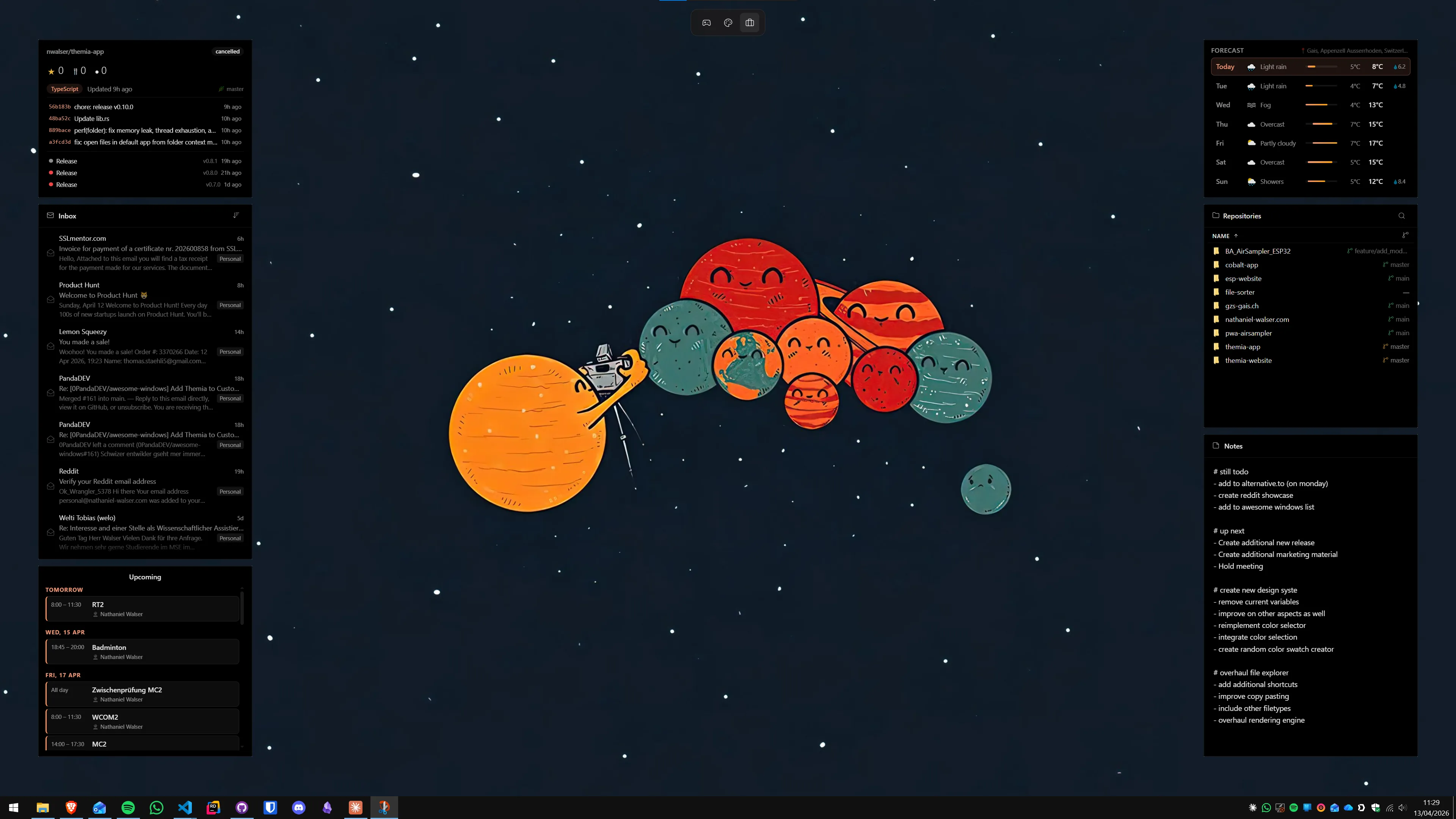
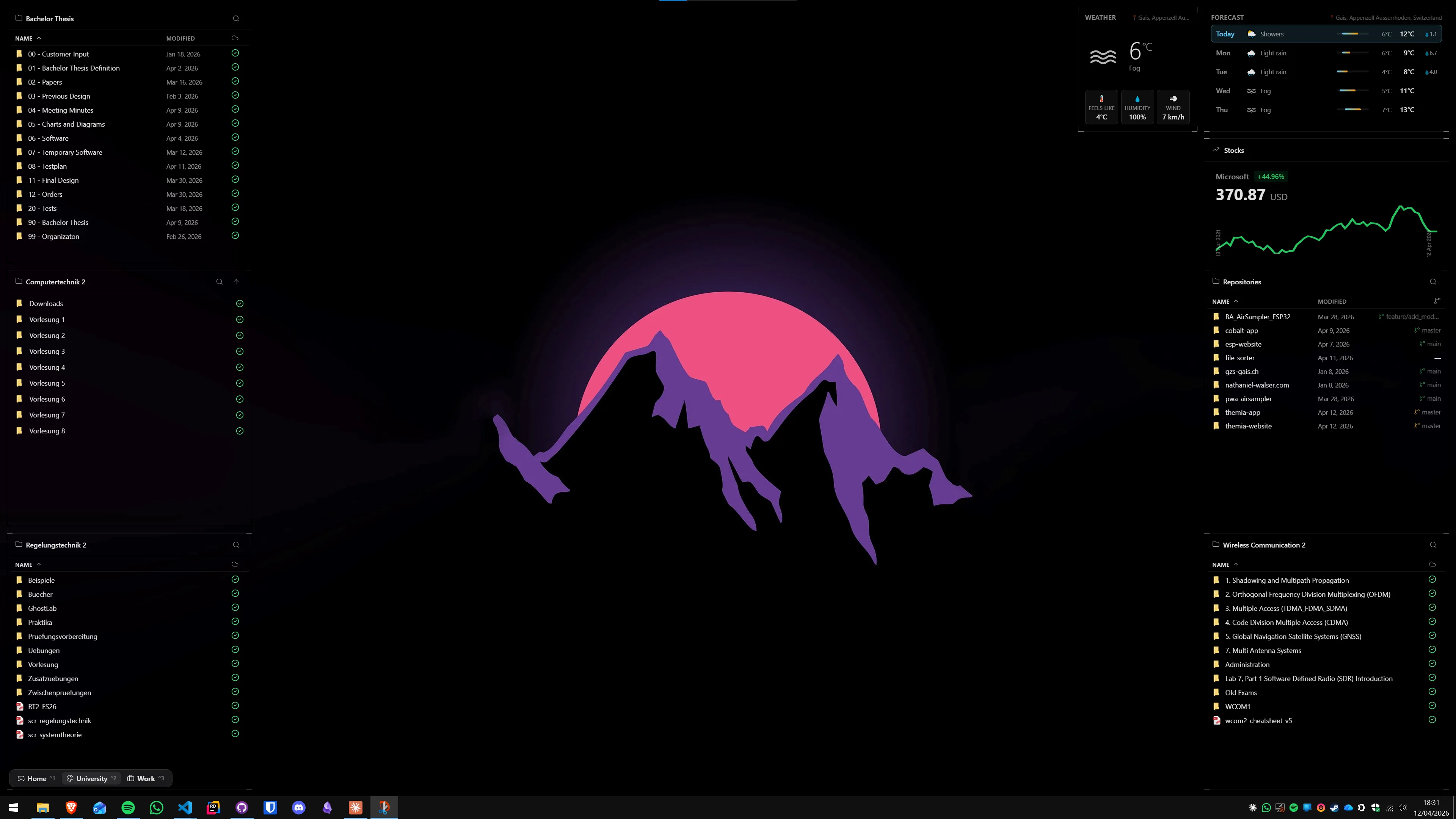
Themia is a native Tauri widget app for Windows 10 and 11 (under 10 MB) that drops live widgets on your desktop. On a developer machine, four of them earn their spot: the GitHub widget for PRs and unread notifications you would otherwise forget about, system stats (CPU / GPU / RAM / network) to glance at while a build or model run is going, folder widgets pointed at your active project directories so cd-ing in from explorer is one click, and an RSS widget for the tech blogs and changelogs you actually read.
It is not a replacement for PowerToys, FancyZones, or your terminal. It is the thin always-on information layer that sits behind whatever you are actively doing. Free tier covers most of the dev-useful widgets; the $19 Pro unlocks the rest.
Pros
- GitHub + system stats + folders on one desktop
- Native, small, fast (under 10 MB install)
- Per-screen layouts (work / personal / focus)
- Free tier with a one-time $19 Pro
Cons
- Not a productivity-suite replacement
- Widget catalog is first-party only — no community ecosystem yet
Related: Themia vs PowerToys, and our widget app roundup.
Microsoft PowerToys
ProductivityA grab-bag of power-user utilities that should honestly be in Windows itself.
PowerToys is Microsoft's open-source utilities suite, and almost every module is worth the install on its own. The ones I use every day: FancyZones for window-snapping layouts beyond the built-in ones (absolutely essential on an ultrawide), PowerToys Run as a faster Alt+Space launcher, PowerRename for bulk regex renames, Always on Top, Keyboard Manager, and Text Extractor (OCR on a screen region — surprisingly useful).
There is almost no overlap with Themia. PowerToys is about how windows and inputs behave; Themia is about what lives on the desktop behind them. Running both is normal.
Pros
- Free, open source, official
- FancyZones alone justifies the install
- Modules can be toggled individually
Cons
- UI is a little utilitarian
- Some modules overlap with third-party tools you may prefer
Git for Windows
VCSGit on Windows, plus a usable Bash that works outside WSL when you need it.
Git for Windows bundles Git, Git Bash (a MinGW-based shell), and the credential manager that plays nicely with GitHub and Azure DevOps. Even if you do most of your work in WSL, having Git on the Windows side is worth it for GUI tools, IDE plugins, and those moments when you want to commit a .gitignore tweak without spinning up a distro.
Pair it with GitHub CLI (gh) for PR and issue work from the terminal. On both Windows and WSL.
Pros
- Official, maintained, and bundles Credential Manager
- Works with every Windows Git GUI
- Git Bash is a genuinely usable fallback shell
Cons
- Line-ending (CRLF) config still trips people up
- Slightly slower than Git-in-WSL for big repos
A container runtime (Docker Desktop or Rancher / Podman Desktop)
ContainersContainers are not optional anymore — just pick which runtime you want behind them.
Docker Desktop is still the smoothest experience on Windows: one installer, WSL2 backend, Kubernetes toggle, good GUI. Its license, though, requires paid subscriptions for companies above a certain size. If that matters, Rancher Desktop (free, open source, Docker- or containerd-backed, runs on WSL2) and Podman Desktop (free, open source, rootless-first) are both real alternatives in 2026.
Whichever runtime you pick, do yourself a favor: install it so the Docker CLI is available inside WSL, and run your containers from there, not from Windows. Volume mounts and networking behave much better.
Pros
- Real WSL2 backend on all three options
- Free / open-source alternatives are legitimately viable
- Kubernetes is a one-click toggle on each
Cons
- Docker Desktop license terms for larger companies
- All three occasionally need a WSL restart to recover
A password manager (Bitwarden or 1Password)
SecurityNot optional. The interesting question is which one.
Between browser logins, SSH keys, API tokens, cloud credentials, and 2FA codes, the average developer juggles hundreds of secrets. A password manager is the baseline — and on Windows, both Bitwarden and 1Password are excellent, with native Windows apps, browser extensions, and CLIs. 1Password integrates particularly well with SSH (agent forwarding, signed Git commits); Bitwarden is open source, has a generous free tier, and can be self-hosted (Vaultwarden).
If you are starting from scratch, pick one, enable 2FA on the vault itself, and migrate everything in one focused afternoon. You will never want to go back.
Pros
- Windows native app + browser + CLI on both
- SSH agent + signed commits (1Password)
- Self-hostable option (Bitwarden / Vaultwarden)
Cons
- 1Password is subscription only
- Bitwarden's desktop UI is less polished than 1Password's
ShareX
ScreenshotsThe best screenshot tool on Windows. It is not close.
ShareX is a free, open-source screenshot and screen-record tool that makes Snipping Tool look like a toy. Region capture, scrolling capture, GIF and MP4 recording, annotation, OCR, automatic upload to dozens of destinations (Imgur, S3, GitHub Gist, your own server), and a workflow builder that chains steps together. Bind a hotkey to "capture region, annotate, upload, copy URL to clipboard" and you will use it ten times a day.
If the full feature set feels like too much, Flameshot and Greenshot are lighter alternatives — but ShareX is free, and you can just ignore the modules you do not need.
Pros
- Free, open source, actively developed
- Capture + annotate + upload + copy URL in one hotkey
- Ridiculous number of upload destinations
Cons
- UI is packed — the learning curve is real
- Overkill if you only ever take casual screenshots
Language tooling (Node via fnm, uv for Python, pnpm)
EcosystemYour project's ecosystem will dictate most of this — but the 2026 defaults are clear.
Whatever you build with, there are a handful of version and package managers that have quietly become the sensible default on Windows in 2026. For Node, install fnm (fast, cross-platform version manager) and use pnpm as the default package manager — it is faster than npm and stricter about dependency trees. For Python, uv has largely replaced pip + virtualenv + pip-tools + pyenv — a single Rust-based binary that handles versions, venvs, installs, and lockfiles. For Rust, rustup. For Go, the official installer.
Install language runtimes inside WSL, not on Windows, unless you specifically need a Windows-native build. The one exception: .NET, which is obviously first-class on Windows.
Pros
fnm/uvare fast, modern, and cross-platformpnpmis stricter about phantom dependencies- winget, Scoop, or Chocolatey can install most of this for you
Cons
- Ecosystem churn — yesterday's pick is tomorrow's "why did you use that?"
- Keeping Windows-side and WSL-side versions in sync takes discipline
Polish: the bonus category
None of these are mandatory, but they are small wins that add up.
- TranslucentTB — free, open-source taskbar transparency. Makes the whole desktop feel less boxy, especially paired with a nice wallpaper.
- A good wallpaper source — Unsplash, Windows Spotlight, or Lively Wallpaper for animated backgrounds. Rotation keeps the desktop from feeling stale.
- A Nerd Font — JetBrains Mono Nerd Font, MonaspiceNe, or FiraCode Nerd Font. Ligatures plus glyphs your prompt and editor can use.
- Sample config: bind
Win+Shift+S(or rebind it via ShareX) for region captures, bindAlt+Spaceto PowerToys Run, and set a FancyZones layout per monitor before you do anything else.
A minimal winget bootstrap
If you are setting up a fresh machine and want a sane 2026 baseline in under ten minutes, this set of winget IDs will get you most of the way there — you can run each line manually or drop them into a script.
Microsoft.WindowsTerminal(usually already present on Win11)Microsoft.PowerToysGit.GitandGitHub.cliMicrosoft.VisualStudioCodeorAnysphere.CursorDocker.DockerDesktoporSUSE.RancherDesktoporRedHat.Podman-DesktopBitwarden.BitwardenorAgileBits.1PasswordShareX.ShareXSchniz.fnm,astral-sh.uv,pnpm.pnpm- And Themia — grab the installer from the Themia site; the Windows build is under 10 MB.
Then run wsl --install, pick your distro, and you are off.
How the categories fit together
A quick mental model:
- Environment (WSL2, Windows Terminal, editor, Git) is the substrate you spend all day in.
- Productivity (PowerToys, Themia, password manager) is what lives on top of Windows itself — windows, inputs, secrets, and the glanceable layer behind your apps.
- Dev utilities (container runtime, language tooling) are what your specific stack needs — the details change, the category is permanent.
- Polish (TranslucentTB, wallpapers, Nerd Fonts) is optional but cheap and genuinely improves the experience.
If you want to go further on the desktop side, we have a Windows desktop customization guide and a dedicated widget app roundup.
FAQ
Is Windows actually a good OS for developers in 2026?
Yes. The combination of WSL2 (with systemd and good GPU passthrough), Windows Terminal as the default console, native OpenSSH, and broad editor support (VS Code, Cursor, JetBrains) makes Windows a first-class dev machine for web, backend, data, and game work. The weak spots are still iOS/macOS-only toolchains and a few niche Linux-kernel workflows.
WSL2 or a real Linux dual boot?
For almost everyone, WSL2. It gives you a real Linux kernel, systemd, Docker, and GPU compute without leaving Windows. Dual boot only makes sense if you need bare-metal Linux for kernel work, certain virtualization stacks, or hardware that Windows drivers handle poorly.
VS Code or Cursor in 2026?
Both are excellent. VS Code is the safer default — massive extension ecosystem, first-party Remote-WSL, and no AI lock-in. Cursor is a VS Code fork with AI deeply integrated into the editor loop; if you write with an AI assistant most of the day, it is worth trying. Nothing stops you from using both.
Do I still need Docker Desktop?
Not necessarily. Docker Desktop is still the smoothest experience on Windows, but its license requires payment for larger companies. Free alternatives like Rancher Desktop and Podman Desktop both run on WSL2 and are drop-in enough for day-to-day container work.
How does Themia fit into a developer setup?
Themia is not a developer tool per se — it is a desktop widget app. But a few widgets earn their place on a dev machine: the GitHub widget for PRs and notifications, system stats (CPU/GPU/RAM) you can glance at while a build runs, folder widgets pointed at active project directories, and an RSS widget for tech feeds. It complements PowerToys and your editor rather than replacing them.
What is the minimum setup I should do on a fresh Windows install?
Install Windows Terminal, enable WSL2 with your Ubuntu of choice, install Git for Windows, PowerToys, your editor (VS Code or Cursor), a password manager (Bitwarden or 1Password), and a package manager (winget is built-in; Scoop or Chocolatey are also fine). Everything else is personal preference.