How to Add a Music Widget to Your Windows Desktop
You are listening to music while you work and you want to glance at your desktop to see what is playing — without alt-tabbing to Spotify, without hovering the taskbar, without doing anything at all beyond looking at your screen. That is a reasonable thing to want. On Windows it is surprisingly under-served by the operating system itself.
This guide covers every working method to get a persistent now-playing display onto your Windows 10 or 11 desktop in 2026, from the built-in system overlay to desktop widget apps to Rainmeter skins to Spotify-specific tools. They are ordered by how much setup they require.

What Windows gives you natively
Windows 11 has a media overlay: when music is playing and you press a hardware media key (Play/Pause, Next, Previous) or certain keyboard shortcuts, a small pop-up appears in the top-right corner of the screen showing the current track, album art, and playback controls. It auto-dismisses after a few seconds.
This is the System Media Transport Controls (SMTC) overlay. It is useful in the moment but it is not a persistent widget — it disappears on its own and you cannot pin it to the desktop. For an always-visible now-playing display, you need something else.
Windows 11 also has a Widgets Board (Win+W) that can show media controls in the panel, but again: it lives behind a click, not on the desktop. If you just want a quick control without installing anything, the Widgets Board is there — but it is not what most people mean when they say "music widget on the desktop."
Method 1: Themia's music widget (recommended)
Themia is a native Windows desktop widget app (built on Tauri, under 10 MB installed) with a built-in music widget. The widget reads now-playing data through the Windows SMTC API — the same system interface that powers the keyboard-shortcut overlay — which means it works with any media app that properly registers with Windows:
- Spotify (Windows app)
- Apple Music for Windows
- Amazon Music
- YouTube Music or any other tab playing audio in Chrome or Edge
- AIMP, foobar2000, MusicBee, Winamp/WACUP, MediaMonkey
- Windows Media Player
The widget shows the track title, artist, album art, and basic playback controls (play/pause, skip forward, skip back). It sits directly on the desktop wallpaper, always visible, and updates in real time as tracks change.
- Download and install Themia from themia.app — the installer is signed, under 10 MB.
- Right-click the desktop and choose Add widget → Music.
- Start playing something in Spotify, YouTube Music, or any other media app. The widget picks it up automatically within a second.
- Drag to reposition; drag a corner to resize. The widget stays on the desktop even after a restart.
Pros: works with almost any media app, no per-app configuration, native Windows app, album art display, playback controls on the widget itself.
Cons: the free tier includes the music widget, but the Pro unlock ($19 one-time) adds custom widget themes and more visual control over the whole setup.
Who it's for: anyone who wants a working now-playing widget in under two minutes without a configuration detour.
If you find the music widget useful and want to build out a fuller desktop with calendar, system stats, weather, and email alongside it, Themia handles all of that in the same app — take a look at the guide on building a productivity dashboard on Windows for a fuller layout walkthrough.

Method 2: Rainmeter with a NowPlaying skin
Rainmeter is the classic Windows desktop customization engine — free, open-source, actively maintained. It is a scripting platform for desktop widgets: you install skins, each skin is a set of .ini config files, and the result lives directly on the desktop wallpaper. The NowPlaying plugin is one of Rainmeter's built-in modules, specifically designed to pull now-playing data from media apps.
In 2026 there are two reliable approaches for NowPlaying in Rainmeter:
The classic NowPlaying plugin (built into Rainmeter)
Rainmeter ships with a NowPlaying plugin that integrates directly with desktop players via their COM interfaces or window messages. Reliably supported players include: AIMP, CAD, foobar2000, iTunes/Apple Music, J. River Media Center, MediaMonkey, MusicBee, VirtualDJ, WACUP/Winamp, and Windows Media Player.
Spotify support via the classic plugin is inconsistent — Spotify changes its internal API periodically. If you use Spotify, see the WebNowPlaying approach below.
WebNowPlaying plugin + browser extension (for Spotify and YouTube Music)
WebNowPlaying is a third-party Rainmeter plugin that pairs with a browser extension (available for Chrome, Edge, and Firefox). The extension captures now-playing data from the browser — Spotify Web Player, YouTube Music, Deezer, Tidal — and relays it to Rainmeter over a local WebSocket. It works reliably because it does not depend on Spotify's desktop COM interface.
Setup is a two-step install: the plugin into Rainmeter's Plugins folder, and the extension into your browser. A one-time pairing step connects them. After that, it just works — track changes, album art, controls.
Installing a NowPlaying skin
- Download Rainmeter from rainmeter.net and install.
- Browse DeviantArt's Rainmeter section for a skin that includes a music/NowPlaying component. Actively maintained all-in-one suites include Mond, Nexa, and Senja Suite — all updated in 2025–2026.
- Double-click the
.rmskinfile to install, then right-click the Rainmeter tray icon → Skins → load the music skin. - Edit the skin's
.inito set your player type (e.g.,PlayerName=SpotifyorPlayerName=AIMP).
Pros: total visual freedom, enormous skin library, free forever, works with local player collections (foobar2000, MusicBee).
Cons: significant setup time, .ini editing required, Spotify users need the extra WebNowPlaying plugin, old skins break without maintenance.
Who it's for: people who enjoy desktop customization as a hobby and want a now-playing display that matches an elaborate custom setup. See also the Windows ricing guide for the broader Rainmeter ecosystem.
Method 3: Spicetify (Spotify-only, modifies the client itself)
Spicetify is a command-line patcher for the Spotify Windows desktop client. It unlocks the ability to install custom themes and extensions inside the Spotify app — richer lyrics views, enhanced queue management, ad-hiding (check Spotify's ToS for your use case), and various cosmetic improvements.
What Spicetify does not do: put anything on the Windows desktop outside the Spotify window. The now-playing display stays inside Spotify's own window. If you want track info on the desktop wallpaper while Spotify is minimized or in the background, Spicetify alone will not get you there.
That said, Spicetify and a desktop widget app are not mutually exclusive. A common setup is Spicetify for a prettier Spotify UI when the window is open, plus Themia or Rainmeter for an always-on desktop widget when Spotify is in the background.
Installation: open PowerShell and run the one-liner from spicetify.app. It is actively maintained and works with Spotify's current client as of 2026.
Method 4: Dedicated mini-player apps
A few apps exist specifically to show a compact now-playing mini-player as a small always-on-top window. These are not strictly "desktop widgets" in the sense that they are separate windows rather than things that sit behind all your apps — but they stay visible while you work.
- NowPlaying Taskbar: a small free app that adds a compact media info display to the Windows taskbar itself — artist, title, and controls, permanently visible.
- MusicBee: a full-featured music player (for local files) with a configurable mini-player mode that can stay on top.
- WACUP: the actively maintained Winamp successor, with a compact player mode and plugin support.
These are a reasonable middle ground if you want a now-playing display with minimal setup but also do not want to run a full widget app.
Which one should you actually use?
The short version:
- You want it working in two minutes and use Spotify, YouTube Music, or Apple Music: Themia's music widget. The SMTC API integration means it just works.
- You already have or want a full Rainmeter setup: add a NowPlaying skin to your existing layout. Use WebNowPlaying if you stream via browser.
- You mainly use foobar2000, MusicBee, or AIMP for local files: the classic Rainmeter NowPlaying plugin works great with these, or Themia via SMTC.
- You want a prettier Spotify window (not a desktop widget): Spicetify.
- You want something in the taskbar, not on the desktop: NowPlaying Taskbar app.
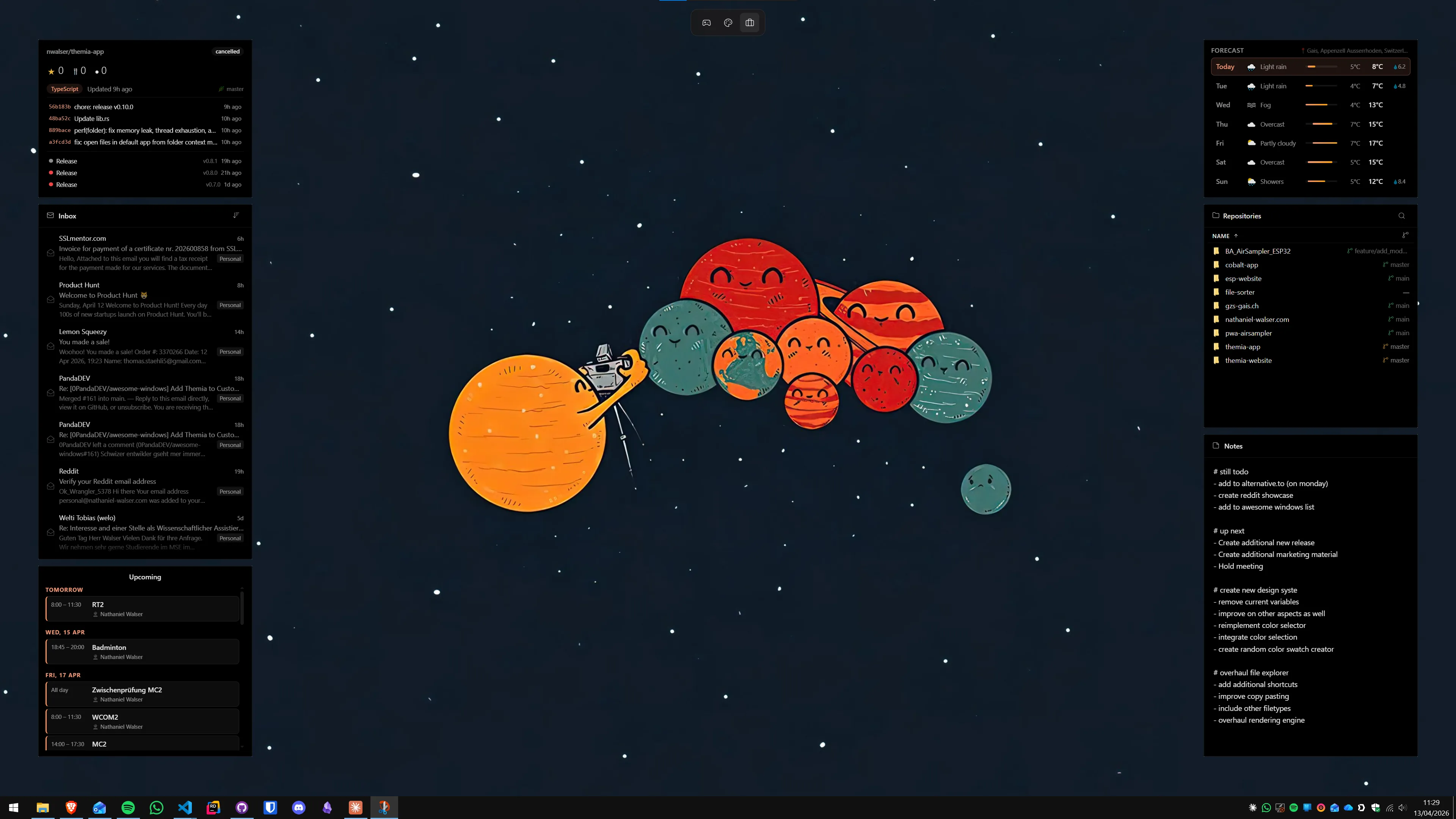
For most people: Themia, because it handles the SMTC API properly across all the major streaming apps and the setup is one right-click on the desktop. If you already have Rainmeter running for a custom rice, the NowPlaying plugin is the natural next step. The two tools cover different ends of the effort spectrum without overlapping much — see the Themia vs Rainmeter comparison if you are deciding between them as a starting point.
The free tier of Themia covers the music widget along with weather, calendar, and system stats. If you find yourself building out a fuller desktop layout, the one-time Pro unlock at $19 adds custom widget themes and more configuration options.
FAQ
Does Themia's music widget work with Spotify?
Yes. Themia reads the currently playing track through the Windows System Media Transport Controls (SMTC) API. Any app that properly registers with Windows media sessions — Spotify, Apple Music, YouTube Music in Chrome or Edge, Amazon Music, AIMP, foobar2000, MusicBee — will show up in the Themia music widget automatically. You do not need to configure anything per app.
Can I show album art on my Windows desktop?
Yes, if you use a tool that pulls it. Themia's music widget displays album art as part of the now-playing card on the desktop. Rainmeter can also show album art if the NowPlaying skin is configured to pull cover images from the player — most modern skins do this automatically for foobar2000, MusicBee, and AIMP. Album art via the SMTC API (used by Spotify, YouTube Music) is also available to Rainmeter skins that use the WebNowPlaying plugin.
Does the Rainmeter NowPlaying plugin work with Spotify in 2026?
The classic Rainmeter NowPlaying plugin has limited Spotify support because Spotify's COM interface changes over time. The most reliable approach in 2026 is the WebNowPlaying plugin for Rainmeter, which pairs with a browser extension to relay track data from the Spotify web player or YouTube Music. It is a two-piece setup but works reliably. Alternatively, Themia's music widget uses the OS-level SMTC API and does not need a separate plugin for Spotify.
What is Spicetify and does it put music on the desktop?
Spicetify is a command-line tool that patches the Spotify desktop client to enable custom themes and extensions. It modifies the Spotify window itself — things like a different color scheme, lyrics panel, or enhanced queue. It does not add a widget to the Windows desktop outside of Spotify. If you want always-visible now-playing info on the desktop wallpaper (not inside the Spotify window), Themia or Rainmeter are the right tools. Spicetify and a desktop widget can coexist without conflict.
Will a music widget slow down my computer?
A well-built one will not. Themia reads track metadata through the Windows SMTC API at very low CPU cost — it is triggered by media session events, not polling. Rainmeter skins vary: a simple text-based NowPlaying skin typically uses under 1% CPU. Skins that render animated album art or do frequent polling can use more. If you are on an older machine, stick with a simpler skin or use Themia.
Can I control playback (play, pause, skip) from the desktop widget?
Yes. Themia's music widget includes playback controls — play/pause and skip — directly on the widget. You do not need to switch to the music app to control it. Rainmeter skins with NowPlaying or WebNowPlaying support can also include clickable buttons for the same controls, though it depends on the skin. The Windows 11 media overlay (the pop-up that appears when you press a media key) also has these controls, but it is not a permanent desktop widget.