How to Build a Productivity Dashboard on Windows
Your desktop is a dashboard waiting to happen. Ten to twelve hours a day you sit in front of it, and for most of those hours the only thing it is doing is holding a wallpaper and a recycle bin. Meanwhile the information you actually care about — your next meeting, your inbox count, whether it is going to rain at lunch, how hot your CPU is — lives three clicks deep in separate apps.
The reason most people never set up a proper productivity dashboard on Windows is not that they do not want one. It is that it has historically been unclear how. Rainmeter is a rabbit hole. The built-in Windows 11 Widgets Board is a panel behind a taskbar button, not a dashboard. Notion dashboards are inside a browser tab you have to open. So everyone ends up doing nothing and opening Outlook for the tenth time that morning.
This post is the ten-minute version. A concrete, step-by-step walkthrough for building a working productivity dashboard on Windows in 2026, with opinions about what belongs on it and what does not. By the end you will have a real dashboard on your desktop and a set of rules for keeping it useful rather than cluttered.
1. What a dashboard should actually show
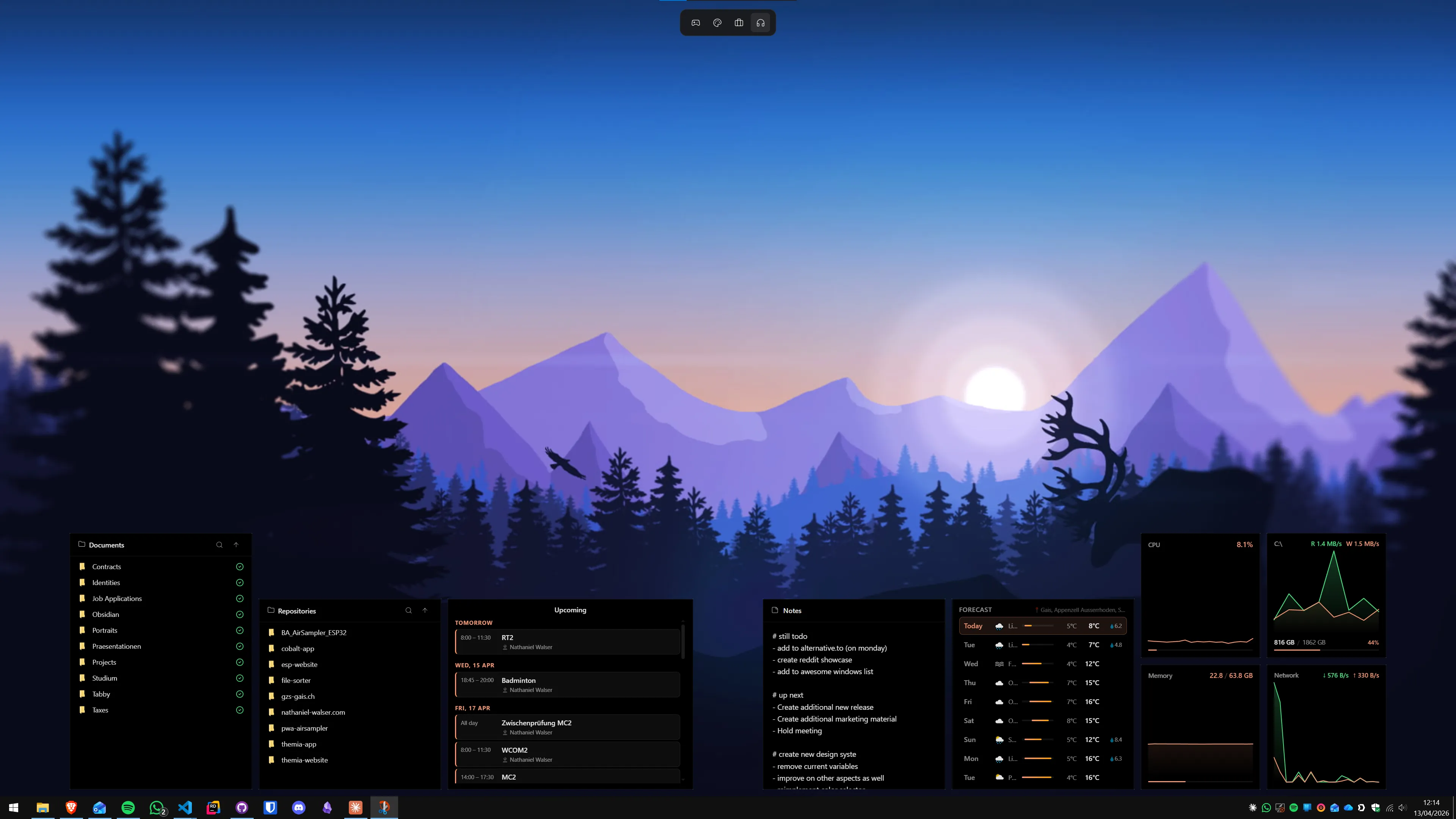
Before picking tools, pick what belongs on the screen. The single most common mistake people make — and the reason most custom desktops end up looking cool for a week and then getting ignored — is treating a dashboard as decoration. A dashboard is a set of questions. Every widget answers one.
A good way to think about it is four categories. Aim for two or three widgets from each, not ten from any single one.
- Glance-info. Things you want to check without thinking: the date, your next meeting, the weather, the time in another timezone. Always-on, low-attention, zero-interaction. Calendar and weather widgets live here.
- Action-info. Things that prompt you to do something: unread email, your to-do list, a GitHub notification count, a stock price hitting a threshold. These earn their spot by changing what you do next.
- Ambient. Things that are nice to know but never urgent: music now playing, system stats, an RSS headline, a battery meter. You check these when you are between tasks. They are the difference between a dashboard that feels alive and one that feels like a static poster.
- Status. Things that confirm the machine is healthy: CPU, RAM, GPU, disk, network. On a laptop, battery too. These matter for about three seconds a week, which is when they save you from a surprise.
If a widget does not fit one of these four buckets, it is decoration. Decoration is fine — a clock face you like is a perfectly good thing to have — but be honest with yourself about which widgets are working and which are wall art.
2. Pick your tools
The tool picture in 2026 is simpler than it used to be. For a productivity dashboard specifically, you need one widget app. Everything else is optional polish.
The one tool you need: a widget app
The widget app is what turns your desktop from static to dynamic. The two serious choices are Themia and Rainmeter, and they are serious in different ways.
Themia is the straightforward pick for anyone who wants a working dashboard today. It is a native Windows app built on Tauri — the full install is under 10 MB, it runs on Windows 10 and 11, and it ships with the widgets most people actually want: files, email with Microsoft 365 OAuth, calendar, weather, system stats, stocks, music, notes, to-do, contacts, RSS, GitHub, battery. You drag them onto the desktop, resize them, and they work. A free tier covers the basics; Pro is a one-time $19 that unlocks email, stocks, RSS, GitHub, and multi-screen layouts.
Rainmeter is the pick if you enjoy the tinkering itself. It is a skinning engine, not a widget app — you install it, then install community skins, then edit INI files to make them match your wallpaper. The results can be beautiful; the time investment is a weekend minimum. The Themia vs Rainmeter comparison goes into the trade-off in detail.
For this tutorial, Themia. The steps below assume it, and honestly, if the goal is a working dashboard in ten minutes, there is not really a second option.
Optional extras
- Stardock Fences — for grouping desktop shortcut icons into tidy boxes so your widgets are not fighting for screen space with a mess of file icons. Not required, but nice.
- Wallpaper Engine — for polish. An animated or themed wallpaper behind a good dashboard is the difference between "I set this up" and "I actually enjoy looking at it".
- PowerToys — Microsoft's own utility suite. FancyZones in particular pairs well with a dashboard because it keeps your app windows in predictable zones, which means your widgets have predictable space to live in.
None of these are strictly necessary. You can build the full dashboard below with nothing but Themia. The extras exist for when you want to go further — see the full customization guide for the wider tooling landscape.
3. The 10-minute setup
Every step below is concrete. If you follow them in order, you will have a working dashboard by the end.
Step 1: Install Themia
Go to the Themia download page and run the installer. It is under 10 MB and takes about thirty seconds. When it finishes, Themia runs in the system tray — right-click the tray icon to open the panel where you add widgets.
Step 2: Add the calendar widget
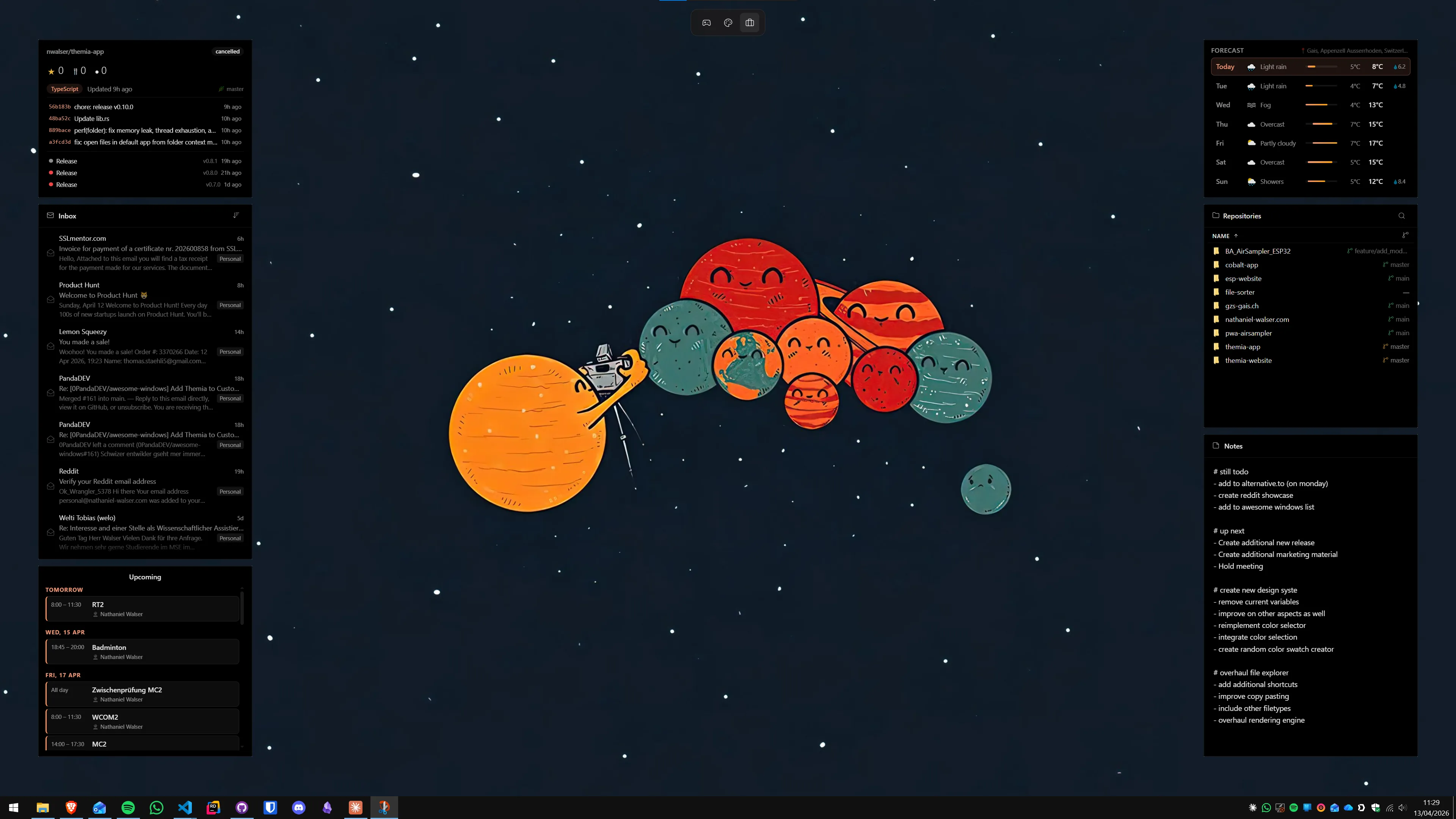
The calendar is the anchor of a productivity dashboard. Open the Themia panel, find Calendar in the widget list, and drag it onto the desktop. Place it somewhere your eye lands naturally — top-left and top-right are the two reliable spots, because your attention tends to start from the top of the screen when you look away from a window.
Size the calendar so a full month fits comfortably. If you prefer an agenda view over a grid view, swap it in the widget's settings. If you use Microsoft 365, connect it now so your events appear; otherwise, the calendar will show a blank month, which is still useful for date navigation.
Step 3: Add the email widget and connect Microsoft 365
Email is the single highest-value widget on a productivity dashboard because it replaces one of the most common "open an app to check" habits. Drag the Email widget onto the desktop, click Connect, and sign in with your Microsoft 365 account. OAuth handles the sign-in — Themia never sees your password.
Place the email widget next to the calendar. Size it to show the latest five to eight messages. This is enough to catch the subject line of anything that matters without turning your desktop into an inbox.
Step 4: Add weather
Weather is cheap real estate. Drag the widget on, set your location, pick a compact layout (current temperature plus a three-day forecast is usually enough). Place it somewhere it will not draw too much attention — the bottom-right corner is a good default. Weather is glance-info; it does not deserve center stage.
Step 5: Add system stats
Drag the System Stats widget on. Pick which metrics to show: CPU, RAM, and GPU are the usual three, and on a laptop add battery. Place it in one of the bottom corners, sized small — these are status widgets, they should be visible without being prominent.
If you are on a desktop with a sensitive GPU temperature, this widget is also how you will catch the first sign of something wrong before a game starts thermal throttling.
Step 6 (optional): Stocks, to-do, RSS
Now the optional ones. Add them only if they answer a question you actually have:
- To-do. If you already live in a task manager (Todoist, TickTick, Microsoft To Do), add a widget pointing at it. If you do not, add the built-in notes widget and use it as a loose-leaf scratchpad instead — a formal to-do list you never check is worse than a pile of three sticky notes you do.
- Stocks. Only if you actually track them. A stocks widget you glance at once a day is useful; one you glance at every three minutes is a distraction with a ticker.
- RSS. The quietest way to follow blogs and news without an app that demands attention. Two or three feeds, updated hourly, is the sweet spot.
Step 7: Save as "Work", then duplicate
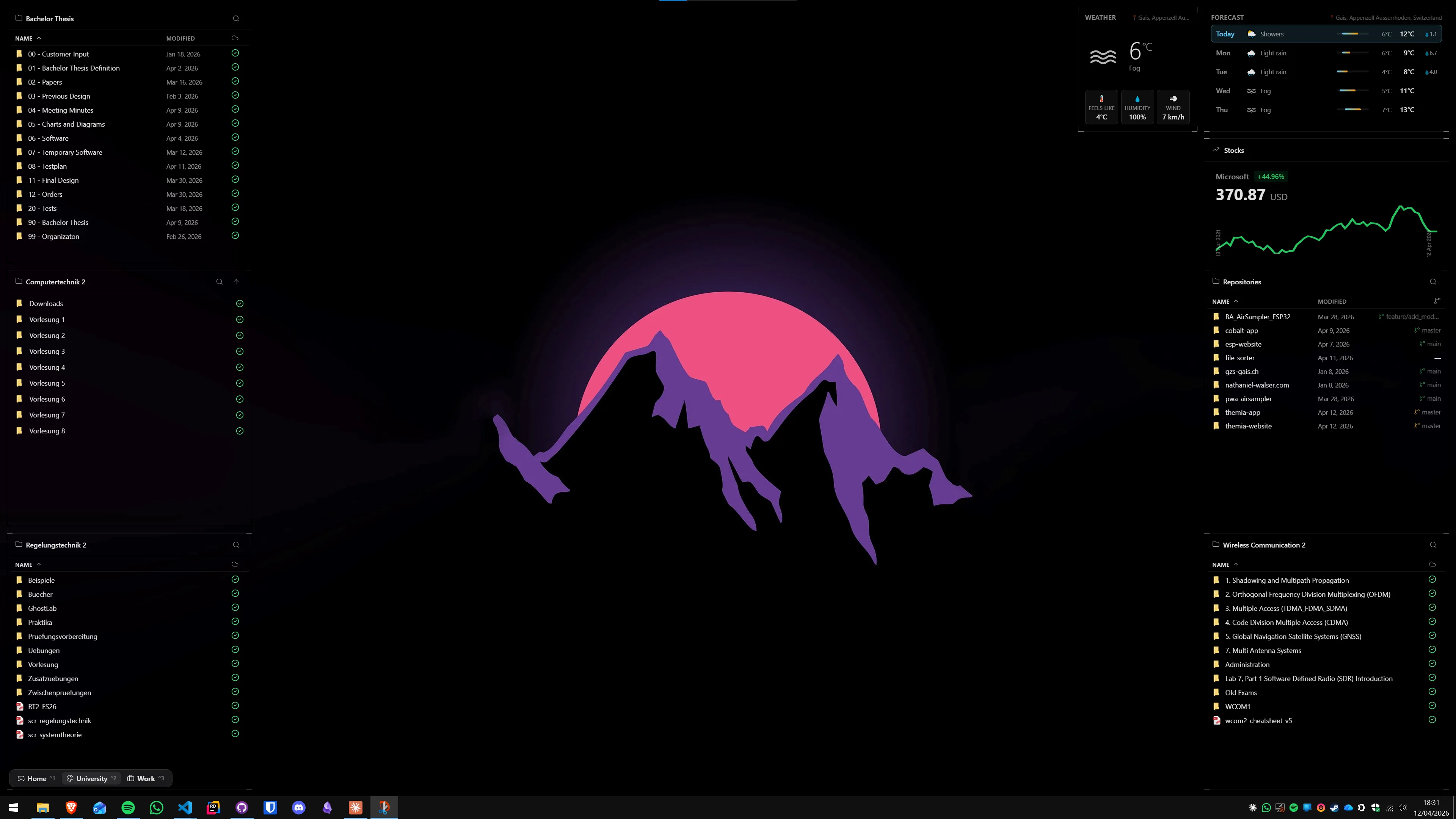
Open Themia's screens panel and save the current layout as Work. Now duplicate it and rename the copy Personal. On the Personal copy, remove the email widget, swap the work calendar for a personal one, and add music controls or RSS if you want. Duplicate again and rename the copy Focus. On Focus, remove everything except a clock and a single to-do or notes widget.
You now have three dashboards, switchable from the tray icon or a keyboard shortcut. Same wallpaper, same icons, entirely different layer of information on top.

4. Advanced tips
A dashboard that sits there and does nothing is a poster. A dashboard you actually use needs a small amount of muscle memory around it. Three things worth learning in the first week:
- Assign a keyboard shortcut to Show Desktop. Win+D already does it, but most people do not use it. If your dashboard is good, Win+D becomes a reflex: every time you finish a task, flash the desktop, check the calendar and inbox, move on. This single habit is where most of the productivity gain actually comes from.
- Bind the screen switcher. In Themia's settings, map a shortcut (Ctrl+Alt+1/2/3 is a good default) to the Work / Personal / Focus screens. Now your dashboard follows your mode instead of sitting in one shape.
- Treat your desktop like a workspace, not a filing cabinet. Icons and widgets are fighting for the same pixels. Keep desktop icons to a minimum — or move them into Fences — so the widgets have room to be readable. A dashboard crammed around 40 shortcut icons is not a dashboard.
5. Common pitfalls
Every dashboard that stops getting used died of one of three things. Avoiding all three is most of the job.
- Too many widgets. The first temptation after installing a widget app is to add everything. Do not. A dashboard with twelve widgets is a cockpit you do not know how to fly. Five to seven is the sweet spot. If you add an eighth, take one away.
- Widgets that demand attention. A stock ticker that updates every second. A news feed that scrolls. A system stats graph with a red flashing CPU bar. These are not widgets, they are interruptions with a frame. A dashboard should reward a glance, not demand one.
- Pretty but useless. The DeviantArt-style Rainmeter skin with an animated skull clock and a spinning visualiser. Fine as art. Not a dashboard. If every widget were replaced by a static image of itself, the dashboard would not get any worse — that is the test it is failing.
The broader point: a dashboard is not a collection of widgets, it is a specific information layout for a specific way you work. Building one is a design exercise, not a shopping trip. Pick less, place it better, revisit it every few months.
Closing
A working Windows productivity dashboard is a ten-minute investment that pays off every day after. The calendar, email, weather, and system stats combination covers the default glance pattern that most of a workday actually produces. The Work / Personal / Focus switch handles the rest.
If you have never done this before, start with the steps above and stop at Step 5. Live with that for a week, notice which widgets you look at and which ones you do not, then prune. The best dashboards get smaller over time, not bigger.
Worth reading next: the roundup of widget apps for the wider pool of options, the full customization guide if you want to layer in wallpapers and icon organizers, Themia vs the Windows 11 Widgets Board for why a desktop dashboard beats the taskbar panel, and Themia vs Rainmeter if you want to go deeper into skinning instead.
When you are ready to start building, grab the Themia free tier — it covers most of the dashboard above and costs nothing.
FAQ
How long does it actually take to set up a productivity dashboard on Windows?
About ten minutes if you use a modern widget app and know roughly what you want on screen. The install is a minute, adding and placing five or six widgets is another five, and connecting a Microsoft 365 account for the email and calendar widgets is the longest single step — usually two or three clicks plus an OAuth sign-in. The rest is fiddling with sizes, which is optional.
Do I need a second monitor for this to be useful?
No. A productivity dashboard works on a single monitor because the desktop is always partly visible behind your windows — especially in the corners and along the edges. If you have a second monitor, you can dedicate it entirely to the dashboard, which is great, but it is not the point. The point is that the space you already have is wasted, and filling it with live information costs nothing.
What is the difference between a productivity dashboard and just a pretty desktop?
A pretty desktop is about how it looks. A productivity dashboard is about what it tells you without being asked. The dividing line is simple: every widget on a dashboard should answer a question you would otherwise open an app to check — what is on my calendar, what is in my inbox, how busy is my CPU, what is my to-do list. If a widget does not answer a question, it is decoration, and that is fine, but it is not part of the dashboard.
Will running widgets on the desktop slow down my PC?
A well-built widget app is effectively free performance-wise. Themia is a native Tauri app under 10 MB that idles around a few hundred kilobytes of memory per widget and uses almost no CPU between refreshes. The one thing to avoid is stacking heavy widgets that poll the network or hardware every second — weather every hour is fine, a stock ticker every five seconds is not. Most apps default to sensible refresh rates.
Can I have different dashboards for work and personal use?
Yes, and you should. Themia lets you save multiple layouts as separate screens and switch between them from the system tray or a keyboard shortcut. A typical setup is Work (calendar, email, to-do, system stats), Personal (weather, music, RSS, stocks), and Focus (a clock, a to-do widget, and nothing else). Switching takes one click and nothing else on your desktop changes — wallpaper, icons, and open windows stay put.
Do I need Themia Pro, or will the free tier do the job?
The free tier covers most productivity dashboards. Calendar, weather, system stats, notes, to-do, and files are all included. Pro unlocks email (Microsoft 365 OAuth), multiple screen layouts, stocks, RSS, GitHub, contacts, music controls, and battery. If you want a Work / Personal / Focus switcher or a connected email widget, Pro is a one-time $19. If you just want a calendar and weather on your desktop, stay free.