How to Set Up Windows 11 for Music Production
Windows 11 ships as a general-purpose operating system. Out of the box it prioritises battery life, visual effects, and background telemetry over the one thing musicians need most: a consistent, low-latency audio pipeline that makes a DAW feel like an instrument rather than a filing cabinet.
This guide covers every meaningful setting change, driver installation, and hardware consideration that transforms a stock Windows 11 machine into a capable music production workstation — whether you are building a home studio from scratch or rescuing a laptop that hiccups every time you hit record.
Why Windows 11 Needs Special Configuration for Audio
On a default Windows 11 installation, audio from an application passes through the Windows Audio Session API (WASAPI), then the Kernel Streaming layer, then the driver, and finally to the hardware. Each layer adds latency — delays that pile up into a round-trip time that makes real-time monitoring feel sluggish and unusable.
Professional music production uses ASIO (Audio Stream Input/Output), a protocol developed by Steinberg that bypasses most of this stack. ASIO talks almost directly to the hardware driver, cutting typical round-trip latency from 30–100 ms down to 2–10 ms. At 10 ms or below, your brain stops perceiving the gap between hitting a key and hearing the result.
Step 1 — Switch to a Performance Power Plan
Windows 11 uses a Balanced power plan by default. Balanced throttles CPU frequency when idle, which causes micro-stutters in audio buffers exactly when a plugin needs to render a transient. Switch to High Performance or, better, Ultimate Performance.
Ultimate Performance is hidden on Windows 11 Home. To unlock it, open PowerShell as Administrator and run:
powercfg -duplicatescheme e9a42b02-d5df-448d-aa00-03f14749eb61The plan will now appear in Settings → System → Power & sleep → Additional power settings. Select it whenever you are producing. Switch back to Balanced for battery life when travelling.
Step 2 — Install the Right ASIO Driver
If you own a dedicated audio interface — Focusrite Scarlett, Behringer UMC series, PreSonus AudioBox, Universal Audio Apollo — install the manufacturer's ASIO driver from their website, not from Windows Update. Manufacturer drivers are tuned for their specific hardware and will outperform any generic alternative.
For built-in laptop audio or generic USB devices, install ASIO4ALL (asio4all.org). After installation, open your DAW's audio settings and select ASIO4ALL as the driver. Start with a buffer size of 256 samples and decrease gradually until you hear dropouts, then back up one step.
Common buffer size guidelines:
- 64–128 samples: Live performance, real-time monitoring of instruments. Requires a good hardware interface.
- 256 samples: Tracking vocals or instruments in a home studio. The sweet spot for most ASIO4ALL setups.
- 512–1024 samples: Mixing sessions with many plugins and no live input. More headroom for heavy processing.
Step 3 — Disable Background Services That Compete for CPU
Several Windows 11 services consume CPU and disk bandwidth in ways that cause audio dropouts. In Task Manager (Ctrl+Shift+Esc → Startup apps), disable everything you do not need at boot. Then address these specific services via services.msc:
- SysMain (SuperFetch) — preloads apps you might use. On a dedicated audio machine it causes disk thrashing during playback. Set to Manual or Disabled if your OS is on an SSD.
- Windows Search (WSearch) — file indexing runs in the background and spikes disk I/O. Pause indexing from Indexing Options in Control Panel, or disable the service if you rarely need Start menu search.
- Windows Defender scheduled scans — do not disable real-time protection, but add your DAW project folder and sample library paths as Exclusions in Windows Security → Virus & threat protection → Manage settings. This prevents real-time scans from interrupting buffer fills during recording.
Step 4 — Disable Wi-Fi During Recording
Wi-Fi driver interrupts are a documented source of audio dropouts, particularly on Intel Wi-Fi adapters. During recording or tight-buffer mixing sessions, disable Wi-Fi entirely or use a wired Ethernet connection. Re-enable it only when you need downloads or cloud collaboration. The shortcut Win+A opens Action Center where you can toggle Wi-Fi with one click.
Step 5 — Fix USB Selective Suspend
Windows 11 puts idle USB devices into a low-power suspend state to save energy. For USB audio interfaces, this causes brief disconnections and driver errors mid-session. To disable it:
- Open Device Manager, expand Universal Serial Bus controllers.
- Double-click each USB Root Hub, go to Power Management, and uncheck Allow the computer to turn off this device to save power.
- Alternatively, in Power Plan advanced settings, find USB settings → USB selective suspend setting and set it to Disabled.
Step 6 — Disable Windows Audio Enhancements
Windows 11 applies audio enhancements — spatial sound, equalisation, bass boost — to audio devices by default. These enhancements process your output and introduce coloration and extra latency. For music production, disable them entirely:
- Right-click the speaker icon → Sound settings → More sound settings.
- On the Playback tab, double-click your audio device → Enhancement tab.
- Check Disable all enhancements.
- On the Advanced tab, set the default format to the highest supported quality (24-bit, 96000 Hz) and uncheck the Exclusive Mode options if you want the DAW to take exclusive control.
Step 7 — Configure Windows Update to Not Interrupt Sessions
A mandatory restart mid-session is every producer's nightmare. Three defences:
- Set Active Hours in Settings → Windows Update → Advanced options to cover your production schedule.
- Mark your internet connection as Metered (Settings → Network → Properties) to stop background downloads.
- Before a critical session, pause updates for up to five weeks from the Windows Update settings page.
Step 8 — Optimise RAM and Virtual Memory
Sample libraries are the primary memory consumers in modern production. A full orchestral library can occupy 32–64 GB of samples. For best performance:
- Install at least 32 GB of RAM for orchestral work, 16 GB for electronic production with modest libraries.
- Set virtual memory (page file) to a fixed size. Go to Advanced System Settings → Performance → Advanced → Virtual Memory → Change, uncheck Automatic management, and set initial and maximum size to 1.5× your physical RAM on a fast NVMe drive.
- Store sample libraries on an NVMe SSD separate from your OS drive. Streaming performance becomes consistent and load times drop 60–80%.
Step 9 — Configure Your DAW Correctly
Even with a perfectly configured Windows environment, a badly tuned DAW wastes the optimisation. Key settings to verify in any DAW:
- Audio device type: ASIO. Never use DirectSound or MME for production work.
- Sample rate: 44.1 kHz for music destined for streaming. 48 kHz if the project will sync to video. Avoid 96 kHz unless you have a specific mastering reason — it doubles CPU load.
- Multi-core rendering: Enable plugin thread parallelism in the DAW's engine settings. Match thread count to physical (not logical/hyper-threaded) core count to avoid scheduler overhead.
- Exclusive mode: Enable Exclusive mode in the DAW so it takes full control of the interface rather than sharing with Windows.
Recommended Hardware for Home Studio Production
Software configuration only goes so far. These hardware choices have the largest impact on the production experience:
- CPU: Intel 12th gen or newer, or AMD Ryzen 5000/7000 series. For audio, single-core sustained performance matters more than core count.
- RAM: 32 GB minimum for professional work. Dual-channel configuration (two matching sticks) for best memory bandwidth.
- Storage: NVMe SSD for OS and projects; separate NVMe or fast SATA SSD for sample libraries. Spinning hard drives cause streaming stutters with large libraries.
- Audio interface: Any USB interface from Focusrite, PreSonus, Audient, or Native Instruments in the $100–$300 range will serve a home studio well.
- Monitors or headphones: Flat-response studio monitors (Yamaha HS5, KRK Rokit 5) or closed-back headphones (Sony MDR-7506, Audio-Technica ATH-M50x) for accurate mixing. Consumer headphones with boosted bass lead to thin-sounding mixes on other playback systems.
Monitoring Your System During Sessions
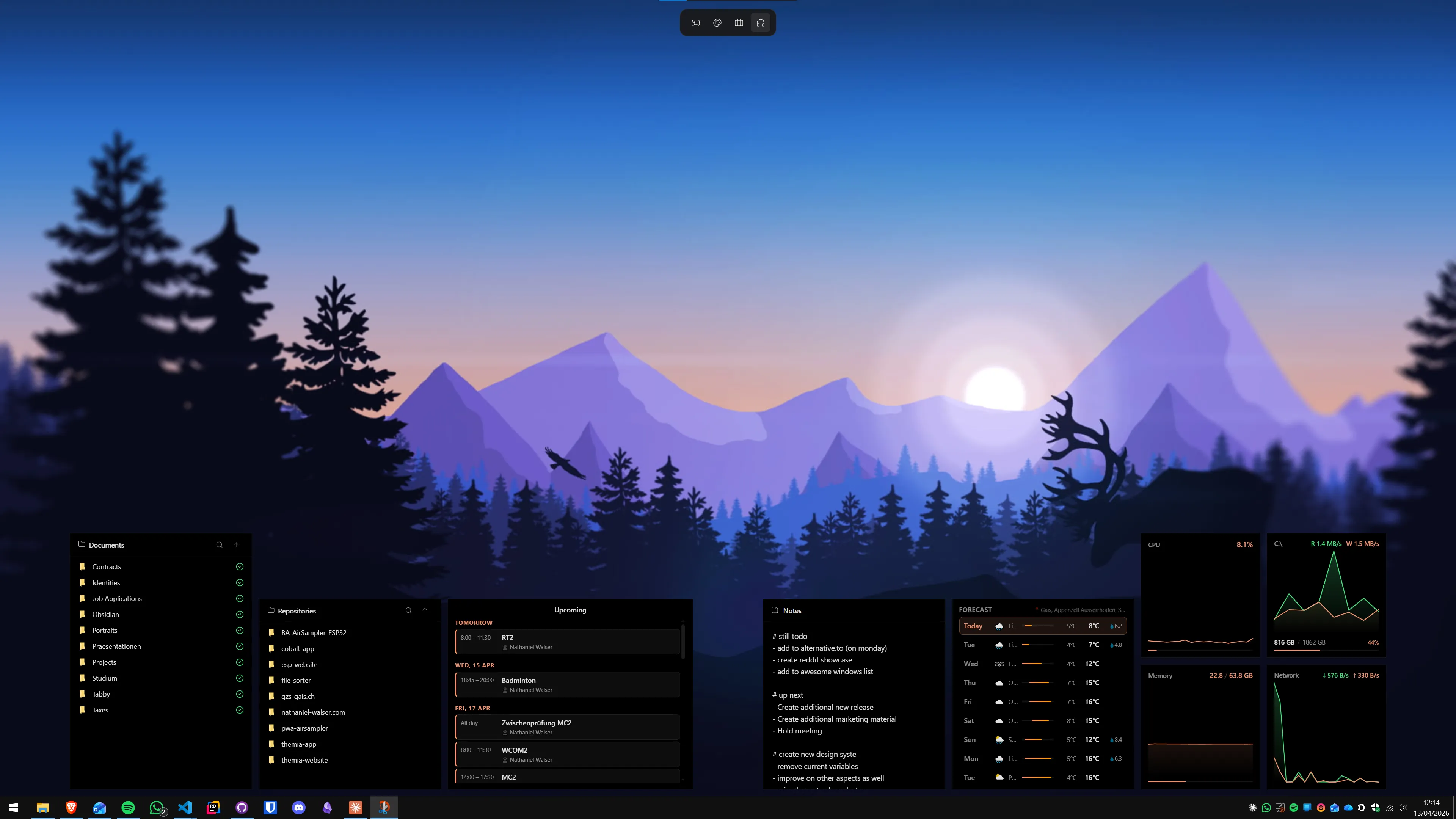
Keeping live CPU load, RAM usage, and disk activity visible during a session helps you catch problems before they become dropouts. Building a desktop widget dashboard with real-time system stats lets you spot spikes without alt-tabbing away from the DAW. For CPU temperature monitoring — critical on laptops where thermal throttling causes audio dropouts — see the guide on showing CPU and GPU temperatures on the Windows desktop. Producers who want a full second-monitor dashboard also benefit from the best Windows desktop setup for developers, which covers many of the same multi-monitor and productivity patterns that apply to audio work.
Quick Troubleshooting Reference
Crackling or dropouts during playback: Increase buffer size in DAW audio settings. Disable Wi-Fi. Check USB selective suspend on the interface. Add DAW folder to Defender exclusions.
High DPC latency: Run LatencyMon (free from resplendence.com) to identify the culprit process — most commonly Wi-Fi drivers, webcam drivers, or a poorly written audio driver. Update or uninstall the offending driver.
Interface not recognised after Windows Update: Windows Updates sometimes replace manufacturer ASIO drivers with generic ones. Re-install the manufacturer driver from their website after major updates.
Clicks on every bar boundary: Almost always a buffer underrun. Switch from ASIO4ALL to an interface with a hardware ASIO driver if possible; otherwise increase buffer size. For a broader look at optimising Windows 11 for demanding workflows, the Windows 11 desktop customisation guide covers additional settings worth visiting once your audio environment is stable.
Frequently Asked Questions
Do I need a dedicated audio interface to produce music on Windows 11?
You do not need one to start, but a USB audio interface (Focusrite Scarlett Solo, Behringer UMC22) dramatically reduces round-trip latency compared to built-in audio. For recording live instruments or vocals an interface is strongly recommended. For purely software-based production using MIDI controllers, ASIO4ALL with built-in audio can reach acceptable latency.
What ASIO driver should I install on Windows 11 for music production?
If your audio interface ships with its own ASIO driver (Focusrite, PreSonus, Native Instruments, Universal Audio), always use that driver — it is optimised for your hardware. If you are using built-in audio or a generic USB device, install ASIO4ALL from asio4all.org. It wraps WDM drivers in a low-latency ASIO layer and works with virtually every Windows audio device.
How do I stop Windows 11 updates from interrupting a recording session?
Go to Settings → Windows Update → Advanced options and enable Pause updates for up to five weeks. Mark your network connection as Metered (Settings → Network → Wi-Fi → Properties) to stop automatic background downloads. Also configure Active Hours so Windows never restarts during your scheduled recording time.
Which DAWs work best on Windows 11 in 2026?
FL Studio, Ableton Live, Reaper, Cubase, Studio One, Bitwig Studio, and Cakewalk by BandLab (free) all run well on Windows 11. For beginners on a budget, Reaper ($60 licence) and Cakewalk (free) are the strongest starting points. For electronic music production, FL Studio and Ableton have the largest communities and plugin ecosystems in 2026.
How low can I get latency on Windows 11 without a dedicated audio interface?
With ASIO4ALL and a modern Realtek or Intel audio chip, you can typically achieve buffer sizes of 256–512 samples at 44.1 kHz, corresponding to roughly 6–12 ms round-trip latency. This is acceptable for mixing but not ideal for live recording. A dedicated interface with its own ASIO driver will consistently reach 2–6 ms.
Should I use Windows 11 Home or Pro for music production?
Windows 11 Home is perfectly adequate for music production. The main advantages of Pro are BitLocker, Hyper-V, and Group Policy — none of which are required for audio work. Save the upgrade cost and invest it in plugins or a better audio interface instead.