How to Show RSS Feeds on Your Windows Desktop
RSS is one of the oldest and most reliable ways to follow the web — no algorithm, no ads, no email address required. A feed URL, a reader, and you get every headline from every source you choose, in chronological order. The awkward part on Windows is that the OS itself has no RSS surface. The taskbar, the Widgets Board, and the notification panel all ignore RSS entirely. If you want live headlines on your desktop, you have to build that yourself.
This guide covers every approach that actually works in 2026, from the simplest widget setup to a full Rainmeter skin. Most people stop at the first method. The rest are here for anyone who wants more control over what they see and how it looks.
What you need to know before you start
RSS (Really Simple Syndication) is a standard XML format. Almost every news site, blog, podcast, and developer tool publishes a feed. The URL usually ends in /feed, /rss, /rss.xml, or /atom.xml. If a site does not advertise its feed, the Firefox browser can often detect it automatically — or you can search site:example.com rss to find it.
Windows 11 has no first-party RSS support anywhere on the desktop or taskbar. Microsoft removed RSS from Internet Explorer many years ago and Edge never replaced it. That means every approach below involves either a third-party widget app or a scripting engine like Rainmeter.
Method 1: A desktop widget app (recommended)
The cleanest way to get RSS on the Windows desktop is a native widget app that includes an RSS widget out of the box. You paste a feed URL and the headlines appear on the wallpaper, updating live, no browser involved.
Themia
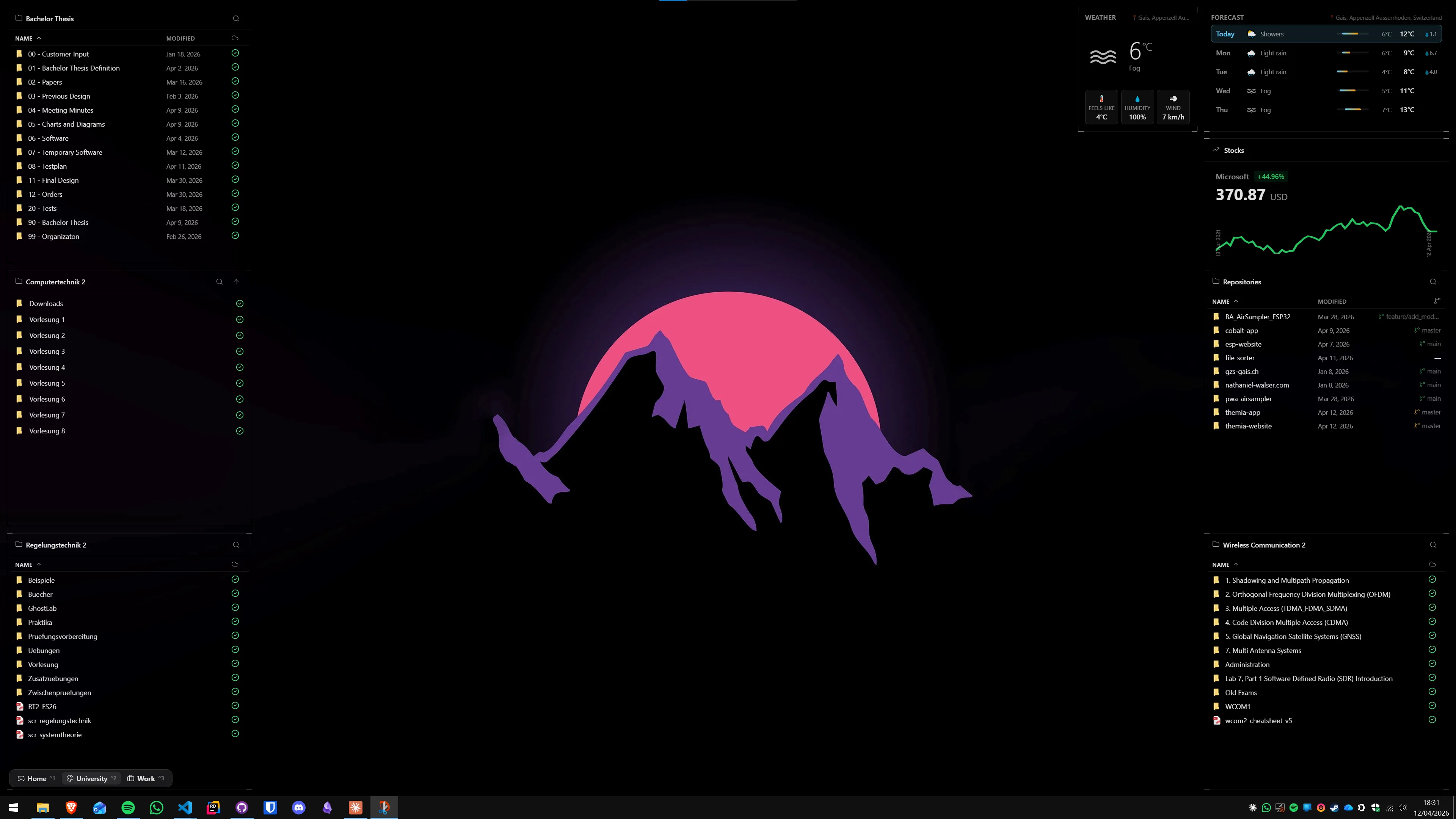
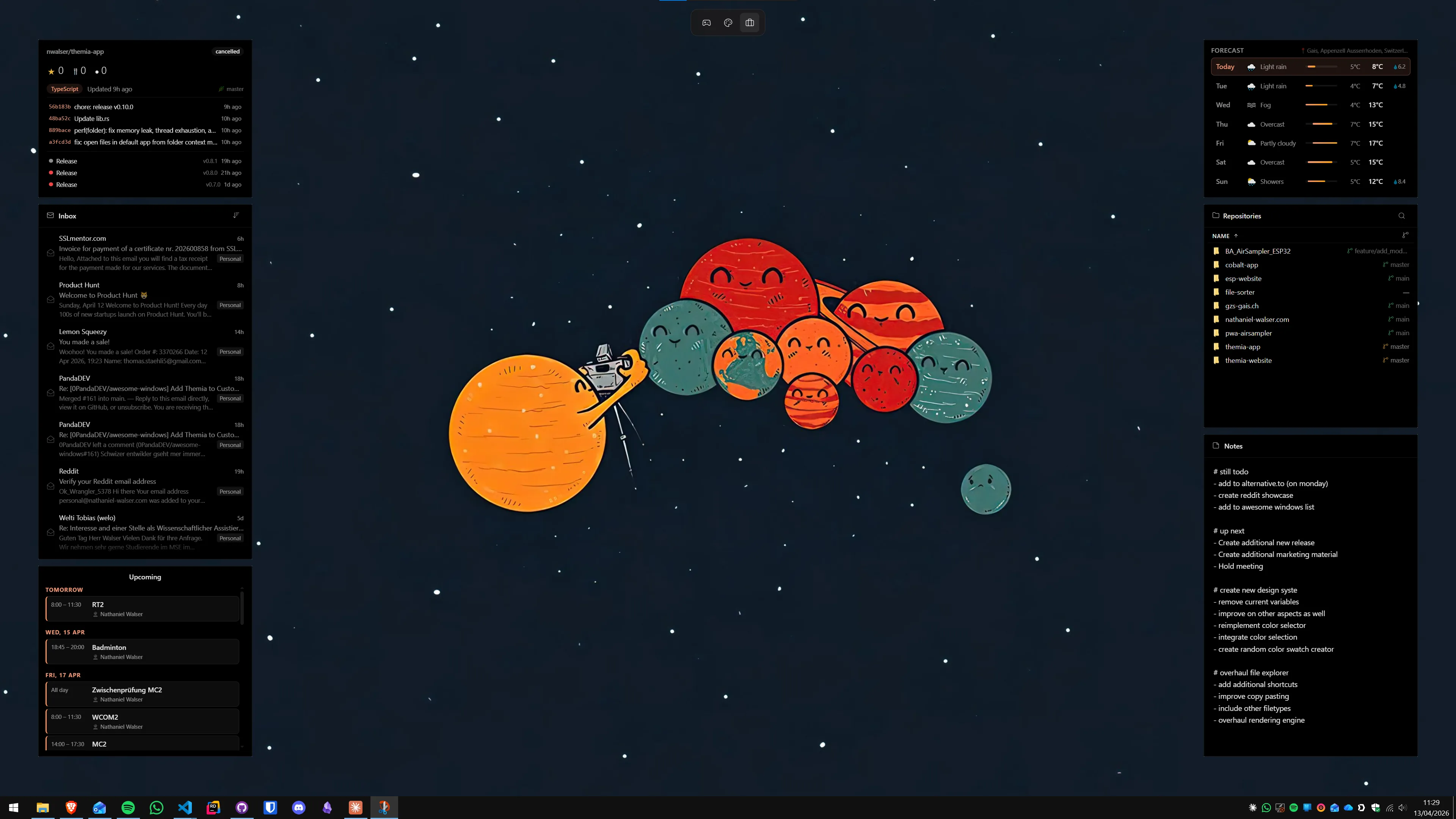
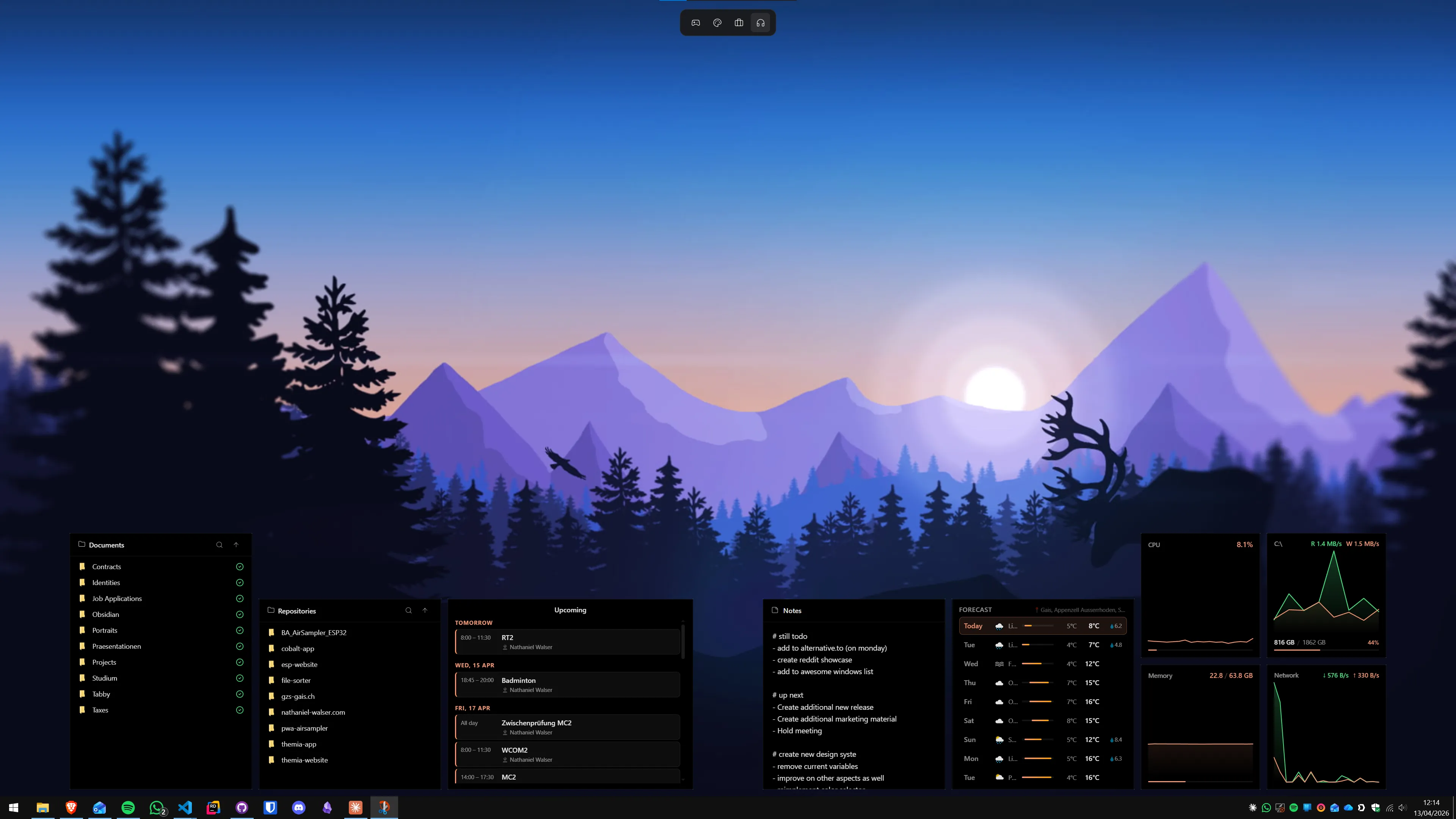
Themia is a native Windows desktop widget app built on Tauri. The full installer is under 10 MB and runs on Windows 10 and 11. It ships with an RSS widget as one of its built-in widget types, alongside weather, calendar, system stats, email, stocks, notes, and others.
To add an RSS feed:
- Download Themia from the Themia website and run the installer.
- Right-click the desktop and choose Add widget → RSS.
- Paste your feed URL into the field and confirm. Headlines appear immediately and refresh on a schedule.
- Drag the widget to position it, drag a corner to resize. You can add multiple RSS widgets for multiple feeds — news, tech, finance, or whatever mix you follow.
What works well: native app, small footprint, no browser engine running in the background, no API key, no Microsoft account required. Works on local Windows accounts.
Limits: the visual customization options — widget background color, font size, per-widget themes — are in the Pro tier ($19 one-time). The free tier covers the RSS widget itself and shows headlines cleanly.
Best for: most readers of this post. If you want a live feed on the desktop and you also want a calendar, weather, or system stats widget alongside it, Themia handles all of that from one install.
If you are already thinking about building a full information dashboard — RSS plus calendar plus system stats — the guide on building a productivity dashboard on Windows walks through the layout decisions in detail.
Method 2: A dedicated RSS reader app (side-by-side, not on the wallpaper)
If you want a richer reading experience rather than just headline tickers on the desktop, a dedicated RSS reader app is the right tool. These do not sit on the wallpaper — they are standalone apps you open — but they give you full article text, category filtering, read/unread state, and keyboard-driven navigation that a widget cannot match.
Fluent Reader
Fluent Reader is a free, open-source RSS reader for Windows built with Electron. It supports RSS, Atom, and JSON Feed; syncs with services like Feedbin, Fever, and Google Reader-compatible APIs; and has a clean three-pane layout. You can download it from the Microsoft Store or GitHub.
The tradeoff versus a widget: Fluent Reader is an app you open, not something that lives on the desktop. If you want headlines glanceable without switching focus, a widget is the better answer. If you want to sit down and read a batch of articles properly, Fluent Reader is the better answer.
RSS Guard
RSS Guard is another free, open-source reader. It is lighter than Fluent Reader, written in Qt, and works on Windows, Linux, and macOS. It supports the same sync services and has a more compact UI. Good choice if you want the fastest possible startup time and minimal resource use from a dedicated reader.
Neither Fluent Reader nor RSS Guard puts anything on the desktop background. If that is your goal, go back to Method 1. These are the right pick when you want article-level reading rather than a headline glance.
Method 3: Rainmeter with an RSS skin
Rainmeter is the classic Windows desktop customization engine — a scripting framework where each "skin" is a set of config files that draw data and visuals directly onto the desktop. It is free and open-source.
Rainmeter has a built-in WebParser plugin that fetches a URL and parses the response with regex. RSS is XML, and with the right regex patterns you can pull the feed title, item titles, publication dates, and links. Many skins on DeviantArt and the Rainmeter forums demonstrate this — search for "Rainmeter RSS skin" and you will find several ready-to-use options.
The setup process:
- Download Rainmeter from rainmeter.net and install it.
- Find an RSS-capable skin. Skins that explicitly state they use WebParser with an RSS feed are the ones to look for. Load the
.rmskinfile to install. - Open the skin's INI file in a text editor. Locate the feed URL setting — it will be a line like
URL=https://feeds.example.com/rss— and replace it with your feed. - Refresh the skin from the Rainmeter context menu. Headlines should appear within a few seconds.
What works well: total visual control, can be integrated into any larger Rainmeter layout, free forever.
Limits: INI file editing is required for any configuration change; parsing complex feed structures needs regex knowledge; no GUI for feed management.
Best for: people already using Rainmeter who want to add an RSS element to an existing layout.
If you are new to Rainmeter and deciding whether it is worth the setup investment, the roundup of Rainmeter alternatives for Windows gives a clear picture of where it wins and where a simpler app saves you time.
Method 4: Browser sidebar RSS reader
Firefox has had RSS support for many years via extensions. Extensions like Feedbro and Brief add a sidebar panel that shows your subscribed feeds and lets you browse headlines without leaving the browser. If your browser is open most of the day anyway, this is a zero-extra-install option.
Microsoft Edge does not have a native RSS sidebar, but the same Firefox extensions approach works if you add an RSS extension from the Chrome Web Store (Edge supports Chrome extensions).
The limitation here is obvious: the feed only shows when the browser sidebar is open. It does not live on the desktop. This is more of a "browser power user" approach than a desktop widget approach.
Useful feeds to start with
If you are new to RSS and not sure what to subscribe to, a few categories of feeds that work especially well in a desktop widget context:
- News wires: Reuters, AP News, and BBC News all publish clean, headline-only RSS feeds that render well in compact widget formats.
- Tech: Hacker News (top stories), Ars Technica, and The Verge publish well-structured feeds. Hacker News also publishes feeds by score threshold — the top 20 stories feed cuts noise significantly.
- GitHub releases: Any public GitHub repository has an Atom feed at
github.com/{owner}/{repo}/releases.atom. Subscribe to the tools you use and get release alerts without email. - Weather alerts: In the US, NOAA publishes RSS feeds for official weather warnings by county — useful if you want critical alerts on the desktop rather than buried in an app.
- Personal blogs: The long tail of independent blogs that do not have social media accounts still publish RSS. These are often the most interesting feeds and the hardest to discover otherwise.
Which method should you use?
A quick summary by what you actually want:
- Headlines on the wallpaper, minimal setup: Method 1 with Themia. Paste a feed URL and you are done.
- Serious article-level reading, multiple feeds, sync across devices: Method 2 with Fluent Reader or RSS Guard.
- Already using Rainmeter, want to add RSS to an existing skin: Method 3.
- Browser open all day, just want headlines in a sidebar: Method 4 with a Firefox RSS extension.
For most people, the answer is a widget app for the desktop glance and a reader app for deep reading — they serve different moments and do not replace each other. If you are just starting, add one or two feeds to a desktop widget, see what you actually look at after a week, and expand from there.
The roundup of free Windows desktop customization tools covers RSS widget apps alongside the other categories if you want context on the broader desktop tool landscape.
FAQ
Does Windows 11 have a built-in RSS widget for the desktop?
No. The Windows 11 Widgets Board does not include an RSS reader widget. Microsoft removed RSS support from Internet Explorer and Edge years ago, and nothing has replaced it at the OS level. To get an RSS feed on your desktop you need a third-party widget app or a Rainmeter skin.
Does Themia's RSS widget require an API key or account?
No. Themia reads any public RSS or Atom feed URL directly — you paste the feed address and the widget starts pulling headlines. No API key, no account, no middleman service. Password-protected or OAuth-gated feeds are not supported, but the vast majority of news and blog feeds are public.
Which RSS feeds work best as a desktop widget?
Feeds that publish short headlines with minimal body text look best in a widget format — news sites (Reuters, BBC, AP), tech blogs (Ars Technica, The Verge, Hacker News), government weather alerts, and GitHub release feeds. Long-form publication feeds (full-text newsletters) are better read in a dedicated RSS reader app than on a widget.
Can Rainmeter display RSS feeds on the desktop?
Yes. Rainmeter has a built-in WebParser measure that can fetch and parse RSS XML. Several skins on DeviantArt and the Rainmeter subreddit demonstrate this. The main limitation is that you write or modify INI config files to set the feed URL, and re-skinning for different layouts requires some scripting knowledge. It works well for anyone comfortable in Rainmeter already.
Is RSS still worth using in 2026?
Yes, particularly for desktop workflows. RSS lets you follow dozens of sources without handing over your email address, without algorithm-driven sorting, and without ads in the feed itself. Tech journalists, developers, and researchers tend to rely on RSS heavily. The format never died — it just moved out of mainstream browsers and into dedicated readers and widget apps.
Can I show GitHub release notes or changelog feeds on my desktop?
Yes. GitHub publishes Atom feeds for releases, commits, and tags on any public repository. The URL pattern is https://github.com/{owner}/{repo}/releases.atom. Paste that into any RSS widget or reader and you get new release notifications without polling the site or enabling GitHub notifications.