How to Show Stock Prices on Your Windows Desktop (2026)
Checking stocks should not mean hunting for a browser tab or pulling out your phone mid-task. A live stock widget on your Windows desktop — sitting on the wallpaper, always visible — is a reasonable thing to want, and there are several working ways to get one in 2026.
This guide covers every real option, ordered from least effort to most. The built-in Windows 11 approach takes about 30 seconds. The third-party widget apps take a few minutes. The Rainmeter route takes an evening if you have never used it before. Most people land on Method 2 or 3 and stay there.
What Windows 11 includes out of the box
Before installing anything, it is worth knowing what is already on your machine. Windows 11 includes a stocks watchlist as part of the Widgets Board — the panel that slides out when you press Win+W or click the icon on the left side of the taskbar. It is powered by MSN Money and shows the current price, day change, and a small line chart for each ticker in your watchlist.
This does not put a stock price on the desktop itself. The Widgets Board is a panel that opens on top of your windows and closes again when you click away. The taskbar icon can show a small live readout that cycles through your watchlist symbols, but that is limited to a narrow strip at the edge of the screen.
If you want stock prices sitting permanently on your wallpaper — visible without any click — you need a third-party widget app. Microsoft removed the old Desktop Gadgets feature back in Windows 8 and has not shipped a replacement that actually lives on the desktop background.
Method 1: Use the Windows 11 Widgets Board watchlist (zero install)
If you just want a quick glance at a handful of tickers and do not need them on the desktop background itself, the built-in route takes about 30 seconds.
- Press Win+W to open the Widgets Board, or click the icon on the left side of the taskbar.
- Sign into Windows with a Microsoft account if you have not already — the Widgets Board does not load on a local account.
- Scroll down until you find the Watchlist widget. If it is not there, click + Add widgets at the top of the panel and add it.
- Click the three dots on the Watchlist widget and choose Customize widget. Search for ticker symbols and add them to your list.
Pros: nothing to install, works on any Windows 11 machine, shows price, day change, and a small chart per symbol.
Cons: inside a panel you have to open and close; requires a Microsoft account; data is typically 15 minutes delayed; the Widgets Board also includes an MSN news feed you probably did not ask for.
Who it is for: people who want an occasional glance and already use a Microsoft account.
If the MSN news feed bothers you, we have a separate guide on how to disable Windows 11 Widgets — you can turn off specific content types without affecting the rest of Windows. For a broader look at where the Widgets Board falls short as a desktop experience, see our piece on why Windows 11 Widgets disappoint.
Method 2: Add a stocks widget to your desktop with Themia
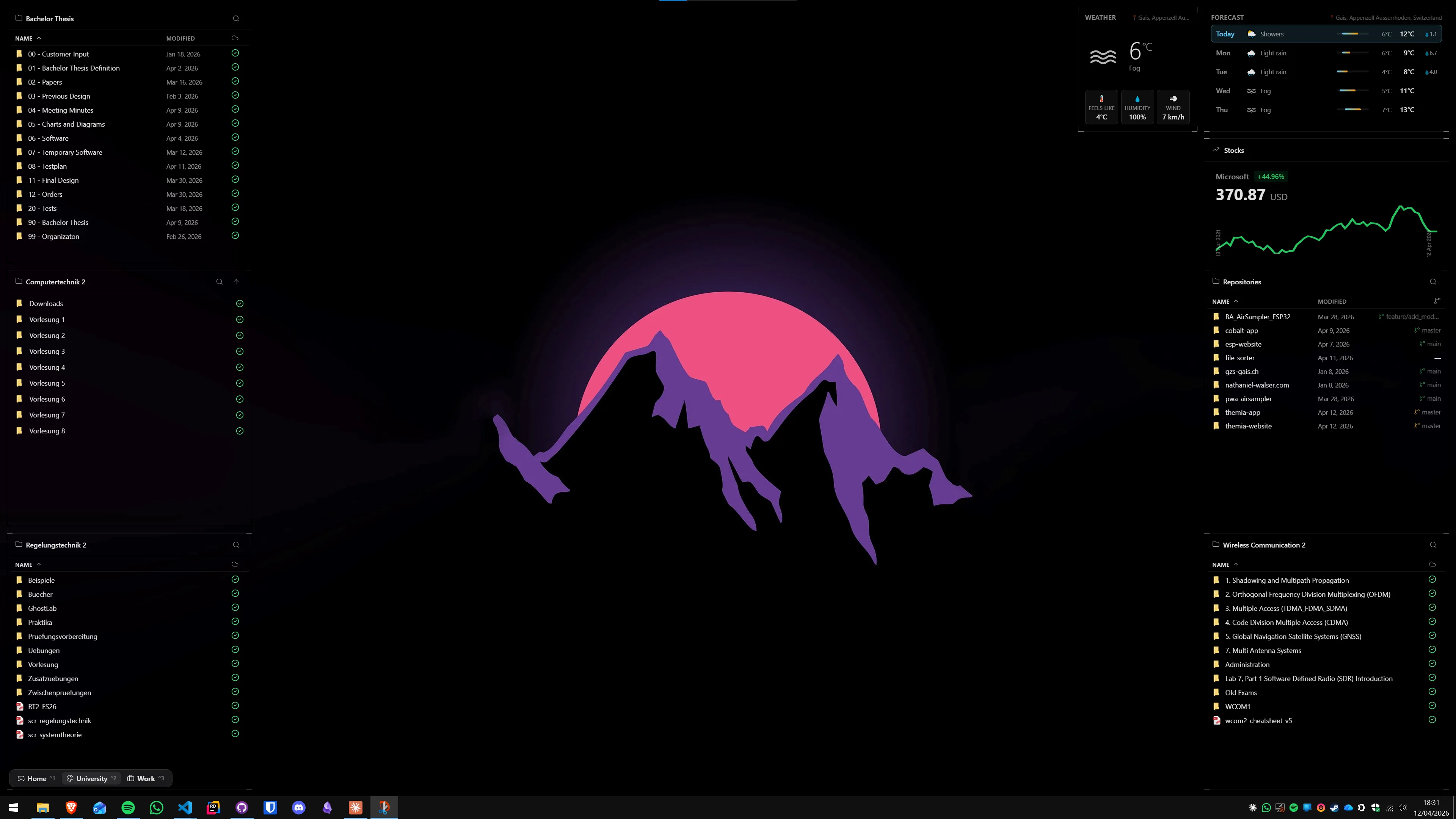
If you want the stock price on the desktop itself — on the wallpaper, always visible — the simplest route is a desktop widget app. Themia is a native Windows app built on Tauri (the full installer is under 10 MB) and includes a stocks widget as one of its built-in types, available on the free tier.

- Download Themia from the Themia website and run the installer (signed, under 10 MB).
- On first launch, right-click the desktop and choose Add widget → Stocks.
- Enter the ticker symbols you want to track. The widget shows the current price, day change, and a compact sparkline chart for each symbol.
- Drag the widget to position it anywhere on the desktop. Resize by dragging a corner.
Pros: actual desktop widget (on the wallpaper, always visible); native app, no browser engine under the hood; free tier covers the stocks widget; also includes calendar, weather, email, system stats, notes, and a dozen other widget types if you want to build out a full dashboard; works on local Windows accounts; Windows 10 and 11 supported.
Cons: pro styling options — custom widget backgrounds, per-widget themes — require a one-time $19 Pro unlock; it is a general widget platform, not a dedicated stock analysis tool.
Who it is for: most readers of this post — you want stock prices on the desktop with minimal setup, and you might want other widgets alongside them later.
Method 3: Swish — a dedicated Windows stock widget app
If stocks and market data are the only thing you care about, Swish is built specifically for that job. It is a stock-focused desktop widget app rendered with Direct2D and DirectX 11 — no Electron, no embedded Chromium — and it pulls live data from a broad set of exchanges.
The free tier gives you up to three stock widgets, one cryptocurrency or ETF widget, and real-time line charts. You can set price alerts, track simulated holdings, and snap widgets to a grid. Coverage includes 50+ exchanges: Nasdaq, NYSE, LSE, Euronext, NSE, ASX, and more.
Swish Pro unlocks unlimited tickers and adds candlestick and OHLC charts, extended chart history, and a crosshair measurement tool. Pricing is available as a monthly subscription, annual plan, or a one-time lifetime purchase.
Pros: dedicated stock focus; real charts, not just numbers; broad exchange coverage; native rendering, small footprint; free tier is genuinely useful for most casual investors.
Cons: stock-only scope — no calendar, weather, notes, or other widget types; Pro required for more than three stocks or advanced chart types.
Who it is for: traders and investors who want a polished, chart-capable stock widget and do not need anything else on the desktop.
Method 4: Finance Toolbar — a scrolling ticker bar
Finance Toolbar takes a different approach from the others. Instead of a static positioned widget, it pins a scrolling stock ticker bar to the top of your desktop — price and percentage change for each symbol scrolling past like a classic trading-floor display. It is free, available on the Microsoft Store, and pulls data from Yahoo Finance.
You configure your watchlist, set the scroll speed, and the bar sits at the very top of the screen, above all your windows. It is a good fit if you want passive awareness of a lot of symbols at once rather than a focused chart view for a handful of tickers. It does not block any window content — it sits in the very top strip of the screen and stays there.
Pros: free; handles a large number of symbols at once; unobtrusive horizontal strip rather than a dedicated window; zero configuration beyond the watchlist.
Cons: no charts, no alerts, no detail view; you have to wait for a symbol to scroll into view; Yahoo Finance has historically been unreliable as a third-party data source, so check that data is loading correctly after install.
Who it is for: anyone who wants broad market awareness at a glance without interactive charts or position tracking.
Method 5: Rainmeter with a stock skin (maximum control)
Rainmeter is a free, open-source Windows customization engine that lets you install "skins" — config files that render widgets directly on the desktop. For stock prices, there are a handful of skins worth knowing about in 2026, but not all of them still work.
The key thing to know upfront: older Rainmeter stock skins that scraped Yahoo Finance or Weather Channel web pages are broken and have been for years. Those sites changed their page structure or locked down access, and any skin relying on them stopped working. The reliable options in 2026 are skins that pull from CNBC's public JSON API, which is still functional. Two that are cited as working in the Rainmeter forums:
- TickrTiles — a minimalist stock tracker that fetches data from CNBC every 10 minutes. It shows price, day change, and a color-coded arrow (up or down) per symbol, with optional company logos. Available on GitHub and actively maintained.
- Market Prices — another CNBC-based skin with a more traditional ticker look. A long-running skin with active forum threads and regular updates.
Setting up Rainmeter involves more steps than the other options: install Rainmeter, download the skin file, load the skin, open the config file to add your ticker symbols, then adjust position and styling. If you are already running a Rainmeter setup, adding a stock skin is a natural extension. If you are starting from scratch just for stock prices, there is more setup than there needs to be.
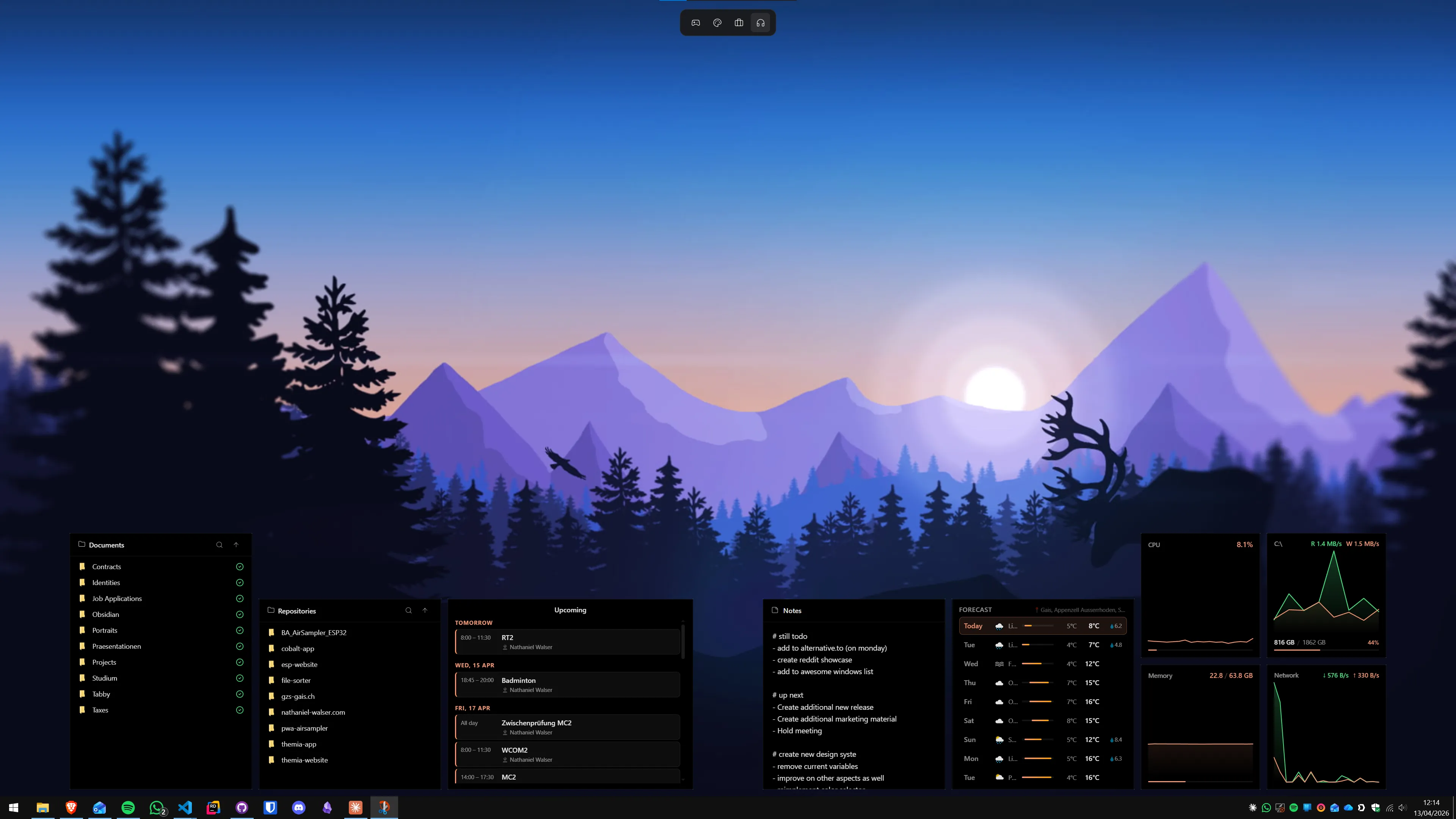
Our comparison of Themia versus Rainmeter covers when the customization depth is worth the setup cost versus when a native app does the job faster. If you are thinking about going all-in on the aesthetic side, our Windows ricing guide covers the Rainmeter ecosystem in more depth.
Pros: free; total visual control; integrates naturally with a broader Rainmeter desktop setup; can be styled to match any existing skin aesthetic.
Cons: real setup investment; configuration is done by editing text files, not through a UI; many old stock skins are broken; support depends on individual skin maintainers staying active.
Who it is for: Rainmeter enthusiasts who already have a desktop setup and want to add financial data to it.
Which method should you use?
A quick breakdown by use case:
- Just a quick glance at tickers, nothing to install: Method 1 — Windows 11 Widgets Board watchlist. Done in 30 seconds if you have a Microsoft account.
- Stock prices on the wallpaper, plus other useful widgets alongside them: Method 2 with Themia. The free tier covers the stocks widget along with calendar, weather, system stats, and whatever else you want to build out later.
- Stock-focused, charts included, broad exchange support: Method 3 with Swish. Best if the desktop is primarily about financial data and you want candlestick charts or price alerts.
- A lot of symbols scrolling passively, no interaction needed: Method 4 with Finance Toolbar.
- Already running Rainmeter and want stocks in your existing setup: Method 5 with TickrTiles or Market Prices.
For most people the choice comes down to Methods 2 and 3 — general widget platform versus dedicated stock tool. Our roundup of the best Windows desktop widget apps in 2026 covers the broader landscape if you want to compare more options before committing.
FAQ
Are Windows desktop stock widgets real-time or delayed?
It depends on the app and its data source. Exchange rules typically allow 15-minute-delayed quotes for free consumer display; apps that pay for a real-time feed (or use sources like the CNBC public API) can show live prices. In practice, Swish and Themia both show near-real-time quotes during market hours. The Windows 11 Widgets Board watchlist uses MSN Money data, which is typically 15 minutes delayed. For most desktop monitoring that delay barely matters — if you need tick-by-tick data you want a trading terminal, not a desktop widget.
Does tracking stocks on the Windows desktop require a Microsoft account?
Only if you use the Windows 11 Widgets Board. That feature does not load on a local Windows account, so the built-in stocks watchlist simply will not appear. Every third-party option covered here — Themia, Swish, Finance Toolbar, and Rainmeter skins — works on local accounts with no sign-in required. If you use a local account, skip Method 1 and go straight to the widget apps.
Can I show cryptocurrency prices the same way?
Yes. Most Windows stock widget apps also support crypto. Swish includes one cryptocurrency ticker on the free tier and unlimited crypto on Pro. Themia's stocks widget can track crypto symbols alongside equities. The Rainmeter skins covered in Method 5 (TickrTiles and Market Prices) pull from CNBC's feed, which covers major crypto pairs. The Windows 11 Widgets Board includes a crypto section in its Watchlist widget as well.
Can I get stock charts on the desktop, not just a price number?
Yes. Swish shows line charts with 1-day, 1-month, and longer time frames on the free tier; its Pro version adds candlestick and OHLC charts with a crosshair measurement tool. Themia shows a compact sparkline chart next to each ticker. The Windows 11 Widgets Board shows a small line chart per symbol. Finance Toolbar focuses on the scrolling price and percent change and does not show interactive charts.
Do Rainmeter stock ticker skins still work in 2026?
Some do, some do not. Older skins that scraped Yahoo Finance or The Weather Channel web pages broke years ago when those sites locked down their data. The skins that work reliably in 2026 are the ones pulling from CNBC's public JSON API — TickrTiles and Market Prices are the two most commonly cited as functional in the Rainmeter forums. If a skin you downloaded shows blank fields or zeros, check which data source it uses. Yahoo Finance scraping is almost certainly broken.
Can I show stock prices on two different monitors at once?
Yes, with most desktop widget apps. Themia supports per-screen layouts, so you can have a stocks widget on your secondary monitor without it appearing on your primary. Swish lets you drag widget windows to any monitor. Rainmeter skins can be positioned on any screen manually. The Windows 11 Widgets Board is a single panel that opens on your primary display and cannot be moved to a secondary monitor.