How to Show Weather on Your Windows Desktop (2026)
You want to glance at your desktop and see whether it is about to rain. That is a reasonable thing to want — and on Windows, it is surprisingly awkward to get. The built-in options hide weather behind a panel or a taskbar click, the old Windows 7 Desktop Gadgets are long gone, and the app store is full of look-alikes that mostly want your attention for something else.
This guide walks through every working method to put the weather on your Windows desktop in 2026, ordered from least effort to most. Most people stop at Method 2 or 3. The last one is for anyone who wants total visual control and does not mind spending an afternoon configuring things.
First, what Windows gives you out of the box
Before installing anything, it is worth knowing exactly what is already there — because in a lot of cases people install a third-party tool without realising a built-in option would have done the job.
Windows 11 has two first-party weather surfaces. Neither of them puts weather on the desktop background itself; they both put it one click (or one hover) away.
- The Widgets Board. Press Win+W or click the small icon on the left side of the taskbar. The board slides out and shows a weather widget near the top, along with an MSN news feed you did not ask for.
- The taskbar readout. If Widgets are enabled, the taskbar icon itself shows current temperature and a small weather glyph as live text — effectively a permanently visible readout, just squeezed into the corner of the taskbar.
If you want weather on the wallpaper, literally on the desktop, you will need a third-party app. Microsoft has not shipped a first-party desktop weather widget since the Windows 7 Gadgets feature was removed.
Method 1: Enable the taskbar weather readout (zero install, 20 seconds)
The fastest way to get the current temperature always visible on screen — without any download. Works on Windows 11 Home and Pro.
- Right-click any empty area of the taskbar and choose Taskbar settings.
- Under Taskbar items, toggle Widgets to On.
- Sign into Windows with a Microsoft account if you have not already — the Widgets feature will not load on a local-only account.
- The taskbar icon on the left side of the taskbar will start showing current conditions and temperature for your location within a minute.
Pros: nothing to install, live update, current temperature always visible.
Cons: squeezed into the taskbar; clicking it opens the full Widgets Board (with the MSN feed); requires a Microsoft account; location is set by IP and not always right.
Who it's for: people who want a glanceable temperature and do not care about a full forecast on the desktop.
If the always-on MSN news feed behind the weather bothers you, we have a separate guide on how to disable Windows 11 Widgets — you can keep just the taskbar text without the panel behaviour, or turn the whole thing off and use one of the methods below instead.
Method 2: Pin the MSN Weather app (still no desktop widget, but closer)
Windows ships with an MSN Weather app. It is a full forecast app — hourly, 10-day, radar, air quality — and you can pin it so it is one click away from both the taskbar and the Start menu. It does not put anything on the desktop background, but it is a much better full-forecast experience than the Widgets panel.
- Press Win, type Weather, and open the MSN Weather app.
- If you want it permanently on the taskbar, right-click the app icon on the taskbar and choose Pin to taskbar.
- For a larger live tile, right-click in Start and choose Pin to Start. In Windows 11 the tile is static, but the app icon itself shows the current temperature for your set location.
Pros: best free full forecast on Windows; no extra install; radar and air quality included.
Cons: it is an app, not a widget — you still have to open it to see the forecast.
Who it's for: people who want a real forecast but do not need it always visible on the desktop.
Method 3: Install a desktop widget app (the actual answer)
This is what most people actually want when they search for "weather on Windows desktop" — a widget that sits directly on the wallpaper, always visible, showing current conditions and a multi-day forecast without a panel to open or an app to launch.
There are a few solid options in 2026:
Themia (recommended)
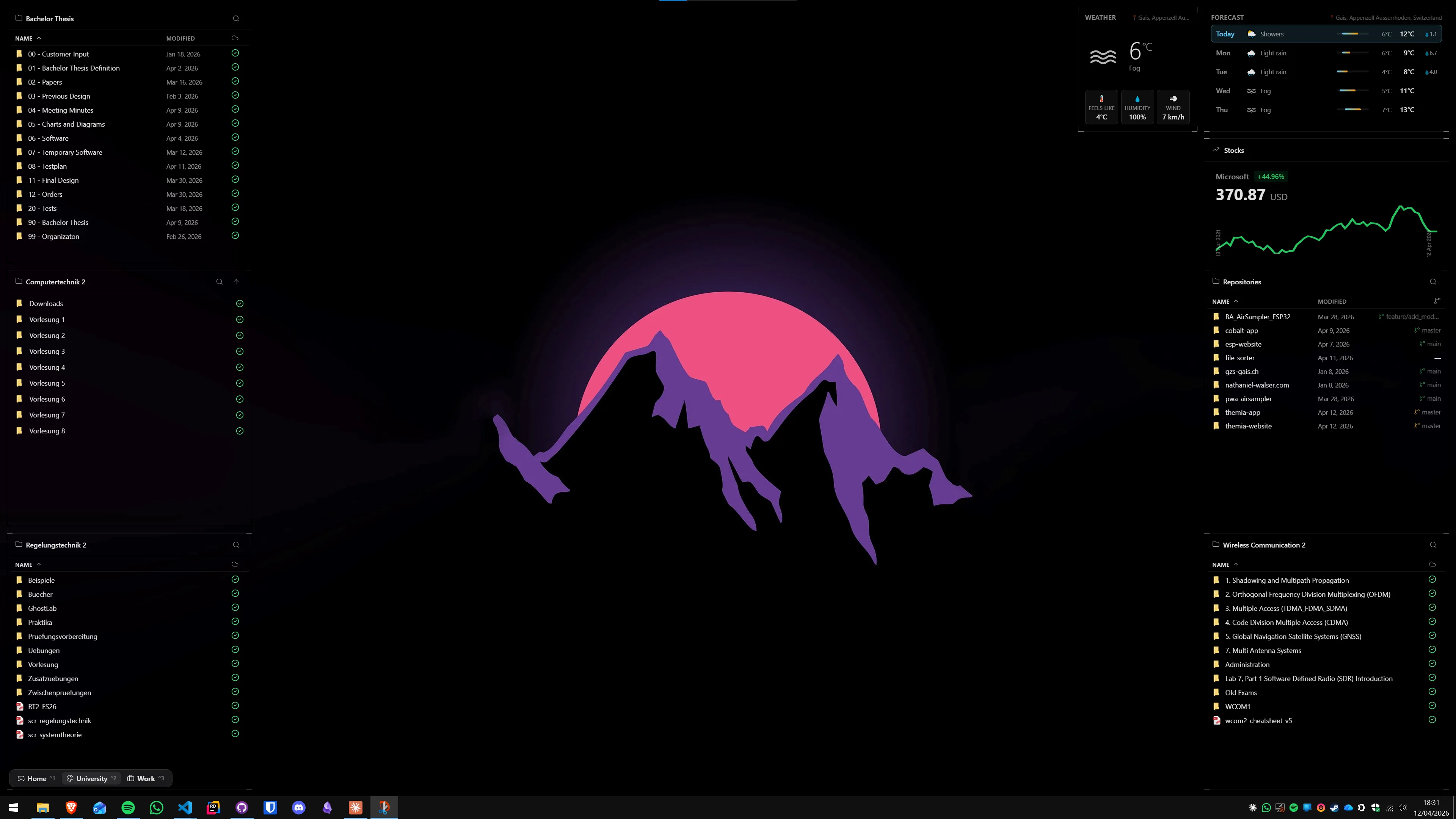
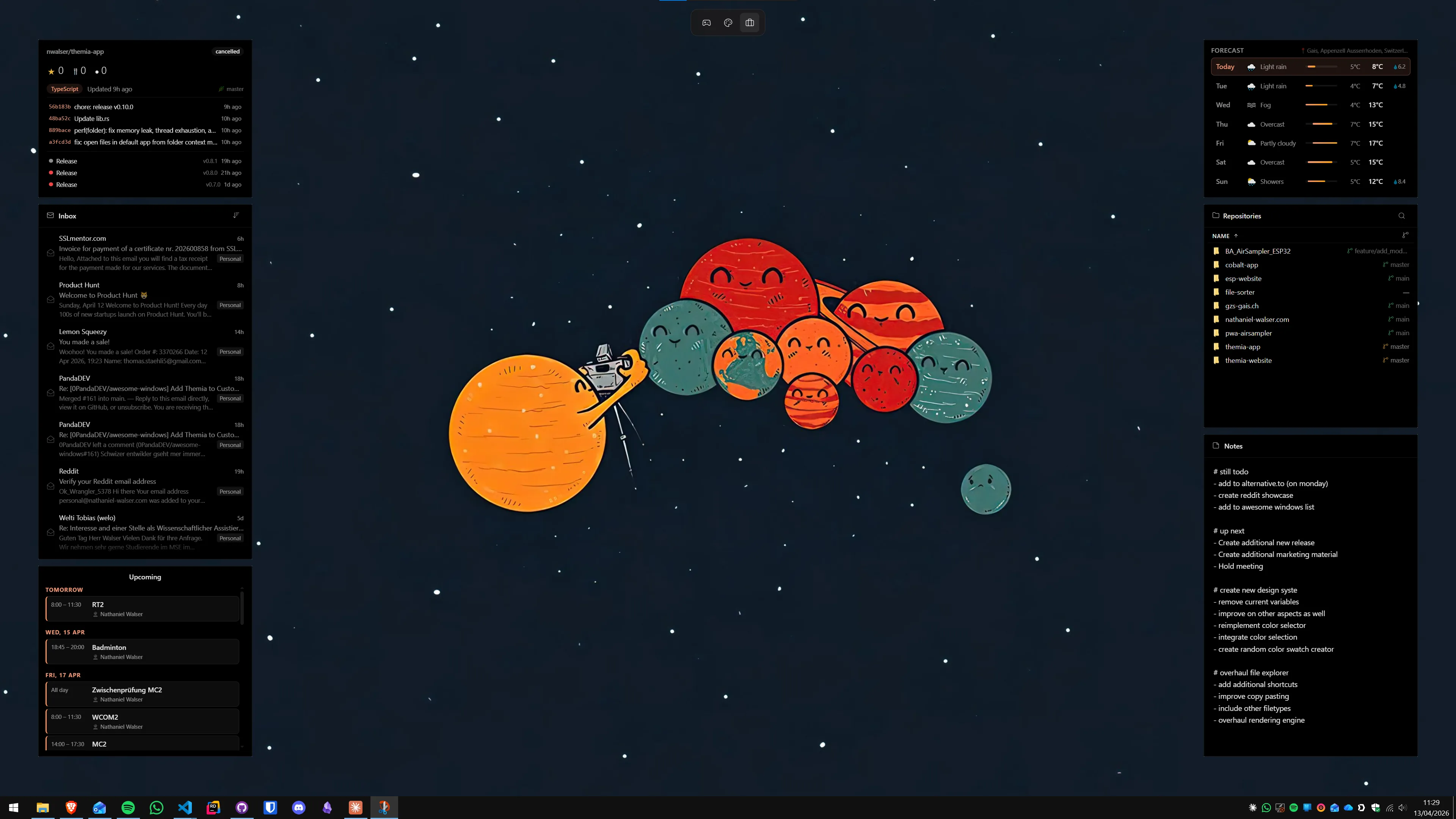
Themia is a native Windows desktop widget app built on Tauri — the whole installer is under 10 MB and it runs on Windows 10 and 11. The weather widget is one of the built-in ones: it shows current conditions, temperature, a short description, and a multi-day forecast, and it lives directly on the desktop alongside widgets for calendar, system stats, email, stocks, notes, and the rest.
- Download Themia from the Themia website and run the installer (it is signed and under 10 MB).
- On first launch, right-click the desktop and choose Add widget → Weather.
- Enter a city or allow Windows location access — the widget picks up current conditions immediately. Resize by dragging a corner; drag anywhere on the widget to reposition.
Pros: native app, small footprint, no browser under the hood, free tier covers the weather widget, no API key to configure, works on local Windows accounts.
Cons: the really pretty styling options (custom backgrounds, per-widget themes) are behind a one-time $19 Pro unlock.
Who it's for: most readers of this post — you want weather on the desktop with minimal setup and no configuration rabbit hole.
Lively Weather
Lively Weather is a free open-source app on the Microsoft Store. It is a single-purpose weather app with animated live wallpaper backgrounds tied to conditions, hourly and weekly forecast, air quality, and up to five pinned locations. It does not do calendar, system stats, or anything else — just weather.
It is the right pick if you only want weather and like the idea of an animated "rain on the wallpaper when it is raining" effect. It is not a general widget platform.
Widget Launcher and 8GadgetPack
If you specifically miss the Windows 7 gadget look, Widget Launcher (Microsoft Store) and 8GadgetPack (free download) both include weather gadgets in the classic sidebar style. They work, they are free, and they look like 2010. That might be what you want.
Full comparison of all of these in our roundup of the best Windows desktop widget apps in 2026, including a head-to-head between Themia and the built-in Windows 11 Widgets.
Method 4: Rainmeter with a weather skin (maximum control)
Rainmeter is the grandfather of Windows desktop customization. It is a scripting engine for desktop widgets — you install skins, each skin is a set of config files, and the result can look like anything from a stock ticker to a full animated sci-fi HUD. It is free, open-source, and actively maintained.
Two catches. First, Rainmeter is a configuration project — expect to spend an evening getting a layout you like. Second, a lot of older weather skins are broken in 2026 because the sites they scraped (Weather.com, Yahoo Weather) locked down their APIs. You want a skin that has been updated recently.
- Download Rainmeter from rainmeter.net and install it.
- Download a current weather-capable skin. Mond (active, uses OpenWeatherMap) and Simple Weather (active, uses Open-Meteo) are the two most reliable picks in 2026.
- Double-click the
.rmskinfile to install, then right-click the desktop → Rainmeter → Skins and load the weather skin. - Open the skin's
.inifile and set your location. If the skin uses OpenWeatherMap, register a free API key at openweathermap.org/api and paste it into the config. If the skin uses Open-Meteo, no key is required.
Pros: total visual control, huge skin ecosystem, free forever.
Cons: hours of setup, old skins are often broken, API key juggling for OpenWeatherMap-based ones, no unified settings UI.
Who it's for: people who enjoy tinkering and want their desktop to look like nobody else's.
Which one should you actually use?
A quick cheat-sheet based on what you actually want:
- Just the current temperature, always visible, zero install: Method 1 (taskbar readout).
- A real forecast when you want it, no widget on the desktop: Method 2 (MSN Weather app pinned).
- A weather widget that lives on the desktop itself, plus other widgets later: Method 3 with Themia — the most setup-free path.
- A weather-only app with animated backgrounds: Method 3 with Lively Weather.
- Total visual control and you enjoy configuring things: Method 4 with Rainmeter.
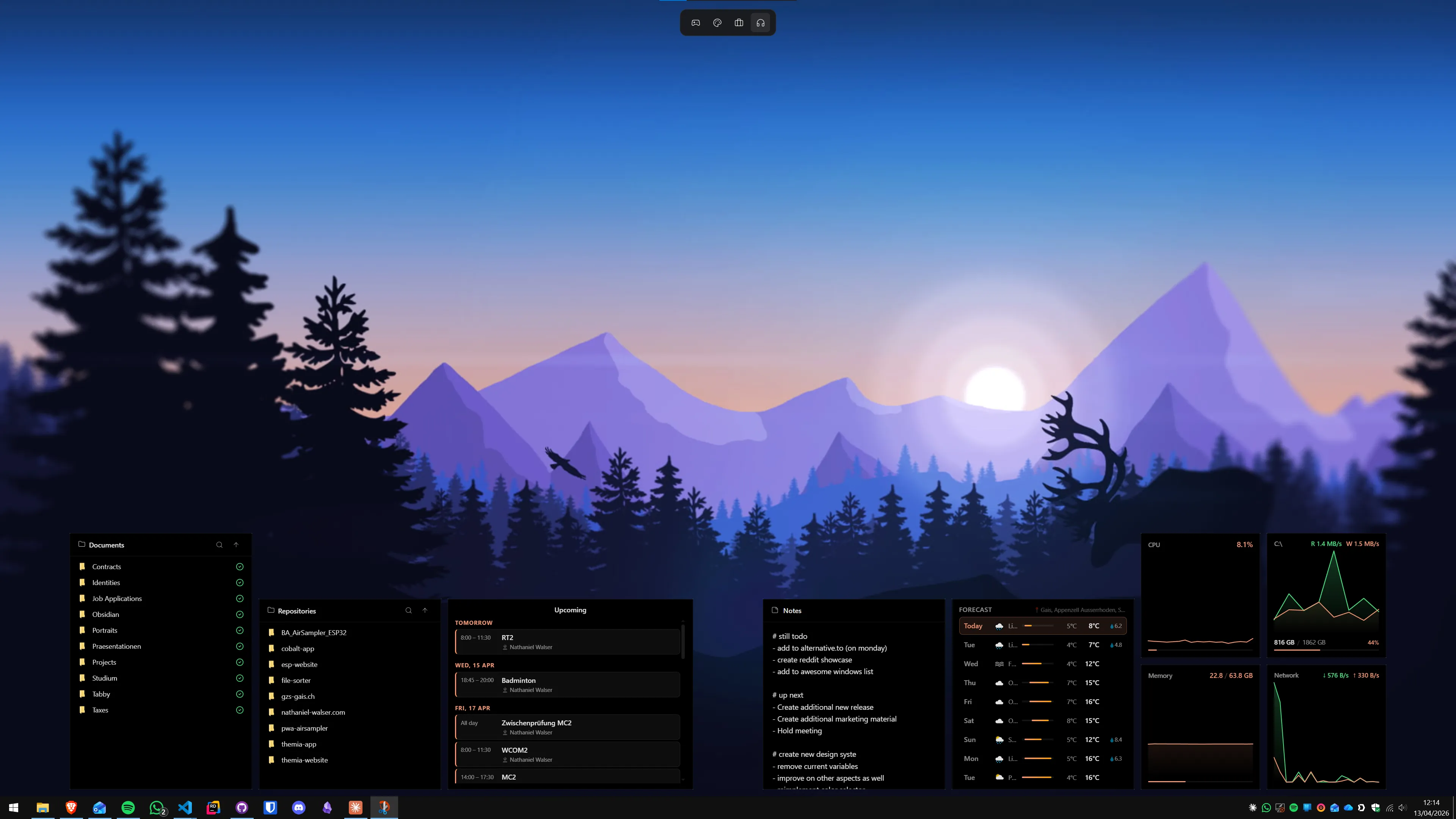
For most people reading this, the honest answer is Method 3 with a widget app. The built-in options are fine as a stopgap but they either hide weather behind a click (Widgets Board), cram it into the taskbar (readout), or need a launched app (MSN Weather). A proper desktop widget app closes the gap in a minute.
If you want to try Themia, the free tier covers the weather widget and several others — it takes about a minute to install, and you can decide from there whether the one-time Pro unlock is worth it for the rest of the widget set.
FAQ
Does Windows 11 have a built-in desktop weather widget?
Not on the desktop itself. Windows 11 has a Widgets Board (the panel that slides out from the taskbar icon or Win+W) which includes a weather widget, but the weather lives inside that panel, not on the desktop. You can also enable a live weather readout on the taskbar itself via Settings → Personalization → Taskbar → Widgets. For weather that sits permanently on your wallpaper, you need a third-party app like Themia, Lively Weather, or Rainmeter.
Does the weather widget on the Windows taskbar need a Microsoft account?
Yes. The taskbar Widgets feature (including the live weather readout) requires you to be signed into Windows with a Microsoft account. If you use a local account, the Widgets toggle either does not appear or does nothing when enabled. Third-party desktop weather apps do not have this requirement — Themia, Lively Weather, and Rainmeter all work on local accounts.
Which weather app gives the most accurate forecast on Windows?
Accuracy depends on your location and which data source the app uses, not which app you install. MSN Weather (used by the built-in Windows widgets) blends Foreca, Weather.com, and others. Lively Weather lets you pick between multiple providers including Open-Meteo and OpenWeatherMap. Open-Meteo aggregates national forecasts (NOAA, DWD, Météo-France) and is usually the most accurate free option in Europe and North America. For hyper-local nowcasting, nothing free beats a paid service like Pirate Weather.
Do I need an API key for a desktop weather widget?
Depends on the app. Most consumer apps — Themia, the built-in Windows widget, Lively Weather with its default source, MSN Weather — handle this for you with no key required. You only need to deal with an API key if you are building a custom Rainmeter skin or similar and want to use OpenWeatherMap as the data source (free tier requires registration). Open-Meteo is a good alternative that needs no key, no account, and no credit card for personal use.
Why did my old Rainmeter weather skin stop working?
Most older Rainmeter weather skins (Enigma, Omnimo, early Mond builds) scraped data from The Weather Channel or Yahoo Weather web pages. Both providers changed their page structure or locked down their APIs over the years, which broke any skin relying on them. Actively maintained skins have since moved to OpenWeatherMap or Open-Meteo. If your skin is dead, either update to a current Mond release or swap to a maintained alternative.
Can I show weather on the desktop without any third-party app?
Not really — not on the wallpaper itself. Windows only offers two first-party options: the Widgets Board (a pop-out panel) and a live weather readout on the taskbar. Neither puts weather on the desktop background. Microsoft removed the Desktop Gadgets feature back in Windows 8, and it has never come back. If you want always-visible weather on the desktop, a third-party widget app is the only way.