How to Use Desktop Widgets on a Dual Monitor Setup
A second monitor roughly doubles the space you have to work with — and yet most people fill it with exactly the same things they put on the first screen: open windows, browser tabs, and a desktop that just sits there. A dual-monitor setup is the single best argument for desktop widgets, because now you have somewhere to put them that does not compete with your work.
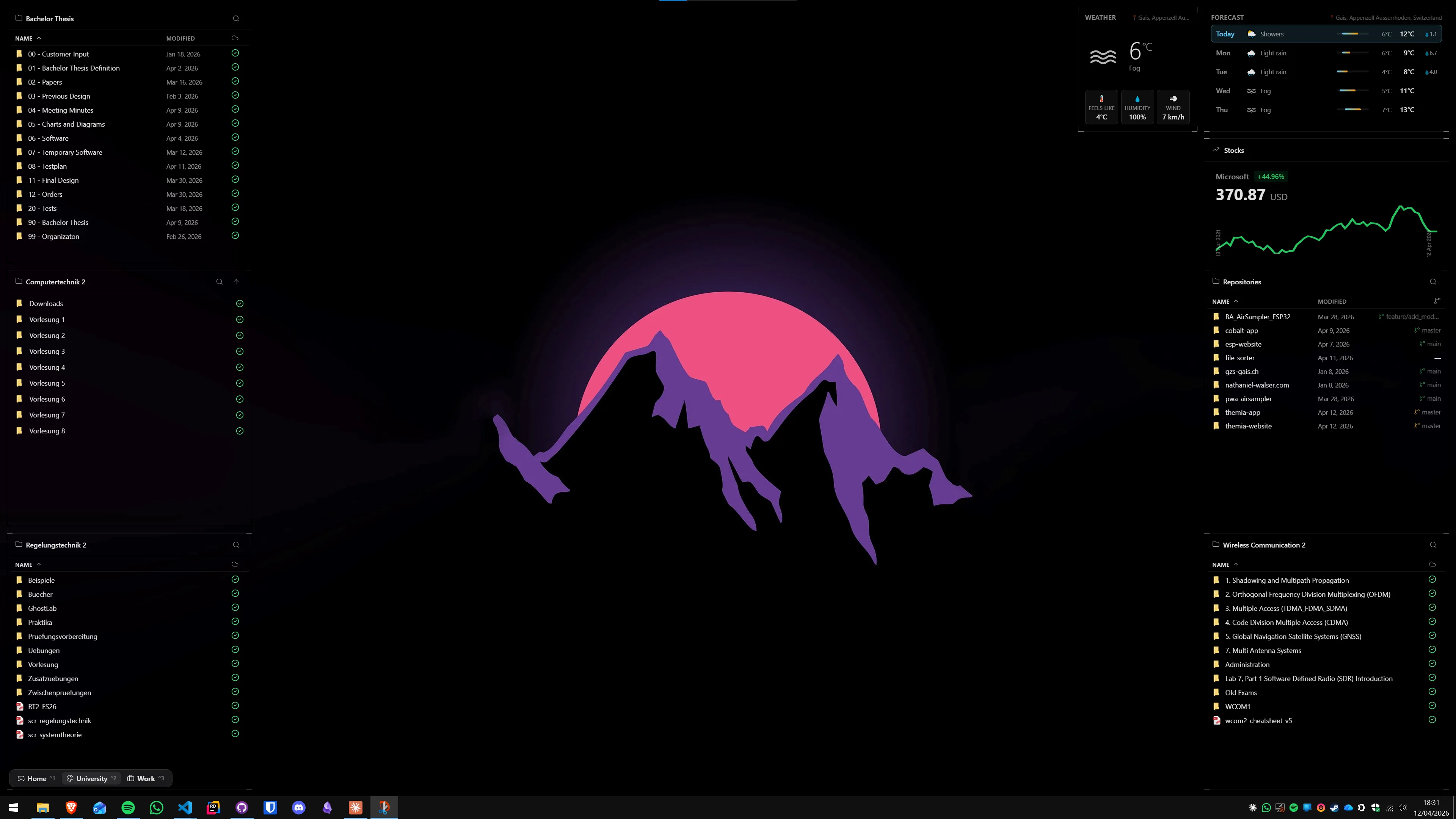
This guide covers how to set up desktop widgets across two monitors on Windows 10 and 11 in 2026 — which apps handle it well, how per-screen layouts work, the limitations of the built-in Windows tools, and practical layout suggestions for the most common two-monitor workflows.
Why dual monitors change the widget calculus
The classic objection to desktop widgets is that they clutter the space you actually work in. On a single screen, that complaint is fair — a weather widget sitting under your code editor or spreadsheet adds noise without adding value. On a dual-monitor setup, that trade-off disappears.
The standard two-monitor workflow is asymmetric: one screen holds your primary application, the other holds supporting context — documentation, Slack, a browser with reference material. That secondary screen is glanced at constantly but rarely typed into. A live widget layer on that secondary display — system temperature, email count, calendar, file shortcuts — means the information is always there without requiring an alt-tab or a click.
The practical result is that widgets which feel like clutter on a single screen feel genuinely useful on a second monitor. The question becomes which apps handle the dual-display case well — and some do it much better than others.
What Windows 11 gives you out of the box (not much)
Windows 11's built-in Widgets Board is a panel that slides out from the taskbar. It is anchored to the primary display and cannot be moved to a second monitor. There is no setting to duplicate it, spawn a second instance on another screen, or make any part of it appear as a persistent overlay on the desktop background. The Widgets Board is a panel, not a desktop layer — and on a multi-monitor setup, that limitation is especially frustrating.
If you want widgets that actually live on your second monitor's wallpaper, you need a third-party app. In 2026, three are worth knowing: Themia, Rainmeter, and 8GadgetPack. Each handles multiple monitors differently.
Themia: per-screen layout switching
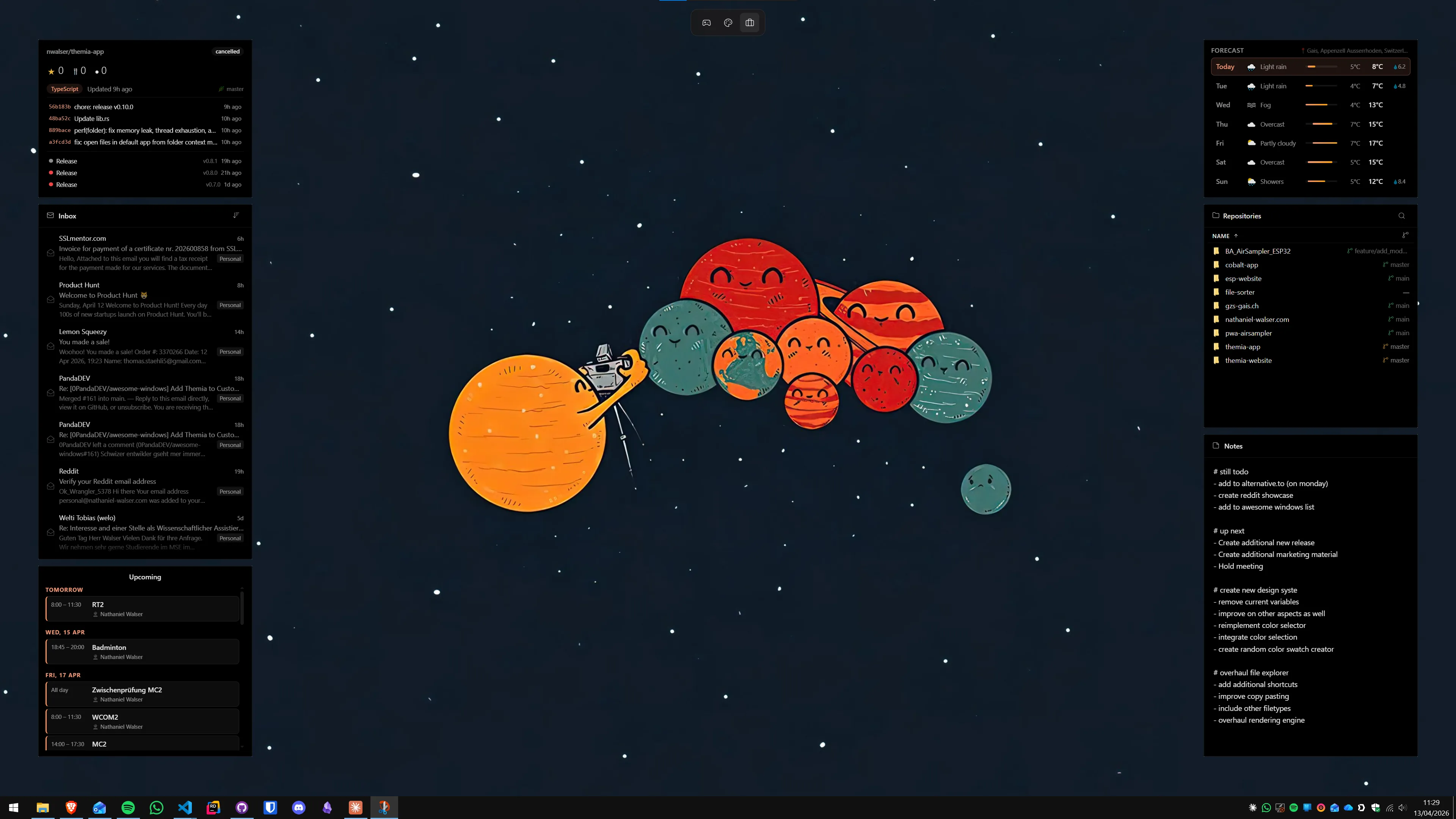
Themia was built with multi-monitor setups in mind. The key feature is per-screen switchable layouts — you can define a completely different widget arrangement for each display and save it as a named layout profile. Switch from "morning" to "evening" layouts on your primary screen without touching the secondary. Switch your secondary to a "gaming" layout (minimal, just clock and temp) when you fire up a game, then switch back.
Setting this up takes about five minutes:
- Download and install Themia from the Themia website. The installer is under 10 MB.
- On first launch, widgets default to the primary display. Drag any widget toward your second monitor — it will follow seamlessly.
- Position the widgets you want on each screen. For a secondary productivity monitor, useful starting widgets are: system stats (CPU, RAM, GPU temp), calendar, email count, a folder launcher for your project directories, and a notes widget.
- Save the layout via the Themia tray menu → Layouts → Save current layout. Name it something like "Work – Secondary Info".
- For your primary screen, arrange a simpler set (clock, to-do, maybe weather), and save that as a separate layout.
Positions persist across reboots. If your monitor order ever shifts after a Windows update, Themia will ask which display to apply each saved layout to — it does not silently put things in the wrong place.
The free tier covers the most useful widgets for a secondary-monitor dashboard: system stats, calendar, weather, notes, and folder shortcuts. The one-time Pro upgrade ($19) adds the email widget, stock ticker, RSS feed, and custom theming — all of which work well as secondary-screen "at a glance" panels. See our roundup of the best Windows desktop widget apps in 2026 for a full comparison of what each app offers.
Rainmeter: maximum control, manual effort
Rainmeter supports placing skins on any connected monitor. Each skin's position is stored in the Rainmeter.ini file with absolute pixel coordinates, so a skin placed on a 1920×1080 secondary monitor to the right of a primary will store coordinates like WindowX=2100 — past the right edge of the primary. This works, but it is entirely manual: there is no concept of "this skin belongs to screen 2."
The implication for multi-monitor setups: if your monitor configuration changes — new cable, different port, Windows decides to renumber your displays — Rainmeter skins can end up off-screen. The fix is to open the Rainmeter manager, right-click any missing skin, and choose Manage skin → Load to pull it back. It takes about a minute but it is annoying.
Rainmeter's strength is customization depth: if you want a specific HUD aesthetic across both screens with precisely matching colors, nothing else gives you that level of control. Its weakness is that it treats every widget as its own independent project — there is no unified "switch layout for screen 2" command. For most people who want widgets on a second monitor without a configuration project, Themia is the lower-effort path. For Rainmeter deep-divers, we covered the setup basics in the ricing guide.
8GadgetPack on multiple monitors
8GadgetPack revives the Windows 7 Desktop Gadgets sidebar. It supports dragging gadgets to a second monitor — you can position any gadget on any screen. It has no per-screen layout concept, but since gadgets hold their absolute coordinates, they mostly stay where you put them.
The limitation is aesthetic and functional: the gadgets look like 2010, and the selection (clock, calendar, CPU meter, weather, stocks) is much narrower than a modern widget app. If you are specifically nostalgic for the Windows 7 sidebar era and happen to have a second monitor, it works fine. It is not the right tool if you want to build a modern, coherent dashboard on your secondary display.
Practical layout suggestions
The best dual-monitor widget layout depends on what you actually do all day. Here are three configurations that work well in practice:
Developer setup
Primary screen: code editor, no widgets (or just a minimal clock at the corner). Secondary screen: CPU and GPU temperature + usage (to catch runaway builds), a folder shortcut widget pointing to your main project directories, a GitHub widget showing open PR count, and a calendar for stand-up awareness.
Office / remote worker setup
Primary screen: the main app (email client, office suite, video call). Secondary screen: email count + preview widget, calendar with today's events, notes widget for the meeting you are in, and a to-do list. The secondary screen becomes a passive briefing without needing a separate monitor app.
Gamer / streamer setup
Primary screen: game (fullscreen, no widgets visible). Secondary screen: CPU and GPU temps + fan speeds, RAM usage, a music widget showing current track, and optionally a clock. While in-game, widgets on the secondary screen are still visible on the side without alt-tabbing.

Tips for keeping a dual-monitor widget setup stable
A few things that cause layouts to drift, and how to avoid them:
- Set a fixed primary monitor. Go to Settings → System → Display, select the monitor you always want as primary, and check "Make this my main display." This prevents Windows from reassigning primary on reboot or driver update.
- Plug monitors into the same ports consistently. Windows identifies monitors partly by port, and swapping a DP and HDMI cable between displays can cause Windows to renumber them, pushing widgets to unexpected positions.
- Save layout profiles before major Windows updates. Feature updates (22H2, 23H2, 24H2) occasionally reset display configurations. Export your Themia layout, or note your Rainmeter skin positions, before applying a major update.
- Use a wallpaper that works on both screens. On a wide dual-monitor setup, a single ultra-wide wallpaper spanning both screens gives widgets a coherent backdrop. A mismatched pair of wallpapers can make the widget layer look inconsistent even when the widgets themselves are well arranged.
What a finished setup looks like
A well-configured dual-monitor widget setup does not feel like you added widgets to your desktop — it feels like the desktop became a useful surface. The primary screen stays clean and focused; the secondary screen replaces three app windows you would otherwise have to alt-tab through.
If you want to start quickly: install Themia, drag the system stats, calendar, and notes widgets to your secondary screen, save a layout, and go from there. The free tier has everything you need to test whether the concept works for your workflow. The productivity dashboard guide covers widget selection in more depth if you want to go further.
FAQ
Can I run different widgets on each monitor in Windows?
Yes — but only with a third-party widget app that supports per-screen layouts. Themia has explicit per-screen layout switching, letting you save one widget arrangement for your primary display and a completely different one for your secondary. Rainmeter can also span widgets across screens, though it has no built-in layout profile system. The built-in Windows 11 Widgets Board always appears on the primary display only and cannot be moved or duplicated to a second screen.
Does the Windows 11 Widgets Board work on a second monitor?
No. The Widgets Board panel always opens anchored to the taskbar on the primary monitor. You cannot move it to a secondary display, and there is no setting to make it appear on both screens simultaneously. If you want widgets on your second monitor, a third-party desktop widget app is the only route.
Will widgets stay on the right monitor after rebooting?
In Themia, widget positions are saved per screen based on a per-screen layout profile, so they persist across reboots. In Rainmeter, positions are saved in the skin config files and also persist. The catch is monitor order: if Windows reassigns monitor numbers on reboot (common with certain GPU/driver combos), widgets can appear on the wrong screen. The fix is to pin your display configuration in Windows Settings → System → Display and assign a fixed monitor as the primary.
Do desktop widgets hurt performance on a dual monitor setup?
A well-written native widget app adds very little overhead even across two screens. Themia, built on Tauri, stays well under 1% CPU and around 100–200 MB RAM at idle across both displays. Rainmeter overhead depends entirely on the skin — a complex animated skin with frequent web requests will cost more than a static clock. The bigger performance risk on dual-monitor setups is usually an animated wallpaper tool running on both screens simultaneously, not the widgets themselves.
Can I show a different wallpaper on each monitor?
Yes — Windows 11 supports different wallpapers per monitor natively. Right-click any image in File Explorer → Set as desktop background, or go to Settings → Personalization → Background → Browse photos, then right-click the preview and choose which monitor to apply it to. For animated wallpapers, Lively Wallpaper also supports different videos per screen. Wallpaper Engine supports this too, with per-screen configuration in its playlist system.
What is the best widget layout for a primary + secondary monitor?
A practical split: keep your primary monitor clean for focused work with minimal widgets (clock, maybe a to-do or notes widget at the edge). Use the secondary monitor more aggressively — system stats, email preview, calendar, stock ticker, RSS feed. The secondary screen is glanced at, not worked in, so higher information density is fine there. Themia's per-screen layout system makes it easy to save this split and switch if your usage pattern changes.