Outlook Calendar Widget for Windows 11: How to Show It on Your Desktop
There is a question that keeps surfacing on Microsoft's own support forums, and it is worded almost identically every time: how do I permanently display my upcoming Outlook appointments in a small window on the desktop? Not a panel you open. Not a browser tab. A little box on the wallpaper that is simply there.
The answers those threads get are almost always the same three: enable Widgets, press Win+W, add the calendar card. And the person asking almost always replies that this is not what they meant. They are right. The Widgets Board is not on the desktop — it is an overlay that vanishes when you click anything else.
This guide covers what Windows actually gives you in 2026, exactly where each built-in option stops, and the three tools that genuinely put an Outlook calendar on the wallpaper. It is also specific about account types, because that is where most guides on this topic go vague and where people waste an afternoon.
First, work out which Outlook and which account you have
Half the confusion in this topic comes from "Outlook" meaning four different things. Before picking a method, pin down which of these you are on — it decides which tools can see your events at all.
- Classic Outlook — the desktop app from Microsoft 365 Apps, Outlook 2021 or Outlook 2024. It talks to your mailbox locally and has the richest built-in calendar UI.
- New Outlook for Windows — the app that replaced Windows Mail, Calendar and People when Microsoft ended support for them on 31 December 2024. It is essentially Outlook on the web in an app shell.
- Outlook on the web — outlook.office.com or outlook.com in a browser.
- The account itself — either a personal Microsoft account (outlook.com, hotmail.com, live.com) or a work or school Microsoft 365 account managed in Entra ID by your employer.
That last distinction matters more than any of the others. Cloud-connected widget apps sign into your mailbox through Microsoft's identity system, which means a work tenant can require admin consent or block the connection outright. Apps that read classic Outlook locally do not care what the mailbox is attached to, but they do require classic Outlook to be installed and running.
What Windows 11 gives you built in — and where each one stops
The taskbar clock flyout
Click the clock in the bottom-right corner and a month grid appears. If a Microsoft account with a calendar is signed into Windows, upcoming events appear alongside it. Microsoft also began previewing a proper Agenda view in the Notification Center in December 2025 — a chronological list of your next meetings with a join button — and has been rolling it out through 2026. It is built as a WebView2 component rather than a native one, which is why it feels slightly slower than the Windows 10 version people remember.
Where it stops: it is a flyout. One stray click and it is gone. Nothing persists on screen.
The Widgets Board Outlook Calendar widget
Press Win + W, click the + in the top-right, and add Outlook Calendar. It populates from the Microsoft account signed into the board and resizes between small, medium and large. The old complaint about this thing — that an MSN feed dominated it and could not be removed — is finally out of date: the feed can be switched off under the board's settings, and Microsoft began shipping it disabled by default during 2026.
If the widget is not there at all, the usual culprits are the components underneath. Open services.msc and confirm the Windows Web Experience Pack and Microsoft Edge WebView2 are present, then run Windows Update. On a managed laptop, an Intune configuration policy can also block widgets entirely, in which case no amount of toggling will help.
Where it stops: it is still a panel over your screen, not a widget on your desktop, and it shows one account at a time. A personal Microsoft account signed into Windows plus work meetings in a Microsoft 365 tenant is the combination that catches people out — the board shows the personal calendar and silently omits the work one.
Classic Outlook's docked calendar peek
This is the best-kept secret of the built-in options and it barely gets mentioned. In classic Outlook (Microsoft 365, Outlook 2024 or Outlook 2021), hover the Calendar icon in the navigation bar and a peek appears with your upcoming appointments. Click the pin button — or right-click the calendar icon and choose Dock the Peek — and it stays open as a permanent column beside your mail, the same role the old To-Do Bar calendar played. You have to dock it separately in each view.
Where it stops: it lives inside the Outlook window. Close Outlook, or alt-tab away from it, and the calendar goes with it.
New Outlook's My Day pane
The new Outlook has My Day, a side pane showing your agenda. It is genuinely useful while you are in Outlook, but it is a downgrade from the classic docked peek in three ways: it cannot be pinned permanently, it overlays part of the message list rather than sitting beside it, and it shows either Calendar or To Do — not both at once, the way classic Outlook did.
Where it stops: same as the peek, plus fewer controls.
The three tools that actually put it on the desktop
Everything above lives behind a click or inside an app window. These three render your Outlook calendar onto the wallpaper layer itself, which is what the original question was asking for. They take very different approaches, and the right one depends almost entirely on your account and your Outlook version.
| Option | On the desktop? | Works with | Needs Outlook installed? | Price |
|---|---|---|---|---|
| Themia | Yes — on the wallpaper | Microsoft 365, Outlook.com, Google, CalDAV | No | Free tier · $19 one-time Pro |
| Outlook on the Desktop | Yes — on the wallpaper | Whatever classic Outlook connects to | Yes — classic Outlook only | Free |
| Rainlendar Pro | Yes — on the wallpaper | Office 365 / Outlook.com, MS Outlook, Google, CalDAV | Only for the MS Outlook sync type | €9.95 one-time (Lite is free, no sync) |
| Widgets Board card | No — overlay panel | The Microsoft account signed into the board | No | Free |
| Docked calendar peek | No — inside Outlook | Whatever classic Outlook connects to | Yes — classic Outlook only | Included |
| Taskbar flyout / Agenda | No — closes on click | The Microsoft account signed into Windows | No | Free |
Themia — cloud-connected, no Outlook required
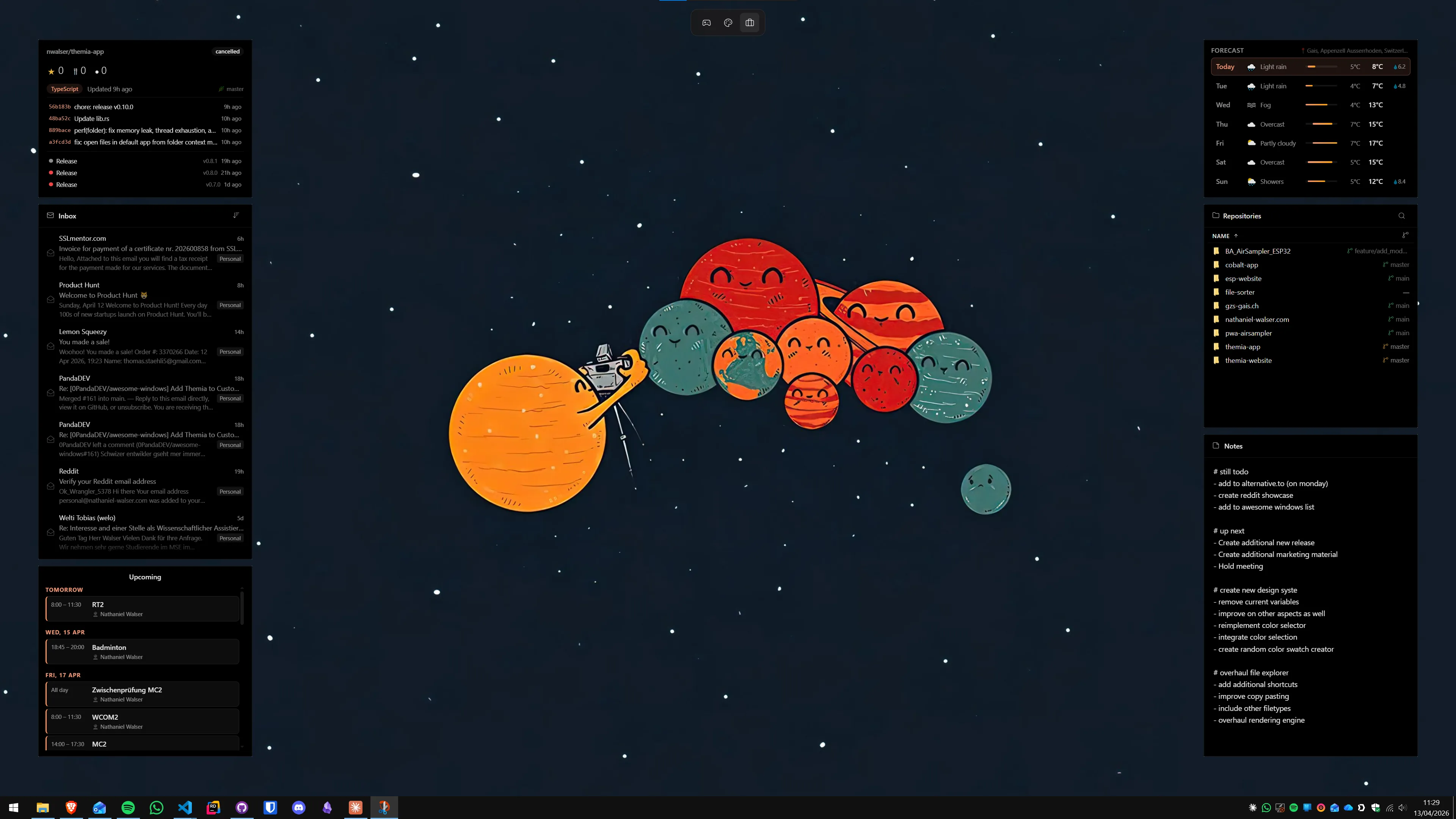
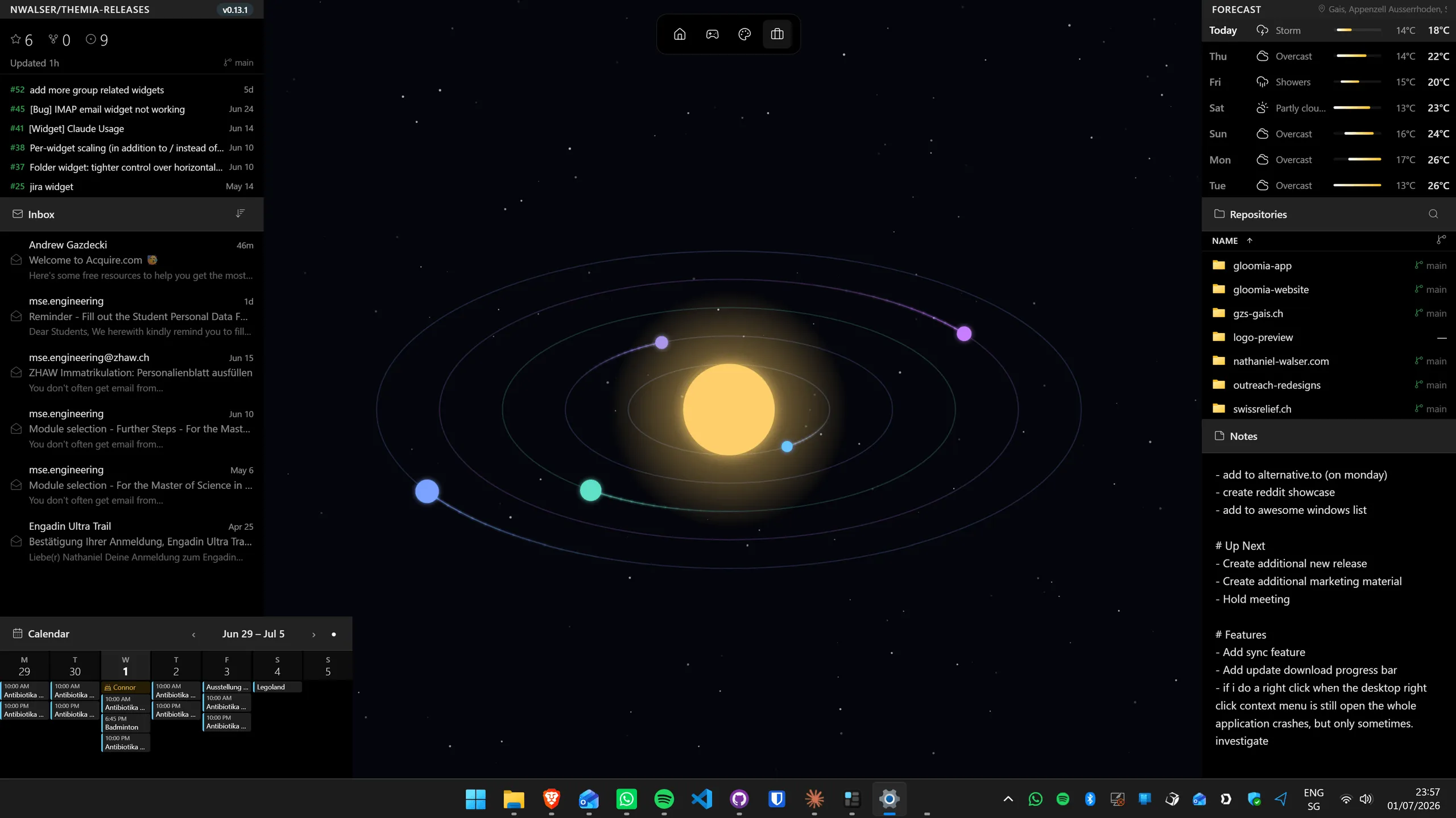
Themia is a native Windows widget app built on Tauri; the installer is under 10 MB and it runs on Windows 10 and 11. Its calendar widget connects to Microsoft 365 and Outlook.com and draws the calendar itself, so classic Outlook does not need to be installed — the mailbox just has to be in the cloud. You get a month grid with today highlighted and upcoming events marked, and you can switch between month, week and agenda views depending on how much space you want it to take.
Because it is a general widget platform rather than a calendar app, the calendar tends to end up next to other things: an email widget showing unread count, sender and subject from the same Microsoft account, a contacts list, a clock with a second time zone for a remote team. That is the practical difference from a dedicated calendar tool — the calendar is one panel in a layout rather than the whole product.
Outlook on the Desktop — free, but classic Outlook only
Outlook on the Desktop (OotD) has been doing exactly one job for years: it embeds Outlook's own calendar, inbox, tasks, notes or contacts view into a transparent frame pinned to the desktop. Version 5.2.0 shipped in July 2026, it is free, and it supports multiple monitors and adjustable opacity.
The critical constraint is stated plainly by its developer: recent versions require classic Outlook. If Microsoft has already moved you to the new Outlook for Windows, OotD will not work until you switch back. On the other hand, because it renders classic Outlook's real calendar view, whatever your Outlook can reach — including an on-premises Exchange mailbox with no Microsoft 365 involved — appears on the desktop. That is the one scenario where the cloud-connected apps cannot help and OotD can.
Rainlendar Pro — the multi-source option
Rainlendar is a long-running desktop calendar for Windows, currently at version 2.24.1. The free Lite build has no external sync at all; the Pro licence, €9.95 one-time, adds synchronisation with Office 365 and Outlook.com, MS Outlook on Windows, CalDAV, network shared calendars and Google Calendar. It looks like a classic skinnable desktop gadget rather than a modern widget, which some people specifically want.
Pick it if you need Outlook and Google side by side in one panel, or if you want deep visual skinning of the calendar itself. Skip it if you also want email, weather and system panels — it is a calendar, not a platform.
Setting up a desktop Outlook calendar with Themia
Roughly two minutes end to end, assuming a Microsoft 365 or Outlook.com mailbox.
- Download Themia from the Themia website and run the signed installer.
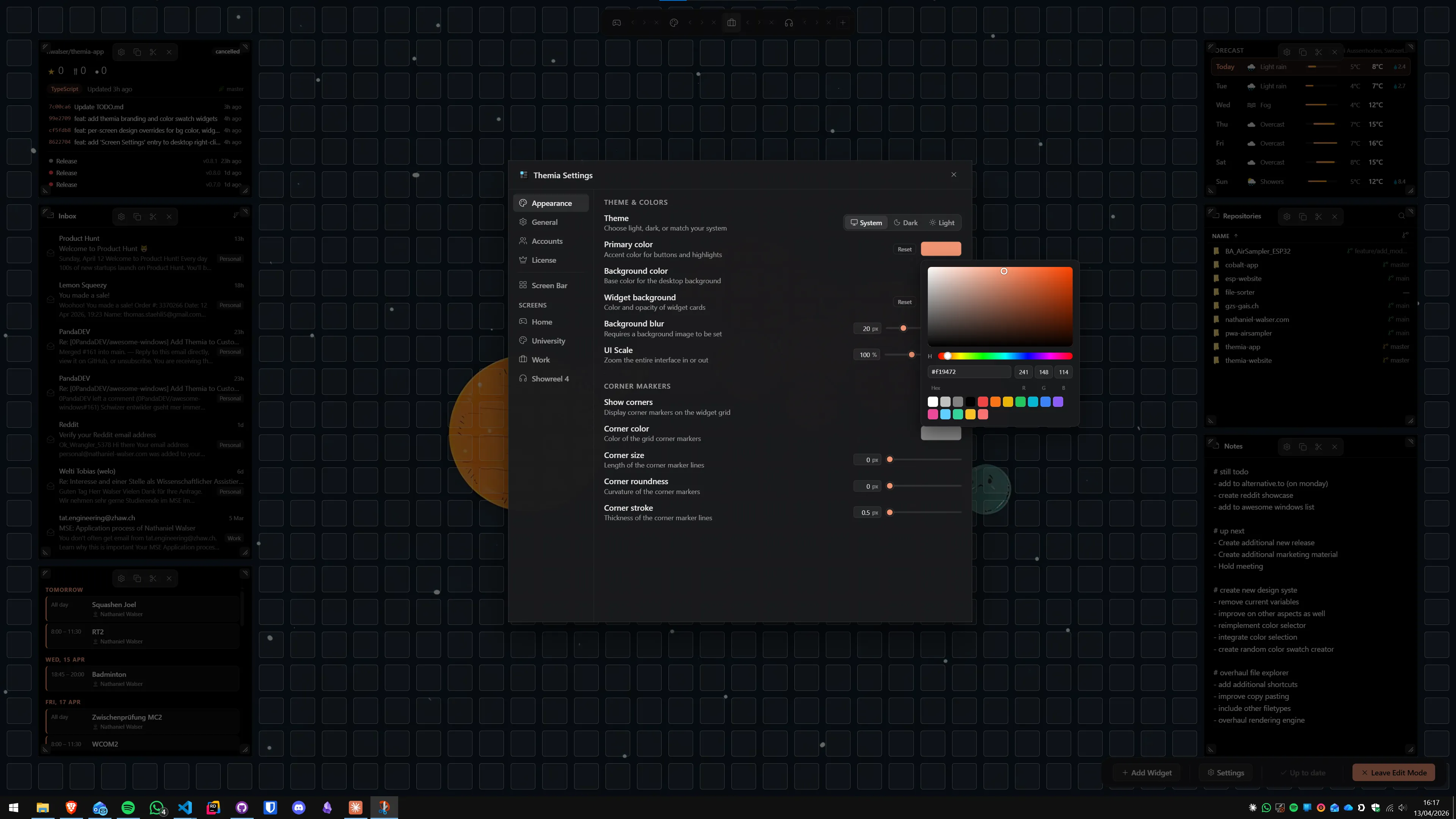
- Open Settings → Accounts and connect your Microsoft account. Sign in with the same address you use for Outlook. On a work or school tenant you may see a consent screen; if your organisation requires admin approval, that request goes to your IT team.
- Enter edit mode, choose Add Widget, and pick Calendar. Add the Email widget too if you want the inbox count on the same screen.
- Drag the widget where you want it and drag a corner to resize. Switch the calendar between month, week and agenda view depending on how much detail you want at a glance.
- If you use more than one context, set up separate screens — a work layout with calendar and email, a personal one without.
Account types: what actually works with what
The honest summary, because this is where these guides usually hedge:
- Personal Microsoft account (outlook.com, hotmail, live): works with everything above. Themia, the Widgets Board, Rainlendar Pro and the taskbar flyout all read it without special permission.
- Work or school Microsoft 365: works with Themia and the Widgets Board, subject to your organisation's policies. Some tenants require an administrator to approve third-party app access, and Intune can disable widgets outright. If a connection fails with a consent error, that is a tenant setting, not a bug in the app.
- On-premises Exchange with no Microsoft 365: the cloud apps cannot reach it. Use classic Outlook plus Outlook on the Desktop.
- Google Calendar alongside Outlook: Themia handles it directly. The calendar widget reads Microsoft, Google and CalDAV accounts and can display several at once, so a work Outlook calendar and a personal Google one live in the same widget rather than two. The same is true of contacts (Microsoft, Google, CardDAV) and email (Microsoft, Google, IMAP).
So which one should you use?
- You want appointments permanently on the wallpaper and your mailbox is in the cloud: Themia. Free tier, no Outlook install needed, and the calendar sits next to whatever else you want on screen.
- You are on classic Outlook and want Outlook's exact calendar view: Outlook on the Desktop. Free, mature, and the only option that covers on-premises Exchange.
- You need Outlook and Google in one desktop panel: Themia — the calendar widget takes both account types at once. Rainlendar Pro also does it if you specifically want a skinnable classic-gadget look.
- You mostly live inside Outlook anyway: dock the calendar peek in classic Outlook. Costs nothing and takes ten seconds.
- You only need a glance once or twice a day: the Widgets Board card or the taskbar Agenda view is genuinely enough. Turn off the feed and it is a reasonable tool now.
The reason so many of those forum threads end unresolved is that the person asking wants persistence and the built-in answer offers convenience. Those are different things. A calendar behind Win + W is fast; a calendar you can see without doing anything at all removes the decision to check entirely, which is the whole point of a widget.
Related reading: the broader guide to showing a calendar on the Windows desktop covers non-Outlook sources, showing email notifications on the desktop handles the inbox side of the same Microsoft account, Themia vs Windows 11 Widgets digs into the panel-versus-desktop difference, and the productivity dashboard guide covers laying calendar, mail and tasks out together.
FAQ
Is there an official Outlook calendar widget for Windows 11?
Yes, but not on the desktop. Microsoft ships an Outlook Calendar widget inside the Widgets Board, which you open with Win+W or the taskbar button. It pulls events from whichever Microsoft account is signed into the board and offers small, medium and large sizes. What it will not do is sit on your wallpaper — the board is an overlay panel that closes the moment you click away.
Why is the Outlook Calendar widget missing from my Widgets Board?
Three usual causes. First, Widgets is switched off — right-click the taskbar, open Taskbar settings, and toggle Widgets on. Second, the components behind it are not running: open services.msc and check that the Windows Web Experience Pack and Microsoft Edge WebView2 are present and running, then run Windows Update. Third, you are signed into the board with an account that has no Outlook calendar attached, or your organisation has blocked widgets through an Intune policy.
Does the Widgets Board work with a work or school Microsoft 365 account?
Usually, provided you sign the board into that account and your administrator has not blocked widgets by policy. The catch is that it shows one account at a time. If Windows is signed in with a personal Outlook.com account and your meetings live in a work Microsoft 365 tenant, the widget will show the personal calendar and quietly leave out the work one.
Can I put my Outlook calendar on the desktop without installing Outlook?
Yes, if your mailbox is in the cloud. Themia connects to Microsoft 365 or Outlook.com directly and renders the calendar itself, so no Outlook install is required. Outlook on the Desktop works the opposite way — it embeds classic Outlook's own calendar view, so it needs classic Outlook installed and does not work with the new Outlook for Windows.
Does Themia support Google Calendar as well as Outlook?
Yes. The calendar widget reads Microsoft, Google and CalDAV calendars, and it can show more than one account at once — so an Outlook work calendar and a personal Google calendar can sit in the same widget. The contacts widget covers Microsoft, Google and CardDAV the same way, and the email widget covers Microsoft, Google and IMAP. If you run your life across two accounts, that is the case this widget was built for.
Does the new Outlook for Windows have an always-visible calendar pane?
Not a pinned one. The new Outlook has a My Day pane that shows your agenda beside the mail list, but it cannot be pinned open the way classic Outlook's docked calendar peek can, it overlays part of the reading pane, and it shows either Calendar or To Do rather than both. It also only exists while Outlook is open, which is the opposite of what most people searching for a widget want.