Stardock Fences Quick Hide & Roll-Up Explained (2026)
Stardock Fences ships with two separate ways to make your desktop tidier in a hurry: Quick Hide and Roll-Up. Both collapse fences out of view, but they work at different levels — one acts on every fence at once, the other on a single fence at a time — and knowing the difference changes how useful each one is in practice.
This guide explains exactly what Quick Hide and Roll-Up do, how to trigger them, and when each approach makes sense. It also covers how Themia, the live-widget alternative to Fences, handles the same underlying need without requiring any hide toggle at all.
What is Roll-Up?
Roll-Up collapses an individual Fence into its title bar. You double-click the Fence's title bar — the coloured strip at the top with the label — and the body of the fence folds up like a window shade, leaving only the title bar visible on your desktop.
Double-click the title bar again and the fence expands back to its full size, showing all the icons it contains. The rolled-up state is saved per fence and survives reboots, so a fence you always want tucked away can stay that way.
Roll-Up is most useful when you have a fence you only need occasionally — say, a group of installer files or archived project shortcuts — but do not want to delete. Rolling it up keeps the label visible as a reminder that the content is there without the fence taking up space.
What is Quick Hide?
Quick Hide operates at the whole-desktop level. Rather than collapsing one fence at a time, it toggles all fences on or off in a single action.
The default trigger is a double-click on any blank area of the desktop (a spot with no fence and no icon). All fences vanish. Double-click the blank desktop again and they reappear. Fences 6 also supports a Win+Space peek shortcut that briefly brings your fences to the top of all open windows without switching away from your active app — useful when you need to glance at a shortcut while working.
You can assign a custom keyboard shortcut for hide/show in Fences Settings → Hiding, which is worth doing if you share your screen often and want a quick one-key toggle before joining a call.
Quick Hide only hides fences. Any icons you placed on the desktop outside of fences — loose files and shortcuts that are not inside any fence container — remain visible. If you also want those hidden, you need to use the standard Windows option to hide all desktop icons (right-click desktop → View → Show desktop icons).
Quick Hide vs Roll-Up: When to Use Each
The two features solve different scenarios:
- Screenshare or presentation: Quick Hide. You want everything gone in one action before your audience sees a desktop full of folder labels.
- Rarely used groups: Roll-Up. You have a fence for "Tax 2025" that you open twice a year. Roll it up so the label is a visible reminder but the icons stay out of the way.
- Temporary space: Roll-Up on the fence that happens to sit where you want to drag a file right now. Expand it when you're done.
- Focus mode: Quick Hide, optionally paired with a virtual desktop switch, when you want a visually empty space to think.
Neither feature is a replacement for the other. Heavy Fences users often use both — Roll-Up for day-to-day tidiness and Quick Hide before screensharing or presenting.
Desktop Pages: A Third Option for Decluttering
Fences 6 also introduced Desktop Pages, which let you create multiple independent pages of fences — essentially multiple "screens" worth of icon groups that you swipe between by dragging to the screen edge. This is a structural approach to clutter rather than a hide-on-demand one.
You can put your most-used fences on page 1 and archive or project fences on page 2. Page 1 stays clean without needing Roll-Up or Quick Hide for the other groups. It is worth exploring alongside the two hide features rather than treating them as alternatives. See the Fences gaming desktop guide and Fences Folder Portals overview for more Fences 6 feature deep dives.
How Themia Avoids the Problem Entirely
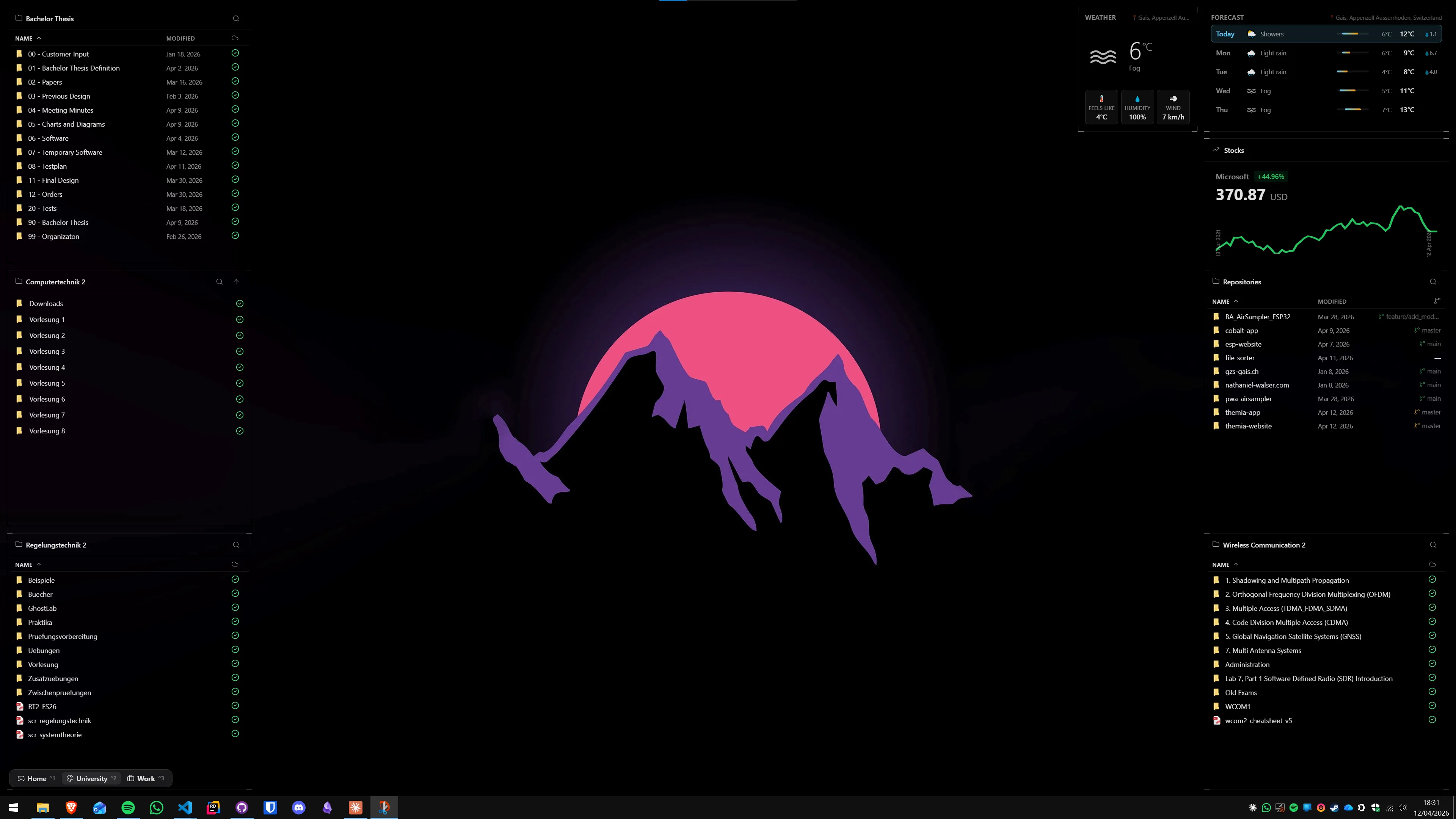
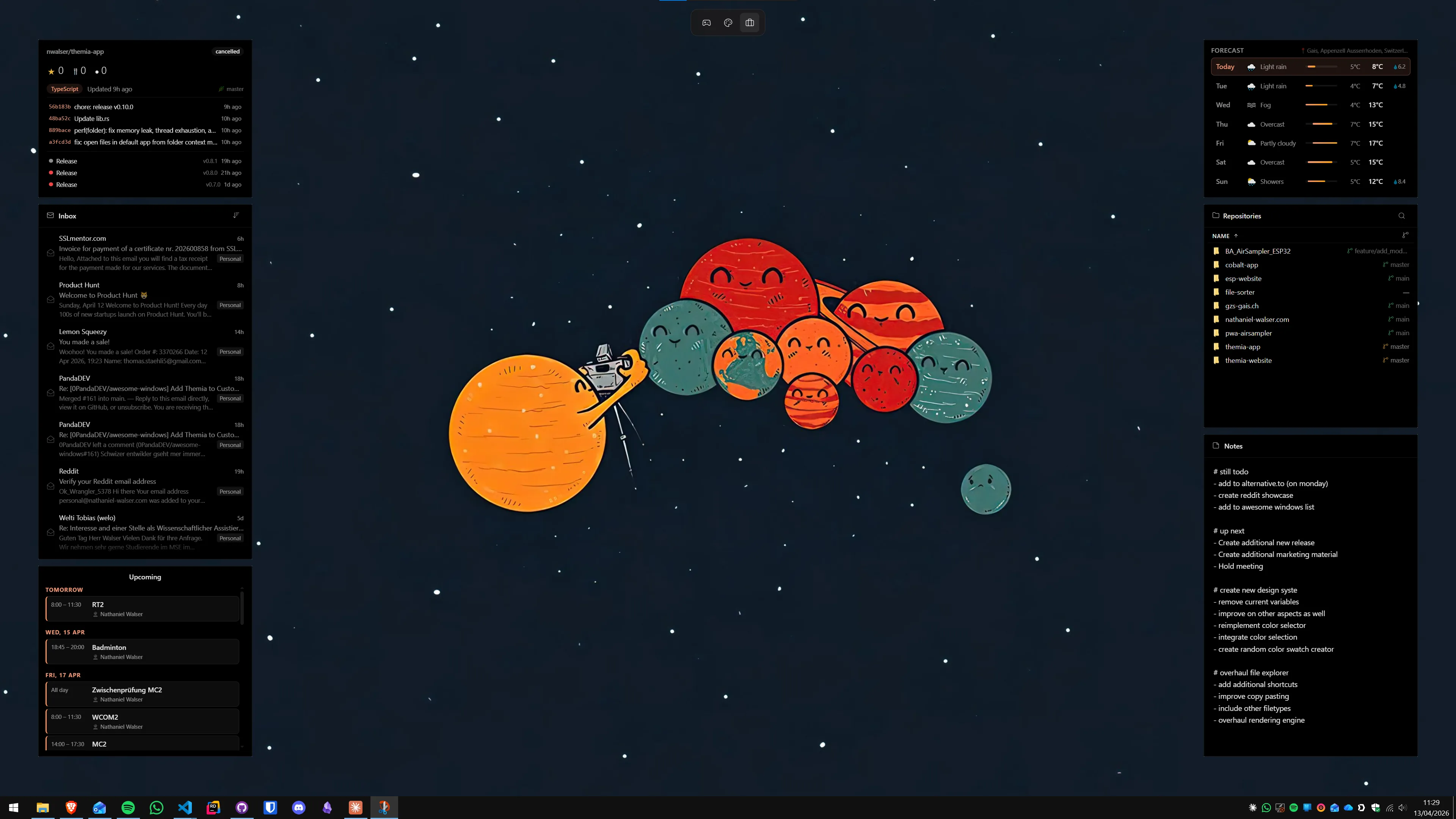
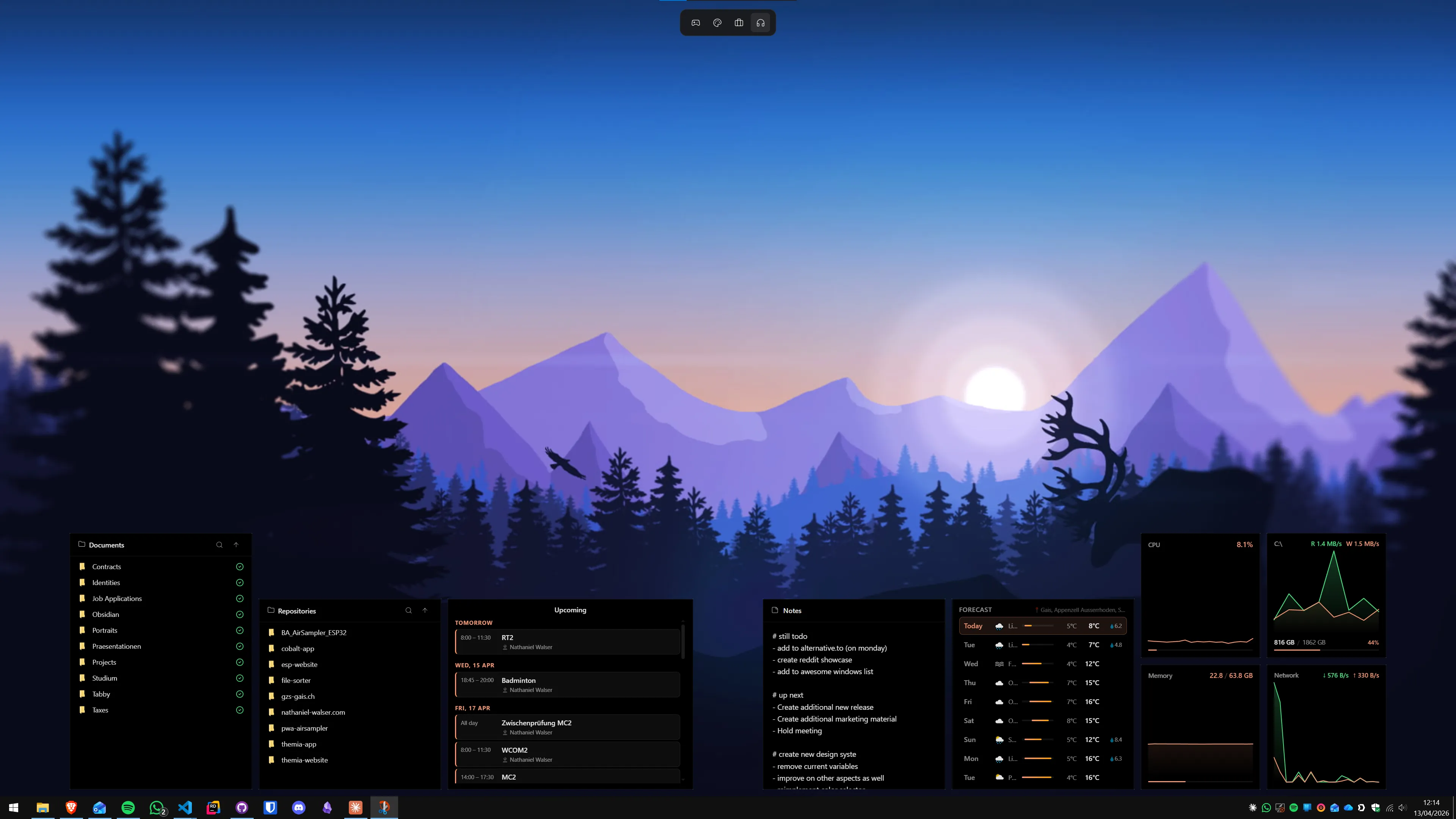
Fences' hide features exist because icon containers are inherently visual clutter — the solution to having too many icons is to hide the groups that contain them. Themia takes a different design premise: instead of organising icons into labelled boxes, it replaces the desktop with live information widgets.
A Themia desktop might show a clock, local weather, system CPU and RAM usage, and a stock ticker — things that look purposeful and informative at all times. There are no icon piles to hide because the desktop surface is occupied by data, not shortcuts. A screenshare of a Themia desktop looks intentional whether you prepare for it or not.
The trade-off is that Themia does not store file shortcuts or app launchers the way Fences does. If you use your desktop primarily as a file and app launch zone, you need Fences or a similar organiser. If you want an always-clean desktop that shows you something useful at a glance, Themia is the closer fit. See the full Windows desktop customisation guide for a side-by-side of both approaches.
Fences 6 Pricing in 2026
Stardock Fences 6 costs $29.99 as a one-time perpetual licence or $9.99 per year as a subscription. A 5-user family or office licence is $49.99 perpetual or $19.99 per year. The perpetual licence includes future point releases within version 6; upgrades to Fences 7 (when it ships) would be a new purchase.
Themia is free to download with a core feature set included at no cost. The Pro unlock, which enables additional widget types and customisation options, is a one-time purchase of $19 — $10.99 less than a Fences perpetual licence and without a subscription option.
Summary
Roll-Up and Quick Hide are complementary tools, not competing ones. Roll-Up gives you per-fence control — fold away one group while the rest stays visible. Quick Hide gives you global control — clear the entire desktop in a double-click or a hotkey press. Desktop Pages offer a structural alternative by separating fences across swipeable pages.
If you find yourself using Quick Hide constantly before every screenshare, it may be worth asking whether a widget-first approach like Themia would remove the need for the toggle entirely by keeping the desktop clean by design.
FAQ
What is the difference between Quick Hide and Roll-Up in Stardock Fences?
Quick Hide hides all fences at once — you press a global hotkey (or use the Win+Space peek shortcut) and every fence disappears from your desktop in one action, giving you a clean background. Roll-Up works per fence: you double-click an individual fence's title bar and that fence collapses into just its title bar, like a window shade rolling up. They solve different problems: Quick Hide clears everything for screenshares or focus, Roll-Up lets you selectively tuck away specific groups while keeping others visible.
How do I trigger Quick Hide in Stardock Fences 6?
The default shortcut to peek your fences on top of all windows is Win+Space. To fully hide all fences, double-click any blank area of the desktop where no fence is present — this toggles fences on and off. You can also assign a custom hotkey through Fences Settings → Hiding. Note that this only hides fences, not the regular Windows desktop icons outside of fences.
Does Roll-Up save the collapsed state when I restart my PC?
Yes. Fences saves the rolled-up state per fence and restores it after a reboot or logout. If you have a fence for "Downloads" rolled up, it stays rolled up the next time Windows starts. You can also set specific fences to start rolled up by default in their individual fence settings.
Can I roll up all fences at once instead of one at a time?
Not with a single built-in shortcut in Fences 6. Roll-Up is per-fence and requires a double-click on each title bar. If you want to clear your entire desktop at once, the Quick Hide toggle (double-click blank desktop) is the right tool — it hides everything including rolled-up fences. Some users work around the per-fence limitation by putting all their fences on a Desktop Page they rarely use.
Is there a Fences alternative that does not need Quick Hide because the widgets are always clean?
Themia works differently — it replaces static icon piles with live data widgets (weather, clock, system stats, stocks). Because widgets are designed to be always visible and informative rather than icon containers, there is no need to hide them. A Themia desktop looks intentional at all times, so screenshares are clean without any toggle. The trade-off is that Themia shows data, not shortcuts to apps and files.
Can I use both Stardock Fences and Themia at the same time?
Yes, they can run together. Fences organizes your desktop icons into labelled groups, while Themia adds live information widgets alongside them. Some users keep Fences for file and shortcut organisation and Themia for real-time data like weather and system stats. The two apps do not conflict, though a heavily customized desktop with both may feel busy — it depends on how many fences and widgets you add.