Best Windows 11 Icon Packs (2026): 19 Sets and How to Apply Them
Searching for Windows 11 icon packs turns up a strange SERP: a handful of skin portals that all list the same five downloads, and a couple of GitHub repositories that are really just folders of .ico files with no instructions. Almost nobody explains the part that actually decides whether this works — how you apply a pack, and what happens to it three months later when Windows updates.
So this is two things at once. First, a gallery of 19 icon packs that exist and are downloadable in 2026, with what each one covers and where it comes from. Second, the mechanics: applying an .ico set to folders, why This PC and the Recycle Bin refuse to cooperate, what a feature update does to your icons, and how to get back to stock.
Three kinds of thing get called an "icon pack"
They are not interchangeable, and picking the wrong kind is why people give up halfway.
- System icon themes. Replace the icons baked into Windows' own DLLs —
imageres.dll,shell32.dlland friends. This is what changes the drive icons in File Explorer, the folder icon everywhere at once, the Control Panel glyphs. Needs a patcher or a redirector; you cannot do it by hand. - Folder icon sets. A directory of
.icofiles intended for individual folders. No patching, no admin rights, fully reversible, but you assign them one folder at a time. - Raw icon libraries. Big dumps of
.icofiles with no theme and no installer — a parts bin you pull from when you want one specific icon for one specific shortcut.
Most "best icon packs" lists mix all three and then give you one set of installation instructions that only works for the first kind. Choose your applier before you choose your pack.
Choose the applier first
There are three serious ways to apply a system icon theme in 2026, and they differ enormously in risk.
Windhawk + Resource Redirect (free, reversible, the current default)
Windhawk is a free customization platform from Ramen Software (windhawk.net). Its Resource Redirect mod hooks the resource-loading functions used across running processes and serves icons from a folder you nominate instead of from the system DLL. The critical detail: the redirection happens in memory. Nothing on disk is modified. Disable the mod or quit Windhawk and every icon snaps back to stock.
The mod ships a dropdown of predefined icon themes — over 150 of them, hosted in the niivu/resource-redirect-icon-themes repository on GitHub — that download and apply when you select one, then prompt you to clear the icon cache. That is the whole process. One limitation: themes authored for 7tsp use a file format Resource Redirect cannot read, so they need converting first, typically with Resource Hacker. Packs that ship both formats save you the trouble.
7tsp GUI (free, patches DLLs, still the largest catalogue)
7tsp GUI (7tspgui.com) is the veteran. You open it, click Add a Custom Pack, point it at a .7z icon pack, click Start Patching, and reboot. It creates a System Restore point automatically before it touches anything, and it keeps a Restore function to put the original files back. On Windows 11 it needs .NET Framework 3.5 enabled.
The catch is build specificity. 7tsp rewrites resources inside system DLLs, and those resources move between Windows builds. A pack compiled for 22H2 applied to a 24H2 machine can produce black or missing icons. Every reputable download page states which builds the pack targets — that line matters more than the screenshots.
Stardock IconPackager (paid, easiest to remove)
IconPackager is Stardock's commercial icon tool, sold on its own and included in Object Desktop. It installs and uninstalls packs cleanly, which is the whole selling point if you swap sets often. Two caveats: Stardock's product page still lists Windows 10, 8 and 7 in its system requirements rather than Windows 11, and the format is IconPackager's own — the community .7z packs below will not load into it.
| Applier | Touches system files? | Survives feature updates | Price |
|---|---|---|---|
| Windhawk + Resource Redirect | No — in-memory redirect | Yes | Free, open source |
| 7tsp GUI | Yes — patches DLLs | No, reverts to stock | Free |
| Stardock IconPackager | Yes, managed by the app | Usually, reapplies itself | Paid |
| Folder Painter (Sordum) | No — per-folder only | Yes | Free |
| Manual (Properties → Customize) | No — per-folder only | Yes | Free |
Skip CustomizerGod. It shows up on every list, it has not been maintained for years, and reports of it failing on current Windows builds go back to Windows 10 1903.
The gallery: 19 Windows 11 icon packs
Every pack below was downloadable at the time of writing. "Free/premium" means the author publishes some variants openly and gates others behind DeviantArt's paid download.
| Pack | Covers | Apply with | Price | Source |
|---|---|---|---|---|
| niivu — Windows 11 Icon Themes | System + folder icons, several colour variants | Windhawk or 7tsp | Free/premium | DeviantArt |
| niivu — pi11z | System, folder, winver and symbolic icons; 36 light/dark/night themes | 7tsp | Premium | DeviantArt |
| niivu — Bluecurve 11 | Full theme with matching icon set | Windhawk or 7tsp | Free/premium | DeviantArt |
| niivu — Golden Gate | Full theme with matching icon set | Windhawk or 7tsp | Premium (~$2) | DeviantArt |
| niivu — Futuro Darko | Full dark theme with matching icon set | Windhawk or 7tsp | Free/premium | DeviantArt |
| Papirus for Windows | System + folder icons, flat Material-style | Windhawk, or manual .ico | Free, open source | GitHub |
| Nord Papirus | System + folder icons, Nord palette | Windhawk | Free | GitHub |
| Catppuccin | System + folder icons, pastel | Windhawk; 7tsp via cat-paw-cwin | Free | GitHub |
| Numix | System + folder icons | Windhawk | Free | GitHub |
| elementary | System + folder icons, soft and rounded | Windhawk | Free | GitHub |
| FABA | System + folder icons, minimal | Windhawk | Free | GitHub |
| 7tsp W11 Grayscale | System icons, monochrome | 7tsp | Free | DeviantArt |
| Big Sur 7TSP | System + dock icons; standard, light and dark variants | 7tsp | Free | VSThemes |
| HUD Machine Destructor | System icons, blue and black | 7tsp | Free | VSThemes |
| Magnum / Magnum Dark | System icons, near-black | 7tsp | Free | VSThemes |
| Folder11 | Folder icons only, SVG and .ico | Manual, per folder | Free, personal use only | GitHub |
| sameerasw/folder-icons | Folder icons only, Windows 11 style | Manual, per folder | Free | GitHub |
| HaydenReeve/WindowsIcons | Raw .ico library of Windows 11 and Microsoft product icons | Manual | Free | GitHub |
| FadeMind/W-ICO | Raw .ico library spanning Windows 98 to 11 | Manual | Free | GitHub |
Notes on the standouts
niivu is the most productive author in this space by a wide margin. Beyond the five sets in the table there are Terafox, Naco, Modern Office Pro and ATF, all built the same way: a complete visual style with an icon theme designed to match it, packaged for both 7tsp and Windhawk. pi11z is the most ambitious — four 7tsp icon packs plus winver and symbolic icons, across 36 light, dark and night themes, targeting Windows 11 23H2 and 24H2. niivu also maintains the repository Resource Redirect pulls from, which is why the two ecosystems line up so neatly.
Papirus is the outlier in provenance: a long-maintained Linux icon theme, ported to Windows several times over as PNG and ICO conversions. If you want something still maintained in three years, it is the safest bet here, and its Nord and Catppuccin recolours match almost any wallpaper.
Folder11 solves a narrower problem well. Its folder icons use the stock Windows 11 folder shape, so a customised folder sits next to an untouched one without looking foreign. SVG masters live in the main repo, ready-to-use .ico files in Folder11-ico. Read the licence — the project limits use to personal purposes.
How to apply an .ico set to folders
This is the mechanic nobody writes down properly.
- Put your
.icofiles somewhere permanent —%LOCALAPPDATA%\Iconsis a good choice. Not Downloads, and not a OneDrive folder that might go online-only. - Right-click the folder → Properties → Customize tab → Change Icon → Browse → pick the
.ico→ OK → Apply. - If the icon does not change, clear the icon cache: run
ie4uinit.exe -show, or delete%LocalAppData%\IconCache.dband theiconcache_*.dbfiles under%LocalAppData%\Microsoft\Windows\Explorer\, then restart Explorer.
What actually happened: Windows wrote a hidden desktop.ini inside that folder containing an IconResource line pointing at the file path, and set the folder's system attribute so Explorer reads it. Two consequences follow. Moving or deleting the .ico breaks the icon, because the path is absolute. And copying the folder to another machine carries the desktop.ini with it, pointing at a path that does not exist there.
Doing this by hand across thirty folders is miserable. Folder Painter by Sordum is free, portable, and adds a Change Folder Color entry to the right-click menu — on Windows 11 you will find it under Show more options. It handles colours and custom icons, and it does not leave a background process running.
Why This PC and the Recycle Bin are special
Try to right-click This PC and you will notice there is no Customize tab. That is because This PC, the Recycle Bin, Network and Control Panel are not folders — they are shell namespace objects identified by a CLSID, and their icons come from the registry rather than from a desktop.ini.
The supported route is Settings → Personalization → Themes → Desktop icon settings. Select the icon, click Change Icon, browse to your .ico. Two things trip people up here:
- The Recycle Bin has two states. Full and empty are separate entries in that dialog. Replace only one and the icon reverts to stock the moment the bin's state flips.
- Themes overwrite your choices. The same dialog has an Allow themes to change desktop icons checkbox, ticked by default. Untick it once your icons are set, or the next theme you apply resets them.
Note that this dialog only governs the desktop icons. The This PC entry in File Explorer's navigation pane, and the drive icons, come from imageres.dll — that is DLL territory, and only a system icon theme reaches it.
What breaks after a Windows feature update
Monthly cumulative updates are usually harmless. Feature updates are the ones to plan for, and what happens depends entirely on which applier you chose.
- 7tsp: the update replaces the DLLs 7tsp patched, so icons revert to stock. Worse, your existing pack may have been compiled for the old build and will not apply cleanly to the new one. Download a version of the pack that targets your current build before re-patching.
- Windhawk Resource Redirect: nothing was modified on disk, so nothing is lost. You may need to clear the icon cache after the update so Explorer stops serving stale thumbnails.
- Manual folder icons and Desktop Icon Settings: stored per folder and per user profile. Feature updates leave them alone.
Rolling back, in order of how much you want to undo: Properties → Customize → Change Icon → Restore Defaults for one folder, Desktop icon settings → Restore Default for the shell objects, 7tsp's own Restore button for a patched system, and System Restore if something is genuinely wrong. Make a manual restore point before your first patch anyway — it costs thirty seconds.
The layer icon packs cannot reach
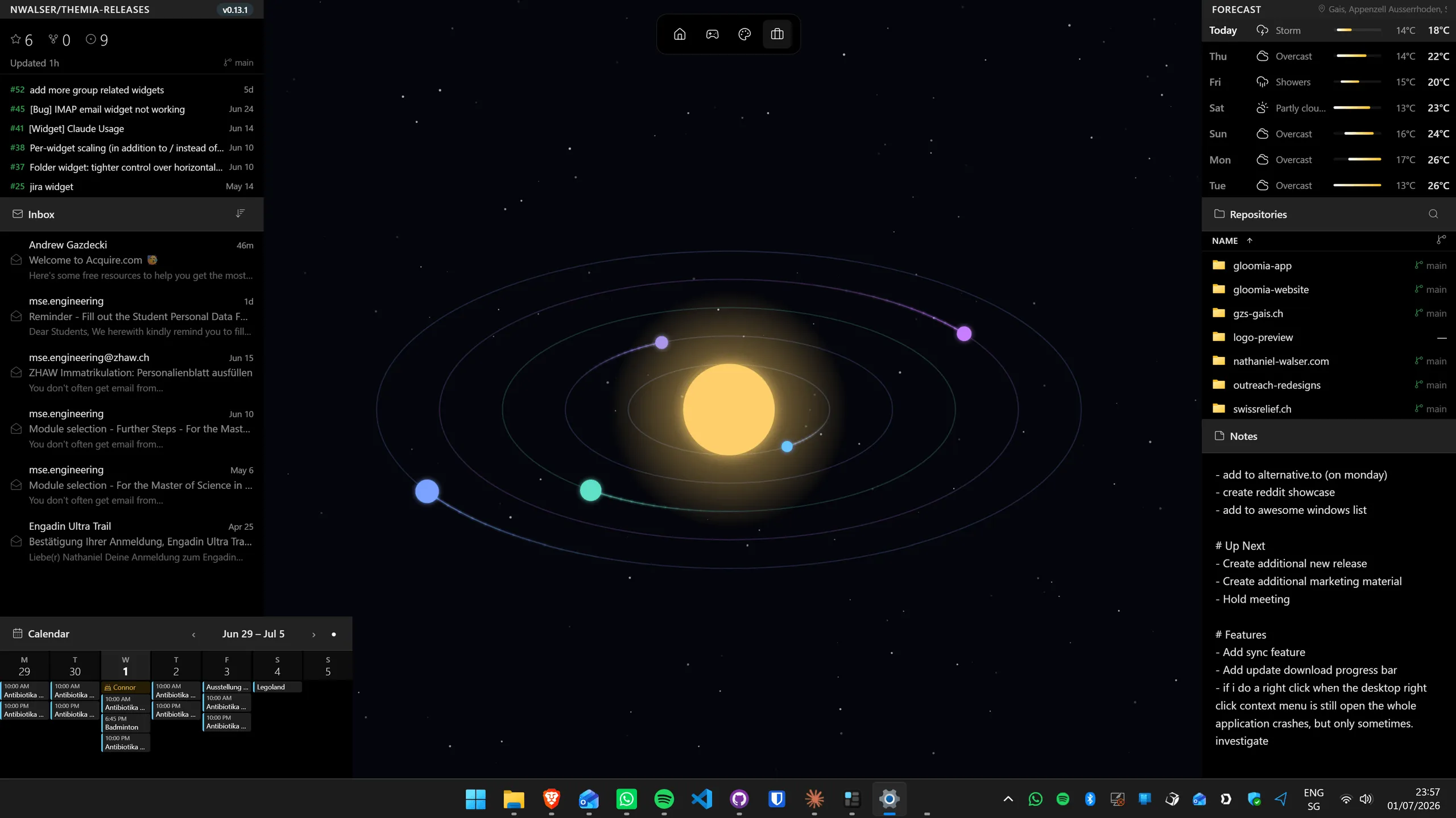
An icon pack makes a shortcut prettier. It cannot make it informative. Once the icons are done, most people notice the same gap: the desktop still shows nothing. That is the layer Themia fills — a native Windows widget app that puts live panels on the wallpaper itself.
The Folder widget pairs directly with this article: instead of thirty shortcuts you restyled individually, you get a live listing of a real directory that updates itself. Alongside it are a Clock with multiple time zones, Weather and Weather Forecast, CPU, GPU, RAM, Disk and Network monitors, Notes, To-Do, Calendar, Email, Contacts, Stocks, GitHub, RSS, Gallery, Calculator, Now Playing, Battery and Bluetooth. Widget backgrounds can be transparent, so they take on the tones of the wallpaper your icon pack was chosen to match.
For the wider picture — visual styles, accent colours and how the pieces fit together — this post's parent guide, best Windows 11 themes and icon packs, is the place to start. The Windows ricing guide walks through a full build in order, and the free customization tools roundup covers everything else worth installing. For a macOS result specifically, pair Big Sur or Golden Gate icons with the macOS look guide.
A sensible default
If you want one recommendation rather than nineteen: install Windhawk, add the Resource Redirect mod, pick Papirus or one of niivu's Windows 11 themes from the dropdown, clear the icon cache. Ten minutes, no admin surgery, and you can undo the whole thing with a toggle. Go to 7tsp only when a pack you specifically want exists nowhere else — and check its build compatibility line before you do.
FAQ
What is the best icon pack for Windows 11 in 2026?
For most people it is one of niivu’s sets, because they ship in both formats — a 7tsp archive and a Windhawk Resource Redirect theme — so you can apply them without patching anything. If you want a longer pedigree, Papirus is the safest choice: open source, maintained for years, and consistent across system and folder icons. For folder icons alone, Folder11 matches the stock Windows 11 folder shape better than anything else.
Do icon packs slow down Windows 11?
No, with one caveat. Replaced icons are just resource data — they cost nothing at runtime. The Windhawk Resource Redirect mod does hook resource-loading calls across processes, which is real work, but it is per-load and imperceptible in normal use. What people mistake for slowdown is usually a stale icon cache: File Explorer keeps drawing old icons until the cache is cleared, which looks like the pack half-applied rather than like a performance problem.
Is 7tsp safe to use on Windows 11?
7tsp GUI patches system DLLs on disk, so it carries more risk than an in-memory tool. It mitigates that by creating a System Restore point before patching and by keeping a Restore function to put the original files back. The genuine danger is applying a pack compiled for a different Windows build — the resource indexes will not line up and you can end up with missing or black icons. Check the pack’s stated build compatibility before you patch, and do not power the machine down mid-patch.
Why did my Recycle Bin icon go back to the default?
Two likely reasons. The Recycle Bin has two icon states, full and empty, and if you only replaced one it reverts the moment the other state kicks in. The other is that applying a Windows theme can overwrite desktop icons — there is an "Allow themes to change desktop icons" checkbox in Desktop Icon Settings, and it is ticked by default. Untick it after you set your icons.
Do I have to reapply my icon pack after every Windows update?
Cumulative monthly updates almost never disturb icons. Feature updates do, if you used 7tsp: the update replaces the very DLLs 7tsp patched, so icons revert to stock and you need a pack built for the new build. Windhawk Resource Redirect survives by design, because nothing on disk was modified — you may just need to clear the icon cache. Manual folder icons and Desktop Icon Settings choices are stored per folder and per user, so updates leave them alone.
Can I use an icon pack alongside desktop widgets?
Yes, and they solve different problems. An icon pack restyles shortcuts and folders; it cannot make them show anything. A widget app like Themia adds a live layer on top of the wallpaper — folders, clock, weather, CPU and GPU load, notes, calendar, mail. The two do not touch the same part of Windows, so there is nothing to conflict. In practice a Folder widget also reduces how many desktop shortcuts you have to restyle in the first place.