How to Make Windows 10 Look Like Windows 11 (2026)
There are two reasons people search for a Windows 11 theme for Windows 10. Either their hardware failed the TPM 2.0 check and Microsoft will not let them upgrade, or they upgraded once, hated something specific, and rolled back — but still liked how it looked. Both are legitimate. Neither is served by the usual answer, which is a download portal offering one "transformation pack" that installs eleven things you did not ask for.
This guide goes layer by layer instead: visual style, taskbar, Start menu, icons, sounds, wallpaper, widgets. For each one, the tool that actually works on Windows 10 in 2026, what it costs, what it costs you in stability, and — in one case — why the honest answer is that it cannot be done.
First, the awkward part: how long is this worth doing?
Windows 10 reached end of support on 14 October 2025. It gets no new features, which is exactly why the tools below are more stable than their Windows 11 equivalents — the shell they hook into stopped moving. What it does still get is security patches, through the consumer Extended Security Updates programme. Microsoft's ESU page currently lists 12 October 2027 as both the enrolment cutoff and the end of coverage, after an extension from the original October 2026 date.
So treat this as an asset with a shelf life of roughly a year and a half — long enough to be worth an afternoon, not long enough to justify a deeply invasive setup you will have to unpick later. Enrol in ESU, keep your browser and security software current, and do not run an unsupported OS with patching turned off. That is the whole lecture, and it is over.
What each layer gets you, at a glance
If you only do two of these, do the visual style and the taskbar. Together they carry about 70% of the impression.
| Layer | Tool | Cost | Stability cost |
|---|---|---|---|
| Visual style (window chrome, colours) | SecureUxTheme + a community msstyles | Free | Medium — patches theme signature checks |
| Centred taskbar icons | TaskbarX 1.7.x | Free (portable) · paid Store build | Low — unmaintained but self-contained |
| Rounded, floating taskbar | RoundedTB | Free | Low |
| Windows 11-style Start menu | Stardock Start11 v2 | Paid (one-time or annual licence) | Low — commercial, clean uninstaller |
| System icons | 7TSP GUI + a Win11 icon pack | Free | High — rewrites resources in system DLLs |
| Wallpaper, sounds, cursors | Built-in Settings and mmsys.cpl | Free | None |
| Rounded window corners | None that works | — | Not achievable on Windows 10 |
| Desktop widgets | Themia | Free tier · $19 one-time Pro | None — normal user-space app |
Before anything else: make a System Restore point. Type "Create a restore point" into Start, pick your system drive, click Create. Two of the layers below touch system files, and this is the five-second insurance policy that makes the whole exercise low-consequence.
Layer 1 — The visual style
The core of any "Windows 11 theme for Windows 10" is an .msstyles visual style: a resource file that redefines window borders, title bars, buttons, scrollbars, menus and the colour scheme. Windows refuses to load unsigned ones, so you need a patcher first.
Pick a patcher
SecureUxTheme (free, open source, at github.com/namazso/SecureUxTheme) is the one I would use. It reached v4.0.0 in June 2026, supports Windows 10 x86/x64/ARM64, and patches in memory rather than replacing files on disk — which is why it is Secure Boot compatible and why nothing is left behind if you remove it. v4 is configuration-free, and it is on winget as namazso.SecureUXTheme.
UltraUXThemePatcher (free, from mhoefs.eu) is the older alternative, covering Windows XP through 11. It modifies the real system files but backs up the originals and reverses everything on uninstall. Use it if SecureUxTheme misbehaves on your build; otherwise there is no reason to prefer it.
Pick a theme
The best-known one is "Windows 11 for Windows 10" by niivu on DeviantArt — the same author maintains the widely-linked installation guide for Windows themes. There are others on VSThemes and in the wider theming community, and quality varies enormously. Two things to check before you download anything: that the theme names your exact Windows 10 build (visual styles are build-sensitive), and that it was updated after your last cumulative update.
Installation is the same everywhere. Extract the archive, copy the .theme files and the theme folder into C:\Windows\Resources\Themes, then apply it from Settings → Personalisation → Themes. If it appears in the list but reverts to the default the instant you click it, the patcher did not take.
What this gets you: Windows 11's colour palette, lighter window chrome, restyled controls, and in the better themes a convincing Explorer. What it does not: WinUI. The Windows 11 File Explorer command bar and tabs, the new context menus and the Settings app are compiled Windows 11 code. No visual style reproduces them.
Layer 2 — Centre the taskbar
TaskbarX by Chris Andriessen centres your taskbar icons, animates the transition, and can make the taskbar transparent, blurred or a flat colour. It is MIT-licensed and free as a portable download from chrisandriessen.nl; the Microsoft Store build is identical and paid, as a way of supporting the developer.
Be aware of two things. First, the GitHub repository was archived in June 2025 — the project is finished, not abandoned mid-flight, and version 1.7.x works correctly across Windows 10 builds. Because Windows 10's taskbar will never change again, this matters far less than it sounds. Second, several domains carrying the TaskbarX name rank well and are not the project. Get it from the developer's site or the archived repo.
For the floating, rounded taskbar that Windows 11 originally shipped and later abandoned, pair it with RoundedTB (free, Microsoft Store or GitHub), which adds margins, a corner radius and optional segments. It supports Windows 10 and 11 and coexists with TaskbarX without conflict. We compared the taskbar tools in more depth in Themia vs TaskbarX.
Layer 3 — The Start menu
This is the layer with exactly one good answer. Stardock Start11 v2 lists Windows 10 and 11 as supported and explicitly advertises bringing the Windows 11 Start menu to Windows 10 — pinned grid, rounded panel, the lot. It is commercial, sold as a one-time or annual licence, and it uninstalls cleanly. Stardock has shipped Start menu replacements since Windows 8, so the compatibility track record is real.
Two tools you will see recommended that are pointed the wrong way: Open-Shell (free, GitHub, still receiving commits in 2026) and StartIsBack for Windows 10 (around $4.99, still updated as of mid-2026). Both are excellent, and both exist to bring back the classic Start menu. If you want Windows 10 to look like Windows 11, neither is the tool.
Layer 4 — Icons
Windows 11's icons are a bigger part of its identity than most people register until they are changed. The tool for this is 7TSP GUI (7 Theme Source Patcher), which supports Windows 10 build 1903 and later, and Windows 11. Windows 11 icon packs for Windows 10 are on DeviantArt and the usual theming sites, distributed as .7z archives you feed straight into 7TSP.
The process: open 7TSP, "Add a Custom Pack", select the archive, "Start Patching", reboot. It creates a restore point by default — leave that on.
This is the highest-risk layer in the guide, and it is worth being blunt about why. 7TSP rewrites icon resources inside system DLLs such as imageres.dll and shell32.dll. It is not a registry override. A pack built for the wrong build can leave you with blank or scrambled icons across the shell, and the fix is that restore point. If you want the visual upgrade without touching system files, changing icons on individual shortcuts by hand (right-click → Properties → Change Icon) gets you most of the visible benefit at zero risk.
Layer 5 — Rounded corners, and why this one is a no
Rounded window corners are the layer everyone asks about and the one nobody can deliver. In Windows 11 they are drawn by the Desktop Window Manager, using a corner-preference attribute introduced in build 22000. Windows 10's DWM has no such attribute. There is nothing to toggle, no registry key, no supported API.
MicaForEveryone is what search results will suggest. It requires Windows 11 build 22000 for Mica and 22523 for Acrylic and Tabbed; on Windows 10 it does nothing at all. Some msstyles visual styles paint a rounded border onto classic Win32 windows, which is a decent illusion on Notepad and File Explorer and no help anywhere else.
You will find tools claiming to cold-patch uDWM.dll. Those are written for Windows 11, and they exist to remove rounding. Do not point a DWM patcher at a Windows 10 install and hope — of everything here, that is the one route that can leave you without a working desktop.
Related: Rectify11 comes up constantly in this search. It is a good project and it is Windows 11 only — it makes Windows 11 internally consistent, it does not bring Windows 11 to Windows 10.
Layer 6 — Wallpaper, sounds and cursors
The free wins, none of which touch a system file.
- Wallpaper. Windows 11's default Bloom image and the rest of the stock set live in
C:\Windows\Web\Wallpaperon any Windows 11 machine. If you have access to one you own, copy them across. They are also widely mirrored in 4K. - Sounds. Windows 11's startup and notification sounds are
.wavfiles inC:\Windows\Media. Copy them into the same folder on Windows 10, then open the classic sound panel (Win+R →mmsys.cpl→ Sounds), reassign each event, and use "Save As" to store it as a named scheme. Reverting is one dropdown. - Cursors. Windows 11 shipped a redrawn cursor set in
C:\Windows\Cursors. Copy the files over, then Settings → Devices → Mouse → Additional mouse options → Pointers, and save it as a scheme the same way. - Accent colour and dark mode. Settings → Personalisation → Colours. Windows 11's default look is dark chrome with a restrained accent; matching that costs nothing and helps more than it should. Our dark mode guide covers the colour side in detail.
There is also a one-installer route — SkinPack-style bundles that do every layer at once. They are quick, they touch far more of the system than the sum of the parts above, and they uninstall badly. On a machine you depend on, the layer-by-layer route is worth the extra half hour.
Layer 7 — The widget layer Windows 10 never had
Windows 10's contribution to the widget idea was "News and interests", a taskbar flyout of weather and MSN headlines. Windows 11 replaced it with the Widgets Board — better looking, still a fixed-width panel behind a button. Neither puts anything on your actual desktop.
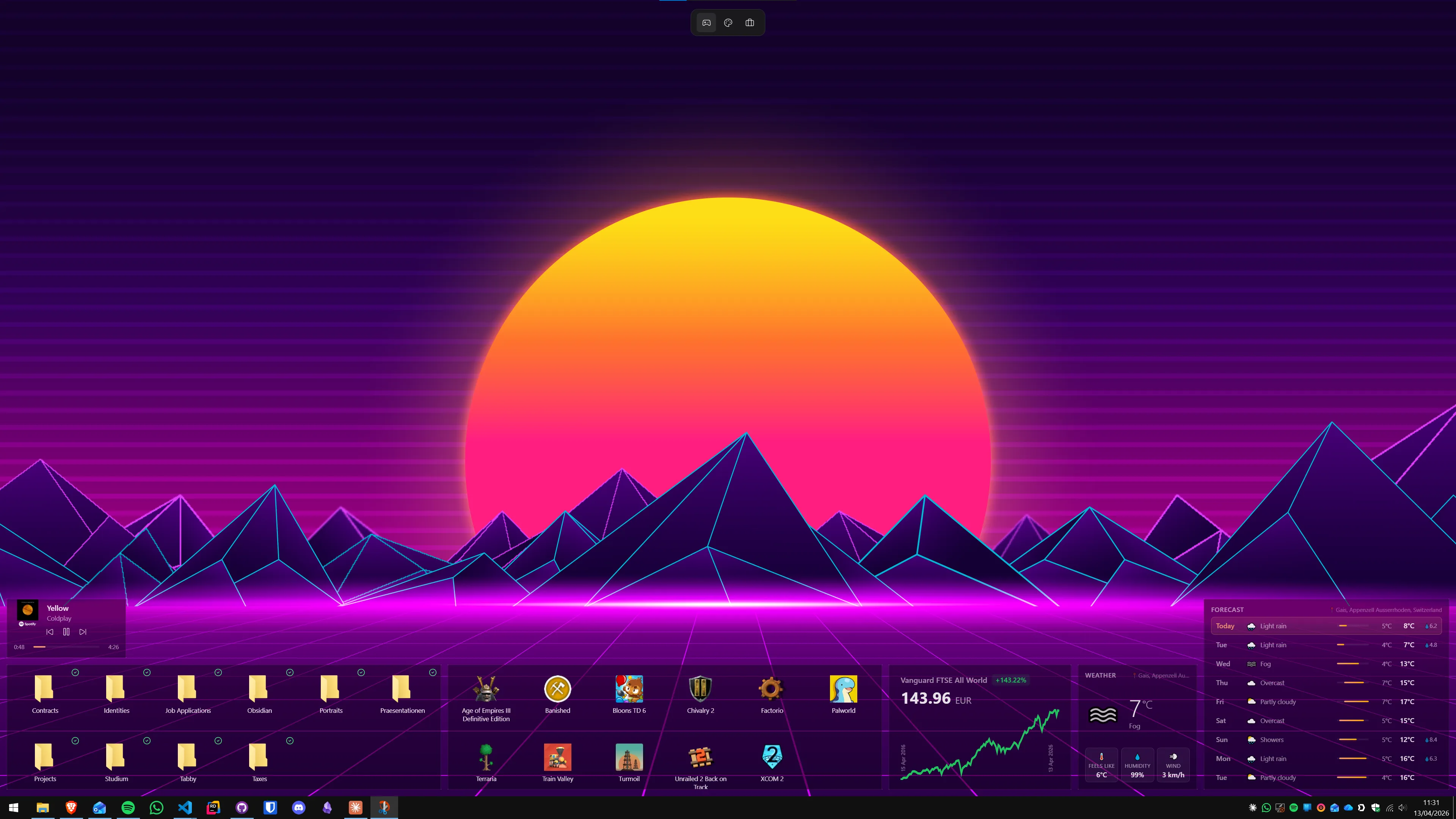
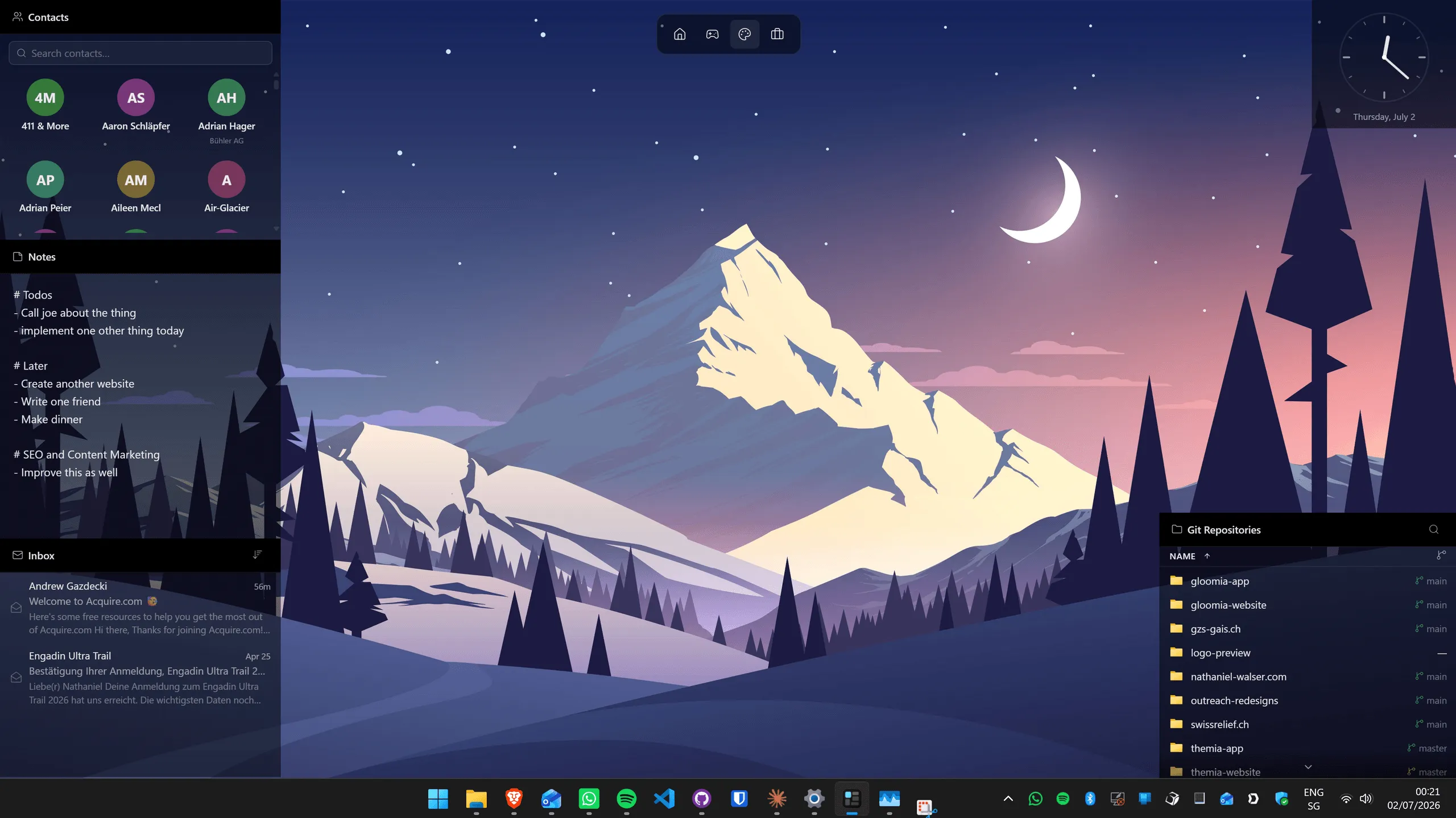
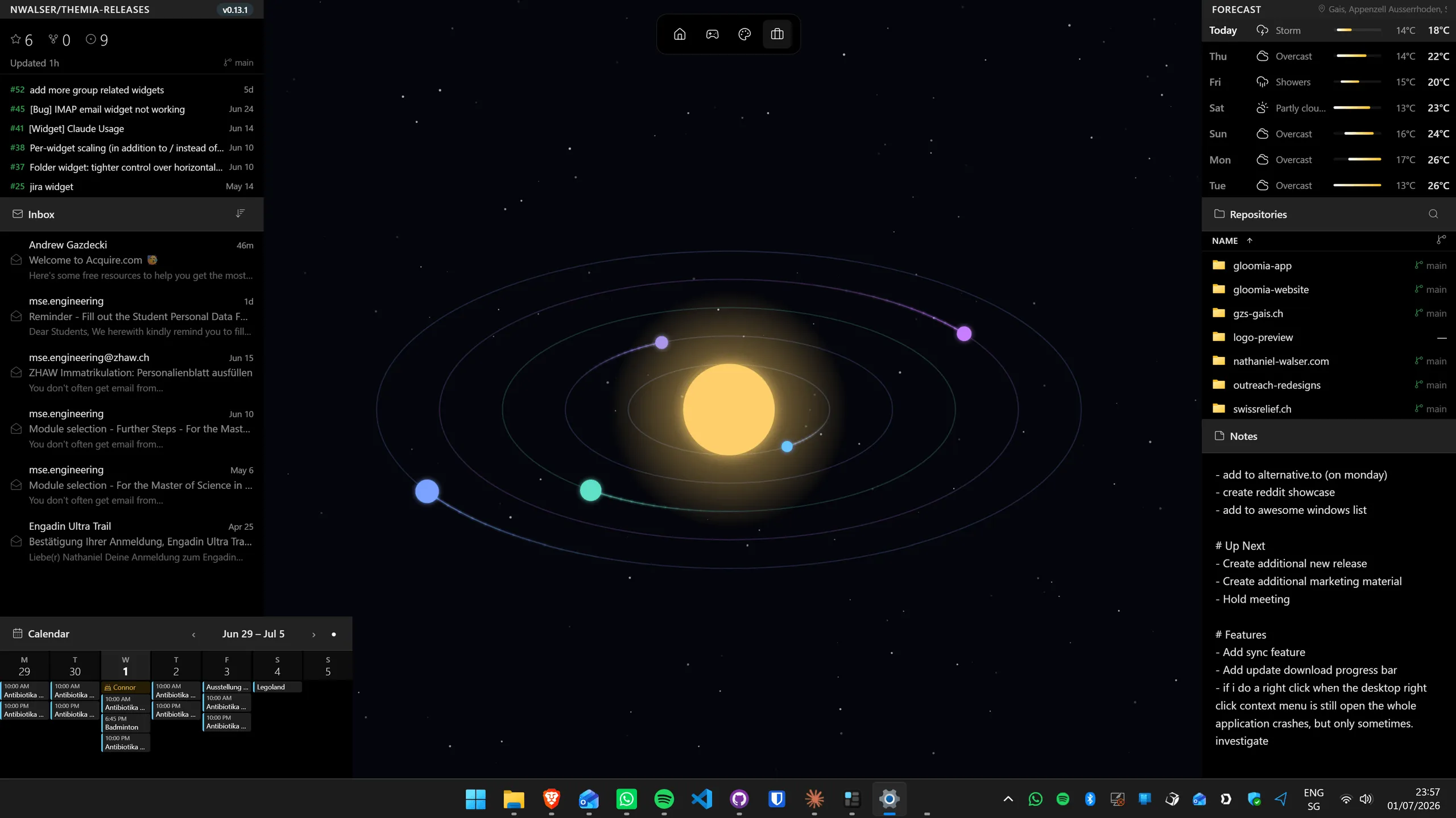
Themia does. It is a native Windows app under 10 MB that runs on Windows 10 and 11 and draws live widgets directly onto the wallpaper, below your app windows — visible whenever you glance at an empty desktop, never in the way when you are working. The set covers a big legible Clock with multiple time zones, Weather and a seven-day Forecast, Calendar and Email (Microsoft 365 and Outlook), Notes, To-Do, Contacts, Folder, CPU, GPU, RAM, Disk and Network monitors, Battery, Bluetooth connection state, Stocks, GitHub, RSS, Now Playing, Gallery and Calculator.
The free tier covers the core widgets; Pro is $19 one-time and adds the full set plus per-screen layout switching. It installs and uninstalls like any normal application — no patchers, nothing to undo when you eventually move to Windows 11 and take the same layout with you.
Doing it in the right order
- System Restore point.
- Wallpaper, sounds, cursors, accent colour — free, instant, reversible.
- TaskbarX, then RoundedTB. Biggest visual return per minute spent.
- SecureUxTheme, then the msstyles. Reboot. Confirm the desktop still behaves.
- Start11, if you want the Start menu to match.
- 7TSP icons — last, on its own, after everything else is proven stable.
- Themia for the widget layer, whenever.
Doing icons last matters. If something breaks after a 7TSP pass, you know precisely what caused it. Bundle it with three other changes and you are restoring blind.
Is it worth it?
Realistically you will land around 80% of the Windows 11 look in an afternoon, for free plus one paid Start menu. The remaining 20% is rounded corners, WinUI Explorer and the new Settings app, and none of that is coming to Windows 10.
Where it pays off is that a themed Windows 10 desktop with a proper widget layer is genuinely nicer to use than stock Windows 11 — the aesthetic, plus information Microsoft still keeps behind a button. If you would rather survey the theming landscape first, the best Windows 11 themes covers the visual-style level, and make Windows 11 look like macOS runs the same layered method in a different direction. For the widget side, the best Windows desktop widget apps compares the options.
Frequently asked questions
Is there an official Windows 11 theme for Windows 10?
No. Microsoft never shipped a Windows 11 visual style for Windows 10, and it never will — the Windows 11 look is built on WinUI and a Desktop Window Manager that Windows 10 does not have. Everything described in this guide is community work: msstyles visual styles from theme authors, third-party Start menu and taskbar utilities, and icon packs. The Windows 11 wallpapers, sounds and cursors are the only genuinely Microsoft-made pieces, and you have to copy those off a Windows 11 machine yourself.
Can I get rounded window corners on Windows 10?
Not properly. Rounded window corners in Windows 11 come from the Desktop Window Manager, which exposes a corner-preference attribute that does not exist in Windows 10. MicaForEveryone, the tool people usually suggest, requires Windows 11 build 22000 or newer and does nothing on Windows 10. Some msstyles visual styles draw a rounded border on classic Win32 windows, which gets you part of the way, but modern apps and the shell stay square. Avoid anything advertising itself as a DWM patcher for Windows 10.
Is it safe to patch uxtheme.dll to install a custom theme?
It is well-trodden but not risk-free. SecureUxTheme (v4, open source, on GitHub) is the safer of the two common options because it patches in memory rather than replacing system files, and it is Secure Boot compatible. UltraUXThemePatcher modifies the actual system files but backs up the originals and undoes everything on uninstall. Either way: make a System Restore point before you start, and download only from the project's own GitHub or site. The lookalike download portals that rank for these tool names are not the projects.
Will Windows Update break my Windows 11 theme?
Less than it used to, and that is a strange side effect of Windows 10 being end-of-life. Windows 10 no longer receives feature updates, so the shell binaries these tools hook into are frozen. A monthly security update can still occasionally reset a patched uxtheme.dll, in which case you re-run the patcher. Under Windows 11, by contrast, every annual feature update reliably breaks half of this category.
Does TaskbarX still work in 2026?
On Windows 10, yes. The GitHub repository was archived in June 2025 and the project is no longer developed, but version 1.7.x still centres icons and styles the taskbar on every Windows 10 build. Since Windows 10 itself is frozen, "unmaintained" matters far less here than on Windows 11, where Microsoft locked the taskbar down and TaskbarX centring no longer works at all. Download it from chrisandriessen.nl or the archived GitHub repo — several domains carrying the TaskbarX name are not the project.
Is it a bad idea to stay on Windows 10 in 2026?
It is a decision with a deadline attached, not a disaster. Windows 10 stopped receiving mainstream support on 14 October 2025. The consumer Extended Security Updates programme keeps security-only patches coming, and Microsoft's ESU page currently gives 12 October 2027 as both the enrolment cutoff and the end of coverage. Enrol, keep your browser and security software current, and be honest with yourself that you are theming an operating system with a countdown on it.
Can I put Windows 11-style widgets on a Windows 10 desktop?
Yes, and this is one area where Windows 10 can come out ahead. Windows 11's Widgets Board lives behind a taskbar button in a fixed panel. A dedicated widget app puts live widgets directly on the wallpaper instead. Themia runs on Windows 10 and 11 and places widgets below your windows and above the wallpaper, so they are there whenever you glance at the desktop.