Folder
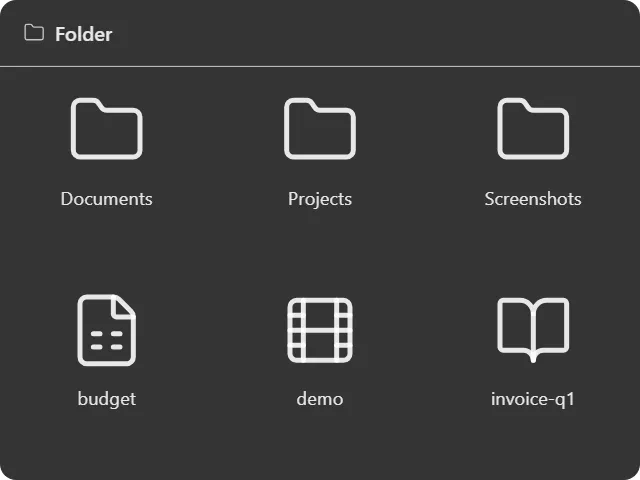
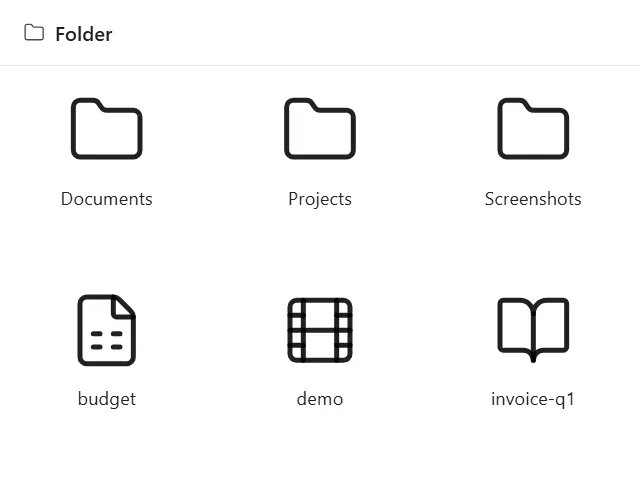
A folder from your PC, on the desktop, as a list, grid or icon wall.
What it does
Puts a real folder on your desktop. This is the widget that replaces the pile of icons: point one at Projects, one at Screenshots, one at Downloads, and the files live in labelled frames instead of scattered across the wallpaper.
Four layouts: list, details (a table with Size, Modified, Type, Cloud, Git and item-count columns you choose), grid, and icons. Image files get thumbnails in the grid views. Row density and tile size are adjustable.
Double-clicking the header opens the folder in Windows Explorer. Clicking items either opens them in Explorer or navigates inside the widget, depending on the navigation mode you pick.
Two touches worth knowing about: a folder that is a git repository shows a branch badge with staged, modified, untracked, deleted and conflicted counts; and files synced with OneDrive show a cloud badge indicating their pin status.
You can filter by filename keywords, show or hide hidden and dot files, and choose whether extensions are displayed.
Where the data comes from
The local file system, read directly. No indexing service, no cloud round-trip, no copy of your files anywhere.
Drag and drop works both ways, and cut items dim until the operation completes.
Limits
- One folder per widget. Use several widgets for several folders.
- Git status is read from the working tree; it is a status badge, not a git client.
- The widget follows the folder. Moving or deleting the underlying directory leaves the widget in an error state until you repoint it.